You toggled on Mobile Hotspot to share your Samsung Galaxy S25's connection, but your laptop or tablet either can't see the network or refuses to connect once it does. It's a frustrating moment, especially when you need to get another device online quickly. The good news is that most Galaxy S25 hotspot problems trace back to a handful of settings and quick resets, and you can work through them in order without losing any data.
The fixes below are arranged from the easiest and safest to the more involved, with the network reset and factory reset saved for last. Start at the top and only move down if the previous step doesn't solve it. In most cases you'll be back online before you reach the bottom of the list.
Confirm Your Carrier Plan Actually Includes Tethering
Before you touch a single setting on the phone, verify that your plan supports hotspot use. Samsung is direct about this requirement: "In order to use a hotspot, you must have a tethering plan on your service account with your carrier." Without that plan, the Mobile Hotspot feature simply will not pass traffic, no matter how the phone is configured.
If you're unsure whether your plan covers tethering, contact your carrier and ask them to confirm or add it to your account. This is the most common reason a hotspot appears to turn on but never actually connects another device to the internet. Sorting this out first saves you from chasing settings that were never the problem.
Switch the Hotspot Off and On Again
A quick toggle clears the most common temporary connection hiccups. Head to Settings > Connections > Mobile Hotspot and Tethering, then tap the switch next to Mobile Hotspot to turn it off. Wait a moment, then tap it again to turn it back on.
Once it's back on, confirm the connection is genuinely working by opening a browser or any internet app on the receiving device. If a page loads, you're done. If the device connects but nothing loads, move on to the next checks.
Match the Network Name and Password Exactly
Connection failures are often nothing more than a mistyped password or the wrong network name. On your S25, open Settings > Connections > Mobile Hotspot and Tethering > Mobile Hotspot, where you can view and change both the Network name and Password. Make sure the other device is entering exactly what's shown here, paying close attention to capitalization.
If the other device still can't connect after you've matched the credentials, try turning the hotspot off and back on so it broadcasts fresh details, then attempt the connection again. A simple mismatch between what's shown on the phone and what's typed on the other device is one of the easiest problems to overlook.
Set the Band to 2.4 GHz for Stubborn Devices
Some devices, especially older or simpler ones, can only join a hotspot running on the 2.4 GHz band. If a device can't find or connect to your S25's hotspot, open Settings > Connections > Mobile Hotspot and Tethering > Mobile Hotspot and look at the Band setting.
Samsung describes the trade-off clearly: "2.4 Ghz is compatible with more devices, and 5 Ghz will provide better performance." If you've been running on 5 GHz and a device won't join, switch to 2.4 GHz to maximize compatibility, then try connecting again.
Check Whether the Hotspot Is Timing Out
Galaxy phones can shut the hotspot off automatically when no device is connected, which can make it look broken if you take too long to join. To review this, go to Settings > Connections > Mobile Hotspot and Tethering > Mobile Hotspot > Advanced and check the "Turn off when no device connected for" option.
If the idle timer is set short, your hotspot may be switching itself off before the other device finishes connecting. Adjust this setting so the hotspot stays on long enough for your devices to find and join it.
Restart the Phone to Clear Temporary Glitches
A normal restart resolves a surprising number of connectivity quirks. Press and hold the Volume down and Side button together; when the menu appears, tap Restart, then tap Restart again. This clears temporary glitches that can interfere with the hotspot.
Once the phone is back up, turn the Mobile Hotspot on again and test the connection from your other device. Give it a moment to fully boot before retrying.
Force Restart If the Screen Is Unresponsive
If your S25 has frozen and the normal restart menu won't appear, you can force a restart. Samsung's instruction is to "Press and hold the Volume down button and the Side button (or Power button) simultaneously until the device turns off and turns back on." There is no fixed number of seconds to count here; just keep holding the buttons until the device restarts on its own.
A force restart doesn't delete any of your data, so it's safe to use when the phone is stuck. Once the phone is back up, turn the Mobile Hotspot on again and test the connection from your other device.
Install the Latest Software Update
Connectivity bugs are frequently fixed in software updates, so keeping your software current matters. Open Settings > Software update (it may be labeled System updates) > Download and install, then follow the on-screen instructions. The exact labels can vary slightly by carrier, so look for the closest match such as Check for software updates or Check for system updates.
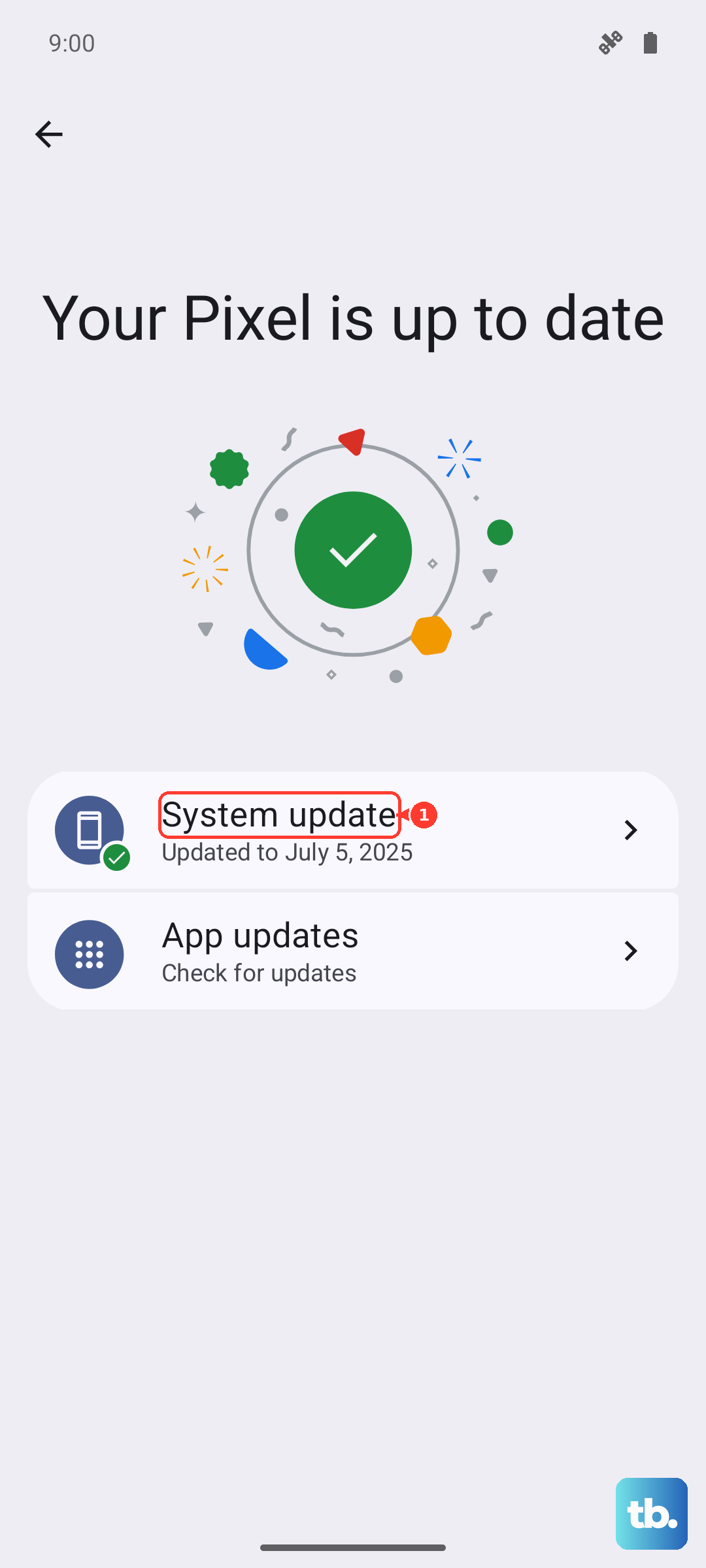
To stay ahead of future issues, you can also enable Auto download over Wi-Fi so updates arrive automatically. If updates won't download over the air at all, you can use the Samsung Smart Switch app on a PC or Mac to install firmware, available from Samsung's official website.
Reset Network Settings to Defaults
If the hotspot still misbehaves, returning your network configuration to its defaults can clear deeper issues. Go to Settings > General management > Reset > Reset network settings > Reset settings > Reset. This returns your Wi-Fi, mobile data and Bluetooth settings to default without deleting your apps or personal data.
After the reset you'll need to reconnect to your saved Wi-Fi networks and re-pair any Bluetooth devices. This step is non-destructive to your files, so it's a safe move before resorting to a full reset. Once your network settings are back to default, turn the hotspot on and test it again.
Factory Reset as a Last Resort
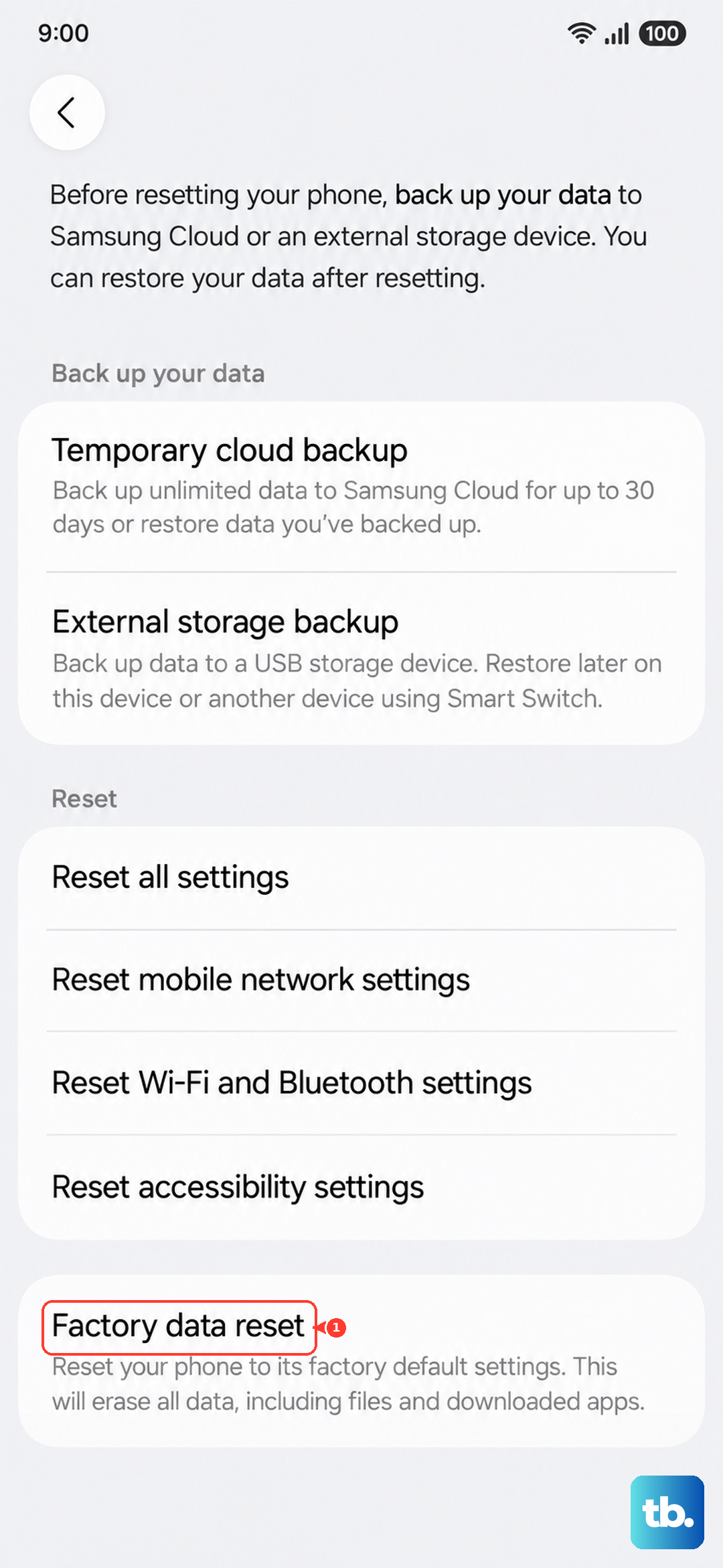
When nothing else has worked, a factory reset wipes the phone back to its original state and clears any persistent software fault. Back up everything first, because this step erases your data. Samsung warns: "Please save any information you need prior to the factory reset because your personal information may not be recovered."
Once you've backed up, go to Settings > General management > Reset > Factory data reset > Reset > Delete all, and enter your lock credentials and Samsung account password if prompted. If the hotspot problem continues even after a factory reset, contact Samsung Support or your carrier, since the issue may be account or hardware related rather than something a setting can fix.
Frequently Asked Questions
Why does my Galaxy S25 hotspot turn on but no device can get online?
The most common cause is a plan that doesn't include tethering. Samsung states you must have a tethering plan on your account with your carrier for the hotspot to work. Contact your carrier to confirm or add it, then try again.
A device can't find or join my S25 hotspot. What should I check?
Set the Band to 2.4 GHz under Settings > Connections > Mobile Hotspot and Tethering > Mobile Hotspot, since "2.4 Ghz is compatible with more devices." Then double check that the other device is entering the exact Network name and Password shown on your phone.
Will resetting network settings delete my photos and apps?
No. Reset network settings (Settings > General management > Reset > Reset network settings) returns Wi-Fi, mobile data and Bluetooth settings to default without deleting your apps or personal data. You will, however, need to reconnect to Wi-Fi and re-pair Bluetooth devices afterward.
My hotspot keeps switching itself off. How do I stop that?
Your phone may be set to disable the hotspot when idle. Check Settings > Connections > Mobile Hotspot and Tethering > Mobile Hotspot > Advanced and review the "Turn off when no device connected for" option so it doesn't shut down before your device connects.
What if updates won't download over the air?
You can install firmware from a computer using the Samsung Smart Switch app for PC or Mac, available from Samsung's official website. This lets you update the software when over-the-air updates fail, which can resolve connectivity bugs affecting the hotspot.