You reach for the flashlight on your Galaxy S25 in a dark room, tap the icon, and nothing happens; the rear LED stays dead even though the phone is on and responsive.
It is a frustrating problem on a phone this capable, especially when you only need a quick burst of light.
The good news is that a non-working torch on the standard Galaxy S25 (model SM-S931) is usually a software or shared-hardware conflict rather than a broken LED, and most causes clear in a minute or two.
Work through the fixes below in order, starting with the safest checks and saving the resets for last.
These steps follow Samsung's official Galaxy support guidance for One UI 7 on Android 15, the software the Galaxy S25 launched with.
Because that documentation is written generically for Galaxy phones, the exact menu wording can vary slightly depending on your carrier, so match the closest label you see on screen.
Make Sure the Flashlight Is Actually On and Not Just Hidden
The Galaxy S25 has a rear LED flash that doubles as a flashlight, and Samsung documents turning it on straight from the Quick settings panel.
Before assuming the torch is broken, confirm the toggle is in reach and switched on, because on One UI 7 the icon is sometimes tucked out of view.
Swipe down from the top right of the screen to open the Quick settings panel.
Tap the Flashlight icon to turn the light on or off.
If you do not see it, swipe left within the panel to find the Flashlight icon.
If the light comes on but is too dim to be useful, you can also set its brightness.
Tap and hold the Flashlight icon, turn on the flashlight by tapping the switch, then adjust the slider to change the brightness level.
Note that the brightness slider will be grayed out if you don't turn on the flashlight first, so flip the switch before reaching for the slider.
Close the Camera So It Stops Holding the Flash
The rear LED cannot act as a flashlight while the camera is using it.
If the Camera app, or any app that taps the camera or flash such as a document scanner or a video app, is open in the background, it can claim the flash and leave your torch unresponsive.
Fully close the Camera app and any other camera-using apps, then try the flashlight again.
If an app refuses to release the flash, you can force stop it from Settings > Apps by selecting the app and choosing the force stop option.
With the flash freed up, the Quick settings toggle should respond normally.
Cool the Phone Down If It Feels Hot
When the Galaxy S25 gets too warm, it protects itself, and that protection can take the flashlight offline.
A cooling-down notification can appear and the device automatically limits itself: screen brightness may be reduced, running apps may be closed, performance may be limited, charging may stop, and the Camera app may stop or close.
Because the flash is tied to the camera hardware, those same protections can keep the torch from turning on.
Stop using the phone, remove any case, unplug the charger, and close running apps.
Wait until the phone cools to a normal temperature before retrying the flashlight.
Force Restart to Clear a Locked-Up Flash
A temporary system glitch can lock up the flash even when nothing is obviously wrong.
A force restart gives the phone a clean reboot without touching any of your data, and it often revives a torch that has stopped responding.
Press and hold the Volume down button and the Side button (or Power button) simultaneously.
Keep holding until the device turns off and turns back on.
Samsung UK advises holding for more than 7 seconds to restart it; the phone vibrates when it resets.
If you prefer a normal restart instead, press and hold Volume down + Side button, tap Restart, then tap Restart again.
Once the phone is back at the home screen, open Quick settings and test the flashlight.
Clear the Camera App's Cache
Because the flashlight shares hardware with the camera, leftover temporary files in the Camera app can cause the flash to misbehave.
Clearing the cache removes residual files that could be slowing down the app, and it does not delete any of your personal data or photos.
Go to Settings > Apps.
Select Camera.
Tap Storage.
Tap Clear cache.
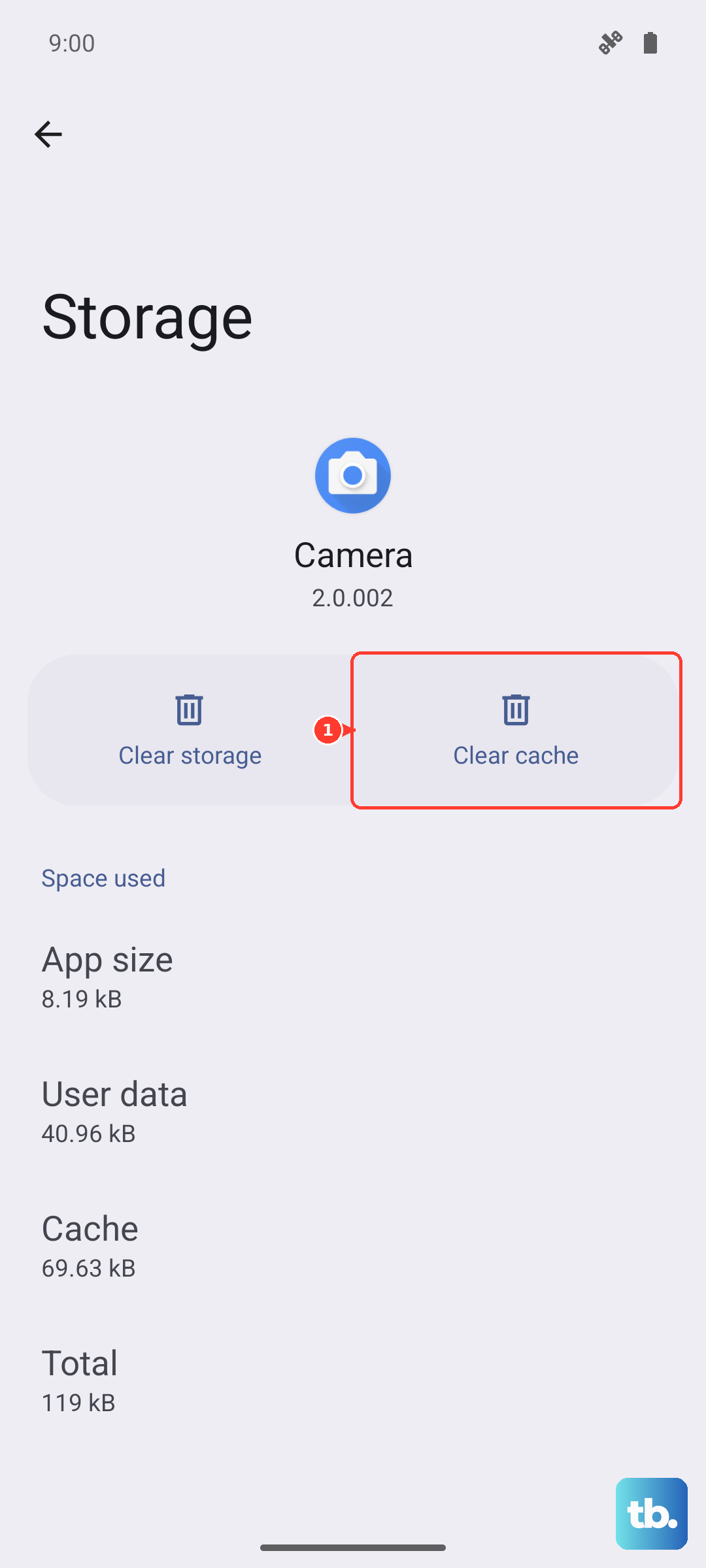
Reopen Quick settings afterward and tap the Flashlight icon to see whether the light now responds.
Run the Built-In Flashlight Diagnostic in Samsung Members
If the torch still will not come on, the Samsung Members app can tell you whether you are dealing with a third-party app conflict or an actual hardware fault.
It includes an official diagnostic that tests the flashlight directly.
Open the Samsung Members app.
Tap Diagnostics on the Discover tab.
Tap Phone diagnostics.
Tap the Flashlight test (or choose Test all to run every check).
The result tells you whether the problem is on the hardware side, which helps you decide whether the remaining software fixes are worth trying or whether the phone needs service.
Update the Phone's Software
A pending One UI or Android update can carry fixes for camera and flash bugs, so it is worth checking that your Galaxy S25 is fully up to date.
Connect to Wi-Fi and make sure the battery has enough charge before you start.
Go to Settings > Software update (or System updates).
Tap Download and install (the wording may be Check for system updates or Check for software updates depending on your carrier).
Follow the on-screen instructions to install any available update.
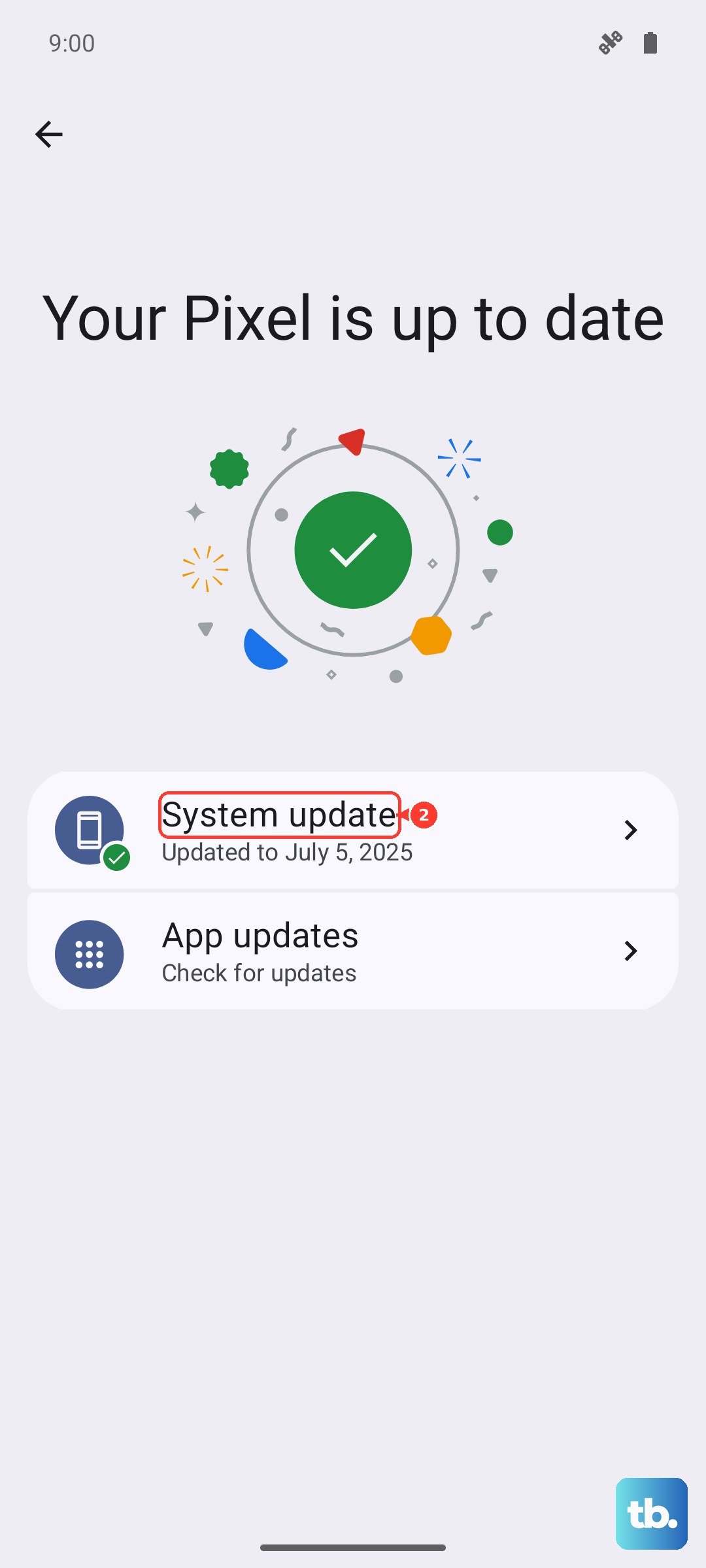
If you would rather update from a computer, Smart Switch on a Mac or PC is an alternative official way to update the device software.
Reset the Camera App by Clearing Its Data
If clearing the cache did not help, the next step is to reset the Camera app itself.
Clearing its data returns the app to factory-default settings and removes its saved preferences, but it does not erase your photos.
Go to Settings > Apps > Camera > Storage.
Tap Clear data.
Tap Delete to confirm.
Because this wipes the app's saved settings, re-check the Camera app's flash settings afterward, then test the flashlight again from Quick settings.
Factory Reset as a Last Resort, Then Contact Samsung
If nothing above works, a factory reset is the final software step, and it should only be used after you have backed everything up.
Samsung warns that you should save any information you need prior to the factory reset because your personal information may not be recovered.
Back up your photos, accounts, and files first.
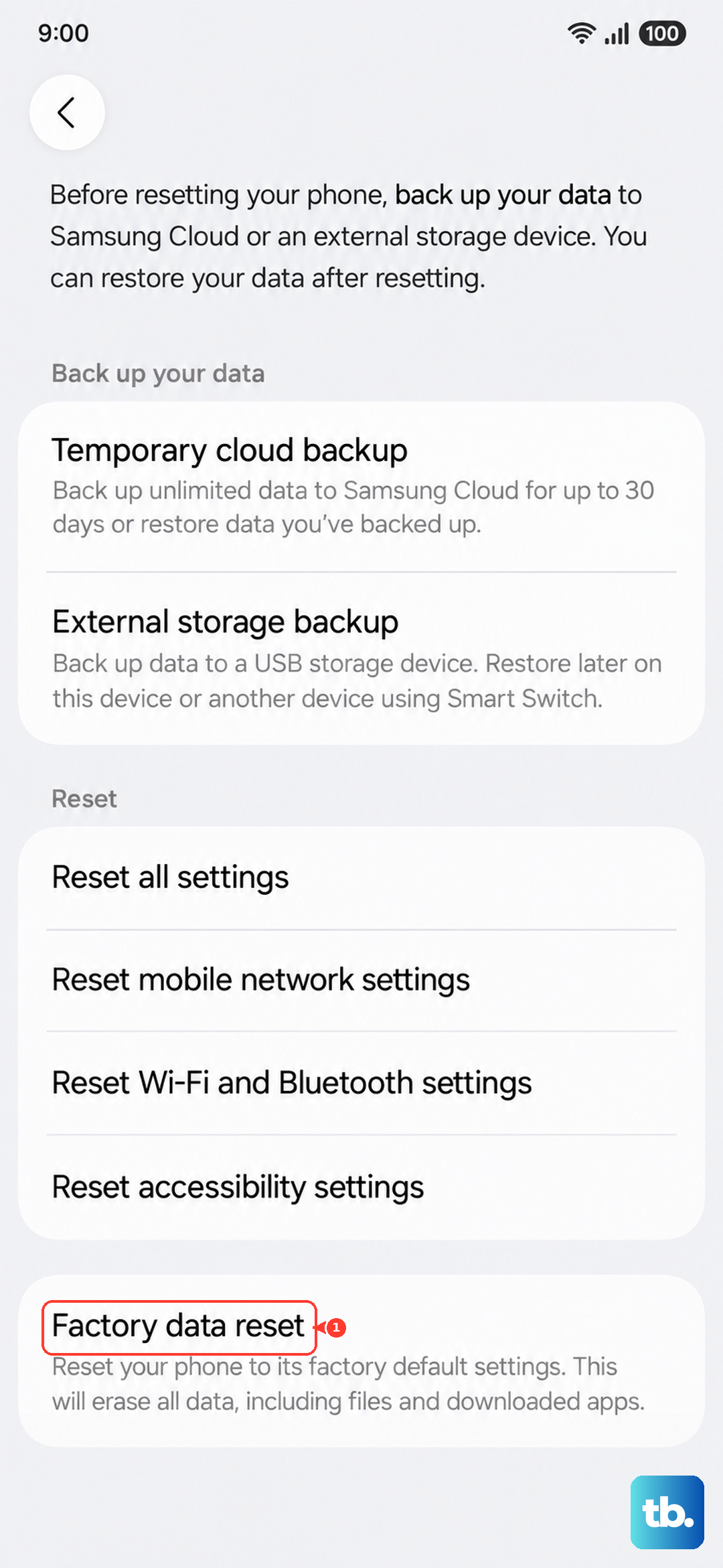
- 1.Go to Settings > General management > Reset.
- 2.Tap Factory data reset.
- 3.Review the information, then tap Reset.
- 4.Tap Delete all (enter your security lock and Samsung account password if prompted).
If the flashlight still fails after a reset, or if a Samsung Members test came back as a failure earlier, the problem is almost certainly hardware.
At that point, have the phone evaluated by an authorized service location.
Frequently Asked Questions
Why does my Galaxy S25 flashlight not turn on even though the phone works fine?
The most common reason is that another app, usually the Camera or a scanner or video app, is holding the flash, since the rear LED cannot be a flashlight and a camera flash at the same time. Overheating can also disable it, because the phone limits the camera and flash when it gets too hot. Close camera-using apps, let the phone cool down, and the torch should respond again.
How do I make my Galaxy S25 flashlight brighter?
Open the Quick settings panel, tap and hold the Flashlight icon, turn on the flashlight by tapping the switch, then adjust the slider to change the brightness level. The brightness slider stays grayed out until you actually turn the flashlight on, so switch it on first.
Will clearing the Camera app cache or data delete my photos?
No. Clearing the cache only removes residual temporary files, and clearing data resets the Camera app to factory-default settings and removes its saved preferences. Neither one erases your saved photos, though clearing data means you should re-check the app's flash settings afterward.
How do I check whether the flashlight problem is a hardware fault?
Use the Samsung Members app. Tap Diagnostics on the Discover tab, tap Phone diagnostics, then run the Flashlight test or Test all. If the test fails, the issue is likely hardware, and you should have the phone evaluated by an authorized service location.
What is the correct way to force restart a Galaxy S25?
Press and hold the Volume down button and the Side button (or Power button) simultaneously until the device turns off and turns back on. Samsung UK advises holding for more than 7 seconds, and the phone vibrates when it resets.