You pressed the power button on your Galaxy S25 FE expecting the home screen, but the phone froze on the Samsung logo and went no further. Maybe the screen flashes the logo, goes dark, then shows it again in a loop, or it just sits there glowing while nothing loads. It is an unnerving sight, but a logo that will not advance is usually a power, software, or app problem rather than a dead phone, and most owners clear it without ever leaving the house. The fixes below run from the safest and easiest to the official last-resort recovery, so start at the top and only move down if the screen is still stuck.
Give the Battery a Real Charge Before Anything Else
A phone that hangs on the logo is very often a battery that is empty or not charging properly, so plug it in before you assume the worst. Connect the Galaxy S25 FE to a known-good Samsung-certified charger and cable and leave it alone for several minutes.
If the battery was completely depleted, the charging indicator can take up to 10 minutes to appear on the screen, so do not panic at a blank display in the first few minutes.
While it charges, confirm the cable is seated firmly in the port and look inside the charging port for dust, lint, or debris that could be blocking a solid connection. A loose or dirty connection can mimic a software failure by never delivering enough power to boot.
Once the phone has taken on some charge, move to the forced restart in the next step.
Force Restart the Galaxy S25 FE With the Volume Down and Side Buttons
A forced restart cuts power to a hung system and lets it boot cleanly, and on the Galaxy S25 FE it uses the hardware buttons rather than a frozen touchscreen. A correctly performed forced restart does not erase any of your data, so this is safe to try.
- 1.Press and hold the Volume down button and the Side button (also called the Power button) at the same time.
- 2.Keep holding both keys until the device turns off and turns back on; the screen will go black and then the Samsung logo will appear.
- 3.On the official power-on troubleshooting guidance, Samsung specifies holding both keys for more than 7 seconds, then releasing them when the phone vibrates, the screen turns off, and the Samsung logo appears.
If the screen finally advances past the logo to the lock screen, the freeze was a temporary glitch and you are done.
If it loops back to the logo, continue below.
Charge Longer, Switch to a Certified Charger, and Watch for Recovery Mode
If the forced restart did not take, the battery may still be too low to complete a boot. Charge the phone sufficiently and wait a few minutes before turning it on again, since the charging time required to power on varies by model.
Use a charger that is certified by Samsung and compatible with your device, and avoid third-party chargers or chargers borrowed from other devices, which can charge slowly or inconsistently.
Sometimes the button combination lands the phone in Android recovery instead of a normal restart. If you see a recovery screen, use the Volume up and Volume down keys to highlight "Reboot system now," then press the Side key to select it.
That tells the phone to leave recovery and boot the system normally.
Boot Into Safe Mode to Catch a Misbehaving App
If the phone reaches the logo and even the home screen but keeps freezing, hanging, or crashing because of a recently added app, Safe mode will tell you. Safe mode starts the phone with only its built-in software so you can see whether a third-party app is the culprit.
Power the phone completely off.
Turn it on, and when the Samsung logo appears, press and hold the Volume down button.
Keep holding until the phone finishes starting; "Safe mode" will appear in the bottom-left corner of the screen.
There is also an alternative route. Press and hold the Side button and the Volume down button at the same time, touch and hold the Power off icon, then tap the Safe mode icon.
If the Galaxy S25 FE runs normally in Safe mode, a third-party app is almost certainly the cause.
Uninstall recently added apps one at a time by going to Settings > Apps > select the app > Uninstall, then restart normally to exit Safe mode.
Install Any Pending Software Update Once the Phone Boots
If you manage to get the phone fully booted, a software update can fix a buggy build that is causing the boot trouble in the first place. Keep the phone charged and connected to Wi-Fi before you start, because it will reboot itself to finish installing.
Open Settings and tap Software update.
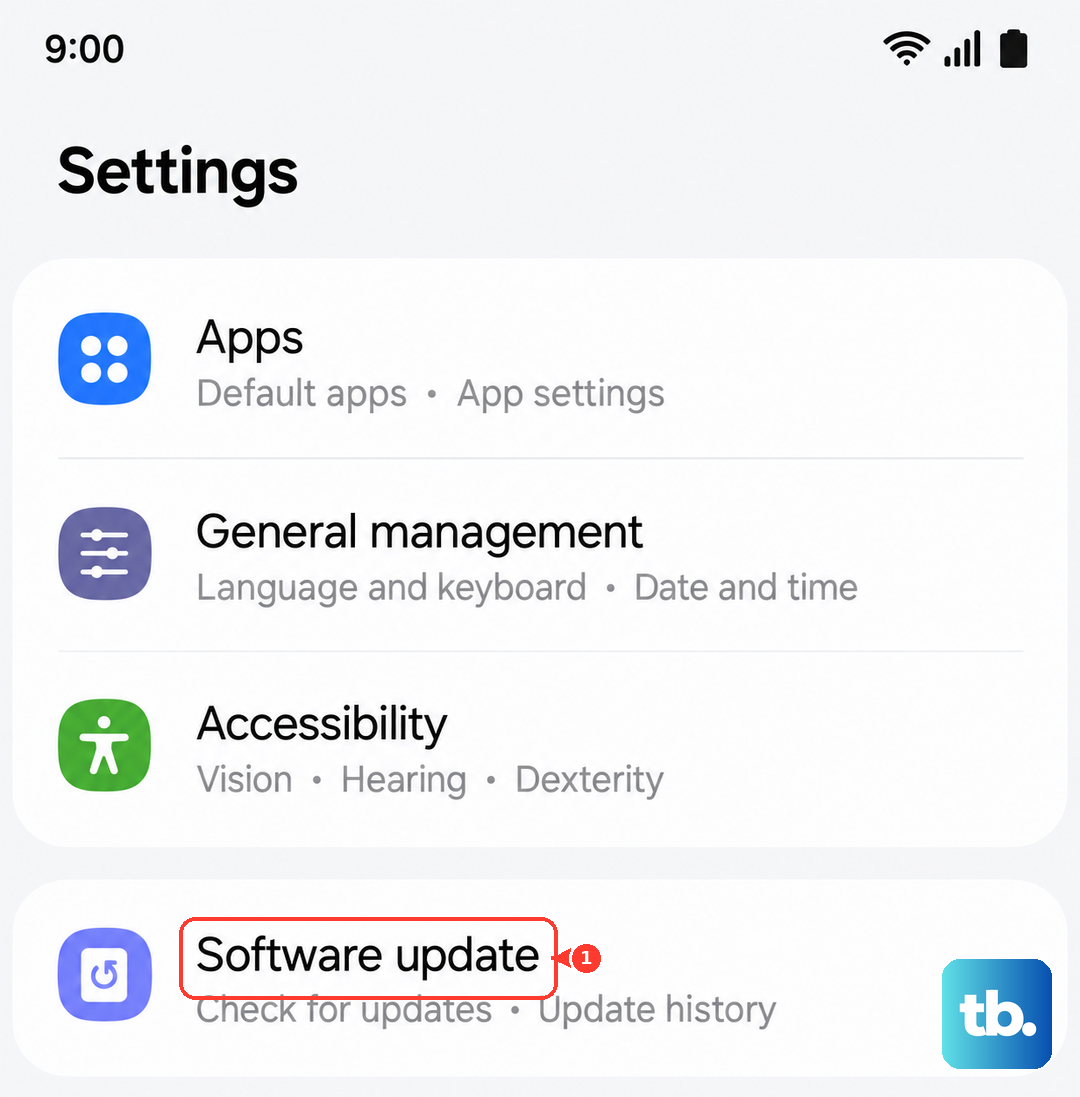
Tap Download and install (or Check for software updates).
Tap Install now, then let the phone download and reboot to complete the update.
You can also reach this through quick settings. Swipe down with two fingers from the top-right, tap Settings, then go to Software update (or System updates) > Download and install.
Letting the latest firmware install closes off many of the software defects that trigger a logo hang.
Use Smart Switch on a Computer for Emergency Software Recovery
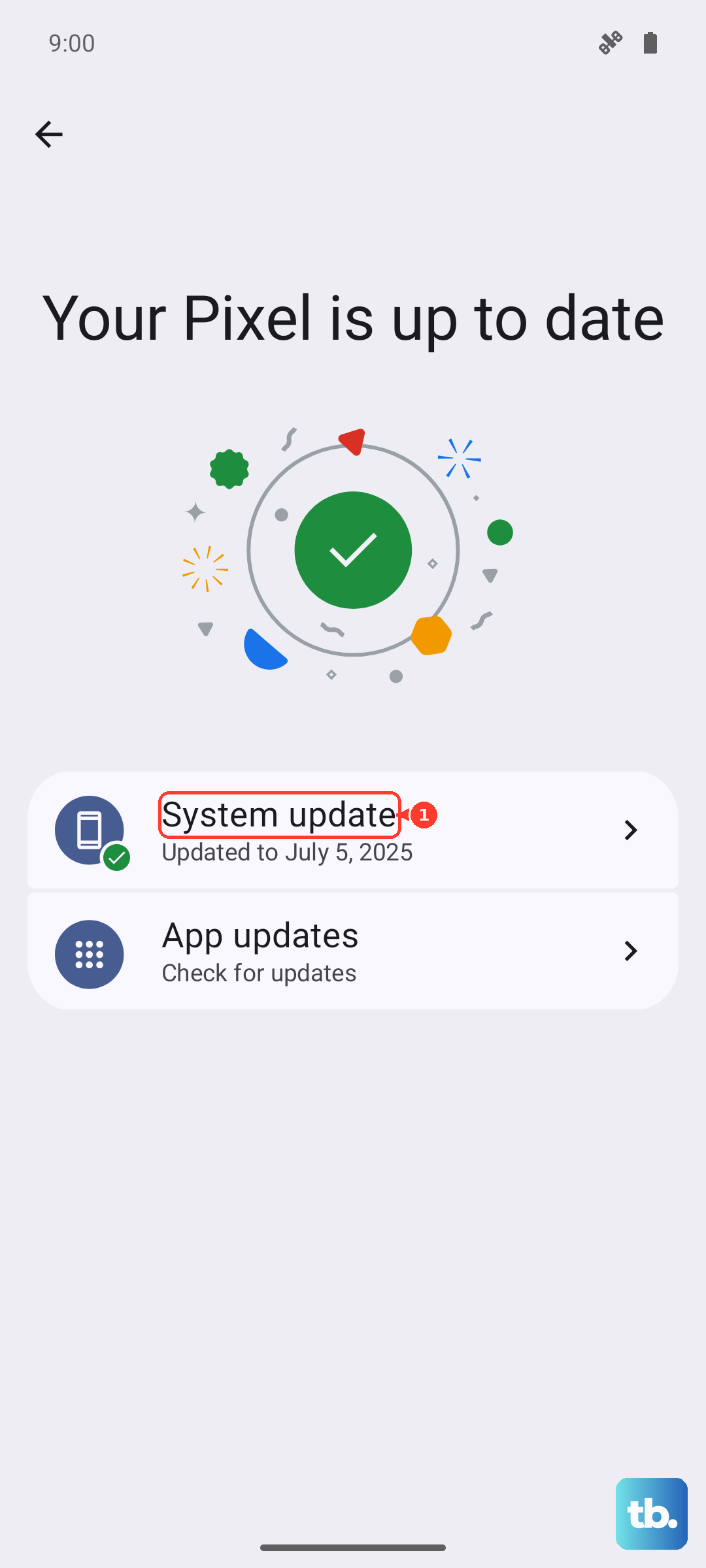
If the phone is still stuck and you cannot reach Settings at all, Samsung's official PC-based recovery can reinstall the firmware from a computer. The desktop app for this is Samsung Smart Switch, which runs on a Windows PC or a Mac.
Be aware that recovering software this way resets the phone and removes your data, so back up anything you can first and treat it as a last resort before service.
Download and install Samsung Smart Switch on your Windows PC or Mac.
Connect the Galaxy S25 FE to the computer with a USB cable.
In Smart Switch, select MORE > Emergency Software Recovery and Initialization.
Choose the device to restore and follow the prompts to reinstall the firmware.
This rebuilds the device software cleanly, which can revive a phone that no software step on the device itself could reach.
Because it resets the phone and erases your data, only use it after the earlier steps have failed.
Factory Reset the Phone if You Can Still Reach Settings
As a final on-device software fix, a factory data reset wipes the phone back to its original state, which can clear a stubborn corruption that survives a restart. This step erases everything, so back up your data first.
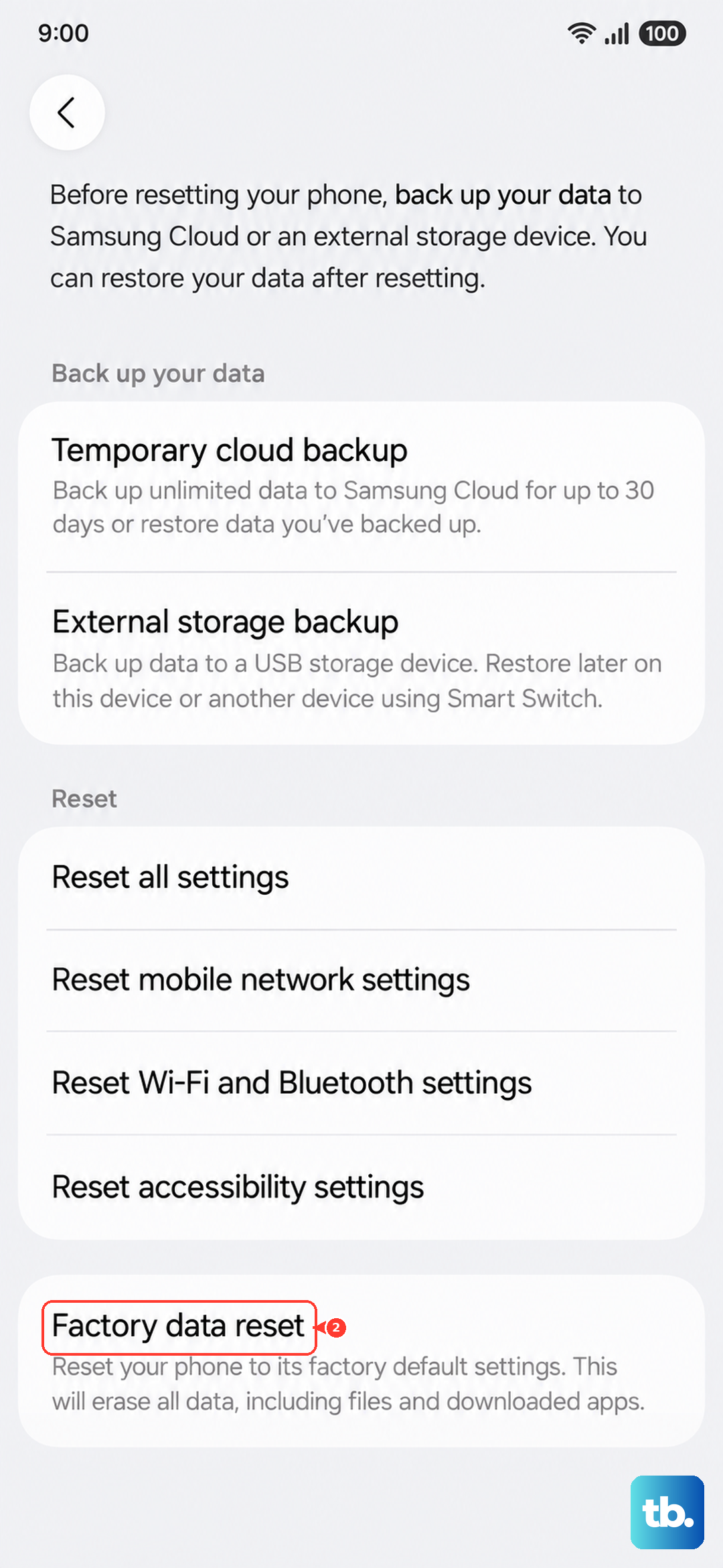
Samsung warns: "Please save any information you need prior to the factory reset because your personal information may not be recovered." A factory reset removes all apps, files, and personal data, and recovery of that data is not guaranteed.
Open Settings and tap General management.
Tap Reset, then tap Factory data reset.
Tap Reset, then tap Delete all to confirm.
Only do this once you have saved anything you cannot afford to lose, since the action cannot be undone.
If the phone can reach Settings but nothing else has worked, this is the last software lever you control yourself.
When to Hand It to Samsung Support
If the Galaxy S25 FE never gets past the logo even after charging, forced restarts, Safe mode attempts, Smart Switch recovery, and a reset where possible, the problem likely needs hands-on service rather than another at-home step. A persistent logo hang that survives a firmware reinstall points toward a hardware fault that a technician should inspect.
Contact Samsung Support or take the phone to a Samsung service center and describe exactly what you have already tried so they can move straight to diagnostics.
Frequently Asked Questions
Will a forced restart on the Galaxy S25 FE erase my data?
No. A correctly performed forced restart, holding the Volume down button and the Side button until the device turns off and back on, does not erase any data. It simply cuts power to a hung system and lets the phone boot fresh.
Why does my screen stay black for several minutes when I plug it in?
If the battery was completely depleted, the charging indicator can take up to 10 minutes to appear on the screen. Leave the phone connected to a Samsung-certified charger and cable, confirm the cable is seated firmly, and check the charging port for dust or debris before trying to power it on again.
How do I know whether an app is causing the freeze?
Boot into Safe mode, which loads only the phone's built-in software. Power the phone off, turn it on, and when the Samsung logo appears press and hold the Volume down button until "Safe mode" shows in the bottom-left corner. If the phone runs normally there, uninstall recently added apps through Settings > Apps > select the app > Uninstall.
Does Emergency Software Recovery with Smart Switch delete my files?
Yes. Recovering the software through Smart Switch reinstalls the firmware and resets the phone, so it removes your data. Use it only when other steps have failed and you cannot reach Settings on the device itself.
What should I do if nothing here gets the phone past the logo?
If the phone still will not boot after charging, forced restarts, Safe mode, Smart Switch recovery, and a factory reset where possible, it likely needs service. Contact Samsung Support or a Samsung service center and tell them which steps you already attempted.