When your Galaxy S25 FE goes silent or the volume is barely a whisper, it can feel like you're carrying around a very expensive paperweight. Sound issues on this phone can pop up for a bunch of reasons, from a simple software hiccup to a setting you didn't even know existed. The good news is you can almost always fix it yourself without a trip to the repair shop.
Before changing anything, play a quick speaker test in your browser. It sends a tone to the left and right channels separately, so you immediately know whether the speakers produce any sound at all.
Check Your Volume and Sound Mode
This is the absolute first thing to try. While you're playing music or a video, press the volume up button on the side of your phone. Make sure the volume slider that appears on screen goes all the way up. Sometimes the media volume is separate from the ringtone volume, so you need to adjust it while something is playing.
Next, pull down the quick settings panel from the top of your screen twice. Look for the sound mode icon, it might say "Sound," "Vibrate," or "Mute." Tap it until it's set to "Sound." I've seen more than a few people accidentally swipe their phone into mute without realizing it.
Disconnect Bluetooth and Accessories
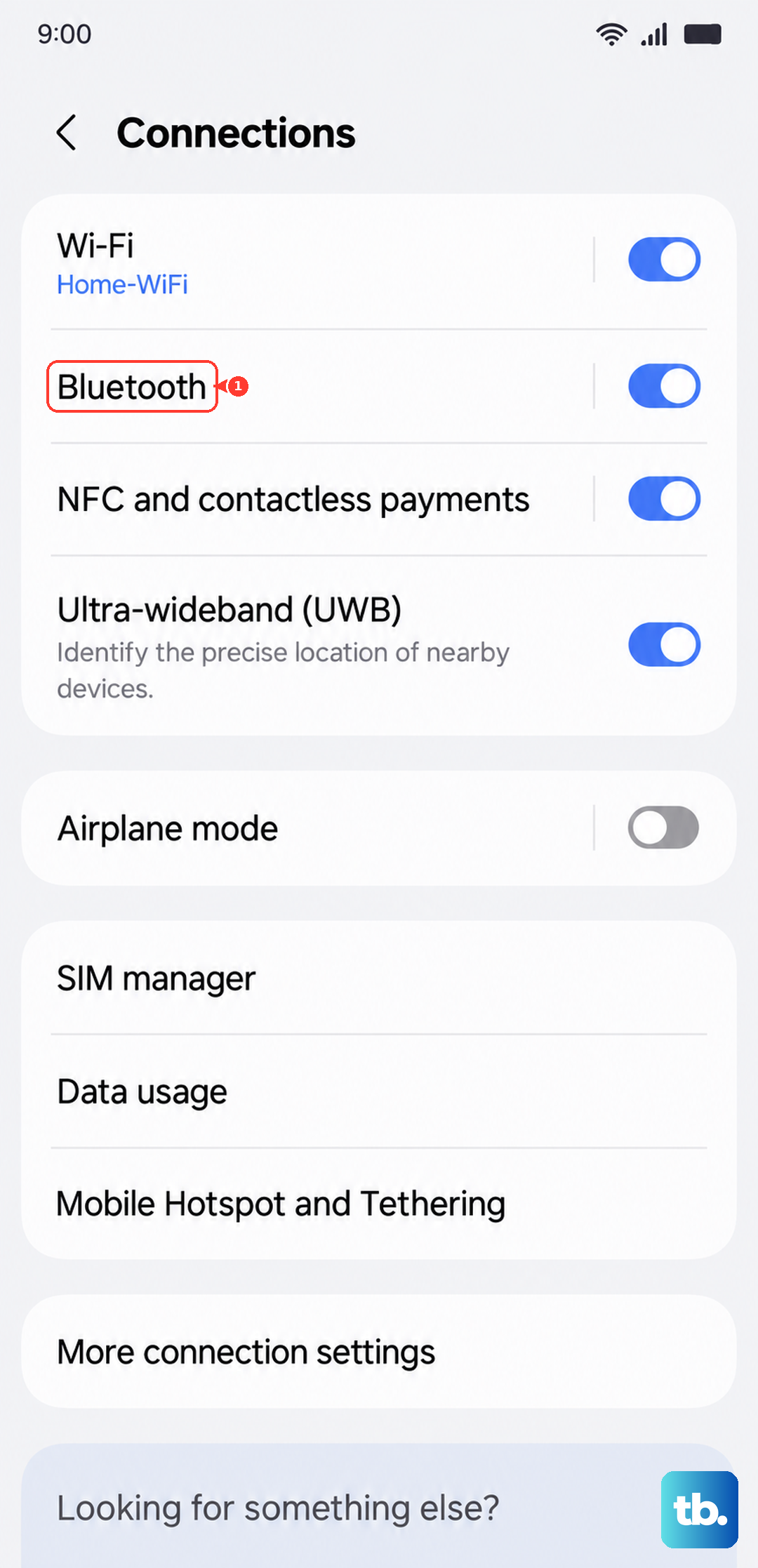
Your S25 FE might be trying to send audio somewhere else. Head into Settings > Connections > Bluetooth and turn the toggle off. This will disconnect any headphones, speakers, or your car that might be silently stealing the audio.
Also, take a moment to remove your phone case. Some thicker cases, especially ones not designed specifically for the S25 FE, can partially cover the bottom speaker grill or the earpiece, muffling the sound significantly.
Clean the Speaker Grills
The S25 FE's main speaker is along the bottom edge, and the earpiece is a thin slit at the top of the screen. Over time, pocket lint and dust can get packed in there. Grab a soft, clean, dry toothbrush or a small artist's brush and gently sweep across the grills.
You can also use a can of compressed air, but hold it upright and use very short bursts from a few inches away. Never poke anything sharp like a pin or a SIM tool into the holes, as you'll likely damage the speaker behind the mesh.
Review Advanced Sound Settings
Samsung's One UI has some powerful audio features that can sometimes get in the way. Open Settings > Sounds and vibration. Tap on "Advanced sound settings" near the bottom. Here, you'll find a few options to check.
Look for "Separate app sound." If this is turned on, it might be routing audio from specific apps (like your music player) to a Bluetooth device you're not currently using. Toggle it off. Also, check "Sound quality and effects" to ensure nothing like "Adapt Sound" is configured in a way that's lowering overall volume.
Check Do Not Disturb and Accessibility
These two settings menus are common culprits for muting sounds unexpectedly. Swipe down and check your quick settings again for the Do Not Disturb icon (a circle with a line through it). If it's on, tap it to turn it off.
Then, go to Settings > Accessibility > Hearing enhancements. Make sure options like "Mute all sounds" are disabled. Also, look at "Audio balance" and ensure the slider is centered, not pushed all the way to one side.
Force Restart Your Phone
A quick force restart clears out any temporary glitches in the system that could be affecting the audio driver. For the Galaxy S25 FE, press and hold the Volume Down button and the Side Key (power button) together for about 10 seconds.
Keep holding them until you see the Samsung logo appear on the screen, then let go. Your phone will boot up normally. This doesn't delete any data, it's just a deeper refresh than a standard restart.
Clear the System Cache
If the problem started after a recent software update, corrupted cache files could be the cause. You'll need to boot into Recovery Mode. First, turn off your S25 FE completely. Connect it to your computer with a USB-C cable.
Now, press and hold the Volume Up button and the Side Key. When you see the Android recovery logo, let go. Use the volume buttons to highlight "Wipe cache partition" and press the Side Key to select it. Confirm, then select "Reboot system now."
Boot Into Safe Mode
This starts your phone with all third-party apps disabled. If the sound works perfectly in Safe Mode, you know a recently downloaded app is causing the conflict. To enter Safe Mode on the S25 FE, press and hold the Side Key until the power menu appears.
Tap and hold the "Power off" option on your screen. A prompt will ask if you want to reboot to Safe Mode. Tap "OK." Your phone will restart, and "Safe mode" will appear in the bottom-left corner. Test your sound now. To exit, just restart your phone normally.
Reset All Settings
If you're still having issues and you've ruled out a bad app, this is a strong next step. It will reset all your system settings, like Wi-Fi passwords, Bluetooth pairings, and display preferences, back to factory defaults, but it won't touch your photos, messages, or apps.
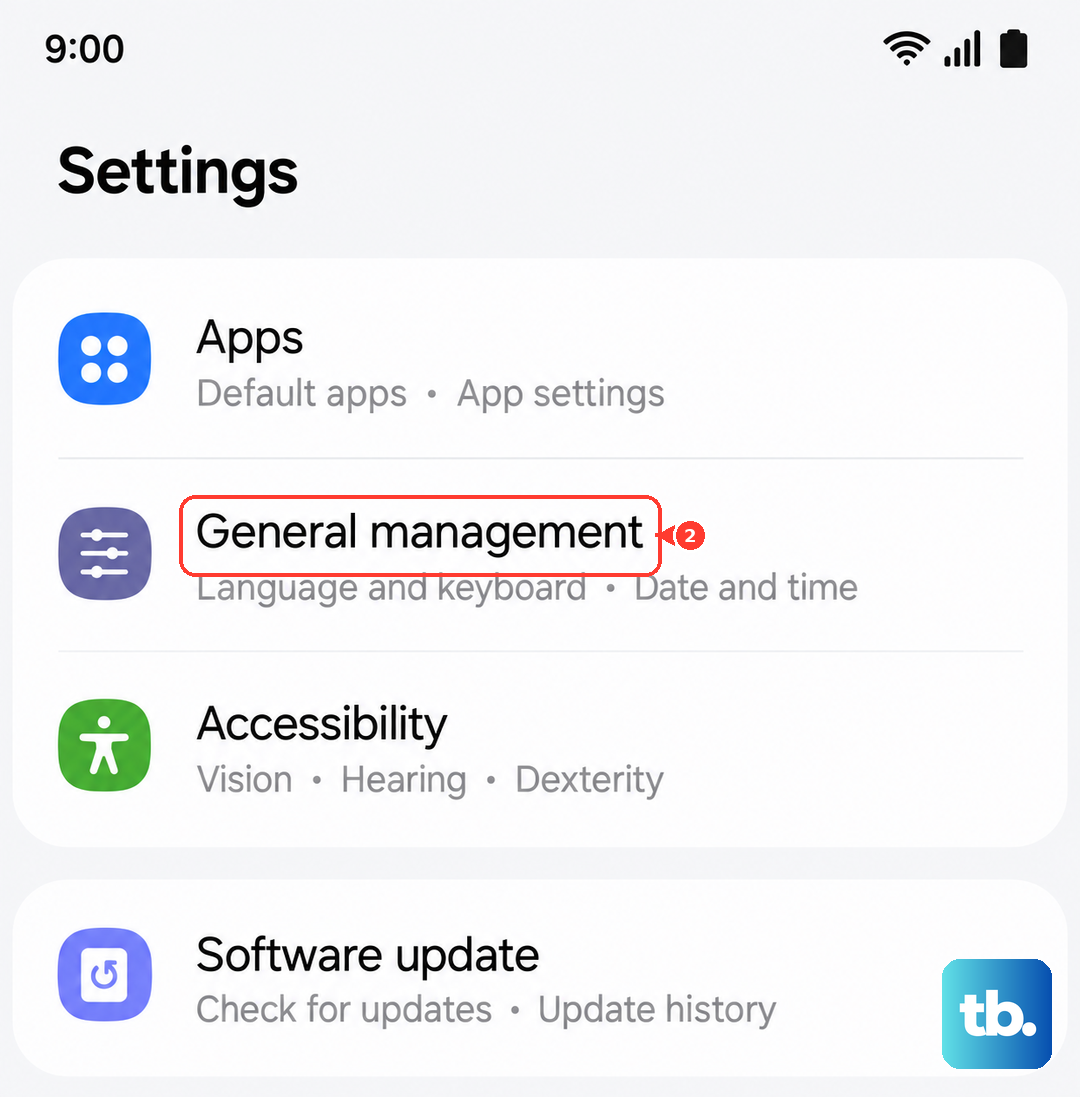
Go to Settings > General management > Reset. Tap on "Reset settings." You may need to enter your PIN. Confirm the reset and let your phone reboot. Afterward, you'll need to reconfigure your preferences, but it often clears up stubborn software-related audio bugs.