When your Samsung Galaxy S25 FE microphone stops picking up your voice, it can turn simple phone calls, video chats, and voice commands into a frustrating experience. The issue could be anything from a blocked mic port to a software setting that got flipped. Let's start by figuring out exactly which microphone is acting up.
A fast way to narrow this down is a browser based online mic test. If the meter responds when you talk, the mic itself is fine and the problem sits in software or settings.
Test Your Galaxy S25 FE Microphone
Open the Voice Recorder app that came pre-installed on your phone. Tap the red record button and speak for about 10 seconds, then play it back. Listen carefully. Is your voice completely missing, or does it sound muffled and distant?
Next, try making a quick phone call to a friend or your voicemail. Ask them if they can hear you clearly. If the problem is only on speakerphone, that points to a specific microphone. The S25 FE has multiple mics: one at the bottom by the USB-C port, one at the top for noise cancellation, and others near the camera for video recording.
You can also test with Google Assistant. Press and hold the side button to activate it, or say "Hey Google." If it doesn't respond or consistently mishears you, that's another sign of a microphone problem.
Check for Physical Blockages
This is the most common fix I'd start with. Grab your phone and take a close look at the small pinhole microphone openings. The main one is at the bottom next to the USB-C charging port. Check the top of the phone and the area around the rear camera module too.
Dust, lint from your pocket, or even a tiny bit of debris can completely block sound. Use a can of compressed air to give each opening a short, gentle blast. Don't use a paperclip or anything sharp, as you could easily damage the sensitive microphone diaphragm inside.
Also, remove your phone case. Some cases, especially rugged or poorly designed ones, can partially cover the microphone holes. Test your voice recorder again without the case to see if that was the culprit.
Disconnect Bluetooth and Accessories
If you have Bluetooth headphones, a smartwatch, or your car's audio system connected, your S25 FE might be trying to use that device's microphone instead of its own. Swipe down from the top of your screen to open the Quick Settings panel and tap the Bluetooth icon to turn it off temporarily.
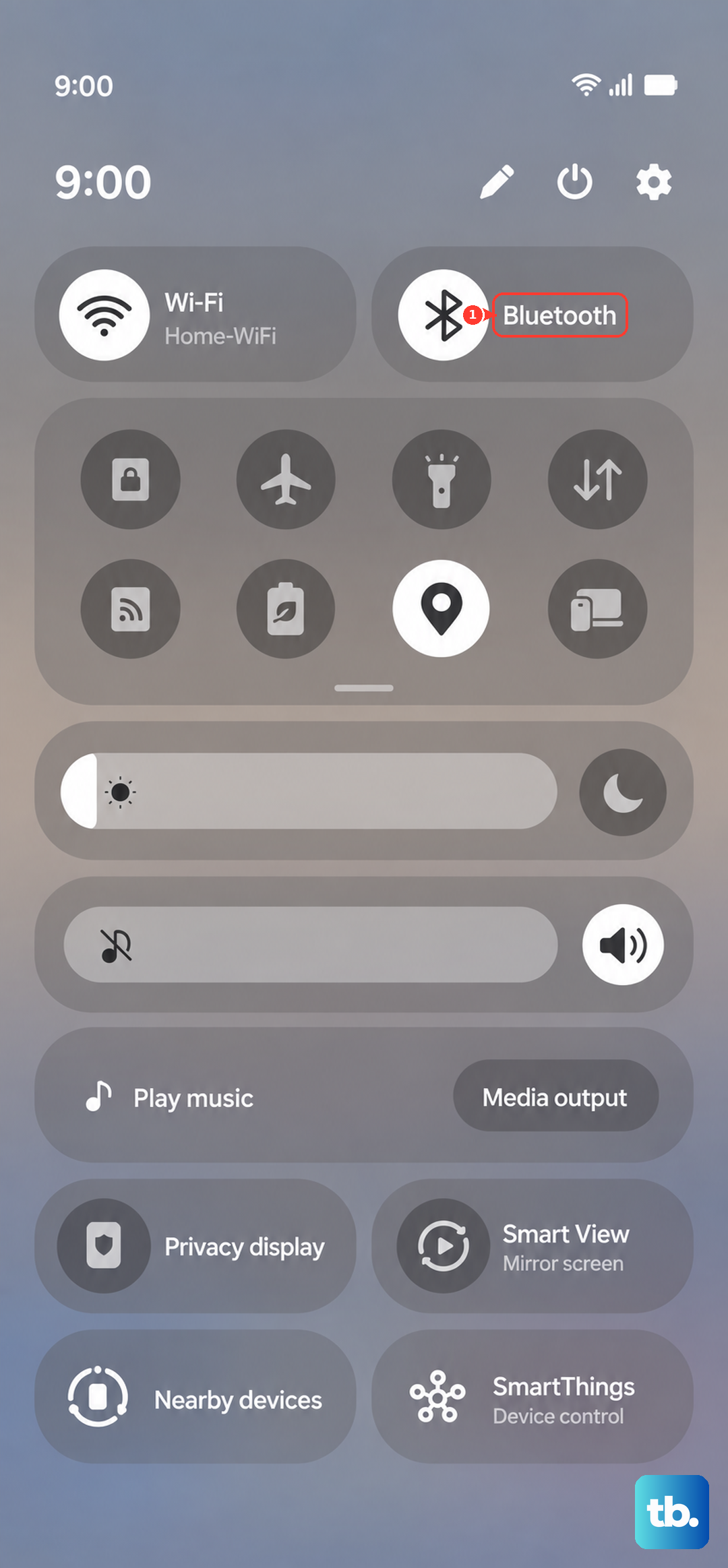
Also, if you have any headphones plugged into the USB-C port, unplug them. The phone could be stuck trying to route audio through an external accessory that's no longer there. After disconnecting everything, try a test call or recording again.
Check App Permissions
In Android 15 with One UI 7, apps need explicit permission to use your microphone. If you only have issues in specific apps like WhatsApp, Zoom, or Instagram, their permission might have been revoked.
Go to Settings > Privacy and security > Permission manager > Microphone. You'll see a list of all your apps. Find the app giving you trouble and make sure it's set to "Allow only while using the app" or "Allow all the time."
Close and Reopen Problem Apps
Sometimes an app just glitches and stops accessing the hardware correctly. Swipe up from the bottom of your screen and hold to enter the recent apps view. Find the problematic app and swipe it all the way up to close it completely.
Then, reopen the app fresh and try the microphone again. This clears the app's temporary memory and can often resolve a minor software hang that's preventing mic access.
Restart Your Phone
A simple restart clears out system cache and resets all background processes, which can fix a surprising number of glitches. Press and hold the Side button and Volume Down button together for about ten seconds.
You'll feel a vibration and see the Samsung logo as the phone reboots. This force restart method works even if the screen is frozen. Once it's back on, test the microphone immediately.
Update Your Software
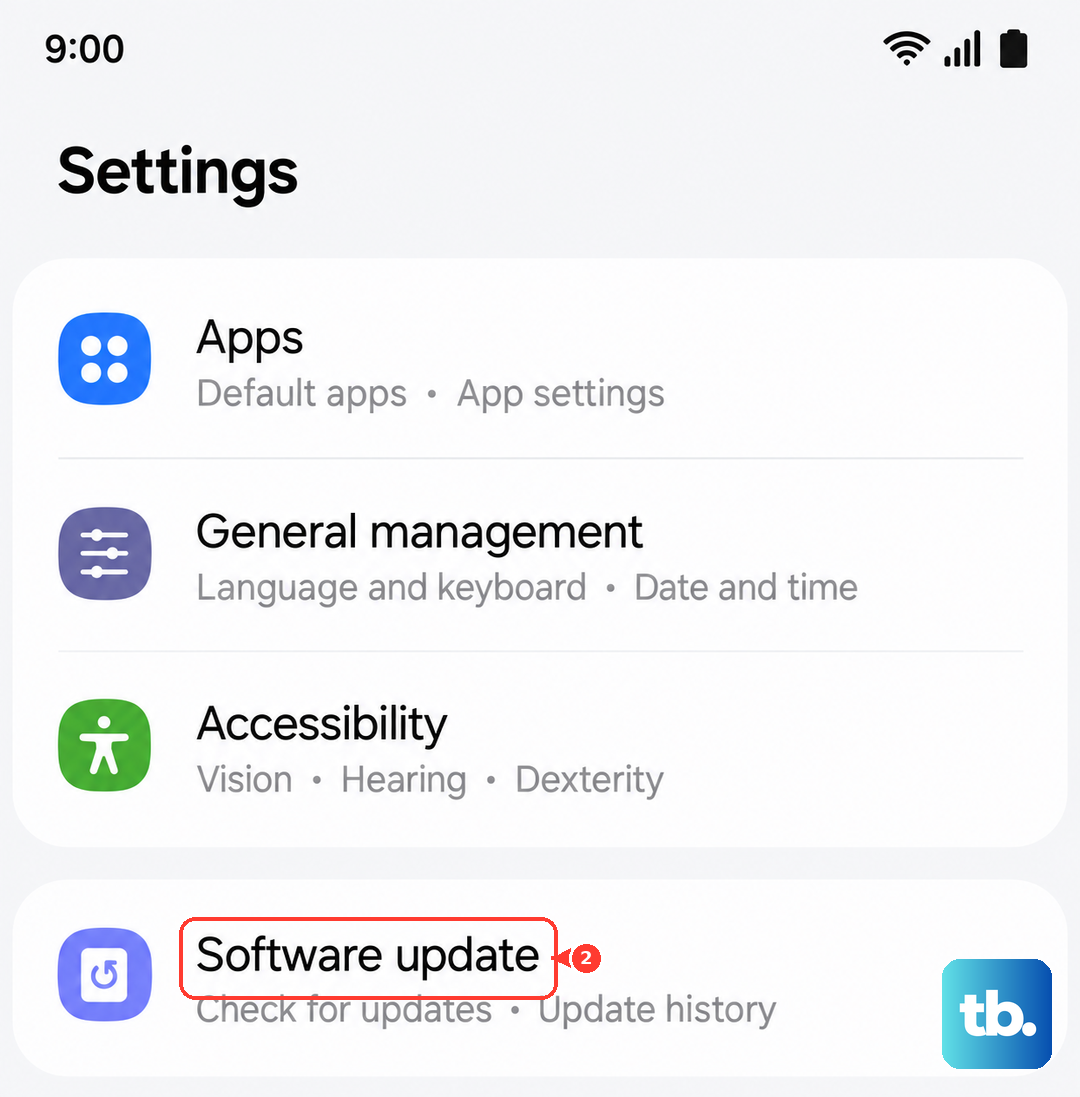
Samsung regularly releases updates that fix bugs, including audio and microphone issues. An update might have installed incompletely or a known bug might be affecting your device.
Go to Settings > Software update > Download and install. If an update is available, connect to Wi-Fi and let it install. Your phone will restart during this process. After the update, check if the microphone performance has improved.
Reset App Preferences
This is a useful middle-ground step that resets all your app permissions, notifications, and default apps without deleting any personal data. It can fix conflicts where a system setting is interfering with microphone access.
Navigate to Settings > Apps > Menu (three dots) > Reset app preferences. Tap "Reset" on the confirmation pop-up. You'll then need to re-grant microphone permission to your apps when you use them next, but it often clears up persistent issues.
Check for Sound and Vibration Settings
Some accessibility or sound enhancement features can interfere. Go to Settings > Sounds and vibration > Sound quality and effects. Try turning off any features like "Adapt Sound" or "UHQ upscaler" temporarily to see if they are affecting microphone input.
Also, check Settings > Accessibility > Hearing enhancements. Make sure "Microphone mute" is not enabled, as this would silence your mic entirely for all apps.
Perform a Network Settings Reset
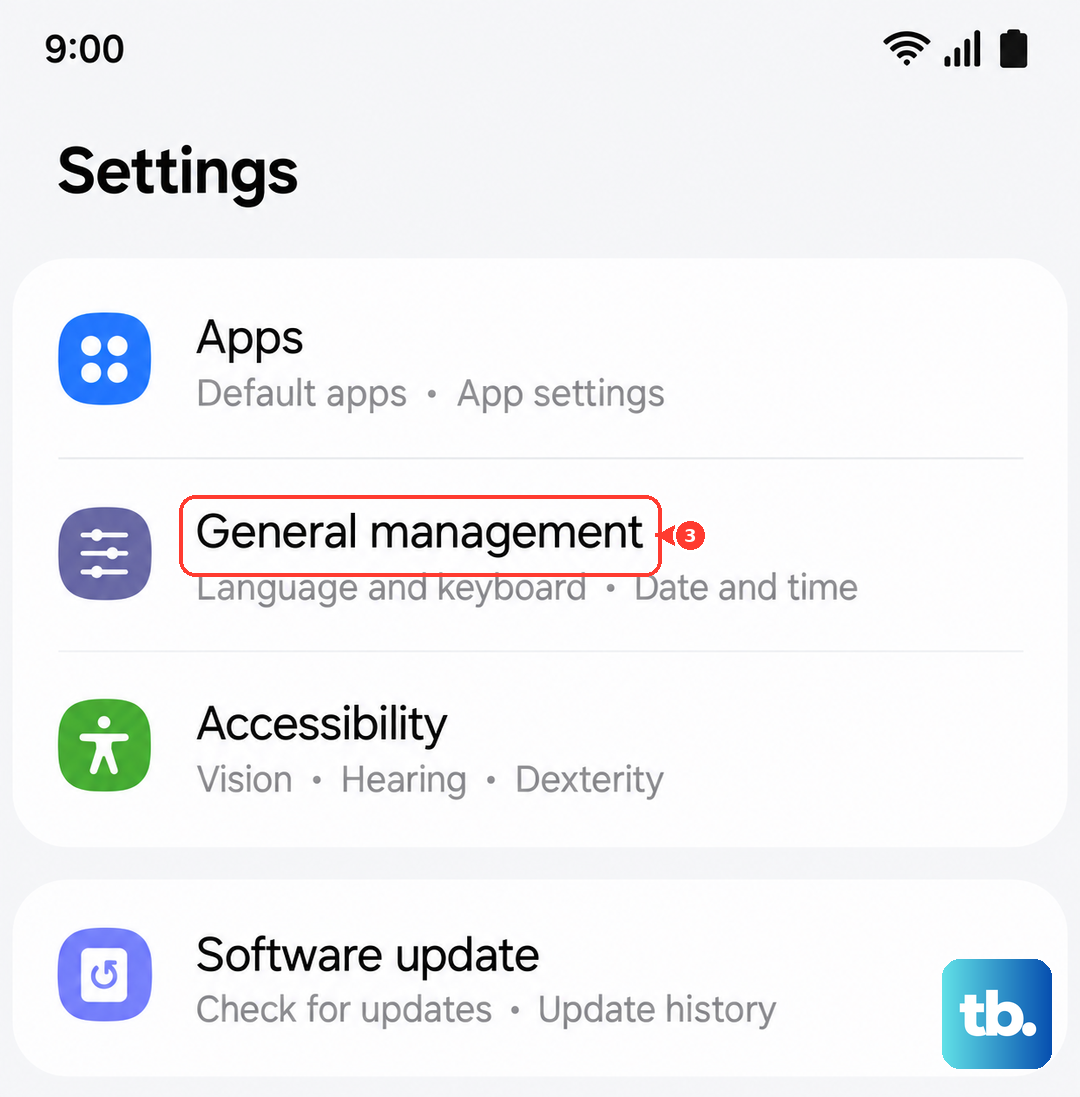
If the microphone problem is specifically during phone calls over your cellular network, it's worth resetting your network connections. This will erase your Wi-Fi passwords, paired Bluetooth devices, and mobile network settings.
Go to Settings > General management > Reset > Reset network settings. Tap "Reset settings" and confirm. After your phone reboots, you'll need to reconnect to Wi-Fi and Bluetooth devices, but call audio often improves.
Boot into Safe Mode
Safe mode temporarily disables all third-party apps you've downloaded. If the microphone works perfectly in Safe Mode, then a recently installed app is likely causing the conflict.
To enter Safe Mode, press and hold the side button until the power menu appears. Then, tap and hold the "Power off" option on your screen. You'll see a prompt to reboot into Safe Mode. Tap "OK." Test your microphone here. To exit, just restart your phone normally.
Factory Reset Your Device
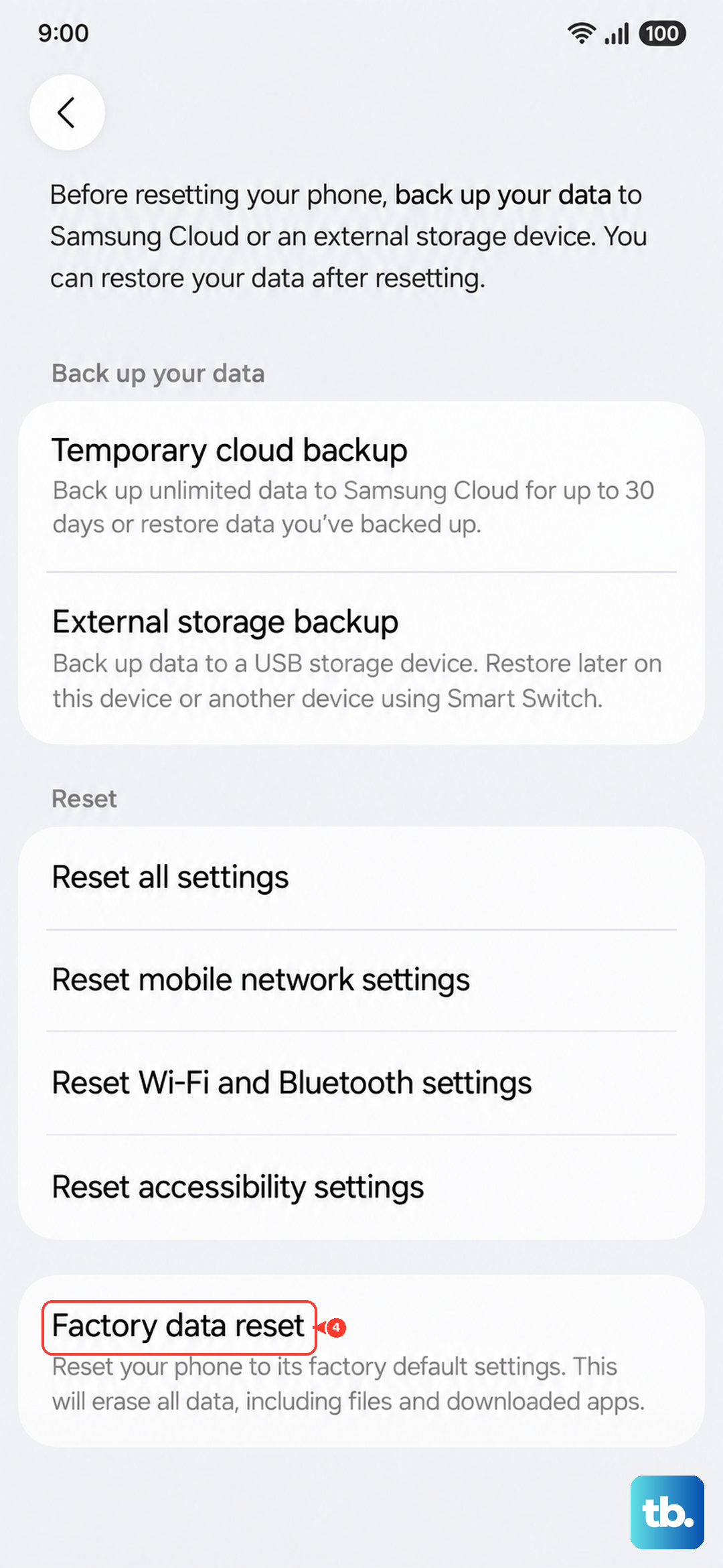
This is the last resort software fix. A factory reset will wipe your phone back to its original out-of-the-box state, so you must back up everything important first. Use Samsung Cloud or Google One to back up your data.
Once backed up, go to Settings > General management > Reset > Factory data reset. Tap "Reset" and follow the prompts. After the reset, set up your phone as new initially and test the microphone before restoring your backup, to see if the problem was in your data.