Your Samsung Galaxy S25 FE just locked up, and now the screen won't respond no matter how many times you tap it. Maybe it froze mid-scroll, stalled on a black screen, or stopped reacting while you were switching between apps.
A frozen phone feels alarming, but on the S25 FE it is almost always a temporary software hang rather than a broken device, and you can usually clear it in a couple of minutes.
The fixes below start with the safest, fastest options and end with a full reset and support contact, so work through them in order and stop as soon as your phone comes back to life.
Force a Restart When the Screen Is Completely Stuck
When the S25 FE is frozen or unresponsive and nothing happens on screen, a hardware force restart is the first thing to try.
Because this model uses a Side button instead of a separate dedicated Power key, the button combination is slightly different from older Galaxy phones, so use the Side button for this step.
Press and hold the Volume down button and the Side button simultaneously.
Keep holding for about 10 seconds, or until the device turns off and then turns back on.
The screen will go black, and then the Samsung logo will appear.
Samsung lists this procedure for when a Galaxy device is freezing or not functioning properly.
Once the logo shows, let the phone finish booting before you touch anything; interrupting it can leave you back where you started.
Plug In and Charge Before You Assume It Is Dead
A completely drained battery can leave the screen black and unresponsive in a way that looks identical to a freeze.
Before you panic, connect a charger and let the 4,900 mAh battery take on power for a few minutes.
After it has charged briefly, attempt the force restart again using the Volume down button and the Side button.
A genuine, capable charger will revive a deeply drained battery faster than a weak one, so use a quality cable and adapter if you have one available.
Restart Normally If the Phone Still Responds
If your S25 FE is sluggish or stuttering but still reacts to your touch, you do not need the force-restart combo.
A normal restart through the power menu clears temporary glitches more gently.
Press and hold the Volume down button and the Side button at the same time.
After a few seconds, the power options will appear.
Tap Restart, and then tap Restart again.
A clean reboot like this closes everything that was running and gives One UI a fresh start, which often resolves the small hangs that build up over days of heavy use.
Clear Memory and Storage With Device Care
Low free memory or storage is one of the most common reasons a phone starts to hang.
The S25 FE includes a built-in Device care tool that frees up resources in a few taps, and Samsung's quick optimization clears unneeded items from memory, deletes unnecessary files, scans for malware, and closes background apps in one pass.
From Settings, swipe to and tap Device care.
Tap Optimize now, and then tap Done.
If you want to go further, you can target memory and storage individually.
To free up RAM, go to Settings > Device care, tap Memory, and then tap Clean now to stop background apps.
To clear space, go to Settings > Device care, tap Storage, tap a category that has items you'd like to remove, and then tap Delete or Delete all.
Install the Latest Software Update
A pending software update frequently includes stability and bug fixes that address freezing directly.
Keeping the S25 FE current is one of the easiest long-term defenses against lockups.
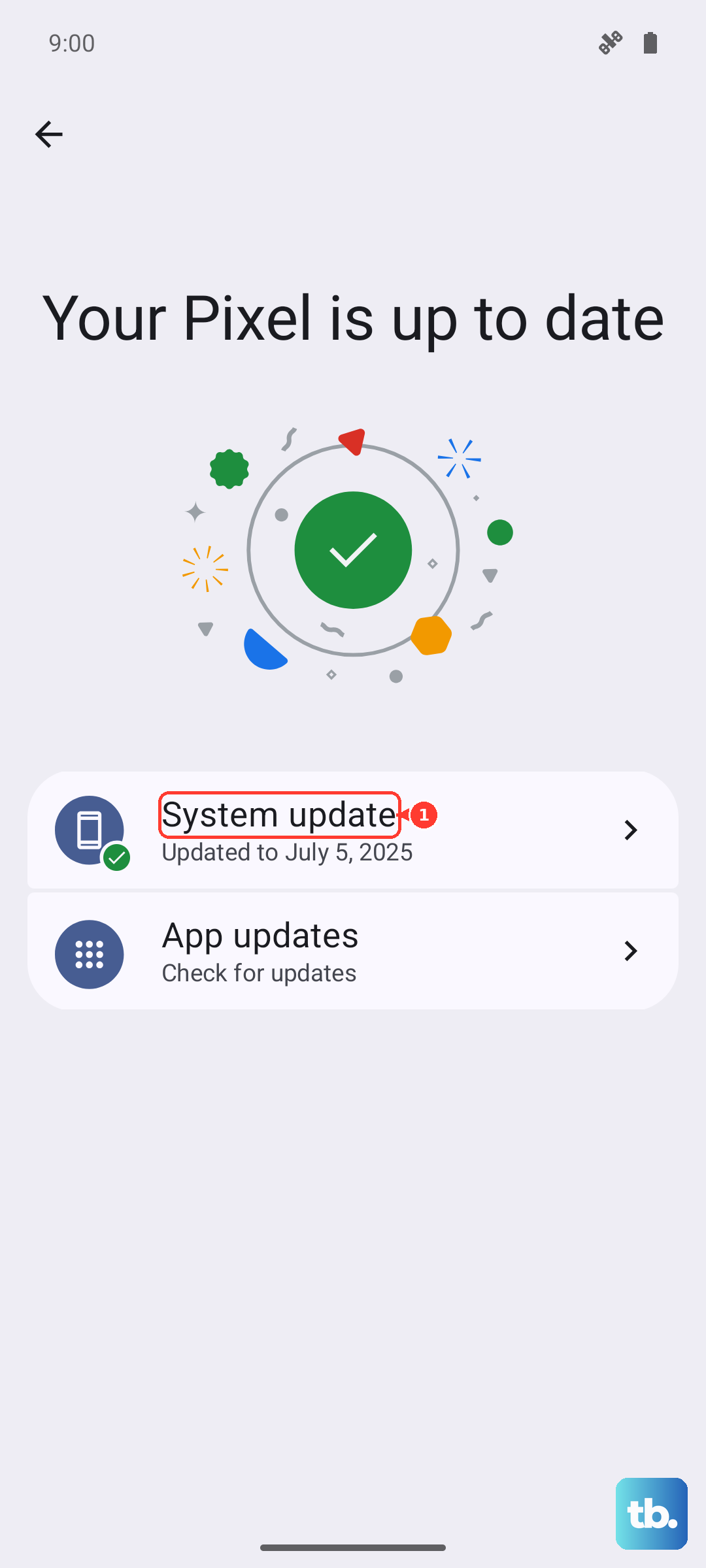
From Settings, swipe to and then tap Software update (or System updates).
Tap Download and install, Check for system updates, or Check for software updates, depending on your carrier.
Follow the on-screen instructions to install the update.
To stay ahead of future issues, you can turn on Auto download over Wi-Fi so updates arrive automatically.
The S25 FE ships with One UI 8.0 and supports up to 7 generations of OS upgrades, so this phone will keep receiving these fixes for years.
Boot Into Safe Mode to Catch a Misbehaving App
If the freezing keeps happening, a third-party app may be the culprit.
Safe mode loads the phone with only its built-in software, so if the device runs smoothly there, you have your answer.
There are two ways to enter it.
Method 1. First, completely power off the phone.
Turn on the device and, when the Samsung logo appears, press and hold the Volume down button.
If done correctly, "Safe mode" will display in the bottom-left corner of the screen.
Method 2. Press and hold the Side button and the Volume down button at the same time.
Touch and hold the Power off icon, and then tap the Safe mode icon.
In Safe mode the device won't run third-party apps, so if the freezing stops, you know one of your installed apps is responsible.
To leave Safe mode, simply restart the phone normally.
Update or Remove the App That Caused the Freezing
Once Safe mode confirms an app is to blame, the fix is to update or uninstall it.
Think back to which app you installed or updated around the time the freezing began, since that is usually the offender.
First, reboot out of Safe mode.
Restart the phone, or swipe down from the top of the screen, tap the "Safe mode is on" notification, and tap Turn off.
Then update the suspect app to its latest version, or remove it entirely if updating does not help.
If freezing returns after you reinstall the same app, leave it uninstalled and look for an alternative.
Back Up Your Data, Then Factory Reset
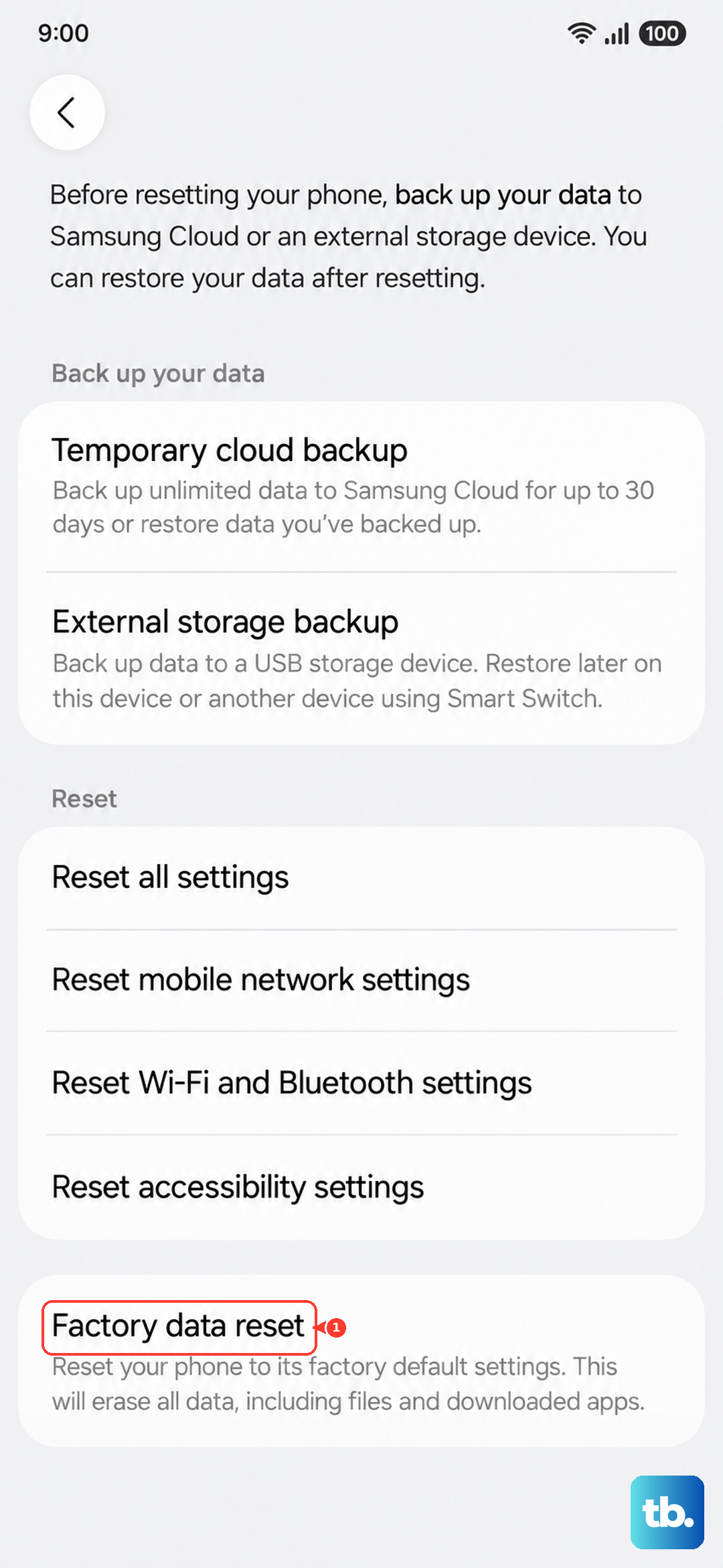
If the phone keeps freezing despite everything above, a factory data reset returns it to its original state and clears out whatever software problem has taken hold.
This step erases everything on the device, so you must back up first.
Samsung's official warning is direct: "Please save any information you need prior to the factory reset because your personal information may not be recovered."
You can use Samsung Smart Switch on a PC or Mac to both back up your data and update the device's software before you proceed.
Once your backup is safely in place, follow Samsung's reset procedure.
- 1.Navigate to and open Settings, and then tap General management.
- 2.Swipe to and tap Reset, then tap Factory data reset.
- 3.Swipe to and tap Reset, and then tap Delete all.
- 4.Enter your security credentials and Samsung account password if prompted.
After the reset finishes, set the phone up as new at first and test it for stability before restoring all of your apps; restoring everything at once can bring a problem app right back.
Reach Out to Samsung Support for Hardware Help
If your S25 FE still freezes even after a factory reset, the problem may be hardware rather than software, and that is beyond what you can fix at home.
Use Samsung's official support channels, either through the Samsung Members app or the Samsung US support site, to request service or repair.
While you wait, keep the phone updated and avoid loading it back up with the same apps that may have triggered the freezing in the first place.
A clean, current setup gives you the best chance of stable performance until you decide on a repair.
Frequently Asked Questions
What is the force-restart combination for the Galaxy S25 FE?
Press and hold the Volume down button and the Side button simultaneously for about 10 seconds, or until the device turns off and then turns back on. The screen will go black and then show the Samsung logo. The S25 FE has no separate Power key, so the Side button is the one to use.
Will a force restart erase my data?
No. A force restart simply powers the phone off and back on; it does not delete anything. Only a factory data reset erases your data, which is why you should always back up your information before performing one of those.
How do I know if an app is causing my phone to freeze?
Boot into Safe mode, which loads the phone without any third-party apps. Completely power off the device, turn it on, and when the Samsung logo appears, press and hold the Volume down button until "Safe mode" shows in the bottom-left corner. If the freezing stops in Safe mode, one of your installed apps is the cause.
Does the Galaxy S25 FE receive software updates that fix freezing?
Yes. The S25 FE ships with One UI 8.0 and supports up to 7 generations of OS upgrades, and these updates often include stability and bug fixes. Check for them under Settings > Software update, and consider turning on Auto download over Wi-Fi so they install automatically.
What should I do if my phone freezes again after a factory reset?
Persistent freezing after a full reset usually points to a hardware issue. Contact Samsung's official support through the Samsung Members app or the Samsung US support site to request service or repair.