You plug your Galaxy S25 FE into the charger expecting that quick top-up Samsung advertises, but the battery icon crawls upward at a normal-speed pace, or the "Fast charging" label never appears at all. It's frustrating on a phone built around a 4900 mAh battery and 45W wired charging that should reach about 65% in just 30 minutes. The good news is that slow charging is usually caused by something simple, like the wrong adapter, a setting that's switched off, or moisture in the port, rather than a failed battery. Work through the fixes below in order, starting with the easiest and safest, and save the reset or repair path for last.
Match the Charger and Cable to What the S25 FE Actually Needs
Fast charging only happens when the hardware can deliver it, so the charger is the first thing to check. Samsung recommends using a Samsung charger rather than a third-party one, and reaching Super fast charging specifically requires a Samsung-approved adapter rated 25W or 45W. The S25 FE supports up to 45W wired charging, and the phone automatically selects the best speed the connected charger can supply.
If you've been charging from a USB port on a computer, that is likely the culprit, because those ports deliver lower power and charge slowly. Switch to a proper wall adapter that meets the rating above, paired with a quality cable, and you'll let the phone negotiate its higher speeds.
Look Closely at the Cable, Adapter, and Charging Port
Physical damage and debris are common, easily missed reasons charging stalls. Samsung advises checking that the device, charger, and USB cable have no physical damage, inspecting the USB connections for corrosion and bent pins, and making sure the cable sits firmly in the port with very little movement.
Take a moment to examine these parts before assuming anything is broken.
Check the cable end and adapter for fraying, kinks, or visible damage, and replace a cable that looks worn.
Look inside the USB connectors for corrosion or bent pins.
Shine a light into the phone's charging port and check for dust or foreign material.
If you see dust or debris, gently remove it with a soft brush, then plug in and try charging again.
Confirm the cable seats firmly with almost no wobble once connected.
Confirm Fast Charging Is Switched On
The S25 FE has a dedicated toggle for fast charging, and if it is off, the phone will not draw power at the higher rate. Because this setting cannot be changed while the phone is actively charging, unplug it first.
Then go to Settings, then Battery, then Charging settings, and tap the switch to enable Fast charging. If you charge on a pad, enable Fast wireless charging here as well. Keep in mind that standard fast charging needs an adaptive 15W-or-higher charger. The exact names can vary slightly by software version.
Clear a Moisture Warning and Dry the Port
Galaxy phones deliberately stop charging when they detect moisture in the USB port, showing a water-drop icon, to protect the contacts. If you see that icon, the phone is protecting itself rather than malfunctioning, and you'll need to dry things out.
Unplug the charger right away.
Wipe the port area with a dry cloth, or gently shake the device a few times with the port facing downward.
Leave the phone on a cloth in a well-ventilated area, or dry it with a fan.
While you wait, you can charge wirelessly, or try a different cable in case the moisture is in the cable.
Once the port is completely dry, restart the phone and try charging again.
Bring the Phone Back to a Normal Temperature
Temperature has a direct effect on charging speed, because the phone will pause or slow charging to protect the battery when it is too hot or too cold. Samsung recommends charging at room temperature, so a phone left in a hot car or a cold room may charge sluggishly until conditions improve.
If your S25 FE reports that the temperature is too low, unplug it and let it return to a normal temperature before charging again. The same patience applies when the device or its surroundings are too hot, so give it time to cool to room temperature.
Stop Using the Phone While It Charges
Heavy use while plugged in works against fast charging. Samsung notes that browsing the web, watching video, playing games, or running many apps during charging raises the device temperature, which in turn slows the charging rate.
The fix is simple, which is to set the phone down and avoid heavy use while it charges. Giving it a rest lets it pull power at full speed instead of fighting heat from active apps.
Check Whether a Battery Charge Limit Is Capping You
If charging seems to stop early or slow noticeably near a certain percentage, a battery-protection charge limit may be switched on. This feature intentionally caps the charge to reduce long-term battery wear, which can make charging look broken when it is actually working as designed.
To check, go to Settings, then Battery, then Battery protection. The Maximum mode, or a slider set to 80%, 85%, or 90%, caps the charge near that level. Turn it off if you want the phone to charge all the way to 100% at full speed.
Force Restart to Clear Temporary Glitches
When the phone is unresponsive or charging behaves erratically, a force restart often clears a temporary software hiccup without touching your data. The S25 FE does not have a separate Power key, so the sequence uses the Side button instead.
Press and hold the Side button and Volume Down together until you see the Samsung logo on the screen. Once it boots back up, reconnect the charger and watch whether fast charging resumes.
Install Any Pending Software Update
Keeping the software current matters here, because updates can fix charging-related bugs. Connect to Wi-Fi, and don't disconnect or use the device until the update finishes.
Go to Settings, then Software update, then Download and install.
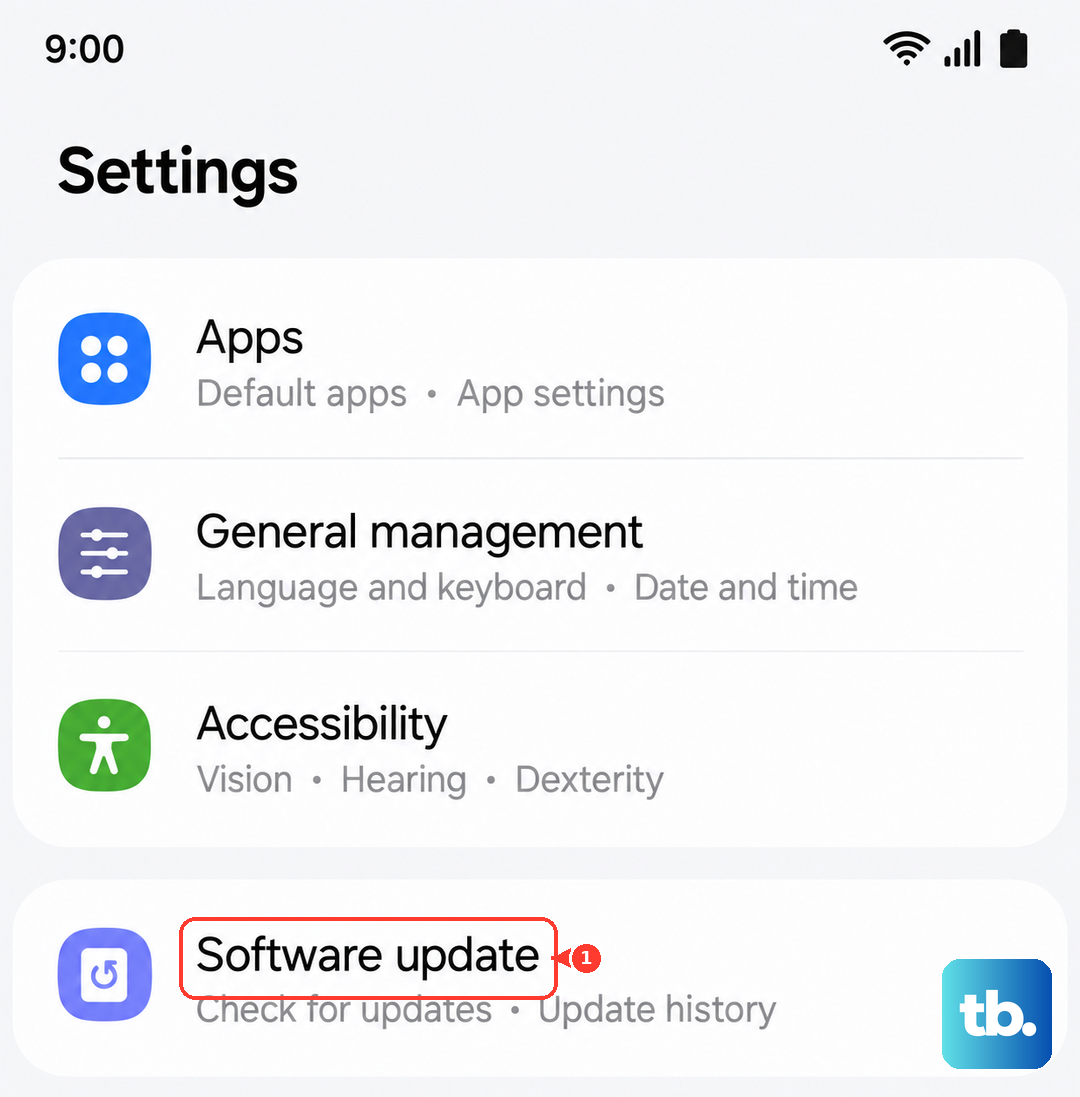
Tap Check for software updates.
If an update is available, it downloads automatically, or tap Download now if you are prompted.
Let the installation complete without interruption.
Run Diagnostics, Then Reset or Get It Serviced
If nothing above has restored fast charging, the built-in Samsung Members app can check the battery and charging hardware directly. Open Samsung Members, tap Diagnostics on the Discover tab, tap Phone diagnostics, then run Battery status, or choose Test all, to evaluate the battery and charging.
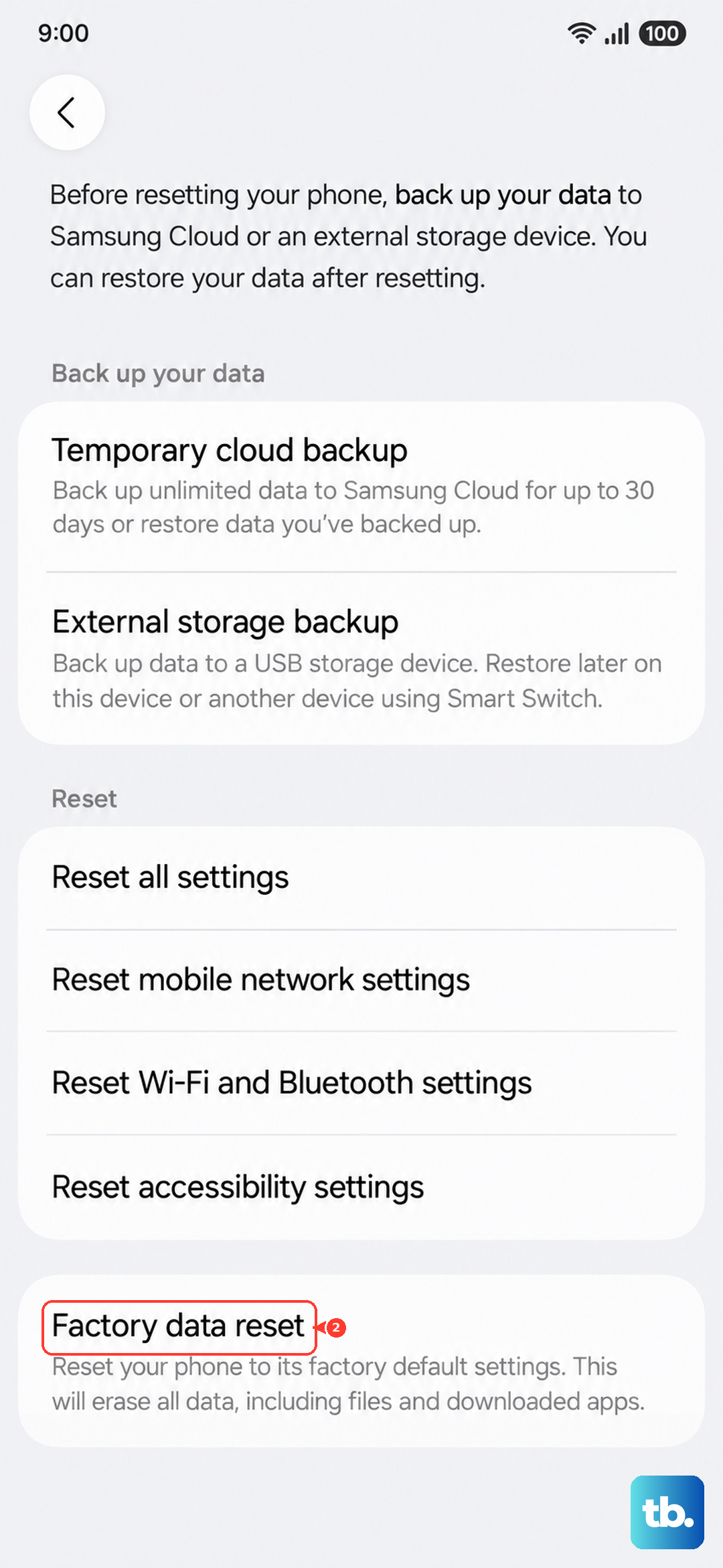
If problems persist after that, the next step is a factory reset, which erases everything on the phone. Back up your data first, because Samsung warns that you should save any information you need prior to the factory reset, as your personal information may not be recovered.
- 1.Go to Settings, then General management, then Reset, then Factory data reset.
- 2.Tap Reset.
- 3.Tap Delete all to confirm.
If charging still fails even after a reset, it is likely a hardware issue. At that point, contact Samsung support to have the port or battery inspected by a technician.
Frequently Asked Questions
Does the Galaxy S25 FE Really Support 45W Fast Charging?
Yes. Samsung's official spec page confirms the Galaxy S25 FE supports 45W wired fast charging, rated to reach up to 65% in just 30 minutes, along with up to 15W wireless charging and a 4900 mAh battery. To hit Super fast charging speeds, you need a Samsung-approved adapter rated 25W or 45W.
Why Does My Phone Show a Water-Drop Icon and Stop Charging?
That icon means the phone has detected moisture in the USB port and has paused charging to protect the contacts. Unplug the charger, dry the port with a dry cloth or by gently shaking the device with the port facing down, leave it to air dry or use a fan, then restart the phone once the port is completely dry. You can charge wirelessly in the meantime.
Why Does Charging Seem to Stop Before 100%?
A battery-protection charge limit is the most common reason. Go to Settings, then Battery, then Battery protection, and check whether Maximum mode or an 80%, 85%, or 90% slider is active. Turning it off lets the phone charge fully again.
Can I Change the Fast Charging Setting While the Phone Is Plugged In?
No. The Fast charging toggle under Settings, then Battery, then Charging settings cannot be changed while the device is actively charging, so unplug the phone first, flip the switch, then reconnect the charger.
What Should I Do if Fast Charging Still Fails After a Factory Reset?
If charging continues to fail after backing up and performing a factory reset, it is likely a hardware issue with the port or battery. Contact Samsung support to have it examined by a technician.