You line up the perfect shot on your Samsung Galaxy S25 FE, tap the shutter, and the result comes out soft, hazy, or just plain out of focus. It is frustrating on a phone built around a 50 MP Wide, 12 MP Ultra Wide, and 8 MP Telephoto rear system plus a 12 MP front camera, because the hardware is clearly capable of sharp images. The good news is that blurry photos almost always trace back to something small and fixable, not a broken lens.
The fixes below are ordered from the quickest and safest to the more involved, ending with the official reset and service paths. Work through them in order and stop as soon as your photos snap back into focus. Most people never need to go past the first few steps.
Start With the Lenses and What Is Touching Them
Before changing a single setting, look at the glass. A smudge, a speck of dust, or a poorly fitted case is one of the most common reasons photos come out blurry, and clearing those takes seconds.
Clean every camera lens
Dirt, dust, and fingerprints on the lens interfere with autofocus and are a frequent cause of blurry or out-of-focus photos. Samsung's guidance is direct, since dust or debris can interfere with autofocus, so clean all the lenses with a soft, dry, lint-free cloth.
Wipe all three rear lenses (the 50 MP Wide, the 12 MP Ultra Wide, and the 8 MP Telephoto) as well as the front camera. A single overlooked smudge on the lens you happen to be using is enough to ruin a shot, so cover them all.
Remove any case or accessory blocking the lens
A phone case, cover, or stick-on accessory can overlap the edge of a lens and stop it from focusing properly. The official advice is to make sure your phone cover and accessories do not cover the edges of the camera lens.
Take the case off entirely and try the camera again. If the blur disappears without the case, the cover was overlapping a lens edge, and you may need one with a wider camera cutout.
Give the Camera What It Needs to Focus
Even with clean lenses, technique matters. Two everyday habits, shooting too close and shooting in dim or shaky conditions, defeat autofocus on any phone, and the Galaxy S25 FE is no exception.
Check your distance and let the lens focus
If you are too close to your subject, the camera may not be able to focus. Back away a little and let the lens settle, and for tight close-ups move back and zoom in instead, because each lens has a different focus range.
Tap the subject on screen to set the focus point, then take the shot. Giving the lens a clear focus target and enough distance often fixes "blurry" photos that were really just out-of-range close-ups.
Steady the phone and add light
Movement and low light are classic blur culprits. Moving the camera while taking a photo, or shooting a fast-moving subject, can easily create blur, and a well-lit scene gives the camera a much easier time finding focus.
Hold the phone as still as you can, or brace it against a stable surface, and shoot in brighter, indirect light whenever possible. Steadier hands and better lighting alone resolve a surprising number of soft shots.
Adjust the Camera App's Focus Settings
If the basics check out and photos are still soft, the issue may be inside the Camera app itself. Two adjustments here are quick, reversible, and do not touch your saved photos.
Turn off Tracking auto-focus
Tracking auto-focus locks the camera onto one subject, which can make the rest of the scene look unfocused. When Tracking auto-focus is on, the camera locks to that person or item, so switching it off can clear up apparent focus problems across the frame.
To turn it off, open the Camera app, go to Settings, and toggle off Tracking auto-focus. Then take a few test shots to see whether the wider scene comes back into focus.
Reset the Camera app's settings
If focus still misbehaves, reset the camera to its defaults. Open the Camera app, tap Settings (or the Quick controls / four-dots icon, then Settings on One UI), tap Reset settings, and confirm.
This restores the camera options to their original state. It is a clean way to undo any combination of settings that may be working against your focus.
Clear Out Temporary Glitches
Software hiccups can affect the camera even when nothing is physically wrong. A restart and a cache clear are the standard ways to flush those out.
Restart, or force restart, the phone
A restart clears temporary glitches that can interfere with the camera. For a normal restart, press and hold the Volume down button and the Side button (or Power button) at the same time, and after a few seconds the power options appear; tap Restart, and then tap Restart again.
If the phone is frozen, use a force restart instead. The official wording is to press and hold the Volume down button and the Side button (or Power button) simultaneously until the device turns off and turns back on; the screen turns black, then the Samsung logo appears.
Clear the Camera app's cache, then its data
A corrupted app cache can cause focus or preview problems. Go to Settings > Apps > Camera > Storage > Clear cache, then reopen the Camera app and test it.
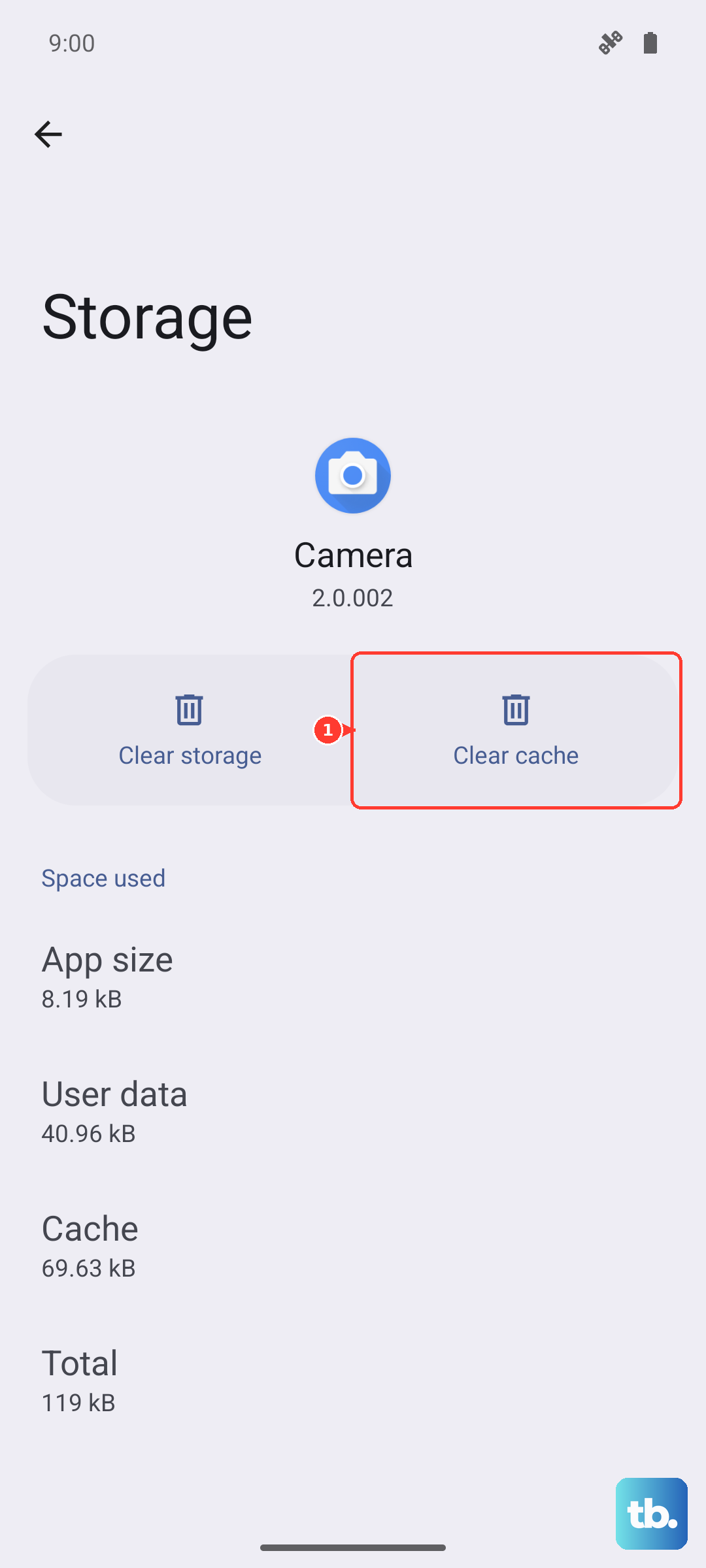
If that is not enough, in the same place tap Clear data > Delete. This resets the app to its factory default settings, so your camera preferences go back to default. Your photos and videos live in the Gallery rather than inside the Camera app, but back up anything important first to be safe.
Update the Software
Software updates fix bugs that can affect the camera, and the Galaxy S25 FE ships with One UI 8.0 and is eligible for up to seven generations of OS upgrades and seven years of security updates, so keeping it current is worthwhile.
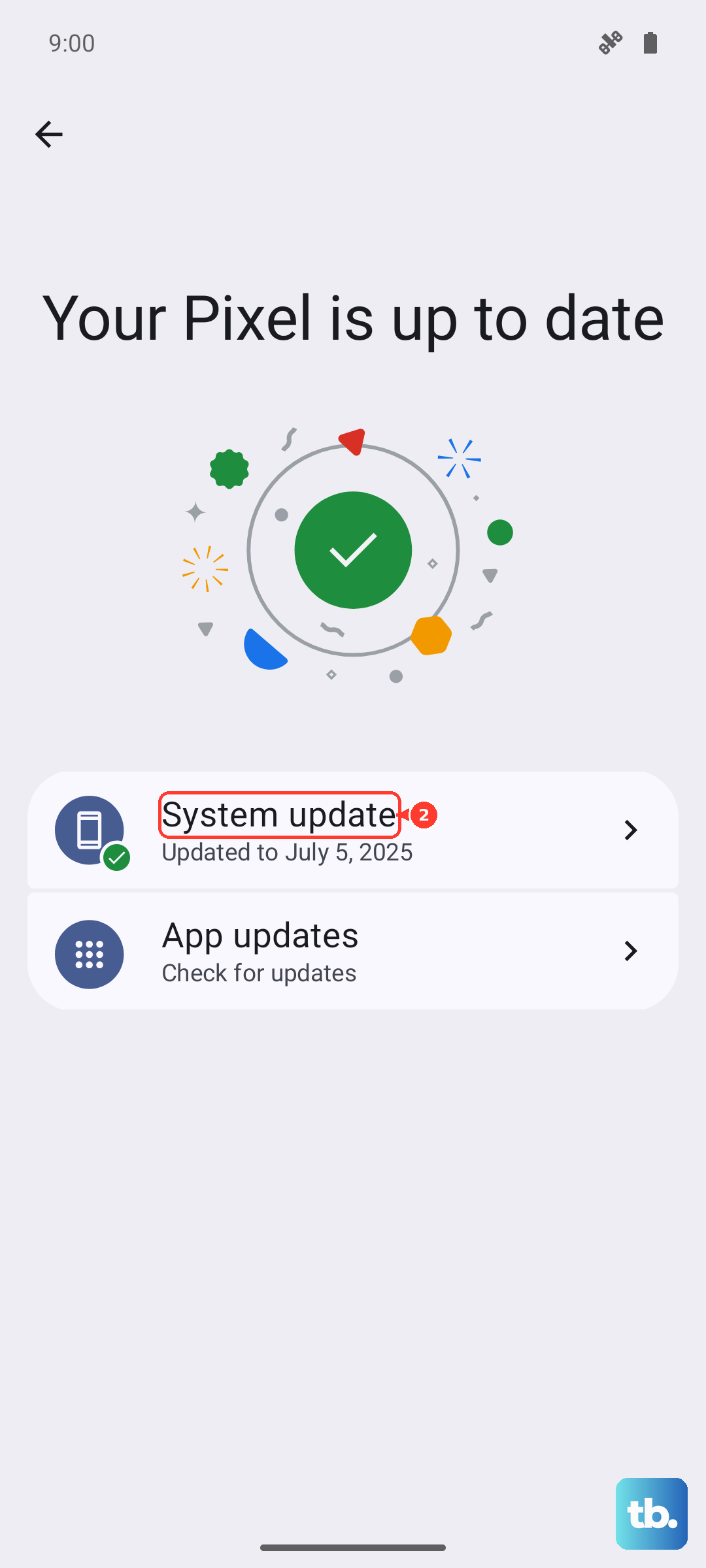
Go to Settings > Software update > Download and install (the wording may also read "Check for system updates" or "Check for software updates" depending on your carrier), then follow the on-screen instructions to install. You can also update over USB using Smart Switch on a computer, which is the official desktop tool for software updates and backups.
When Nothing Else Works, Isolate the Cause or Reset
If you have cleaned the lenses, adjusted the settings, restarted, cleared the cache, and updated the software, and photos are still blurry, it is time to find out whether another app is interfering or whether the device needs deeper attention.
Test in Safe mode to rule out a third-party app
Safe mode loads the phone with only its built-in apps, which tells you whether something you installed is causing the blur. To enter it, hold the Power/Side button (or open the Power icon from Quick settings), then tap Safe mode when it appears.
Open the Camera app in Safe mode and take a few photos. If they are sharp in Safe mode but blurry normally, a third-party app is the cause, and you can remove recently installed apps one at a time to find the culprit.
Factory reset as a last resort
If the blur persists across all of the above, a factory data reset returns the phone to its original software state. Back up first, because this erases your data; the official warning is to save anything you need beforehand, since your personal information may not be recovered.
Once you have a backup (you can use Smart Switch on a computer for this), go to Settings > General management > Reset > Factory data reset > Reset > Delete all, then set the phone up again and test the camera.
Contact support or book a repair
If a lens still will not focus after a reset, or you hear a grinding sound when the camera tries to focus, the device may need service. At that point, contact Samsung support or book a repair, and you can use the built-in Samsung Members app to run diagnostics and reach support directly from the phone.
Frequently Asked Questions
Does clearing the Camera app's cache or data delete my photos?
Clearing the Camera app's data resets the app to its factory default settings, so your camera preferences return to default. Your photos and videos are stored in the Gallery rather than inside the Camera app, but it is always wise to back them up before clearing data. Clearing the cache is lighter and only removes temporary files.
Why does only part of my photo look in focus on the Galaxy S25 FE?
That is often Tracking auto-focus at work. When it is on, the camera locks onto one subject, which can leave the rest of the scene looking unfocused, so try turning it off in the Camera app under Settings.
What can I do when the camera will not focus on close-up subjects?
Move back a little and let the lens settle, since you may simply be too close for it to lock focus. For tight close-ups, back away and zoom in instead, because each of the three rear lenses has a different focus range.
How do I force restart a frozen Galaxy S25 FE?
Press and hold the Volume down button and the Side button (or Power button) simultaneously until the device turns off and turns back on. The screen turns black, then the Samsung logo appears.
When should I assume the camera hardware is faulty?
If a lens still will not focus after you have cleaned it, reset the camera settings, cleared the app data, updated the software, and even tried a factory reset, or if you hear a grinding noise, the device may need service. Contact Samsung support or book a repair at that point.