
When your Samsung Galaxy S24 gets stuck on an update, it's a real roadblock. You might see a download that won't start, an error message, or an installation that fails halfway through. The good news is that a few specific checks usually get things moving again.
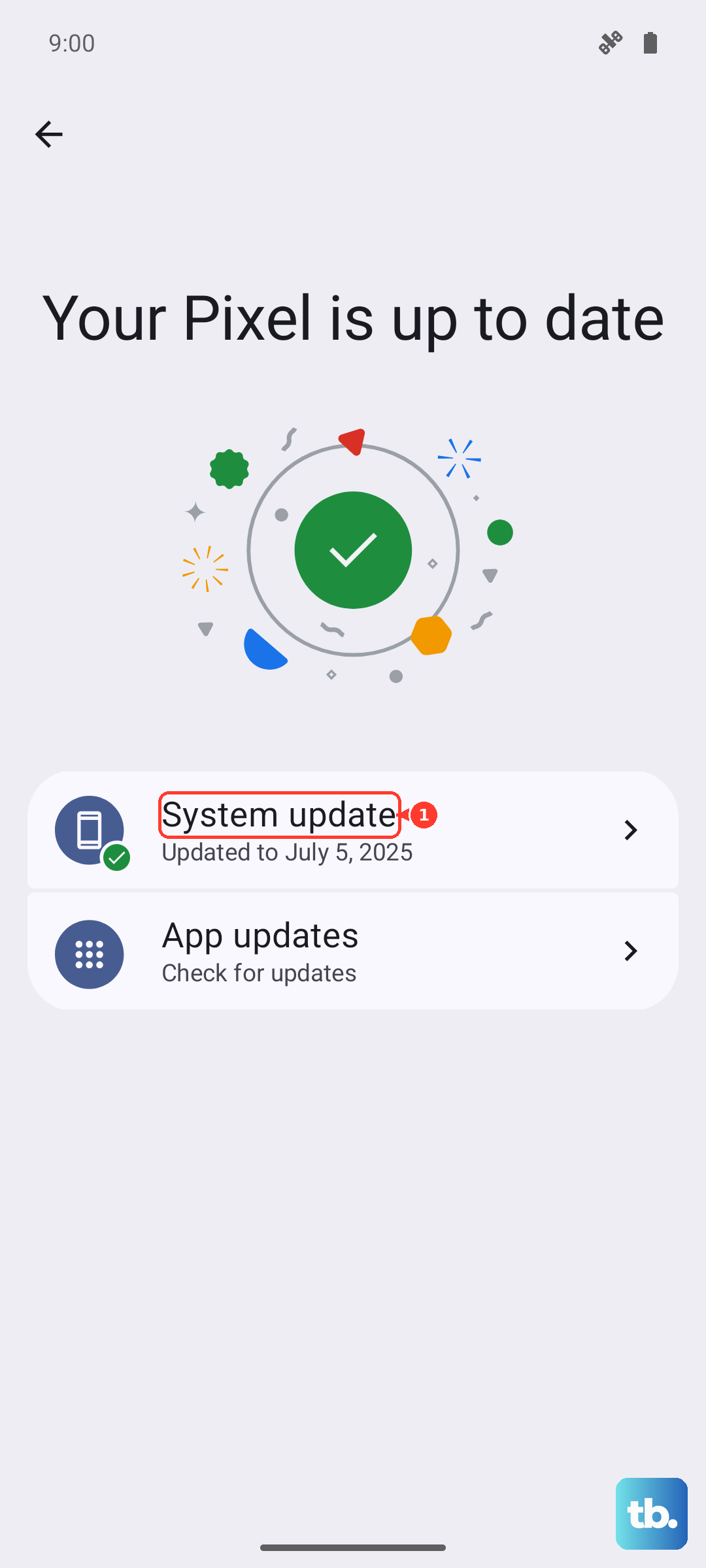
First, try a force restart. This clears the phone's temporary memory and can resolve a surprising number of glitches. Press and hold the Volume Down button and the Side button together for about 10 seconds, until you see the Samsung logo appear. Once the phone boots back up, head straight to Settings > Software update and tap Download and install.
Check Your Wi-Fi Connection
Major One UI updates require a stable Wi-Fi connection and won't proceed over mobile data. Make sure you're connected to a reliable network. Open a browser and load a website to test the speed. If it's slow, try restarting your router.
I've seen public networks or corporate Wi-Fi that block large downloads, which can prevent the update from starting. Switching to a different, trusted network at home is often the simplest fix.
Free Up Storage Space on Your S24
Your phone needs enough free space to download and unpack the update file. A full system update on the Galaxy S24 can require 5 GB or more. Go to Settings > Battery and device care > Storage to see how much space you have left.
If you're running low, the quickest wins are usually in the Clean now section, which removes junk files. You can also offload unused apps or move photos and videos to cloud storage like Samsung Cloud or Google Photos to free up room.
Clear the Update Cache and Data
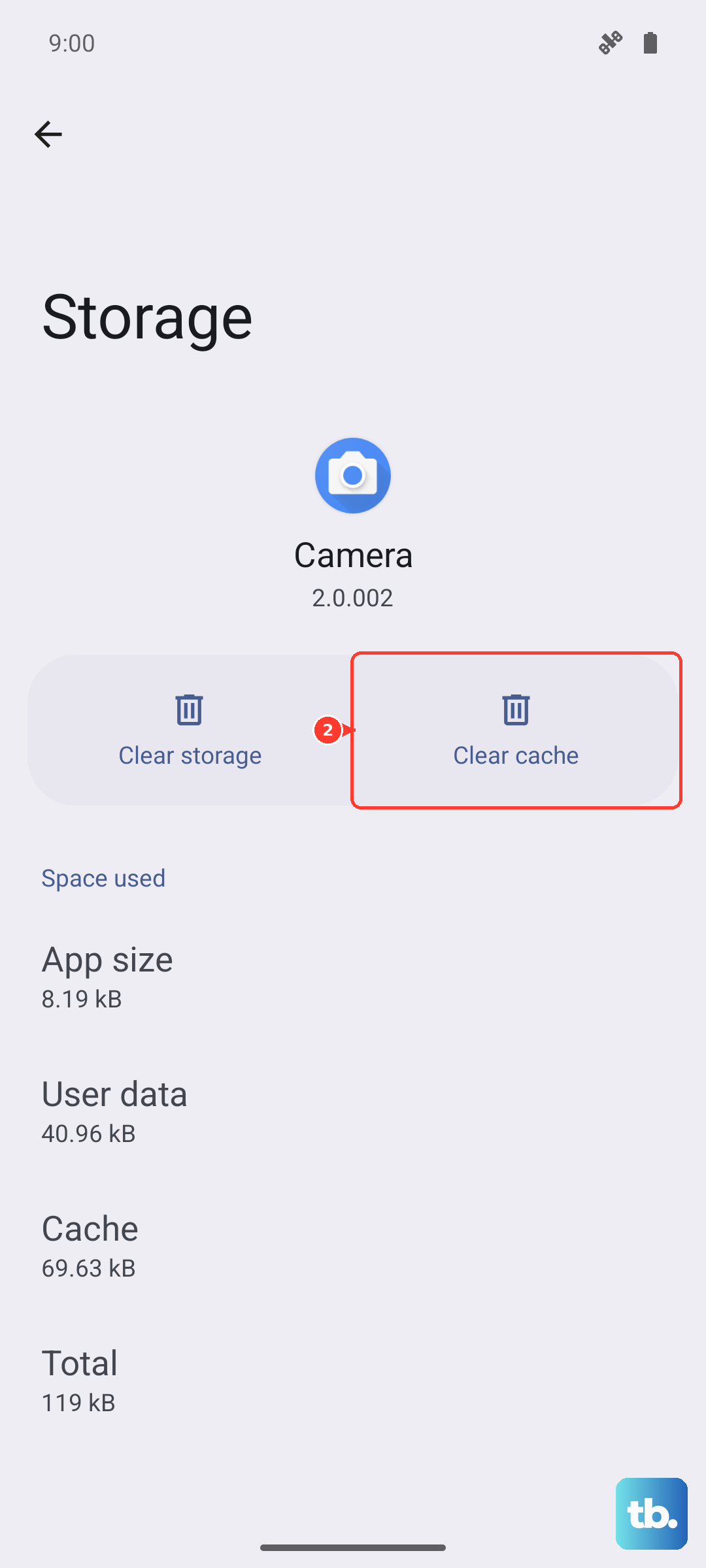
Sometimes the Software Update app itself gets confused. You can clear its temporary files without affecting your personal data. Go to Settings > Apps, tap the filter menu and select Show system apps, then find and tap Software update.
Tap Storage, then Clear cache. If that doesn't work, go back and tap Clear data. This resets the update app. After doing this, return to Settings > Software update and check for the update again.
Check for a False Moisture Detection
The Galaxy S24 is known to sometimes trigger a false moisture detection in the USB-C port, which can block certain system processes, including updates. If you see a water drop icon in your notification panel, that's the culprit.
Unplug any cables, power off the phone, and use a can of compressed air to gently blow into the port. Let the phone sit for a few minutes, then power it back on. The warning should clear, allowing you to proceed with the update over Wi-Fi.
Reset Your Network Settings
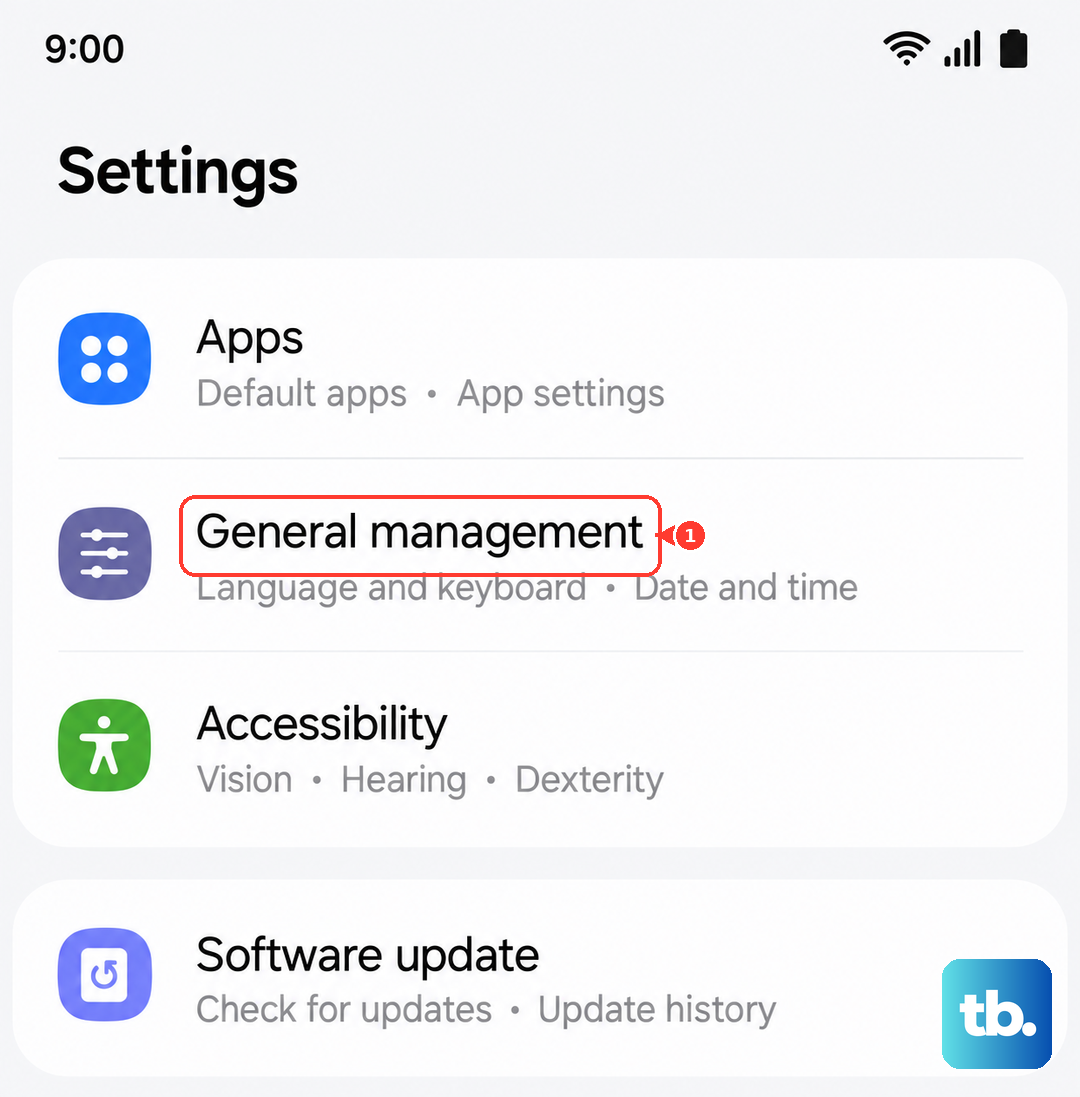
Corrupted network profiles can prevent your phone from communicating with Samsung's update servers. Resetting them is a reliable next step. Go to Settings > General management > Reset > Reset network settings.
This will erase all saved Wi-Fi networks, Bluetooth pairings, and mobile data settings. You'll need to reconnect to your Wi-Fi afterward. Once you're back online, try the software update check again.
Update Using Samsung Smart Switch on a PC
If the over-the-air update is persistently failing, bypass it completely by using a computer. Download and install Samsung Smart Switch on your Windows PC or Mac. Connect your Galaxy S24 to the computer using a USB-C cable.
Open Smart Switch, and if an update is available, you should see a prompt. The software will download the update file to your computer and install it directly to your phone. This method is often more stable as it avoids potential Wi-Fi or phone storage issues.
Check Samsung's Update Server Status
Occasionally, the problem is on Samsung's end. During the rollout of a major One UI update, their servers can become overloaded, causing downloads to fail for everyone. You can search for "Samsung update server status" on a community forum or social media to see if other S24 users are reporting the same issue.
If servers are busy, the best advice is to simply wait a few hours or try again late at night when demand is lower. The update isn't going anywhere.
Ensure Your Device is Eligible
Major Android version updates, like moving to Android 15 with One UI 7, have specific eligibility windows. While the Galaxy S24 is new and will be supported for years, smaller security updates are sometimes rolled out in stages by carrier and region.
Your phone might not see the update immediately if it's carrier-locked. You can check your current version in Settings > About phone > Software information. If you're still waiting, it may just be that the update hasn't reached your specific device model yet.
Temporarily Disable Security Apps
Third-party security apps, VPNs, or ad blockers can sometimes interfere with the update download process. Try temporarily disabling any apps of this nature. Go to Settings > Apps, select the app, and tap Disable or force stop it.
After disabling them, attempt the update again. Remember to re-enable your security apps once the update is complete to keep your phone protected.