
When your Samsung Galaxy S24's Mobile Hotspot stops working, it leaves your laptop, tablet, or other gadgets stranded without internet. Whether the hotspot isn't appearing on other devices, connections keep failing, or the internet just won't pass through, there are several fixes you can try to get your personal Wi-Fi network back online.
Toggle the Mobile Hotspot Off and On
Head into your phone's settings and go to Connections > Mobile Hotspot and Tethering. Tap the switch to turn Mobile Hotspot off. Wait a solid 10 seconds, then tap it again to turn it back on. This quick reset clears any temporary software glitches in the hotspot service and is often the fastest way to get it working again.
Restart Your Galaxy S24
If toggling doesn't help, a full restart is the next logical step. Press and hold the Volume Down button and the Side key together for about 10 seconds until you see the Samsung logo appear. This force restart is more thorough than a standard shutdown and can resolve deeper system processes that might be interfering with the hotspot.
Verify Your Mobile Data Connection
Your hotspot relies entirely on your phone's cellular data. Pull down the notification panel and make sure your mobile data is turned on. If you're in an area with a weak signal, the hotspot will be unstable or not work at all. Also, double-check with your carrier that your specific plan includes mobile hotspot or tethering, as some budget plans restrict this feature.
Check the Hotspot Configuration
Sometimes the settings themselves can cause issues. Go to Connections > Mobile Hotspot and Tethering > Mobile Hotspot and tap the three-dot menu for 'More options'. Here, you can view and change the network name and password. Make sure the 'Hide my device' option is turned off so other devices can see your hotspot. I'd also recommend checking the 'Allowed devices' list to ensure it's not blocking the device you're trying to connect.
Reset Your Phone's Network Settings
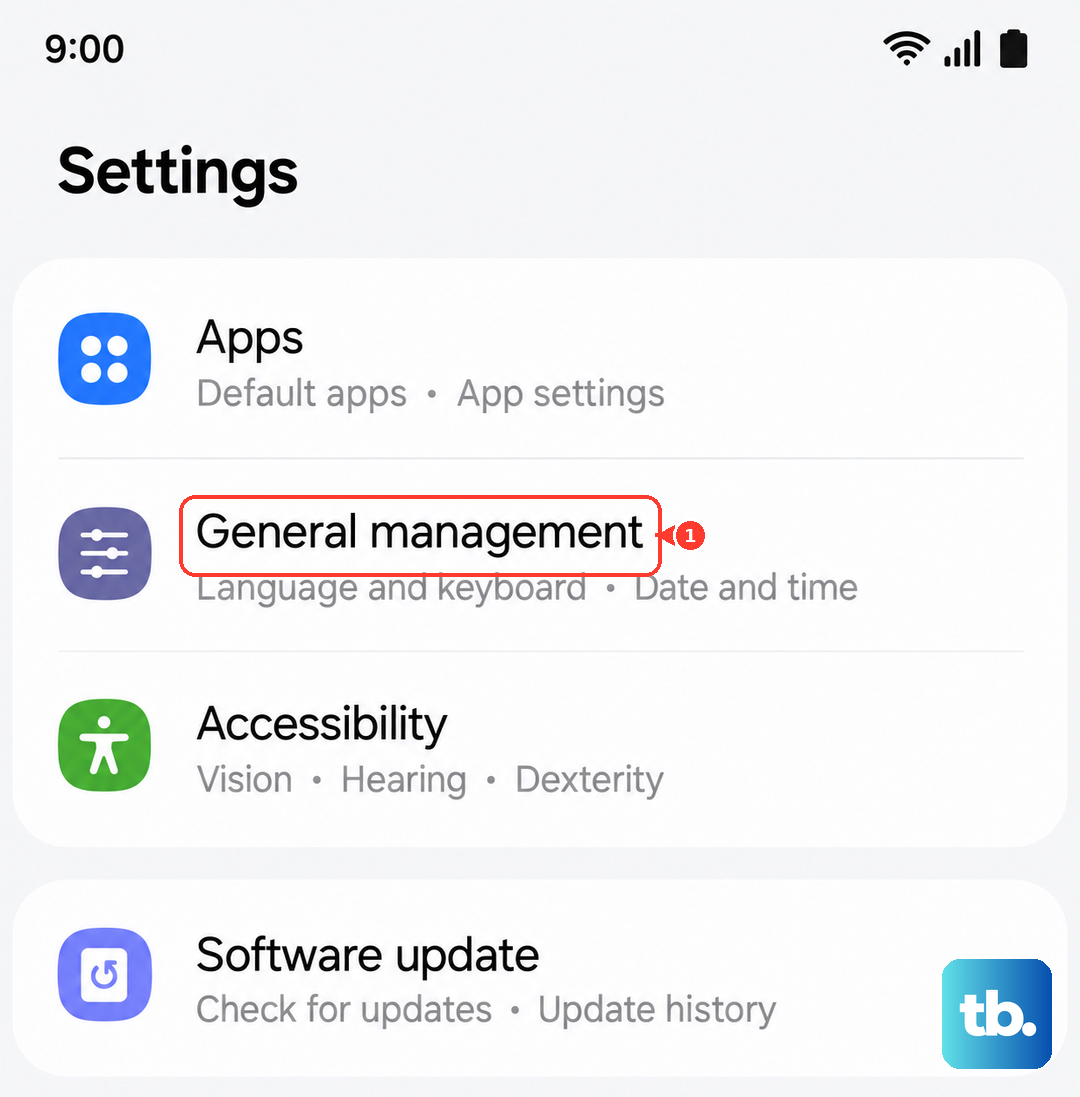
This is a more powerful step that can clear persistent network problems. Navigate to Settings > General Management > Reset > Reset network settings. This will erase all your saved Wi-Fi networks, Bluetooth pairings, and cellular network preferences. You'll have to reconnect to your Wi-Fi and re-pair Bluetooth devices afterward, but it's a proven fix for stubborn connectivity issues, including hotspot failures.
Update Your Phone's Software
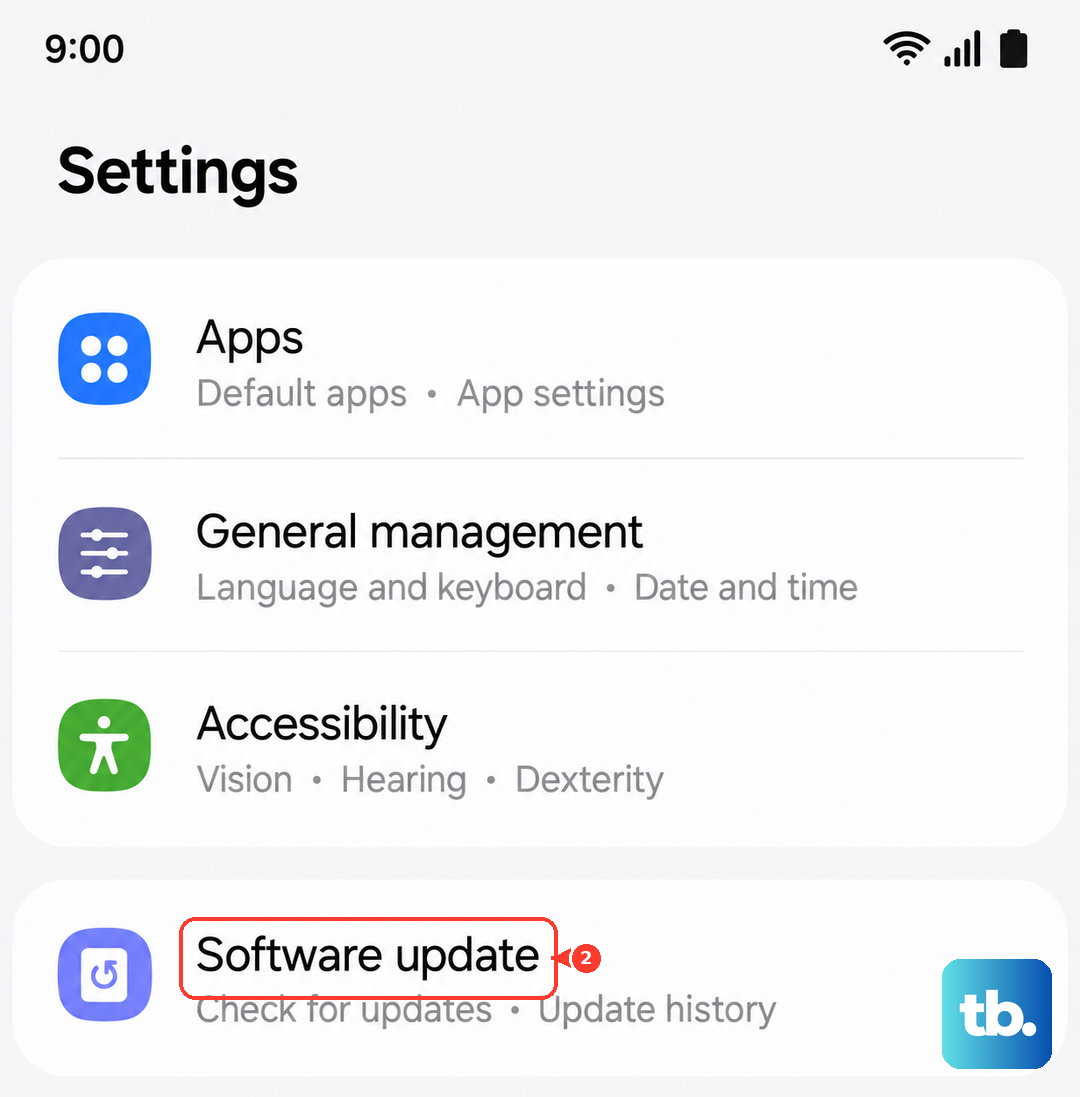
Software bugs in One UI or Android can break the hotspot feature. Go to Settings > Software update > Download and install. Samsung frequently releases updates that patch known issues, and I've seen updates specifically address connectivity problems on past models. Make sure your phone is running the latest available version.
Forget the Network on the Connecting Device
The problem might not be with your S24, but with the device trying to connect to it. On your laptop or tablet, go into the Wi-Fi settings and find your phone's hotspot network name. Choose the option to 'Forget' or 'Remove' this network. Then, search for available Wi-Fi networks again, select your phone's hotspot, and enter the password fresh. This clears any corrupted connection data on the other device.
Change Your Hotspot Password
If devices are having trouble authenticating, a new password can force a clean connection handshake. Go back to Connections > Mobile Hotspot and Tethering > Mobile Hotspot and tap the password field. Change it to something new, save it, and then try connecting your other device using this updated password.
Try USB or Bluetooth Tethering
If the Wi-Fi hotspot is being difficult, your S24 has other ways to share its connection. For USB tethering, connect your phone to your computer with a USB-C cable, then go to the Mobile Hotspot and Tethering menu and enable 'USB tethering'. Your computer should recognize it as a new network connection. For Bluetooth, pair your phone with the other device first, then enable 'Bluetooth tethering' on your S24.
Contact Your Mobile Carrier
If you've tried everything and the hotspot still won't work, the issue might be on your carrier's end. There could be a provisioning error on your account where the hotspot feature isn't properly activated, or there might be a temporary network issue in your area. A quick call to your carrier's support line can confirm if your line has hotspot access and if there are any known service problems.