
Seeing a completely black screen on your Samsung Galaxy S24 can be a real panic, but a drained battery or temporary glitch may be the cause. The phone might have crashed or the battery could be so drained that it needs a jump start. Let's get it working again.
Force Restart Your Galaxy S24
This is almost always the first thing I'd try. Press and hold the Volume Down button and the Side (power) button at the same time. Keep holding them for 20 seconds to force a restart. This forces a reboot and can clear out a frozen software state, even if the display seems totally dead.
Charge Your Phone Properly
Plug your S24 into a wall outlet using a known-good USB-C cable and a power adapter. A Samsung charger that supports 25W Super Fast Charging is suitable. Charge the phone for at least 1 hour; the charging indicator may take up to 10 minutes to appear. Then disconnect it and hold the Side button for 15 to 20 seconds to turn it on.
Once the screen works, check your battery settings. Under Settings > Battery > Battery protection, Maximum stops charging at your selected limit of 80%, 85%, 90%, or 95%; Basic allows charging to 100%. Turn this off temporarily if you need a complete charge to troubleshoot.
Check for a Moisture Detection Error
Moisture in the USB-C port can interfere with wired charging. Unplug the cable and turn the phone off before inspecting the port with a flashlight. Carefully remove visible debris with a soft, dry brush, without metal objects or liquids. If the port is wet, let it dry before reconnecting the charger. Also check the phone, charger, and cable for liquid damage, corrosion, or bent pins. If you find damage, arrange service rather than continuing to charge.
Look for Signs of Life
Even with a black screen, the phone might still be on. Press the side button to see if it vibrates. Try calling your number from another phone to see if it rings. If you hear sounds or feel vibrations, the phone may still be running despite the black screen. If the display stays black after restarting and charging, arrange service.
Inspect for Physical Damage
Take a close look at the screen under a bright light. Look for any hairline cracks, deep scratches, or spots where the screen may have separated from the frame. Even a small impact can damage the OLED panel or its connectors. If the phone was dropped recently and now has a black screen, that's a strong indicator of hardware damage requiring a repair.
Boot into Safe Mode
A misbehaving third-party app could be causing the system to crash. To check, you can try booting into Safe Mode. First, completely power off the phone. Turn it on and, when the Samsung logo appears, press and hold the Volume Down button. Keep holding it until the phone finishes booting; you should see "Safe mode" in the bottom left corner. If the screen works in Safe Mode, you know a downloaded app is the culprit.
Connect to a Computer
Grab a USB-C data cable and connect your S24 to a Windows PC or Mac. To access files, unlock the phone, tap Allow if asked, and select Transferring files from the USB notification. If the screen works well enough to approve access, you can back up your data before moving on to more serious software fixes. A computer detecting the phone alone does not give access to its files.
Use Samsung's Recovery Mode
If the phone is stuck in a boot loop or a severe software crash, you can try opening recovery mode. Turn the phone off, then connect it to your computer with a USB cable. Press and hold the Volume Up and Side buttons together until the Android recovery menu appears. If the screen becomes usable, you can also check Settings > Software update > Download and install for an update.
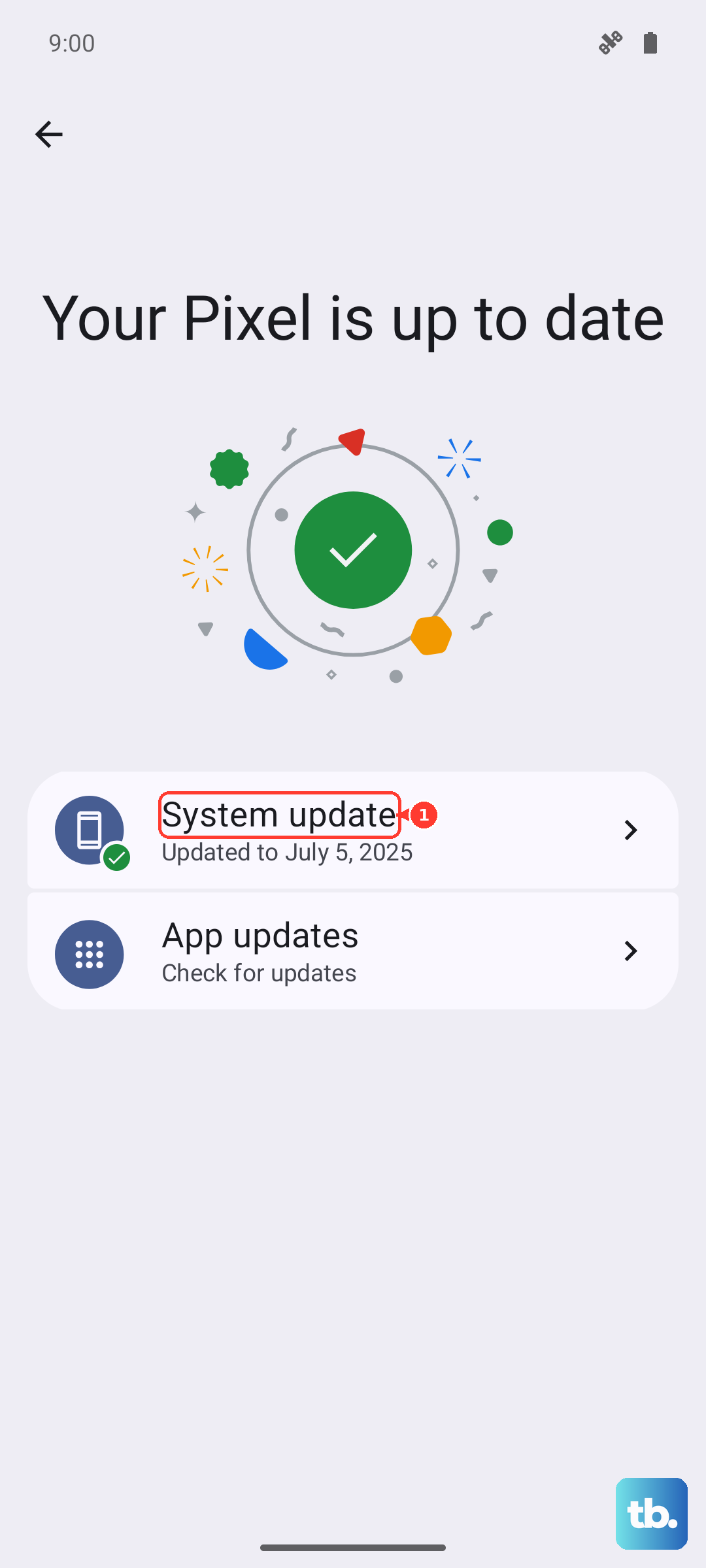
From here, you can use the volume buttons to navigate and the side button to select. If Wipe cache partition is available, select it, confirm Yes, then reboot. If the screen becomes usable, go to Settings > Device care and tap Optimize now to clear unneeded items from memory without erasing your personal data.
A last resort is Wipe data/factory reset, which erases everything on the phone. Back up your data first if possible, and have the last Google account's username and password ready for verification afterward. If the screen stays black after restarting and charging, arrange service.
Consider Wireless Charging
If you suspect an issue with the USB-C port, try using a Qi wireless charger. The Galaxy S24 supports Fast Wireless Charging 2.0. Place it correctly on the pad and see if the charging indicator light on the pad activates. If it starts charging wirelessly, check the USB-C port, cable, and power adapter for damage or debris before trying wired charging again.