
When your Samsung Galaxy S23's mobile data feels like it's moving through molasses, it can turn simple tasks into a test of patience. The issue often comes down to a setting that needs tweaking or a temporary network glitch.
I'd start with the quickest fix first. Toggle your mobile data off and back on by pulling down the Quick Settings panel and tapping the mobile data icon twice. Then, restart your phone by holding the Volume Down and Side button for about ten seconds until you see the Samsung logo.
This simple combo clears out temporary software hiccups and re-establishes a fresh connection to your carrier's network. It works more often than you'd think.
Check Your Network Mode and Signal
Your S23 might be clinging to a slower network type. Head into your settings to make sure it's using the fastest available. Go to Settings > Connections > Mobile networks > Network mode.
Select "5G/LTE/3G/2G (auto connect)" to let it automatically find the best signal. If you're in an area with spotty 5G, you can sometimes get more consistent speeds by manually choosing "LTE/3G/2G (auto connect)" instead, as the phone won't waste time searching for a weak 5G signal.
Also, take a glance at your signal bars. If you're seeing only one or two, that's likely the core of the problem. Try moving near a window or to a different room. Physical obstructions and building materials can significantly dampen cellular signals.
Turn On and Configure Data Saver
It might sound counterintuitive, but Samsung's Data Saver can help streamline your connection. When enabled, it restricts background data for most apps, which frees up bandwidth for the app you're actively using.
Go to Settings > Connections > Data usage > Data saver and toggle it on. You can then tap "Allow apps while Data saver on" to whitelist specific apps, like your music streamer or email client, so they can still sync in the background.
This prevents less important apps from quietly eating up your data speed in the background, which can make a noticeable difference in responsiveness.
Review and Restrict Background Data for Specific Apps
Some apps are notorious for heavy background activity. You can clamp down on them individually. Navigate to Settings > Apps, select the app you suspect, and then tap "Mobile data".
Here, you'll see two toggles: "Allow background data usage" and "Allow data usage while Data saver is on". Turning the first one off for data-hungry apps like social media or cloud storage services can immediately improve performance for your foreground tasks.
This gives you much finer control than the system-wide Data Saver, letting you target the exact apps that might be slowing things down.
Disable Any Active VPN Connections
If you use a VPN for privacy, it could be the bottleneck. VPNs route your traffic through a separate server, which often adds latency and reduces speed. To check, pull down your notification shade twice to see the full Quick Settings panel.
Look for a key icon or a notification that says "VPN active". If you see one, tap the settings cog next to it to go to the VPN settings and disconnect. You can also go to Settings > Connections > More connection settings > VPN to manage active connections.
Test your speed with the VPN off. If it's dramatically faster, you know the VPN service or server you're connected to is the issue.
Clear the Cache for Key Services
Corrupted cache data in system services can interfere with network connectivity. It's a safe fix that doesn't delete your personal data. Go to Settings > Apps, then tap the filter icon and select "Show system apps".
Scroll down and find "Carrier Services" and "Google Play Services". Tap on each one, go to "Storage", and tap "Clear cache". Do not tap "Clear data", as that is more drastic. This cleans out temporary files that might be causing conflicts.
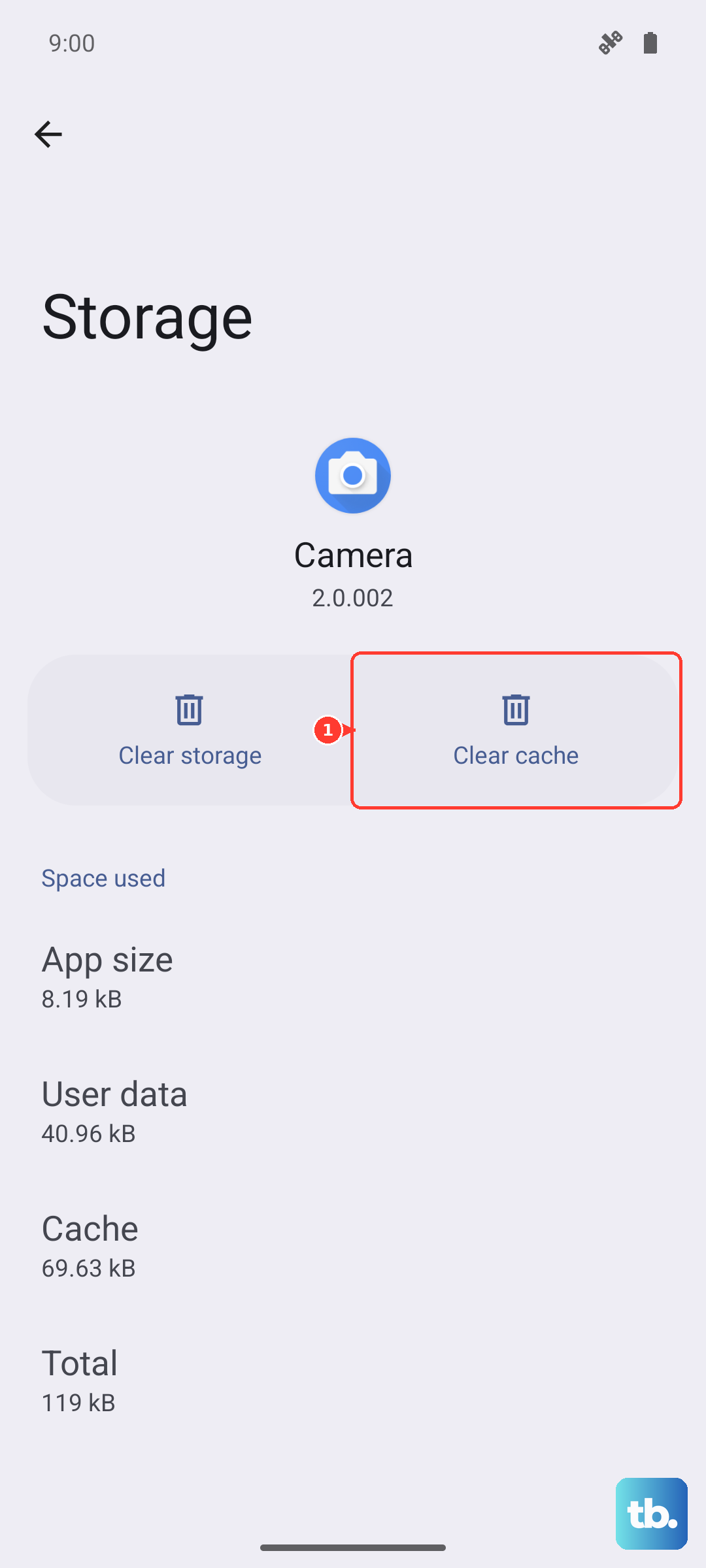
After clearing, restart your phone to let the services rebuild their cache fresh. This has resolved weird connectivity stalls for many users.
Update Your Phone Software
Samsung regularly releases updates that include modem firmware improvements and bug fixes for connectivity. Since the Android 14 update, some users have reported various performance quirks that later updates addressed.
Check for an update by going to Settings > Software update > Download and install. If an update is available, install it. It's a good idea to be connected to Wi-Fi for this process.
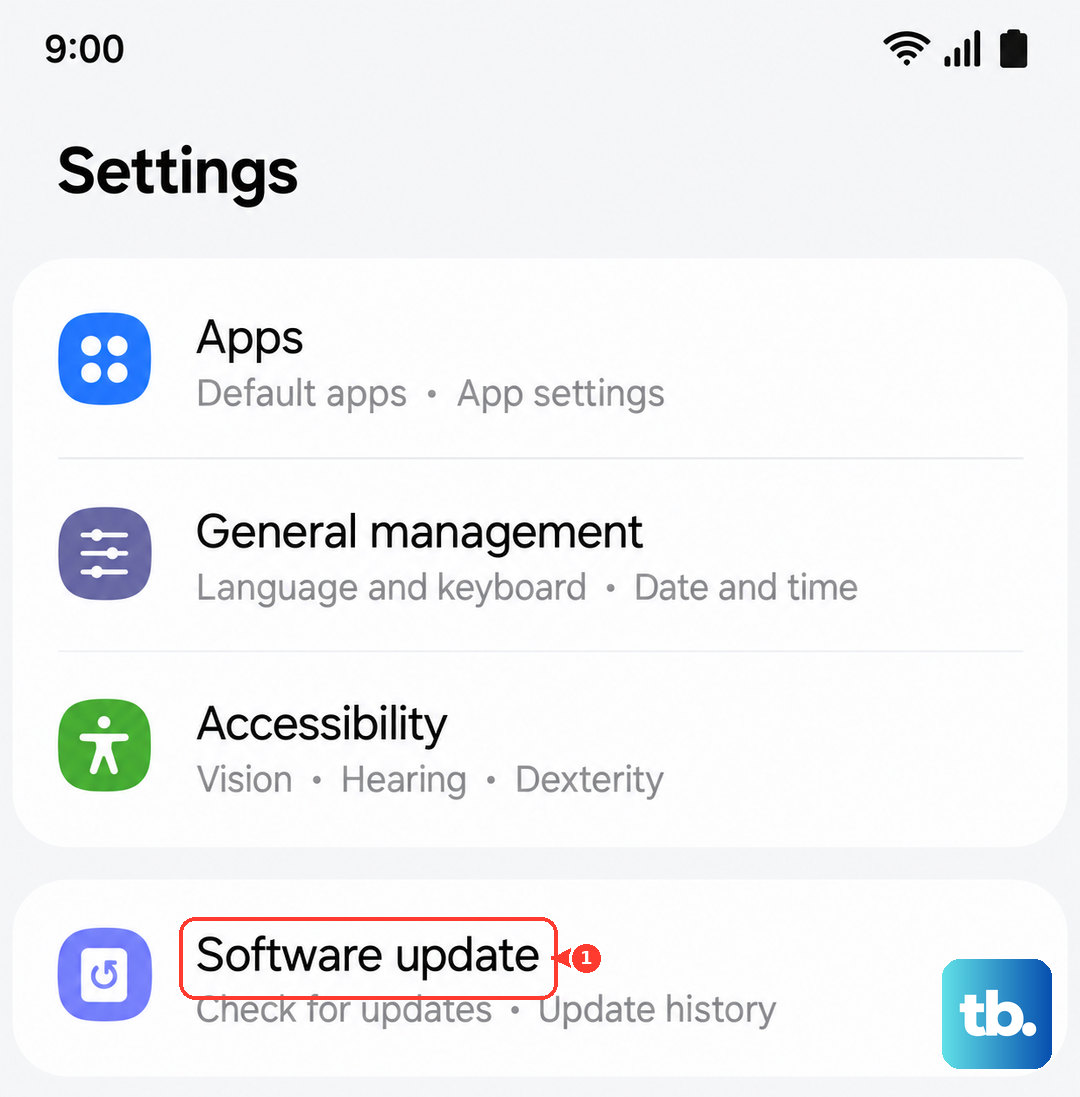
These updates can include crucial patches that directly improve how your phone's modem communicates with cell towers, potentially solving slow data issues.
Reset Your Network Settings
This is a more comprehensive step that will reset all network-related configurations to their factory defaults. You'll lose saved Wi-Fi passwords, paired Bluetooth devices, and custom APN settings, so be prepared to re-enter those.
To proceed, go to Settings > General management > Reset > Reset network settings. Tap "Reset settings" and confirm. Your phone will reboot.
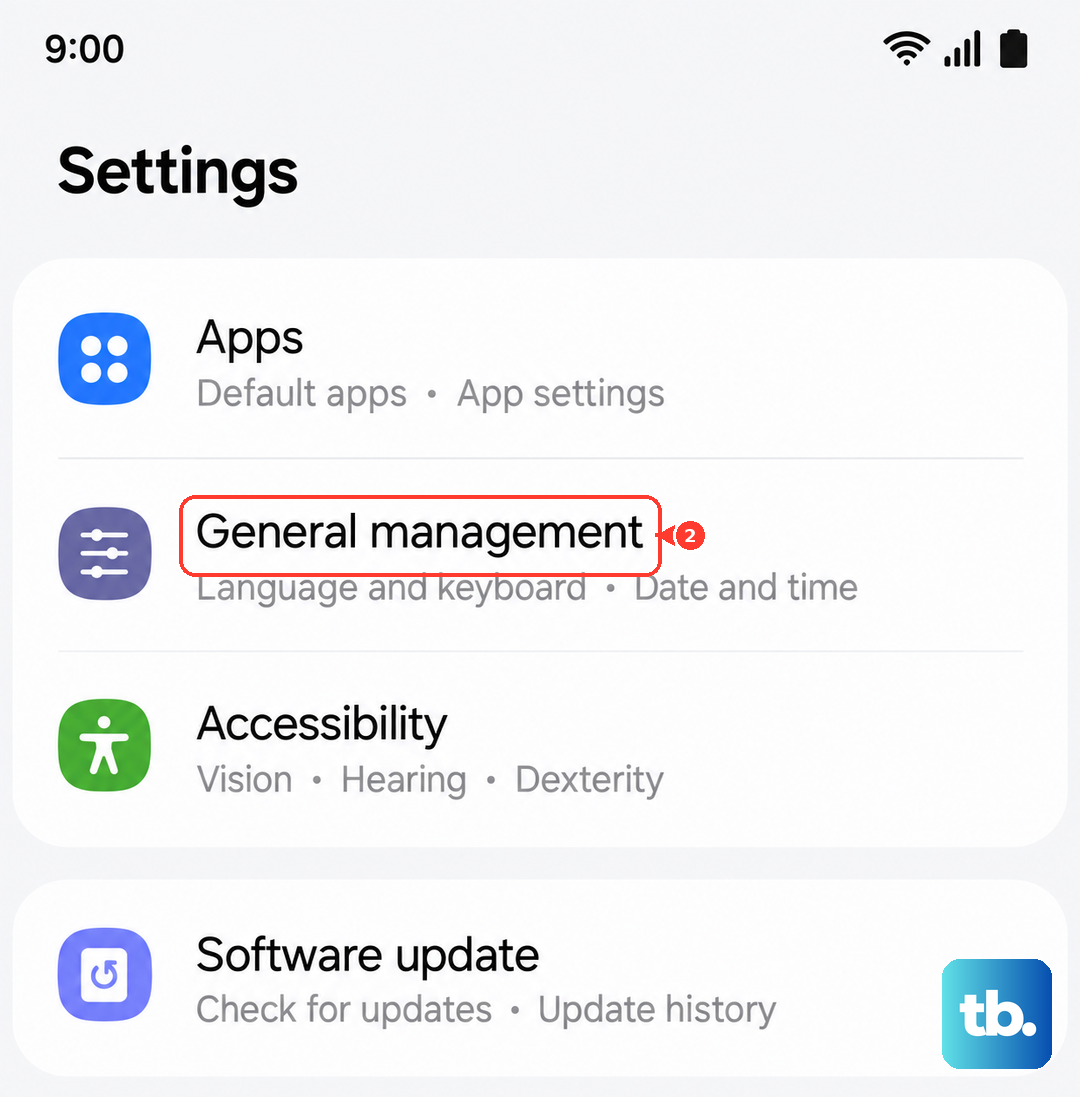
After it restarts, you'll need to reconnect to your mobile network and Wi-Fi. This clears out any deep-seated configuration errors that simpler resets won't touch.
Check and Configure Your APN Settings
An incorrect Access Point Name (APN) can cripple your data speeds. These settings tell your phone how to connect to your carrier's internet gateway. First, contact your carrier (like T-Mobile, Verizon, or AT&T) to get the correct APN details for your plan.
Then, on your S23, go to Settings > Connections > Mobile networks > Access Point Names. If there's already an APN for your carrier, tap it and carefully compare every field with the details from your carrier.
If anything is off, edit it. If the list is empty or you're unsure, tap the "+" icon to create a new APN entry from scratch. Once saved, select it to make it active. A single typo here can cause major problems.
Test in Safe Mode
This will tell you if a third-party app you installed is causing the slowdown. Boot into Safe Mode by pressing and holding the power button until the power menu appears, then press and hold "Power off" on the screen until you see the Safe Mode prompt.
Tap to restart in Safe Mode. You'll see "Safe Mode" in the bottom corner. Test your mobile data speed now. If it's significantly faster, you know an app you downloaded is the culprit.
Restart normally to exit Safe Mode, and start uninstalling recently downloaded apps one by one, testing after each, until you find the offender. Common suspects are battery optimizers, cleaner apps, or certain VPNs.