Seeing your Samsung Galaxy S23 screen flicker, flash, or show weird lines is incredibly annoying. It can make everything from texting to watching videos a real headache. This problem can pop up from a simple software hiccup, a misbehaving setting, or, less commonly, a hardware fault. Let's get it sorted.
Restart Your Galaxy S23
This is the universal first step for a reason. A quick restart clears out temporary glitches in the system memory that can affect the display. Just press and hold the Volume Down button and the Side key together for about 10 seconds until you see the Samsung logo. I'd start here, especially if the flickering just began out of the blue.
Disable Adaptive Brightness
Your phone's light sensor constantly adjusts the screen brightness, and if it gets confused, it can cause a flickering effect. Head to Settings > Display and toggle off Adaptive brightness. After you turn it off, manually set your brightness to a comfortable level using the slider right there in the Display menu.
Turn Off Eye Comfort Shield
This feature, which reduces blue light, can sometimes interact poorly with certain apps or system processes. To check if it's the culprit, go to Settings > Display > Eye comfort shield and toggle it off. See if the screen stabilizes after a few moments.
Check for a Software Update
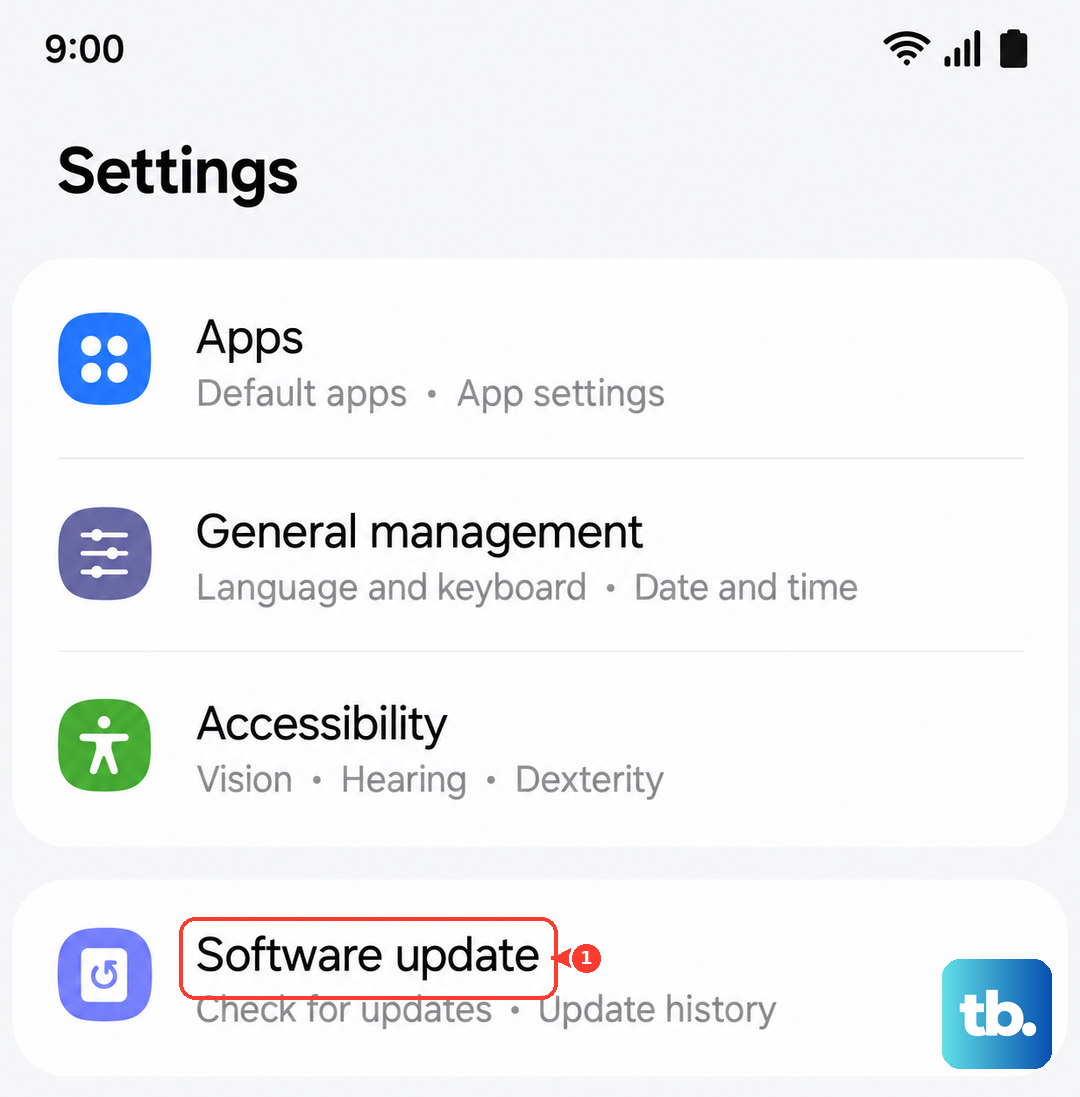
Samsung is pretty proactive with updates that fix bugs, including display issues. Navigate to Settings > Software update > Download and install. If there's an update waiting, let it install. I've seen updates specifically target screen performance and stability on past Galaxy models.
Boot Into Safe Mode
This starts your phone with all third-party apps disabled. If the flickering stops in Safe Mode, you know a downloaded app is causing the trouble. To enter Safe Mode, press and hold the power button until the power menu appears, then tap and hold the "Power off" option on your screen. Tap "Safe Mode" when prompted. Restart normally to exit.
Close Background Apps and Check for Culprits
A badly coded app running in the background can definitely mess with your display. Swipe up from the bottom and hold to see your recent apps, then swipe each one up to close it. If the flickering stops, try reopening your most-used apps one at a time to see which one triggers the problem again.
Reset All Settings
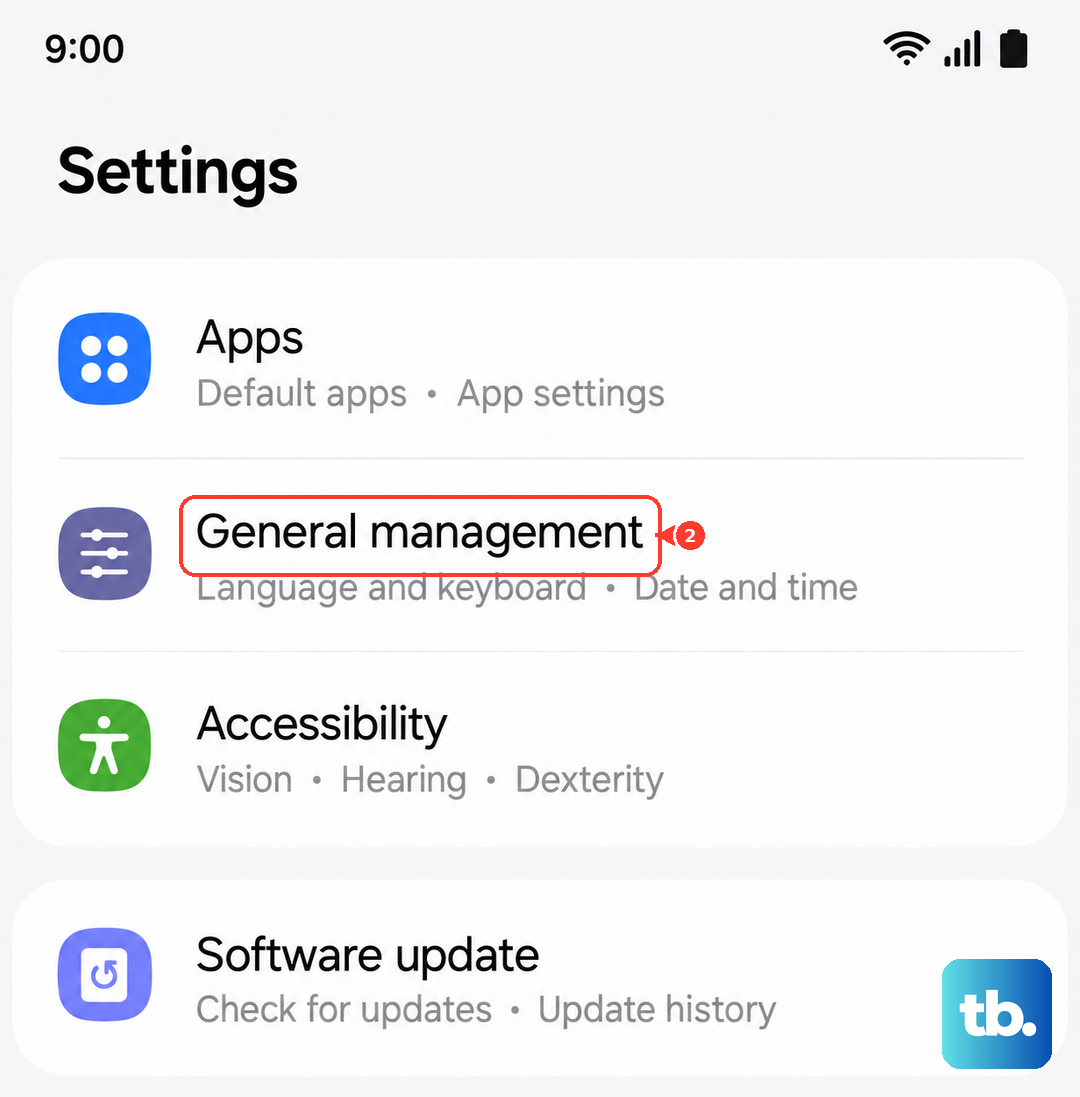
This is a deeper fix that won't touch your personal data. It resets all your system settings, like Wi-Fi, Bluetooth, and display preferences, back to factory defaults. Go to Settings > General management > Reset > Reset all settings. You'll need to re-enter passwords and reconfigure things, but it can resolve stubborn configuration conflicts.
Inspect for Physical Damage
If the flickering started after a drop or impact, the issue is likely physical. Look closely at the screen for any new cracks, even hairline ones, or areas with strange discoloration. A loose internal display connector or a damaged panel itself will require a professional repair.
Perform a Factory Reset
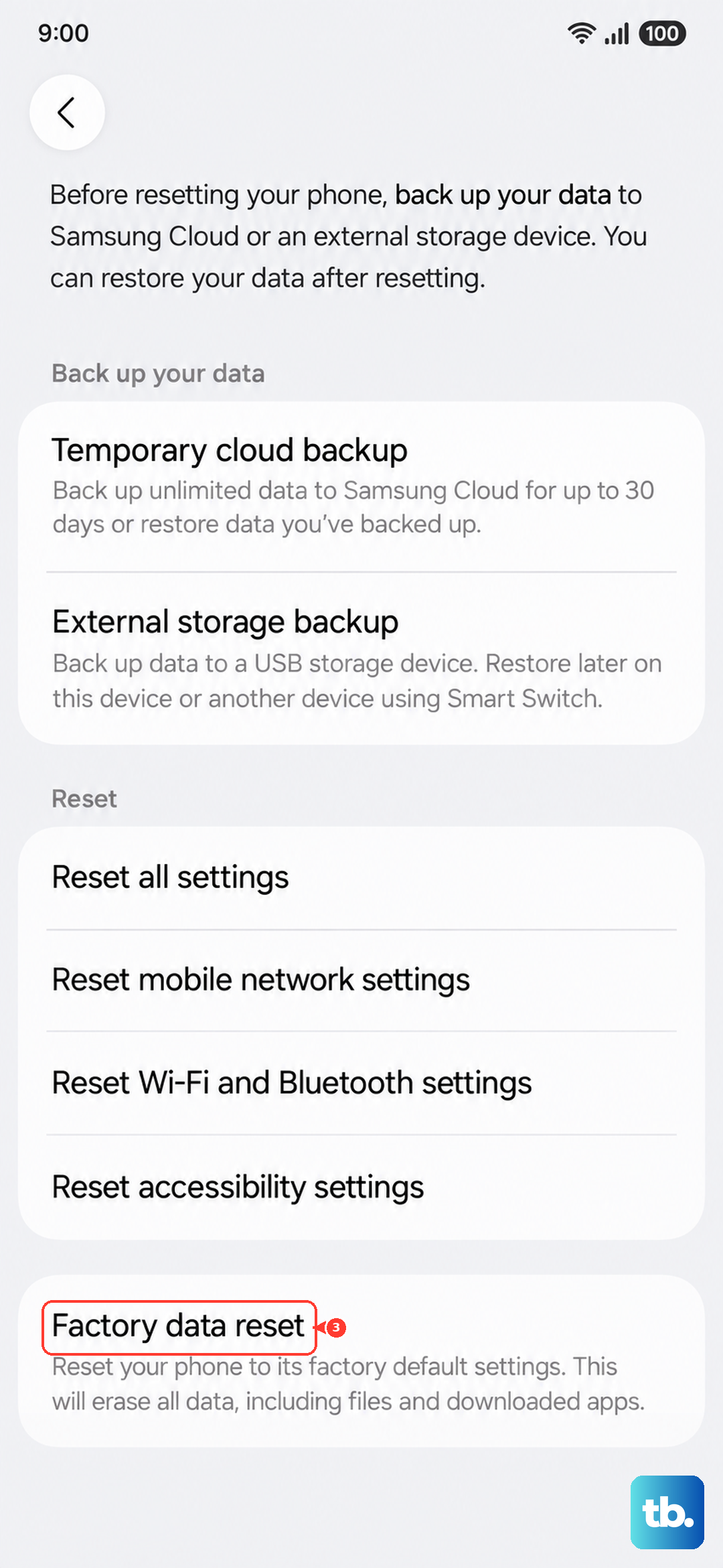
This is your last resort before a hardware diagnosis. Make absolutely sure you have a complete backup of your photos, messages, and app data. Then, go to Settings > General management > Reset > Factory data reset. If the flickering persists on a completely fresh phone, the issue is almost certainly with the hardware.