
A Samsung Galaxy Book 4 Pro that's dragging its feet can turn a premium laptop into a source of daily frustration. When a machine with this much power feels slow, it's almost always a software or configuration issue that you can fix yourself.
Perform a Full Restart
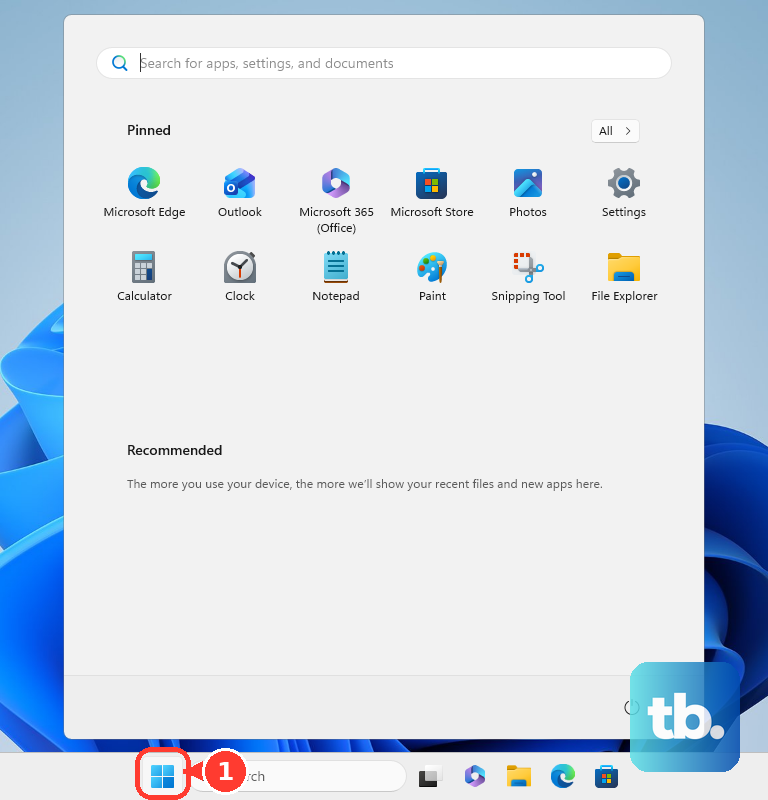
Don't just close the lid. Click Start > Power > Restart to give your system a fresh start. This clears out temporary memory leaks and stops background processes that have gotten stuck, which is a common quick fix for sudden sluggishness.
Use Samsung Settings for Performance Mode
Your Galaxy Book has its own control panel that can override Windows. Open the Samsung Settings app and navigate to the performance or battery section. Look for a mode selector and switch it from "Optimized" or "Quiet" to High performance or "Performance Mode" to ensure the CPU isn't being throttled.
Find the Culprit in Task Manager
Press Ctrl + Shift + Esc to open Task Manager. Click on the CPU, Memory, and Disk columns to sort by what's being used the most. A single app, or sometimes a Windows process, might be hogging all your resources. I'd start by checking there if the slowdown feels specific, like a fan constantly spinning up.
Stop Apps from Launching at Startup
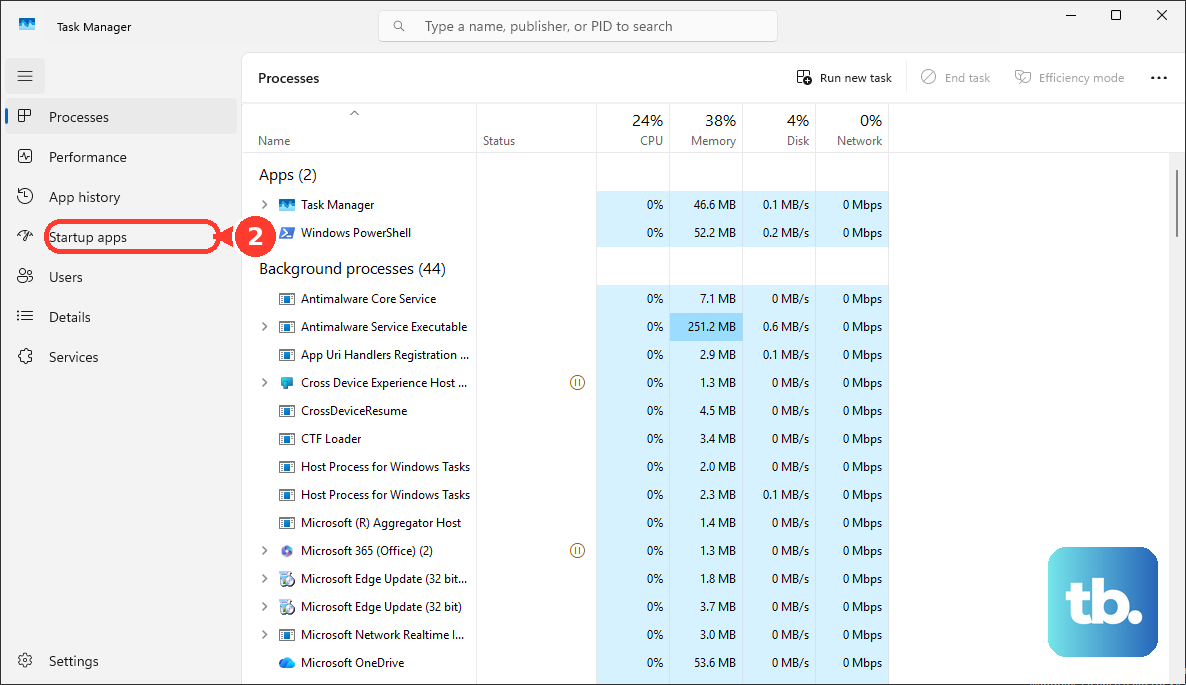
Go back to Task Manager and click the Startup apps tab. You'll likely see Samsung services, communication apps like Teams, and cloud storage tools set to launch automatically. Right-click and Disable everything you don't need immediately when you turn on the laptop. This speeds up boot time and frees up RAM.
Free Up Space on Your SSD
Even fast SSDs slow down when they're nearly full. Open Settings > System > Storage and see how much space is left on your C: drive. Turn on Storage Sense to automate cleanup, or click "Temporary files" to manually remove update leftovers and other junk. Aim to keep at least 20% of the drive free.
Run a Full Malware Scan
Open Windows Security from the Start menu, go to Virus & threat protection, and run a Full scan. While less common than on desktops, malware can still find its way onto laptops and consume resources in the background, causing general slowdowns.
Update Everything: Windows, Drivers, and Samsung Apps
First, go to Settings > Windows Update and install all available updates. Next, open the Samsung Update application or check the Samsung Members app. It's crucial to get driver updates directly from Samsung for your specific model, as generic Windows drivers might not optimize the hardware fully.
Check for App Conflicts in Samsung Settings
Sometimes, the Samsung Settings app and Windows power management can conflict, causing erratic performance. Try setting your power plan solely within Windows by going to Settings > System > Power & battery and setting Power mode to Best performance. Then, see if the behavior changes.
Consider a Refresh with Samsung Recovery
If the system feels bogged down by software clutter, use the built-in recovery tool. Back up your files first. Restart the laptop and press F4 repeatedly as it boots to launch Samsung Recovery. This option often does a cleaner reinstall of Windows with all the correct Samsung drivers than the standard Windows reset.
Review Background Apps and Visual Effects
Go to Settings > Privacy & security > Background apps and turn off background activity for apps that don't need it. For an extra boost, especially if you have an older model, search for "Adjust the appearance and performance of Windows" in the Start menu and choose Adjust for best performance to turn off animations.