
Seeing a blue screen on your Galaxy Book 4 Pro is Windows hitting a critical error it can't recover from. It's a protective crash, usually triggered by a driver conflict, faulty hardware, or a corrupted system file. While the specific error code gives a clue, these steps will tackle the most common causes for this laptop.
Restart and See if It Happens Again
The first thing to do is a normal restart. A single blue screen can be a random glitch. If your Galaxy Book boots up fine and runs normally afterward, you can probably chalk it up to a one-time hiccup. If the blue screen comes back quickly, especially during startup, you've got a recurring issue that needs fixing.
Write Down the Stop Code
When the blue screen appears, look for the all-caps error code near the bottom. Common ones include DRIVER_IRQL_NOT_LESS_OR_EQUAL, SYSTEM_SERVICE_EXCEPTION, or KERNEL_SECURITY_CHECK_FAILURE. Jot this code down. It points to the type of failure, which is useful if the general fixes don't work and you need to search for a more specific solution later.
Boot Into Safe Mode
If the laptop crashes before you can log in, you'll need to boot into Safe Mode. From the sign-in screen, hold the Shift key and click the power icon, then select Restart. After it reboots to a blue menu, choose Troubleshoot > Advanced options > Startup Settings > Restart. When it restarts again, press the 4 key for Safe Mode. This loads Windows with minimal drivers, which can help you troubleshoot without the crash.
Uninstall Recent Software or Updates
Think about what changed just before the crashes started. If you recently installed a new program, a peripheral, or a Windows update, that's a prime suspect. Go to Settings > Windows Update > Update history > Uninstall updates to remove the latest quality update. For software or drivers, use Apps & features in Settings or Device Manager to uninstall them. I've seen recent graphics driver updates cause conflicts on these laptops.
Update Your Drivers, Especially Graphics
Outdated or corrupt drivers are the leading cause of blue screens. Don't just rely on Windows Update. For your Galaxy Book 4 Pro, visit the official Samsung support site, enter your model, and download the latest driver package. It's crucial to get the graphics driver directly from Intel or NVIDIA's website, as they're often newer than what Samsung provides. Update your chipset and network drivers while you're at it.
Check the Samsung Settings App
Since you have a Galaxy Book, the Samsung Settings app can be a factor. Sometimes its performance or battery optimization settings can conflict with Windows power management. Open the Samsung Settings app and review your modes. Try switching to a balanced or optimized profile to see if it stabilizes the system. A temporary glitch here has been known to cause instability.
Run System File Checker and DISM
Corrupted Windows system files can trigger crashes. Open the Start menu, type cmd, right-click Command Prompt, and select Run as administrator. In the window, type sfc /scannow and press Enter. Let it scan and repair files. If it finds issues it can't fix, run this command first: DISM /Online /Cleanup-Image /RestoreHealth. After it completes, run the sfc command again.
Test Your Memory and Storage
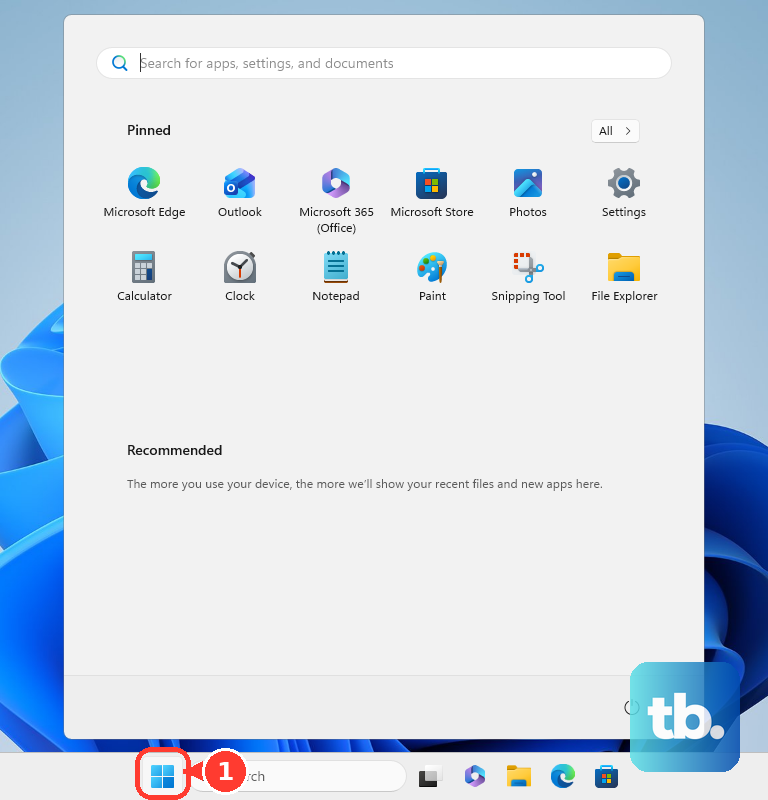
Faulty RAM is a classic blue screen culprit. Search for Windows Memory Diagnostic in the Start menu and run it. It will prompt you to restart, and the test runs before Windows loads. Any errors mean you likely have a RAM problem. For your SSD, open an admin Command Prompt and type chkdsk C: /f /r. It will schedule a check on the next restart to look for disk errors.
Check for Overheating
The Galaxy Book 4 Pro has a slim design, and thermal throttling can lead to crashes under load. If blue screens happen during gaming, video editing, or other intensive tasks, overheating is likely. Make sure the laptop vents on the bottom and sides are clear. Use it on a hard, flat surface, and consider a laptop cooling pad for heavy sessions.
Use Samsung Recovery Solution
If software fixes aren't working, you can use the built-in recovery tool. Restart your laptop and press F4 repeatedly as soon as the Samsung logo appears. This boots into Samsung Recovery. From here, you can choose to reinstall Windows while keeping your files, which is less drastic than a full reset. It reinstalls the core OS and Samsung drivers, which often clears up stubborn driver conflicts.
Reset or Refresh Windows
As a last resort before considering hardware, you can reset Windows. Go to Settings > System > Recovery and click Reset this PC. Choose Keep my files to reinstall Windows without touching your personal documents. This will remove all your apps and settings, so you'll need to reinstall programs afterward, but it gives you a completely fresh software foundation.