That constant blinking or flickering on your Samsung Galaxy A56 screen is incredibly distracting. It can make reading text or watching videos a real challenge. This issue usually stems from a software hiccup in One UI, a problematic display setting, or, less commonly, a physical problem with the display itself.
Force Restart Your Phone
This is the quickest fix and should be your first move. A force restart clears the phone's temporary memory and stops any glitchy processes. Press and hold the Volume Down button and the Side (power) button together for about 10 seconds.
You'll feel a vibration and see the Samsung logo appear. Release the buttons and let the phone boot up completely. I've found this resolves the blinking about half the time, especially if it started suddenly.
Disable Adaptive Brightness
Your A56 uses a light sensor to automatically adjust screen brightness, which is a common culprit for flickering. Go to Settings > Display and toggle off Adaptive brightness. After turning it off, manually adjust your brightness slider to a comfortable level and see if the blinking stops.
Turn Off Eye Comfort Shield
This feature, which reduces blue light, can sometimes cause display instability on certain units. You can find it in Settings > Display > Eye comfort shield. Try turning it off completely for a few minutes to test if it's the source of the problem.
If the blinking stops, you can try re-enabling it but adjusting the schedule or intensity. Sometimes setting it to a custom schedule instead of "Sunset to sunrise" fixes the conflict.
Check for a Software Update
Samsung regularly releases updates that fix bugs, including display-related ones. Navigate to Settings > Software update > Download and install. Make sure your phone is connected to Wi-Fi and has sufficient battery.
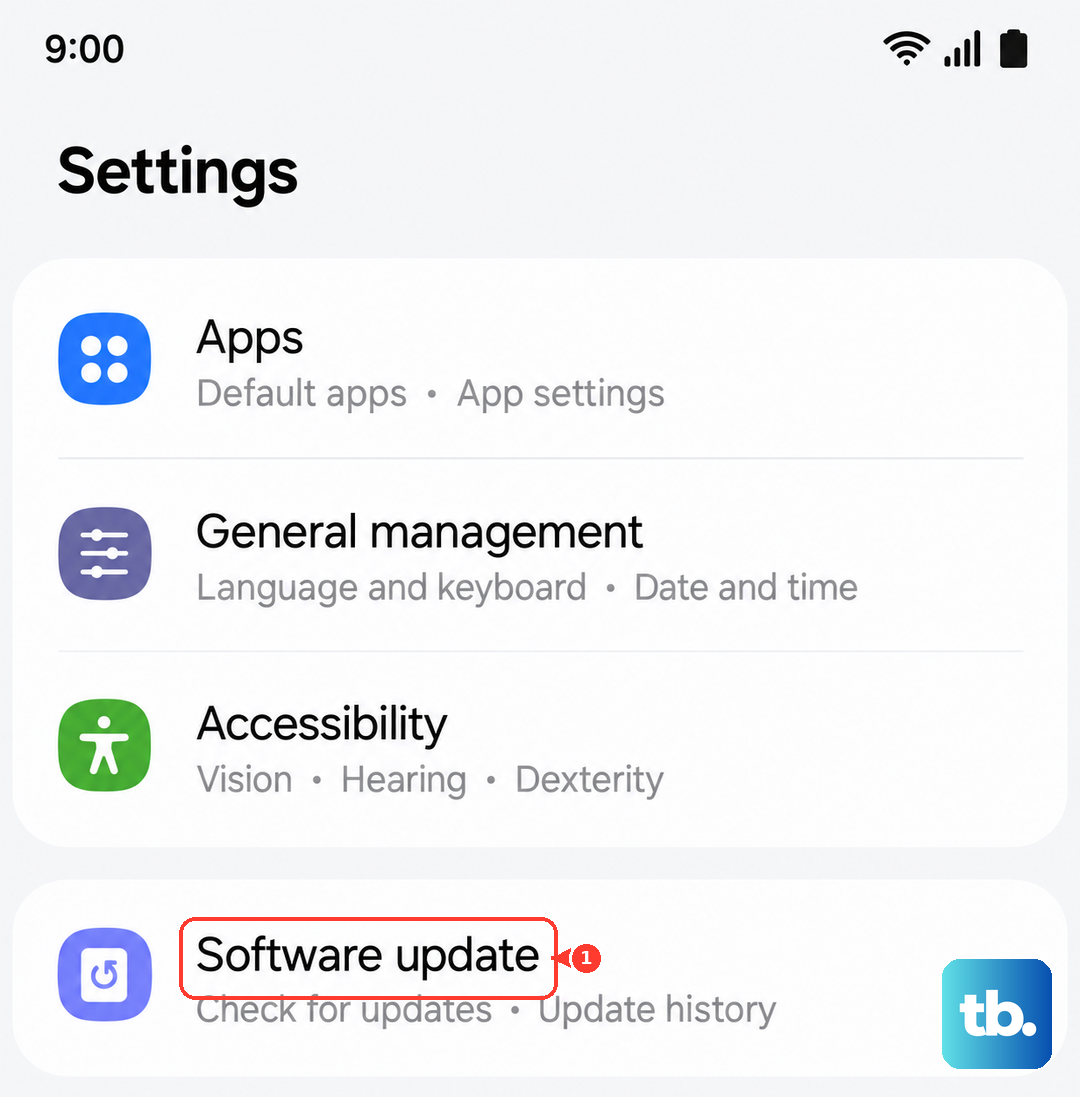
Installing the latest version of One UI and Android can patch the specific software flaw causing your screen to blink. It's a good habit to check this monthly.
Close All Recent Apps
A poorly coded app running in the background can interfere with the display. Swipe up from the bottom of the screen and hold to open the recent apps menu. Tap Close all at the bottom to shut down every app.
Use your phone normally for a bit. If the blinking is gone, you can reopen your apps one by one to try and identify which one was causing the trouble. Pay attention to any recently installed apps.
Boot Into Safe Mode
Safe mode temporarily disables all third-party apps. If the blinking stops in Safe Mode, you know for sure a downloaded app is the cause. To enter it, press and hold the power button until the power menu appears.
Then, tap and hold the Power off icon on the screen. You'll see a prompt to restart in Safe Mode. Tap it. If the screen is stable here, restart normally and begin uninstalling apps, starting with the most recent.
Reset All Settings
This will revert all your system settings, like display, sound, and connections, back to their factory defaults without touching your personal data. Go to Settings > General management > Reset > Reset all settings.
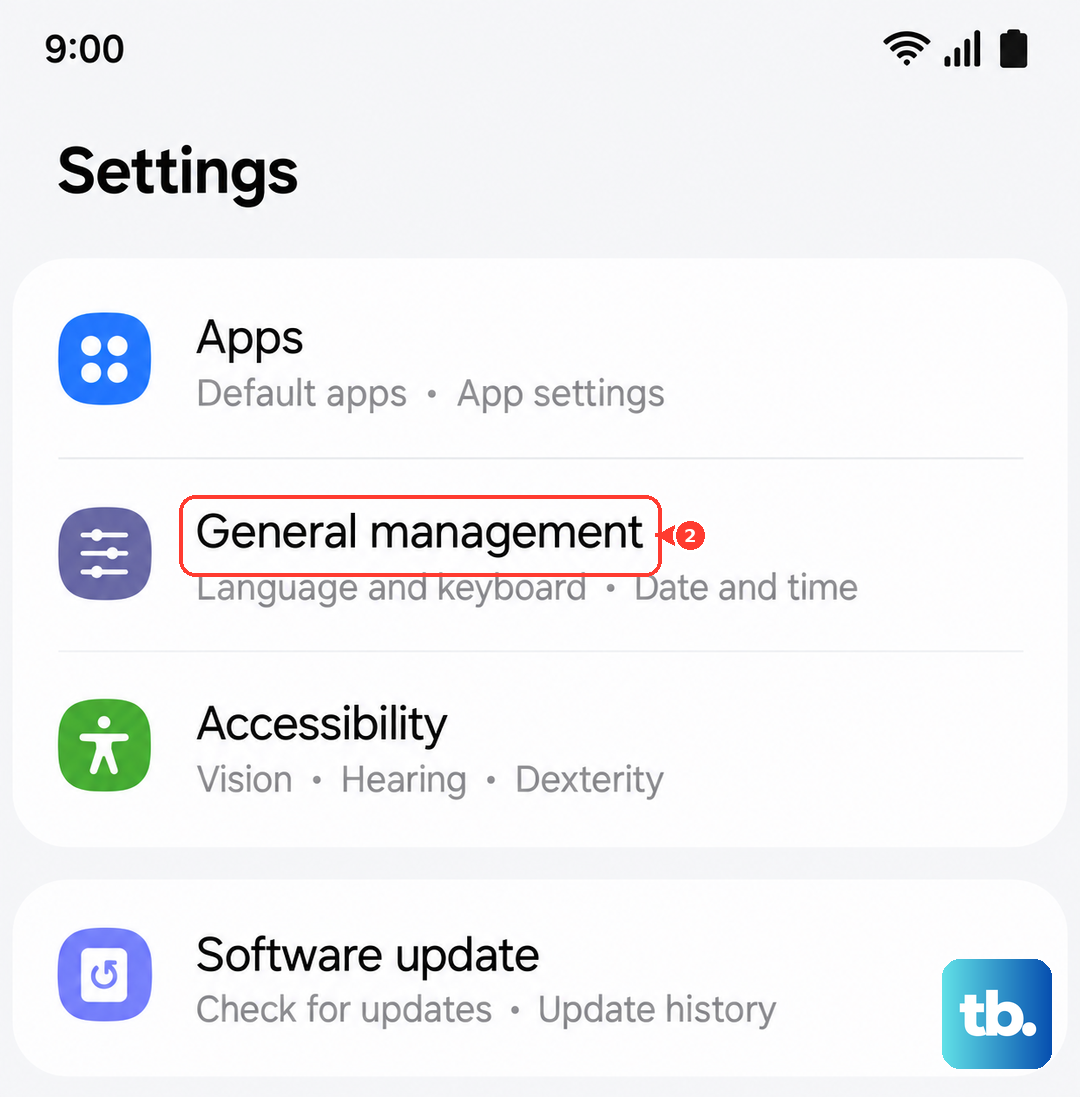
You'll need to re-enter Wi-Fi passwords and reconfigure things like ringtones, but it's a powerful way to eliminate a bad setting causing the flicker. It often fixes odd display behavior that other steps miss.
Inspect for Physical Damage
If the blinking started after a drop or impact, the issue could be hardware-related. Carefully look at the screen for any new cracks, even hairline ones. Also check for areas that look discolored or have pressure marks.
Internal damage, like a loose display cable or a failing screen, requires professional repair. Since the A56 doesn't have official water resistance, also consider if moisture could have gotten inside, which can cause erratic behavior.
Perform a Factory Reset
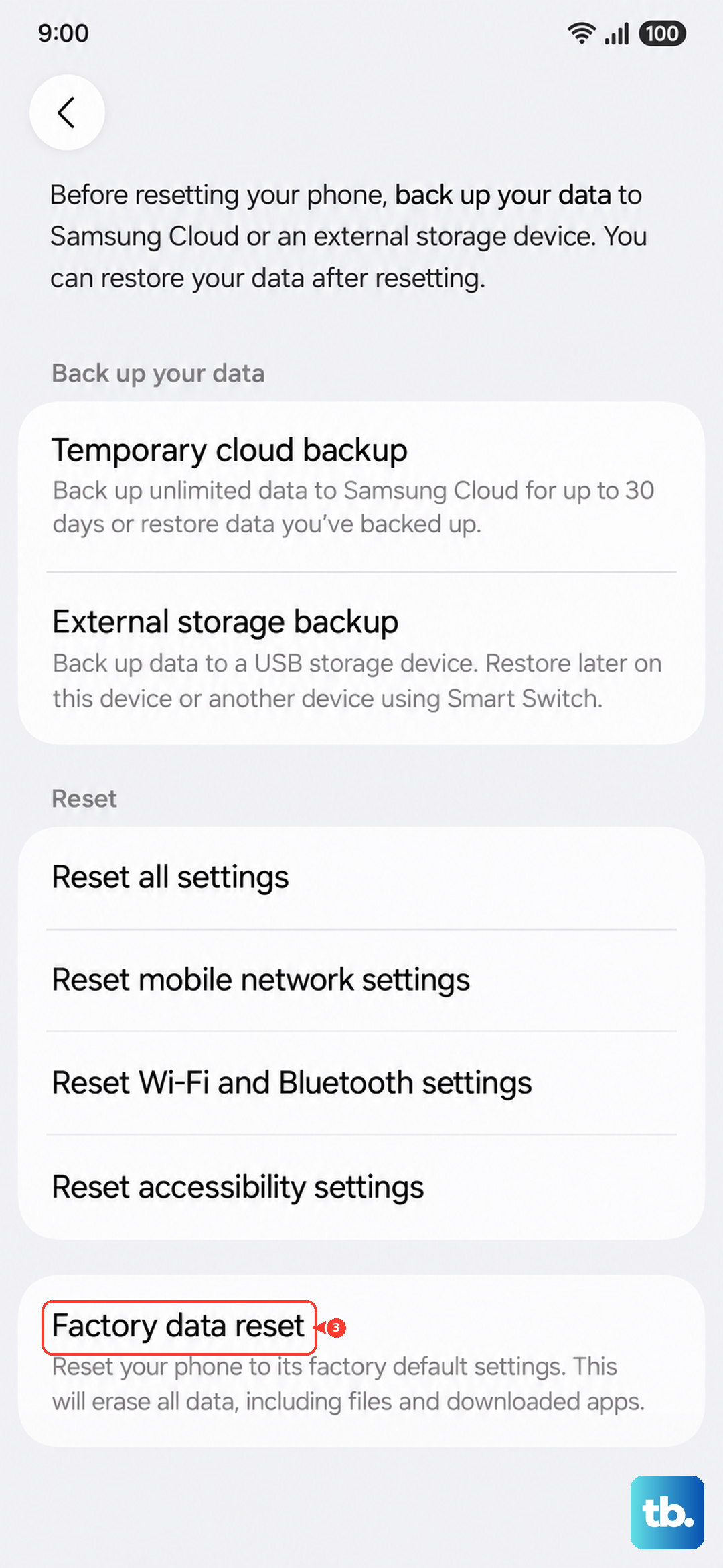
This is your last software step before assuming a hardware fault. A factory reset will erase everything on your phone, so you must back up your data first using Samsung Cloud or a computer.
Once backed up, go to Settings > General management > Reset > Factory data reset. After the reset, set up the phone as new without restoring a backup immediately. If the blinking persists on a completely fresh software install, the problem is almost certainly with the phone's hardware.