
A Galaxy A56 with an unresponsive touchscreen can feel completely locked down. You might see the screen on but taps and swipes do nothing, or the display could be stuck on a single app or the lock screen. In most cases, this is a temporary software hiccup that you can resolve without losing your photos or messages.
Force Restart Your Galaxy A56
This is almost always the first and most effective step. Press and hold the Volume Down button and the Side button (power key) together for about 10 seconds. You'll see the screen go black and the Samsung logo will appear as the phone reboots. This clears the phone's temporary memory and fixes most freezes without affecting your personal data.
Give the Phone a Moment
Sometimes the phone isn't truly frozen, it's just working hard on a background task. This could be installing a system update, processing photos, or an app that's stuck loading. If the screen is on but not responding, leave it alone for five to ten minutes. If the back of the phone feels warm, that's a good sign it's still processing something and may recover on its own.
Connect to a Charger
A battery that's nearly dead can cause the phone to become sluggish and unresponsive. Plug in your USB-C cable and a compatible charger. Since the A56 supports 25W fast charging, I'd recommend using a charger that supports Power Delivery (PD) if you have one. Let it charge for at least 15-20 minutes before trying to turn it on or restart it.
Be aware that Samsung's moisture detection can sometimes falsely trigger if there's lint in the port, which will block charging. If you see a water droplet icon, you'll need to gently clean the USB-C port with a dry toothpick or compressed air.
Close Problematic Apps
If the touchscreen works everywhere except in one specific app, that app is likely the culprit. Swipe up from the bottom of the screen and hold to open the recent apps view. Find the frozen app and swipe it up off the screen to close it completely. You can then relaunch it from your app drawer.
If a particular app consistently causes freezes, check the Galaxy Store or Google Play Store for an update. As a last resort, uninstalling and reinstalling the app often clears up any corrupted data causing the issue.
Check Your Available Storage
When your phone's internal storage is completely full, the system has no room to create temporary files it needs to operate, which can lead to freezing. If you can get the phone responsive, go to Settings > Device care > Storage. Try to free up at least 3-4 GB of space by deleting old downloads, clearing app caches, or offloading videos to cloud storage.
Install Software Updates
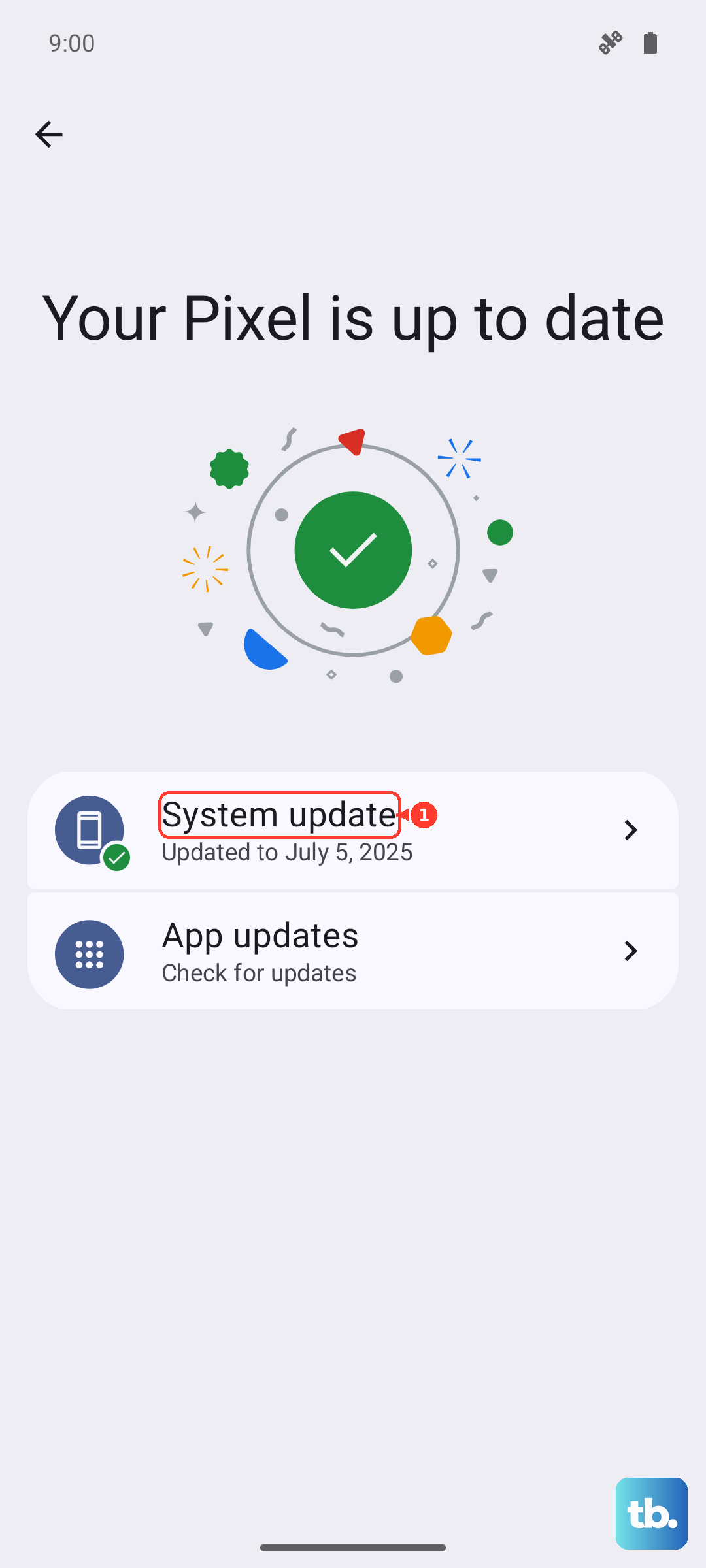
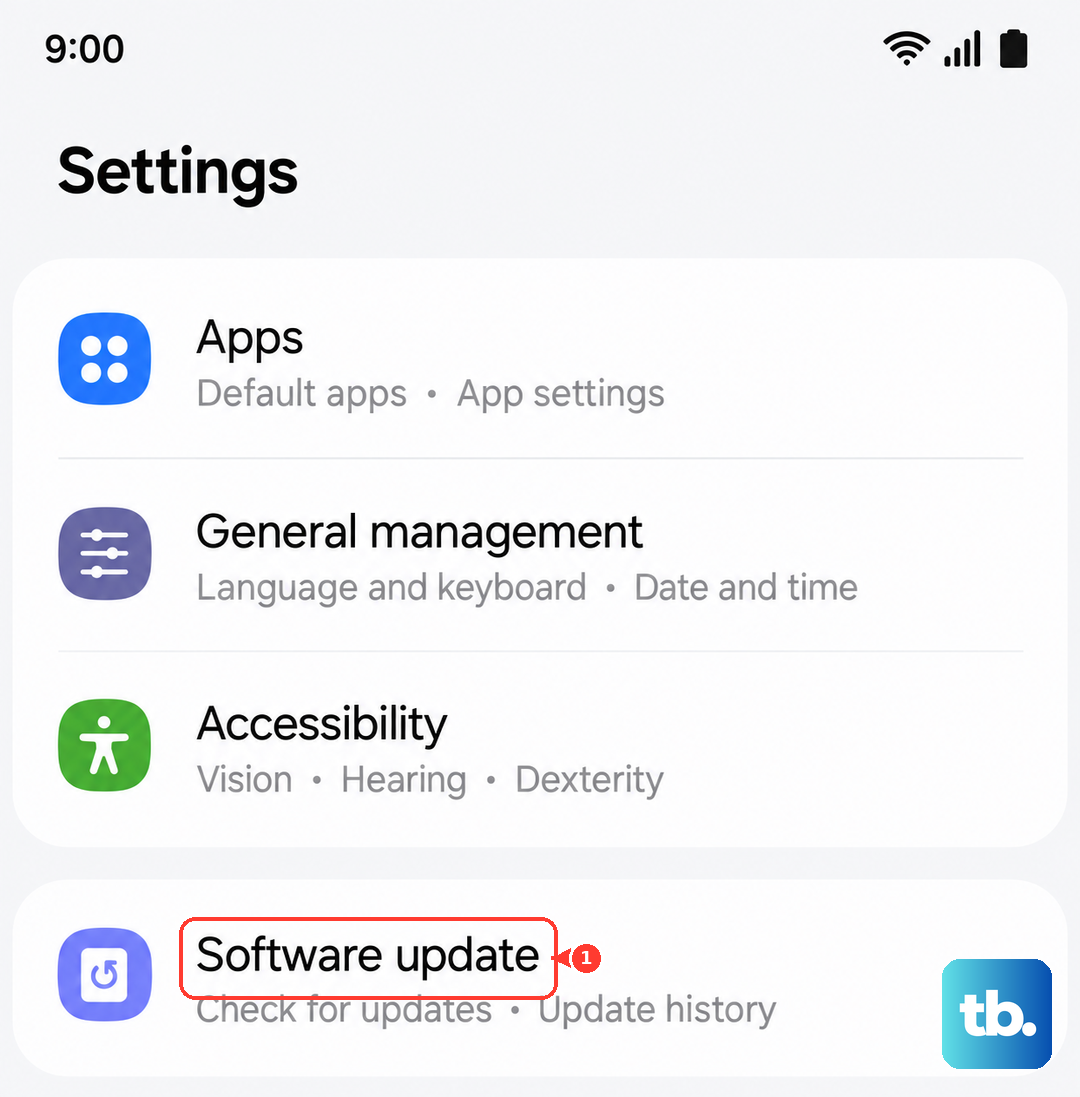
Running outdated software on your One UI 7 (Android 15) can lead to bugs that cause instability. After a successful restart, navigate to Settings > Software update > Download and install. Make sure your phone is connected to Wi-Fi and has sufficient battery before starting the update. An update often includes patches for known performance issues.
Reset All Settings
If freezes keep happening after restarting, a system setting might have become corrupted. You can reset these without touching your personal files. Go to Settings > General management > Reset > Reset all settings. This will revert your Wi-Fi passwords, wallpaper, and sound settings back to default, but your apps and data will remain intact.
Use Smart Switch on a Computer
For a phone that is completely stuck and won't respond to a force restart, you'll need to use a computer. Download and install Samsung's Smart Switch application on a Windows PC or Mac. Connect your Galaxy A56 with a USB-C cable while it's powered off.
Then, press and hold the Volume Up and Side button together to boot into Download Mode. In Smart Switch, you'll have an option to update the device software, which can repair the operating system without a full factory reset. This is the best step to try before any data-erasing options.
Let an Overheated Phone Cool Down
Modern phones, including the A56, have built-in thermal protection. If the processor gets too hot, the system will throttle performance or even freeze up to prevent damage. If the back of your phone is very warm to the touch, turn the screen off and move it out of direct sunlight.
Take it out of its case to help it cool faster, and avoid using it or charging it until it returns to a normal temperature. This usually takes about 15-20 minutes in a cool room.