
When the flashlight on your Samsung Galaxy A56 stops working, it's a surprisingly frustrating little glitch. The button in the Quick Panel might do nothing, or the camera flash might fail to fire. Let's get it shining again.
Close the Camera App Completely
The flashlight uses the same LED as the camera flash. If the Camera app is running, even in the background, the system locks the light. Swipe up from the bottom to see your recent apps and swipe the Camera app card all the way off the screen. You should be able to use the flashlight immediately after.
Perform a Force Restart
This is the go-to fix for most minor software hiccups on the A56. Press and hold the Volume Down button and the Side button together for about 10 seconds. Release when you see the Samsung logo. It's the same method used on the Galaxy S series and clears the temporary state controlling the flash.
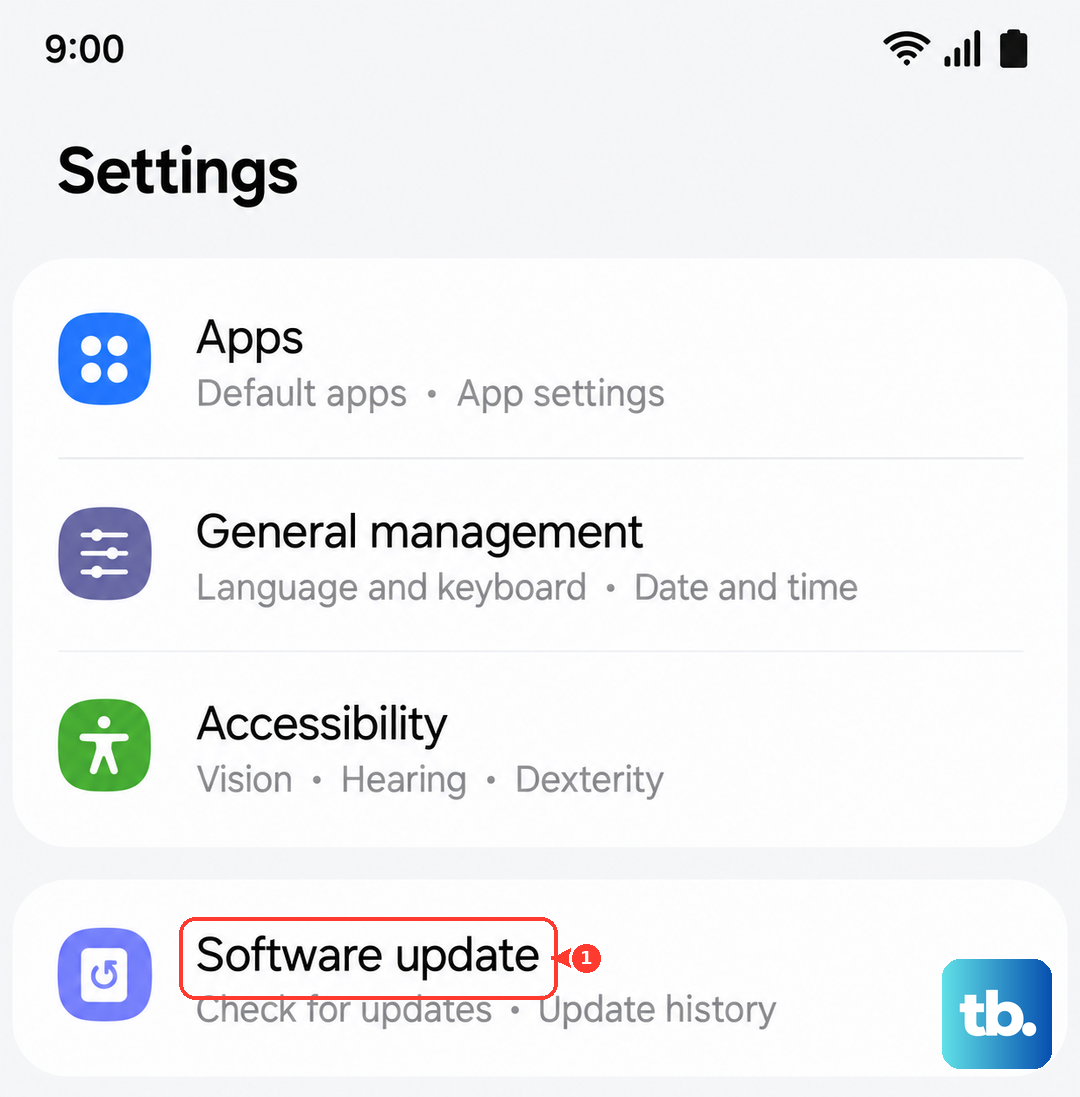
Check for a Software Update
Bugs in One UI or Android can sometimes affect hardware controls. Open Settings and go to Software update. Tap Download and install. Samsung regularly patches these kinds of issues, so installing the latest update is a solid step.
Clear the Camera App's Cache
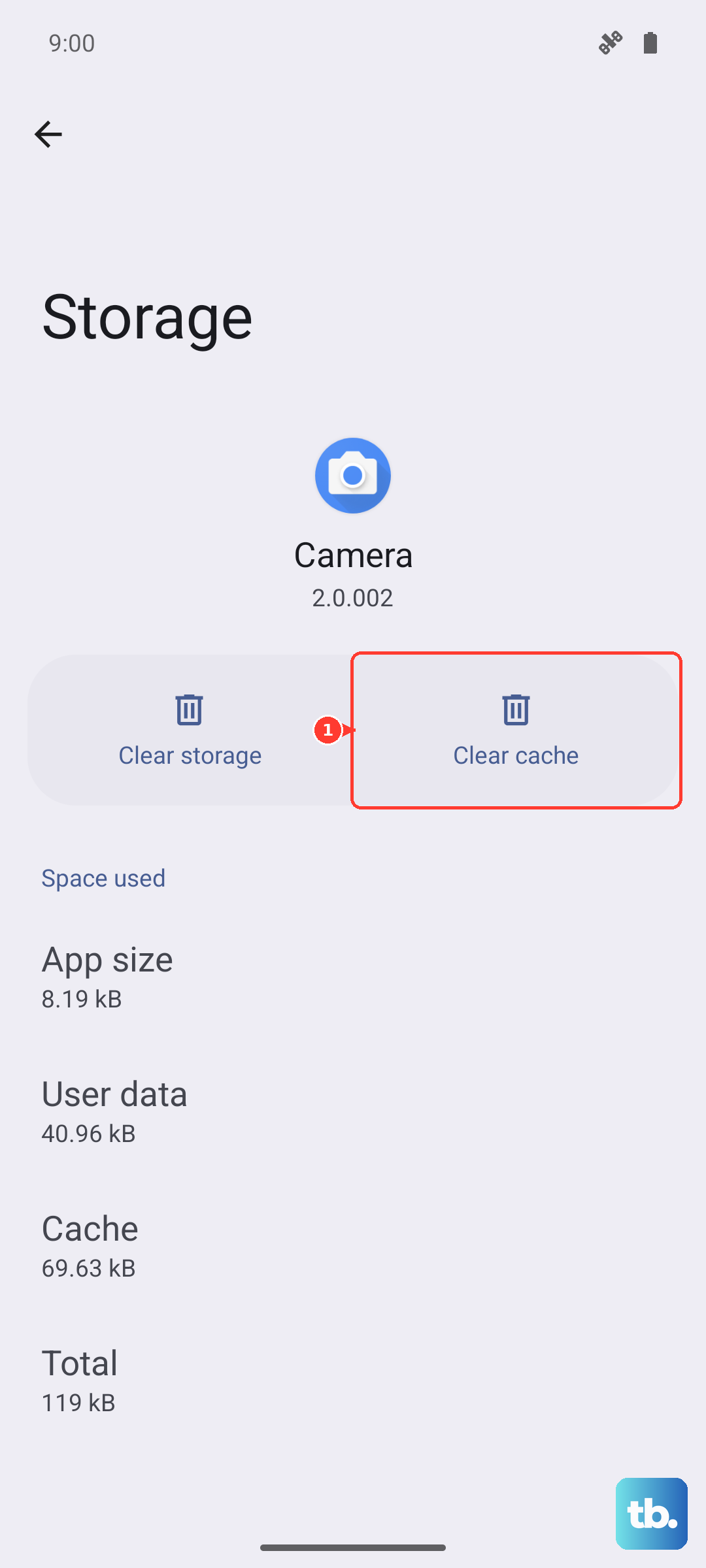
Corrupted temporary data in the Camera app can interfere with the flash. Go to Settings > Apps, find and select Camera. Tap on Storage and then hit Clear cache. This won't delete any of your photos or settings.
Let Your Phone Cool Down
If your Galaxy A56 is overheating, it will disable certain features to prevent damage, and the flash is often one of them. If the back of the phone feels warm, set it down in a cooler spot for 10-15 minutes. The flashlight function should return once the temperature drops.
Test the Flash with the Camera
Open your Camera app and try taking a picture with the flash forced on. If the flash works for photos but not as a flashlight, the issue is purely a software glitch with the Quick Panel toggle. If the flash doesn't work in the camera either, the problem is more systemic.
Toggle Power Saving Modes
While power saving shouldn't outright disable the flashlight, it can sometimes make the system less responsive. Go to Settings > Battery. Make sure both Power saving and any Adaptive battery settings are turned off, then test the light.
Reset All Settings
If a glitch is buried in your system preferences, this will clean it out. Go to Settings > General management > Reset > Reset all settings. This will reset your Wi-Fi, Bluetooth, and layout preferences back to default, but it won't touch your personal files or apps.
Check for Moisture Detection
The Galaxy A56 has a moisture detection feature for its USB-C port. If it falsely triggers, it can sometimes disable features that generate heat, like the flash. You'll usually see a warning notification. Carefully dry the port with a blast of compressed air or let the phone sit for a few hours.
Consider a Hardware Fault
If the flash doesn't work in the Camera app either, and you've tried every software fix, the LED itself or its connection might be damaged. Since the A56 doesn't have wireless charging, you rely on that USB-C port, so it's worth having a professional check for any internal issues related to power or the flash module.