
If your Samsung Galaxy A56 is taking forever to charge, you're not alone. The phone supports 45W wired fast charging, but a few common things can bring that speed to a crawl. It's frustrating when you need power fast, but the fixes are usually straightforward.
Check Your Charger and Cable
This is the most common culprit. The Galaxy A56 requires a specific setup for its 45W fast charging. You need a USB-C Power Delivery (PD) charger rated for 45W or higher. Many older or generic chargers simply don't support the right protocol.
Since Samsung doesn't include a charger in the box, you might be using an old one. Check the small print on your adapter's brick. If it doesn't mention PD (Power Delivery) and 45W, it's likely the reason for your slow charge. I'd start by finding a proper 45W PD charger.
The cable matters just as much. You must use a USB-C to USB-C cable that supports higher wattage. The thin, cheap cables often bundled with other devices can't handle the power needed for fast charging. Try the cable that came with your A56, or invest in a high-quality one.
Look for the "Fast Charging" Notification
When you plug in your A56 with a compatible charger, a blue charging circle and a "Fast charging" notification should appear on the lock screen. If you only see "Cable charging" or "Charging," then the phone isn't recognizing the fast charger. This is your first clue that the charger, cable, or port isn't working correctly.
Clean the USB-C Port Thoroughly
Lint and pocket debris love to get packed into the USB-C port. Even a small amount can prevent the cable from seating fully, which blocks the data pins needed to negotiate fast charging. The phone will charge, but slowly.
Power off your phone first. Then, use a wooden toothpick or a plastic flosser to gently scrape around the center tongue inside the port. Shine a light in to see any packed-in dust. A can of compressed air can help blow loose debris out. Be very gentle to avoid damaging the delicate contacts.
Disable Fast Charging in Settings
This sounds backwards, but toggling the setting off and back on can reset the connection. Go to Settings > Battery and device care > Battery > More battery settings. Here, you'll find the "Fast charging" toggle.
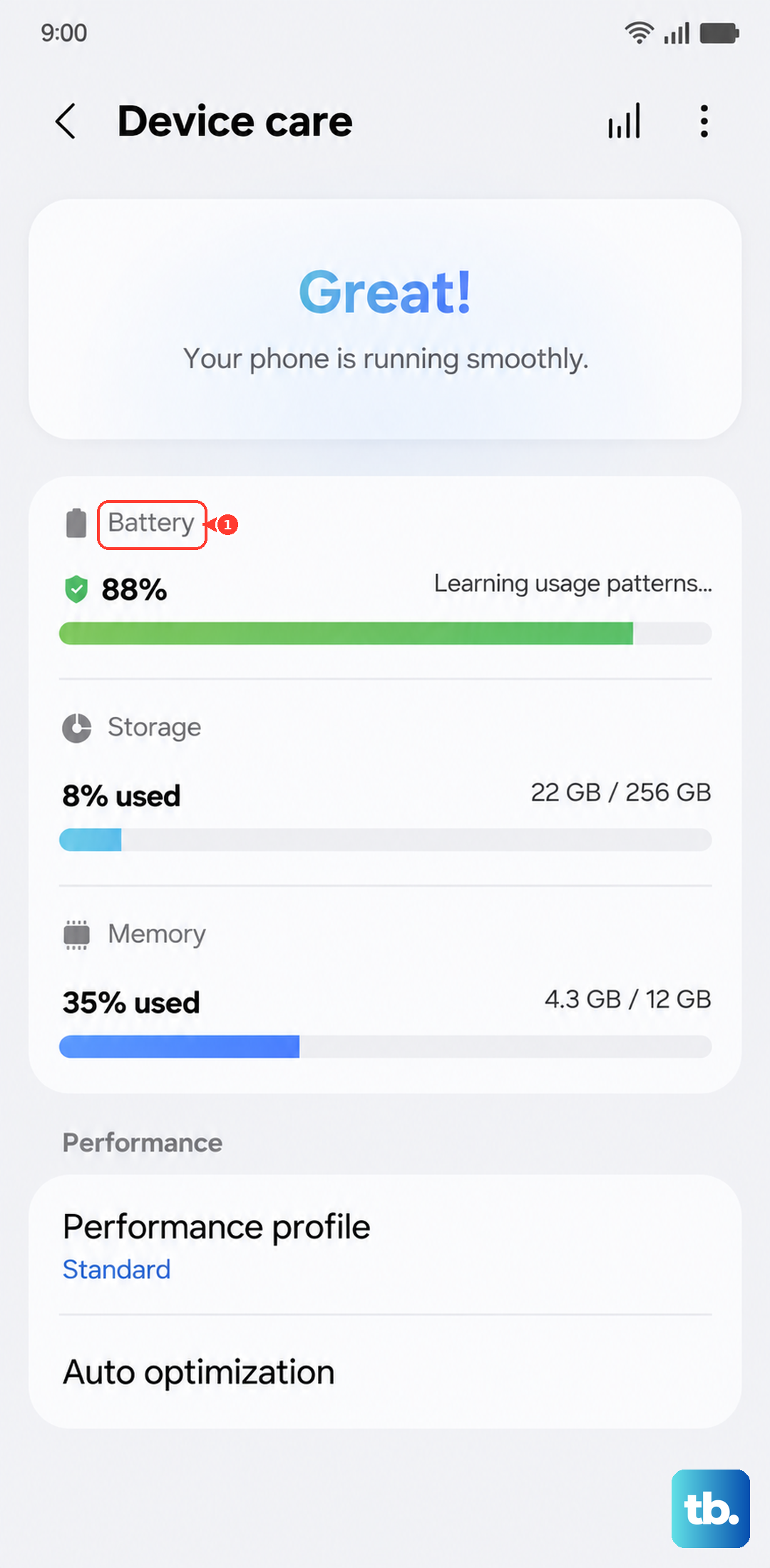
Turn it off, unplug your phone, wait a moment, and then turn the setting back on. Plug the charger back in and see if the fast charging notification returns. Sometimes a software glitch just needs a quick reset.
Perform a Force Restart
A simple reboot can clear up temporary software bugs affecting the charging system. For the Galaxy A56, press and hold the Volume Down button and the Side key (power button) together for about 10 seconds.
You'll see the Samsung logo appear as the phone restarts. This is different from a normal power cycle and often resolves deeper glitches. It takes about 30 seconds and won't delete any of your data.
Check for a Moisture Detection Alert
Samsung phones are sensitive to moisture in the USB port. If the phone detects any dampness, it will disable fast charging and may even refuse to charge at all to prevent damage. You'll typically see a water droplet icon in the notification panel.
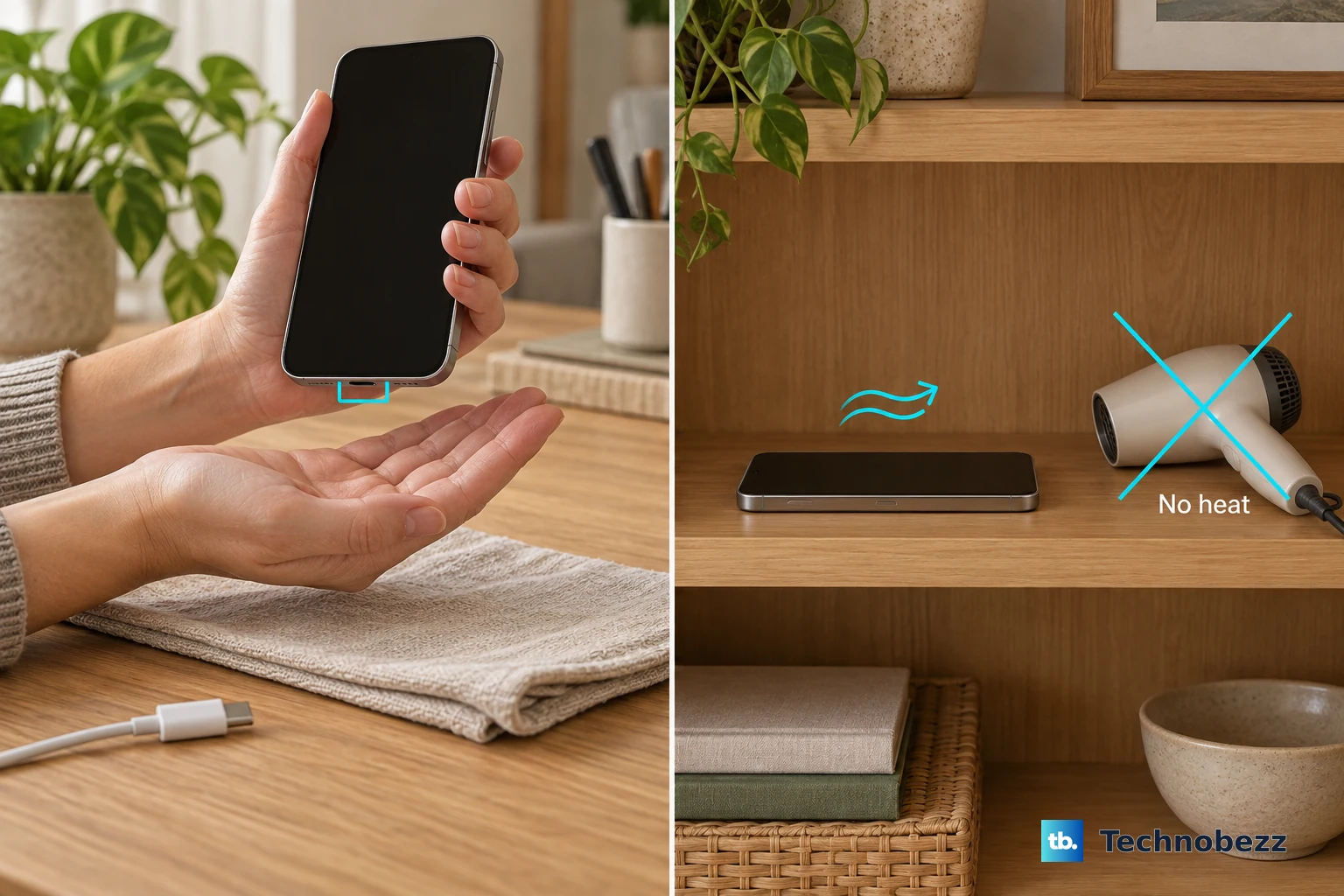
If you see this alert, unplug the cable immediately. The best fix is to power down the phone and let it dry completely in a warm, dry place for a few hours. You can also try gently drying the port with a cool setting on a hairdryer held at a distance.
Update Your Phone's Software
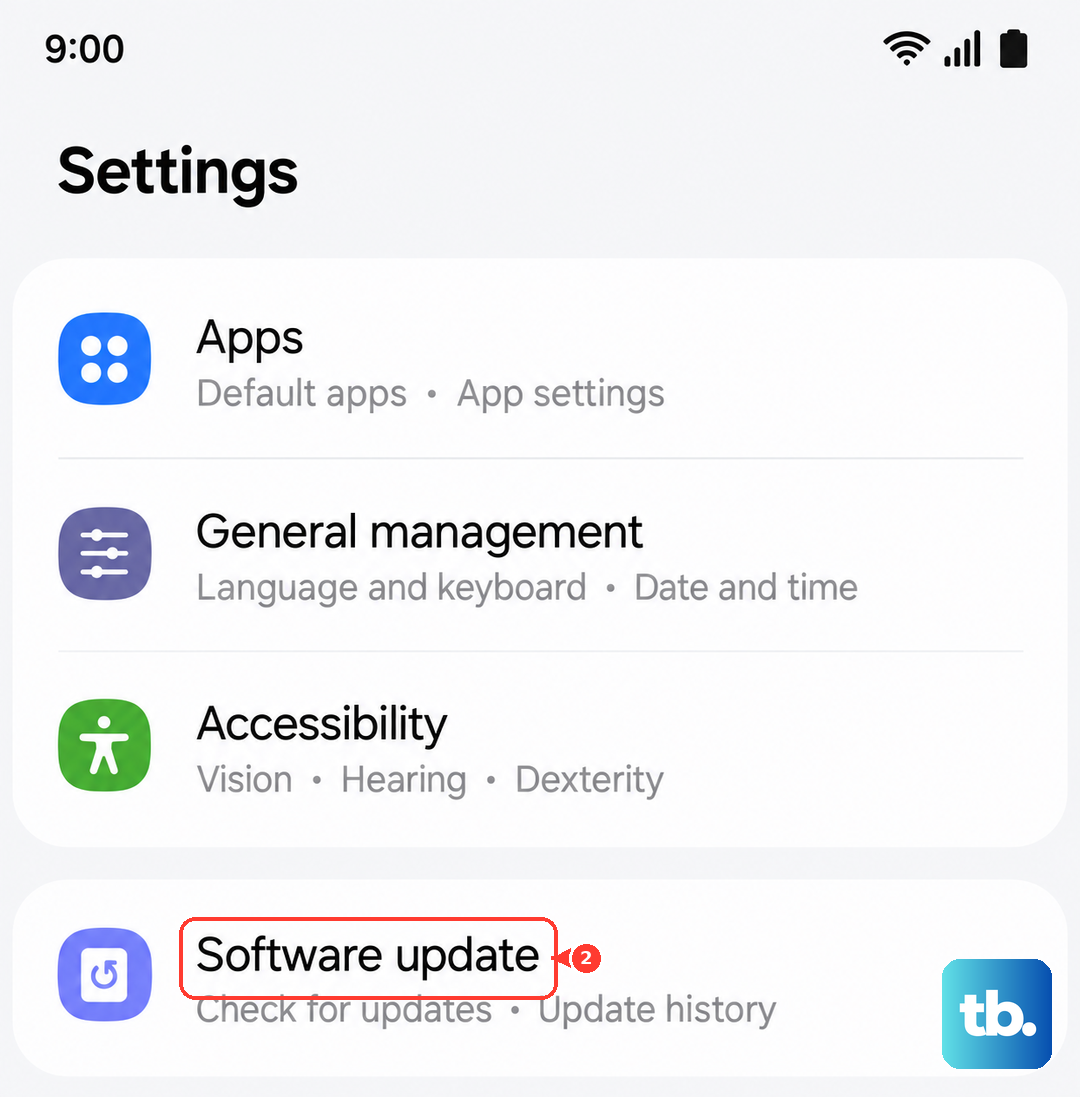
Samsung releases updates that can improve power management and fix charging-related bugs. Go to Settings > Software update > Download and install. If an update is available, install it. Make sure your phone is charged above 30% or plugged in during the update process.
After updating, give your fast charger another try. Software updates have resolved charging speed issues for many users on previous Galaxy models.
Remove Your Phone Case While Charging
Thick or poorly ventilated cases trap heat. Your Galaxy A56 monitors its temperature closely, and if it gets too warm, it will automatically slow down charging to protect the battery's long-term health.
If you're trying to fast charge and the phone feels even slightly warm, take it out of its case. Charging on a hard, cool surface like a nightstand instead of a soft bed or couch can also help keep temperatures down and speeds up.
Avoid Using the Phone During a Fast Charge
Fast charging generates heat on its own. Adding the heat from the processor by gaming, streaming video, or using GPS navigation will almost certainly trigger thermal throttling. The system will reduce the charging current to a slow trickle to cool things down.
For the absolute fastest charge, plug in your A56 and leave it alone. If you must use it, stick to light tasks like texting or reading. Heavy use and fast charging simply don't mix well.
Try a Different Outlet and Adapter
Finally, rule out external factors. Try a different wall outlet in case the first one is faulty. If you have access to another 45W PD charger and cable, test them with your phone.
If fast charging works with the new setup, you've found your problem. Chargers and cables do wear out over time, especially if they've been bent or pulled frequently. In my experience, the cable is usually the first part to fail.