
When your Samsung Galaxy A55's mobile hotspot stops working, it leaves your laptop or tablet stranded without internet. Whether other devices can't find it, fail to connect, or get kicked off, you can usually get it back online with a few checks.
Turn Mobile Hotspot Off and Back On
Open your Settings app and tap Connections. From there, select Mobile Hotspot and Tethering. Tap the switch next to Mobile Hotspot to turn it off. Wait about 15 seconds, then tap it again to turn it back on. This quick reset often clears a temporary software hiccup that's preventing the service from starting correctly.
Restart Your Galaxy A55
If toggling the hotspot didn't help, give your phone a full restart. Press and hold the Volume Down button and the Side key (power button) together for about 10 seconds. You'll see the Samsung logo appear as the phone reboots. This refreshes all your network services and can resolve deeper glitches.
Verify Your Mobile Data Connection
Your hotspot needs a solid cellular data connection to share. Check that you have a strong signal and that mobile data is enabled. You can do this by pulling down the Quick Settings panel from the top of your screen. Make sure the Mobile Data icon is highlighted. Also, confirm with your carrier that your specific plan includes mobile hotspot or tethering, as some budget plans restrict this feature.
Check the Hotspot Configuration
Sometimes the settings themselves need a look. Go back to Settings > Connections > Mobile Hotspot and Tethering. Tap Mobile Hotspot to enter its settings. Here, you can see the network name (SSID) and password. Make sure the password is something you know and that the network is set to be visible. You can also try changing the password here to force a fresh connection from your other devices.
Forget the Network on Your Connected Device
The problem might be with the laptop or tablet trying to connect. On that device, go into its Wi-Fi settings and find the list of known networks. Find your phone's hotspot name and choose to "Forget" or "Remove" it. Then, search for available Wi-Fi networks again, select your phone, and enter the password from scratch. This clears any corrupted connection data on the client side.
Reset Your Phone's Network Settings
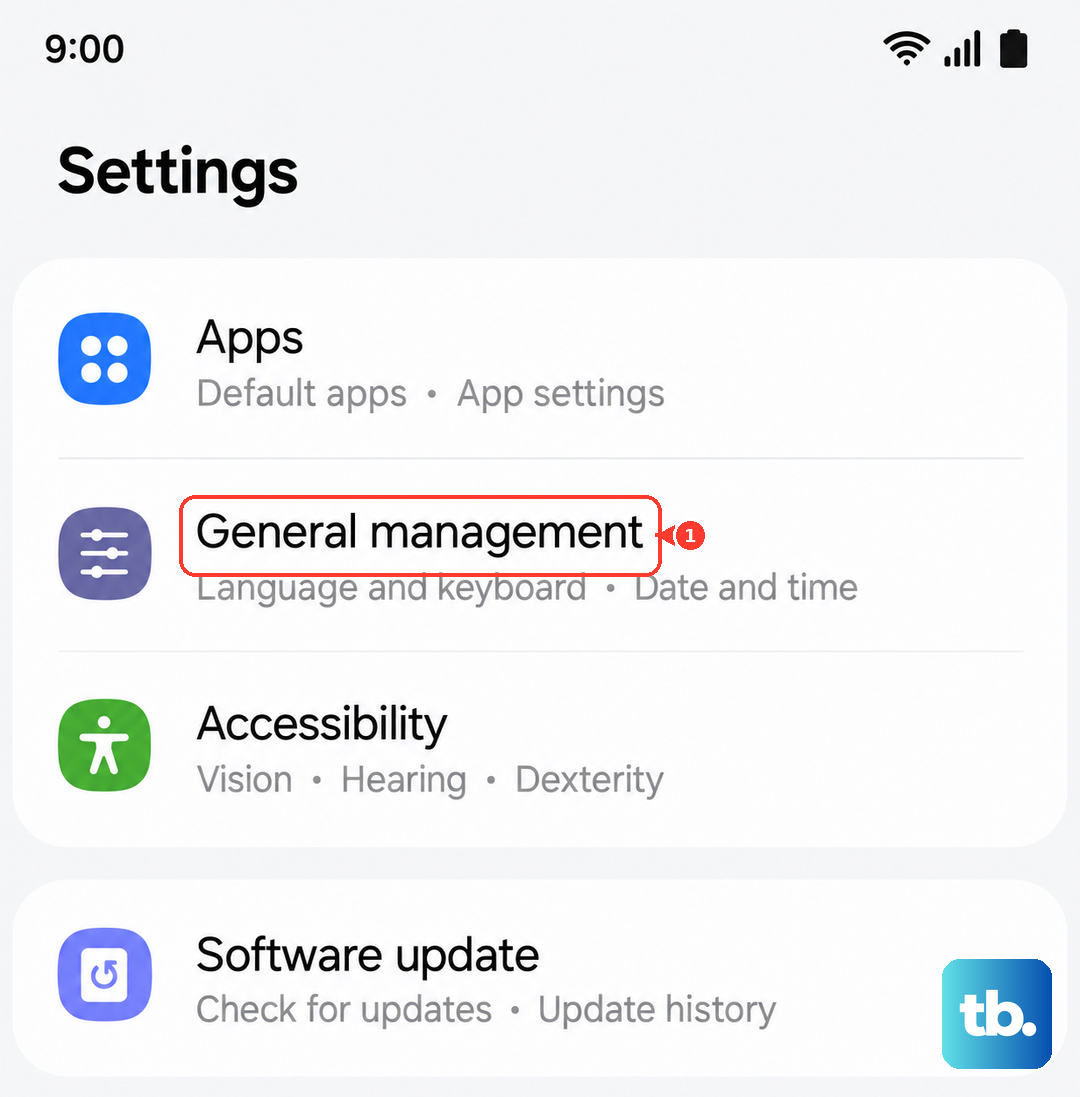
This is a more thorough step that can fix persistent issues. On your A55, go to Settings > General management > Reset. Tap on Reset network settings. This will erase all your saved Wi-Fi networks, Bluetooth pairings, and cellular settings, returning them to default. You'll need to reconnect to your Wi-Fi and re-pair Bluetooth devices afterward, but it often resolves stubborn hotspot and connectivity problems.
Try USB Tethering Instead
If the Wi-Fi hotspot is being difficult, you can share your connection directly via the USB-C cable. Connect your Galaxy A55 to your computer with a cable. Then, on your phone, go to Settings > Connections > Mobile Hotspot and Tethering and turn on USB tethering. Your computer should recognize it as a new network connection almost instantly. This is a great workaround and can be more stable.
Update Your Phone's Software
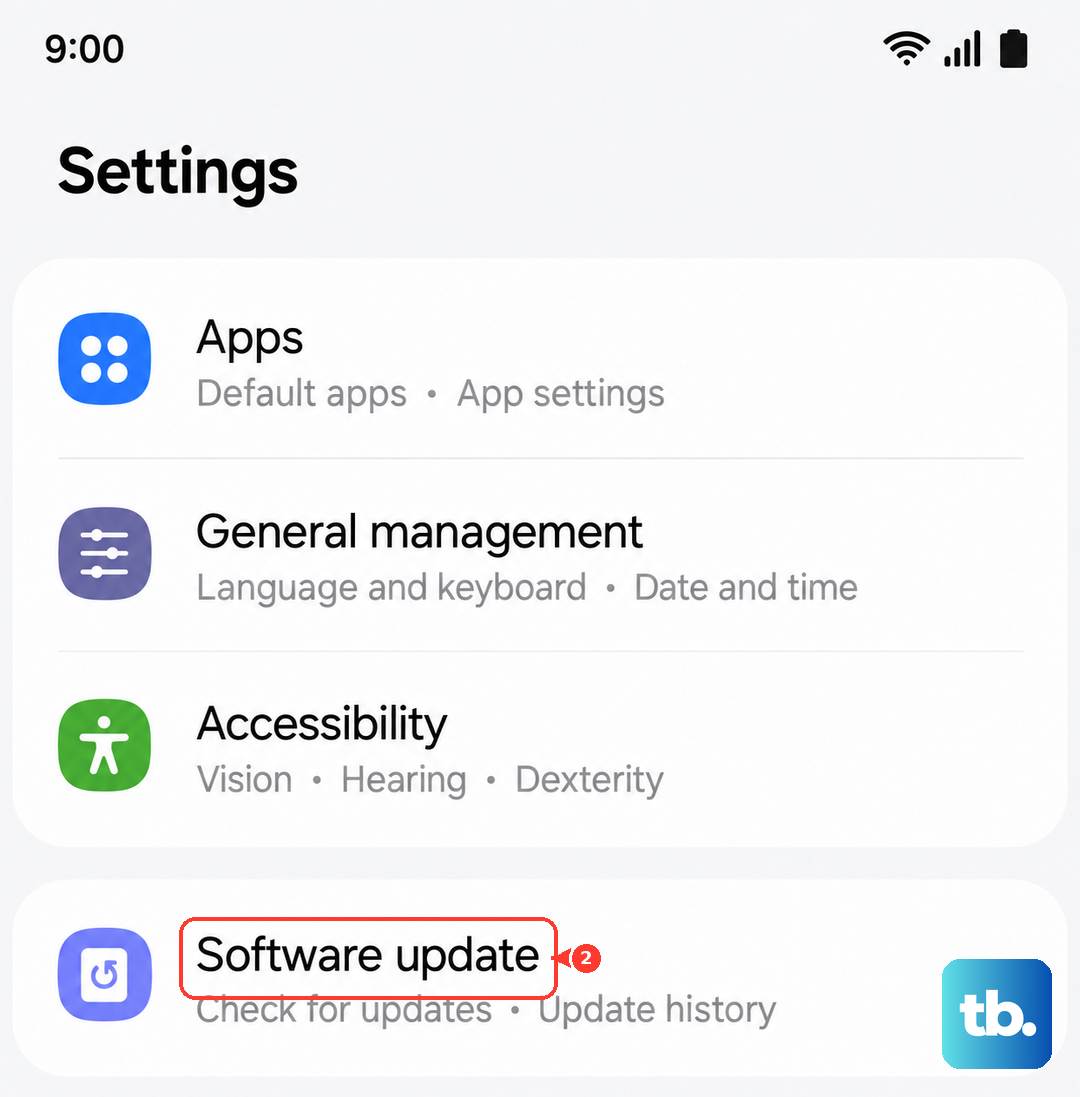
Software bugs can interfere with the hotspot. Samsung frequently releases updates that fix these kinds of issues. Open Settings and go to Software update. Tap Download and install to check for any available updates. If one is there, install it. I've seen updates specifically mention "improved network stability," which often includes hotspot fixes.
Check for a Carrier Settings Update
Your mobile network provider can also push small configuration updates to your phone. These can affect how services like hotspot work. To check, go to Settings > Software update and tap the three-dot menu in the top right. Select Download and install, and if a separate carrier configuration update is available, it will be offered here. Installing it takes just a moment.
Contact Your Mobile Carrier
If you've tried everything and the hotspot still won't work, the issue might be on your account. Your carrier could have accidentally disabled the tethering feature, or there might be a network issue in your area. Give them a call or use their online chat support. They can check your account status and, if needed, reprovision the hotspot feature on their end, which often solves the problem immediately.