
When the flashlight on your Samsung Galaxy A55 is grayed out in the Quick Panel, it's a surprisingly common hiccup. You tap the icon and nothing happens, leaving you in the dark. Let's get that light working again.
Close the Camera App
The flashlight on your A55 uses the same LED as the camera flash. If the Camera app is open, even in the background, the system reserves that LED for photos. Swipe up from the bottom and hold to see your recent apps, then swipe the Camera app away to close it. The flashlight icon should become active again right away.
Force Restart Your Phone
This is the go-to fix for most weird software glitches on the Galaxy A55. Press and hold the Volume Down button and the Side key together for about 10 seconds. You'll see the Samsung logo appear as the phone restarts. This clears the temporary software state that might be locking the flashlight control.
Check Power Saving Mode
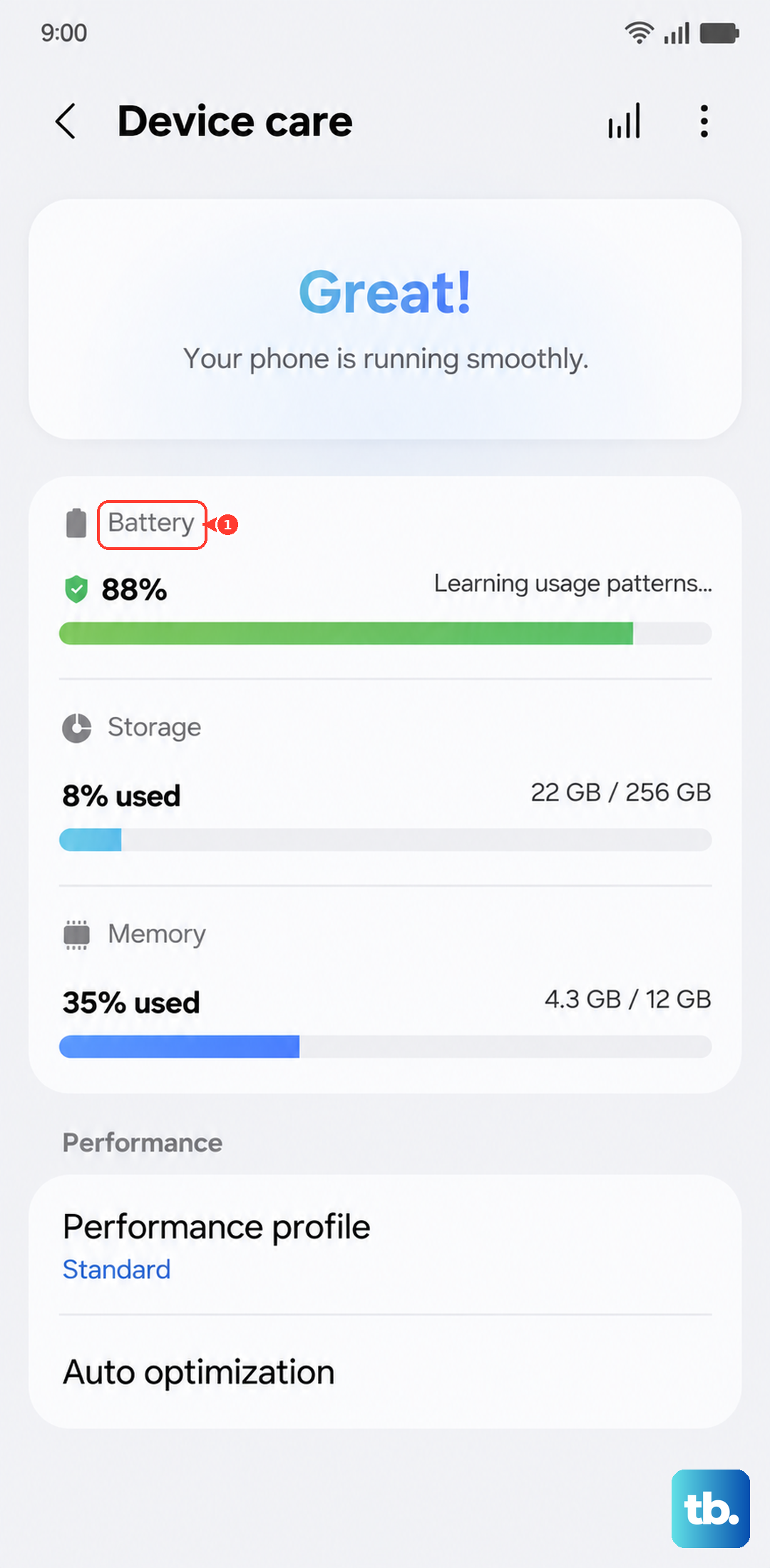
While Power Saving Mode on your A55 shouldn't directly disable the flashlight, it can sometimes make system controls less responsive. Pull down the Quick Panel with two fingers and look for the Power Saving icon. If it's blue, tap it to turn it off. You can also go to Settings > Battery and device care > Battery > Power saving to disable it from there.
Let Your Phone Cool Down
If your Galaxy A55 is overheating, it will automatically disable certain features to protect the hardware, and the flashlight is often one of them. If the back of the phone feels warm or hot, move it to a cooler spot, out of direct sunlight, and give it 10-15 minutes to cool down. The flashlight function should return once the temperature drops to a safe level.
Use Google Assistant or Bixby
Try activating the flashlight with your voice. Say "Hey Google, turn on the flashlight" or "Hi Bixby, turn on the torch." If the voice assistant can turn it on but the Quick Panel button remains grayed out, it confirms a minor software glitch. You can use the voice command to toggle it off and on, which sometimes resets the control.
Adjust the Flashlight Brightness
You might not realize the flashlight is on if it's set to its dimmest level. Instead of just tapping the flashlight icon in the Quick Panel, press and hold it. A small menu should pop up with a brightness slider. Slide it all the way to the right to the brightest setting and see if the light turns on.
Reset All Settings
If the problem is persistent, a settings reset can help. This won't delete your photos or apps, but it will revert all your system settings back to default. Go to Settings > General management > Reset > Reset all settings. You'll need to re-enter Wi-Fi passwords and reconfigure things like ringtones, but it often resolves stubborn control issues.
Update Your Software
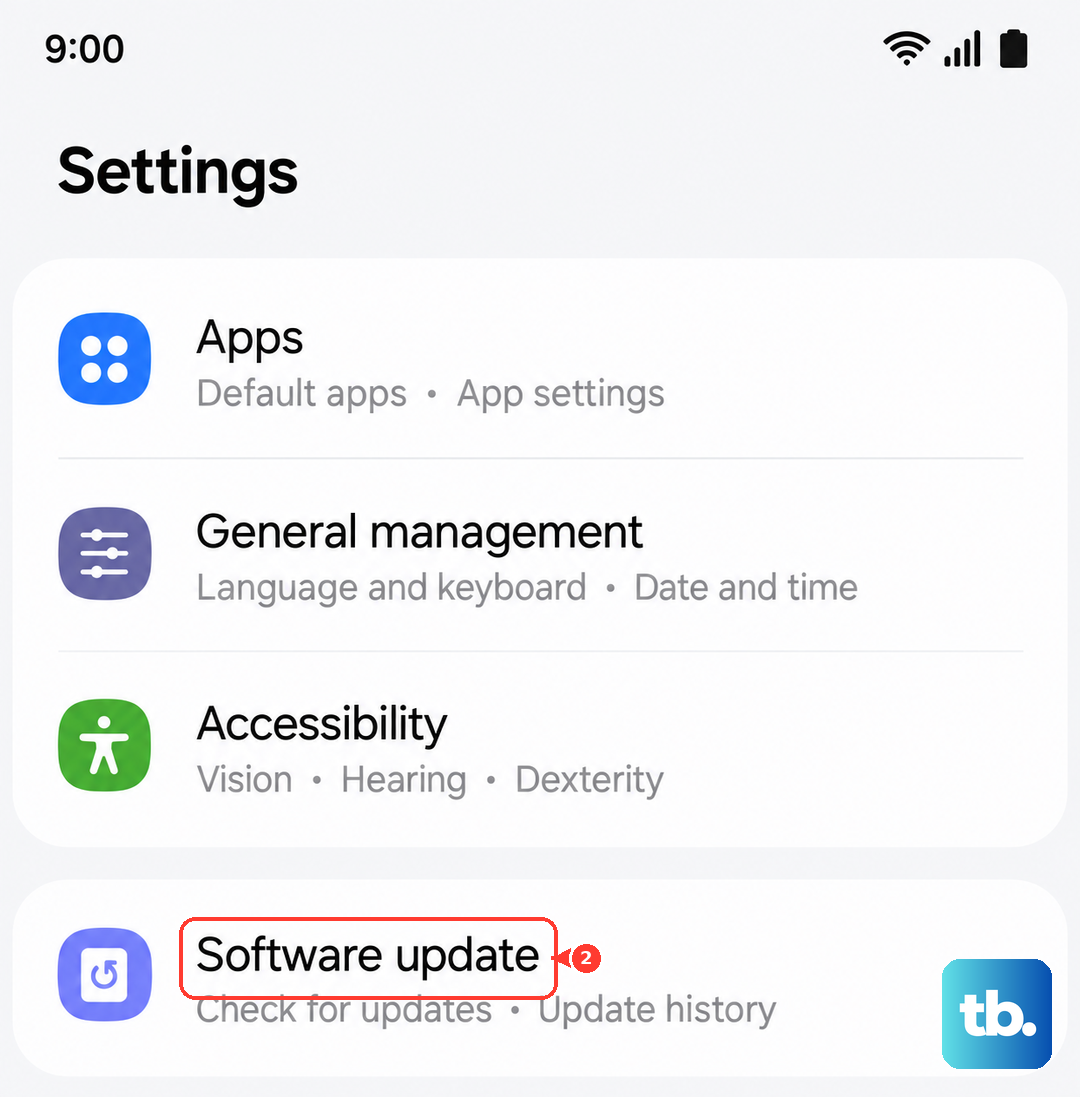
Bugs in One UI or Android can cause features like the flashlight to malfunction. Samsung regularly releases updates with fixes. Go to Settings > Software update > Download and install. If an update is available, install it and restart your phone. I've seen updates specifically address camera and flash-related bugs on past Galaxy models.
Test the Camera Flash
If none of the software fixes work, it's time to check the hardware. Open your Camera app and take a photo in a dark room with the flash set to "On" or "Auto." If the flash doesn't fire during the photo, the LED itself might be damaged. Since the A55 uses the same LED for the flashlight and camera flash, a failure here means you'll likely need a repair.