If your Samsung Galaxy A36 videos are stuttering, freezing, or dropping frames, it can turn watching anything into a frustrating experience. This is a common issue that pops up on Android phones, but the good news is there are quite a few things you can try to smooth things out.
A browser based online refresh rate test shows the real Hz your display is delivering right now. Many stutter complaints turn out to be a monitor silently running at 60 Hz.
Start With a Simple Restart
It sounds basic, but a restart clears out temporary glitches and refreshes all your phone's processes. For the Galaxy A36, press and hold the Volume Down button and the Power button together for about ten seconds. You'll feel it vibrate and see the Samsung logo as it reboots.
This is the quickest fix and often solves random playback hiccups caused by a background app or a minor system error.
Check Your Available Storage
When your phone's storage is nearly full, it struggles to read and write data efficiently. Video files, especially high-resolution ones, need a lot of space to play back smoothly. If your storage is critically low, you'll notice constant stuttering.
Head to Settings > Device care > Storage. You want to aim for at least 5-10GB of free space. If you're below that, start by clearing cached data from apps or moving photos and videos to cloud storage or a computer.
Test Your Internet Connection for Streaming
If the stuttering only happens with videos from YouTube, Netflix, or other streaming apps, your connection is the first place to look. A weak Wi-Fi signal or congested cellular data can cause constant buffering, which looks like lag or freezing.
Try playing a video you've downloaded directly to your phone. If it plays fine, then you know the issue is with your network. You can try switching between Wi-Fi and mobile data, or moving closer to your router.
Update Your Apps and Software
Outdated apps can have bugs that cause poor video performance. Make sure your video player apps, like YouTube, Netflix, or Samsung's Gallery app, are up to date through the Google Play Store.
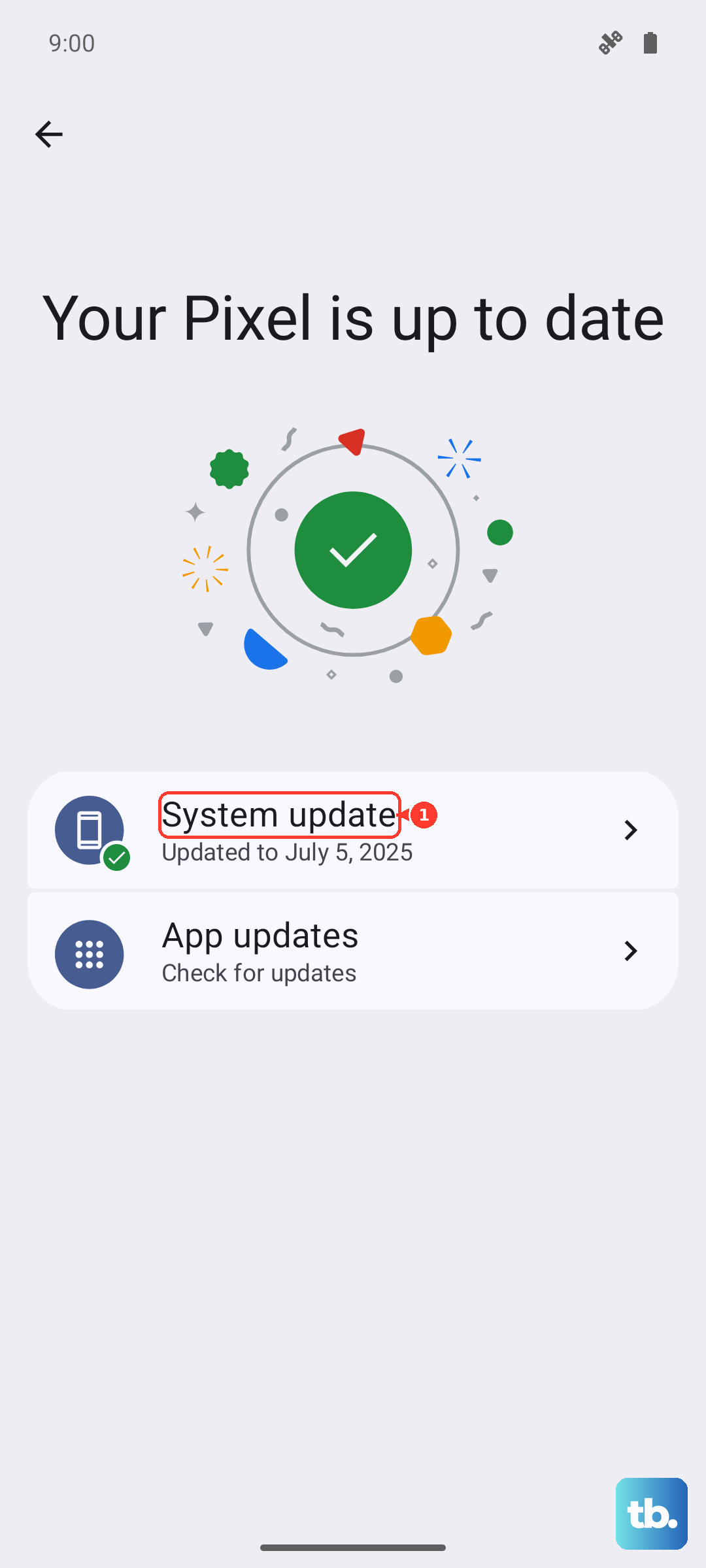
More importantly, check for a system update. Since the A36 runs Android 15 with One UI 7, there were some initial bugs reported after launch. Samsung often releases patches to fix performance issues. Go to Settings > Software update > Download and install.
Close Background Apps and Boost Performance
Too many apps running in the background can eat up your phone's RAM and processing power, leaving little for smooth video playback. Swipe up from the bottom of the screen and hold to see your recent apps, then swipe each one away to close it.
You can also give your phone a quick performance boost. Go to Settings > Device care and tap "Optimize now." This will clear some temporary files and shut down unnecessary background processes.
Clear the App's Cache and Data
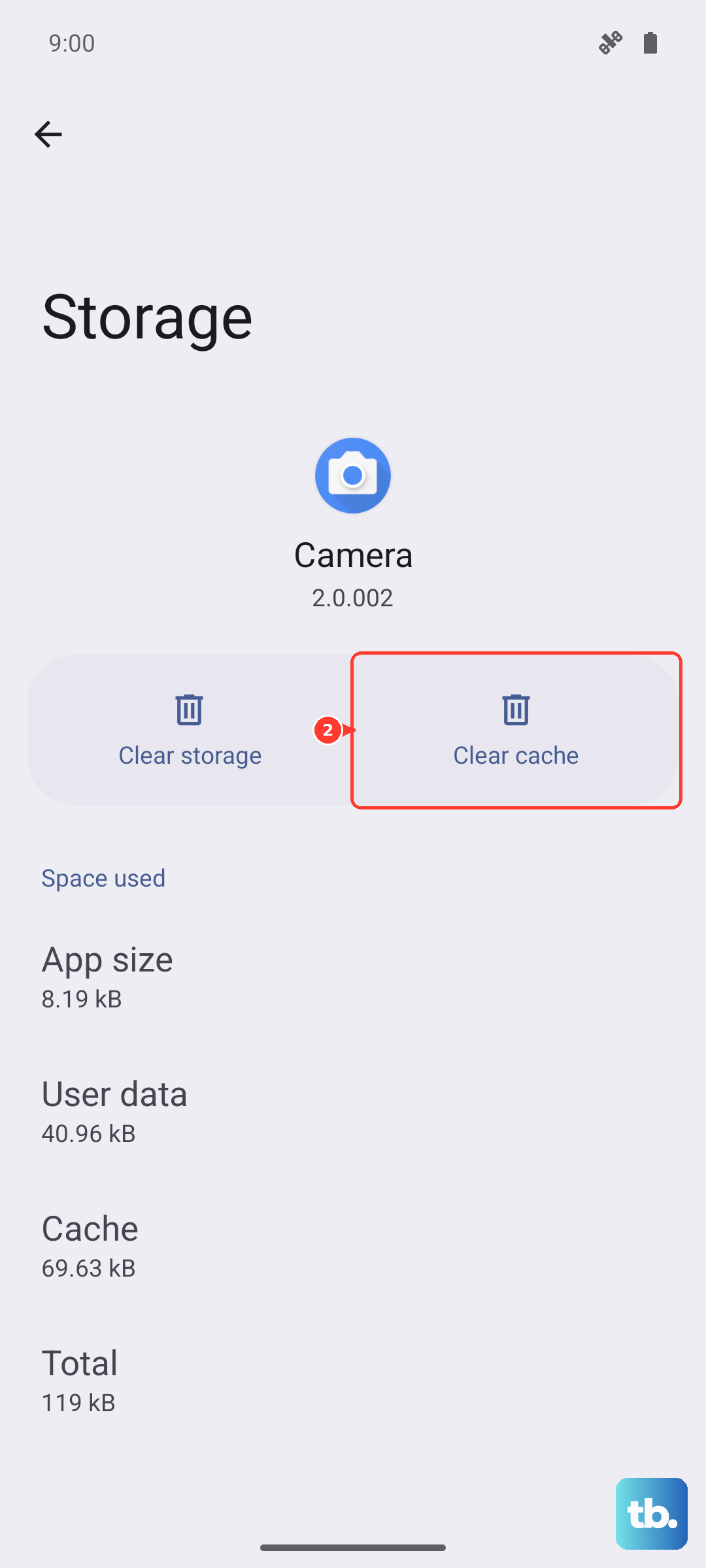
If the problem is specific to one app, like the Gallery or a streaming service, its stored cache data might be corrupted. Clearing it can often resolve playback issues without deleting your personal data.
Go to Settings > Apps, select the problematic app (like YouTube or Google Photos), then tap "Storage." Choose "Clear cache" first. If that doesn't work, you can try "Clear data," but be aware this will reset the app to its default state and you may need to log back in.
Disable Battery Saving Modes
Power saving modes are great for extending battery life, but they do so by limiting your phone's performance. This includes reducing the CPU speed, which can directly cause video stutter and lag.
Go to Settings > Battery > Power saving and make sure Power saving is turned off while you're trying to watch videos. If your model offers a Performance profile, check it separately under Settings > Device care > Performance profile.
Check for Overheating
Your Galaxy A36 will throttle its performance to cool down if it gets too hot. If you've been using it for a long time, gaming, or fast charging with a 45W charger, it might be warm to the touch. This thermal protection can cause videos to stutter.
Let the phone cool down for a few minutes, preferably out of direct sunlight. Try playing the video again once it's back to a normal temperature.
Try a Different Video Player
Sometimes the issue isn't with your phone, but with the default app trying to play the video. The file might be in a codec that the default gallery app doesn't handle well.
Download a reputable third-party video player like VLC from the Play Store and try opening the stuttering video file with it. VLC supports a huge range of formats and often plays files smoothly when other apps struggle.
Reset App Preferences or All Settings
If you're still having issues, you can reset your app preferences. This won't delete any app data, but it will reset things like notification permissions and default apps. Go to Settings > Apps > Menu (three dots) > Reset app preferences.
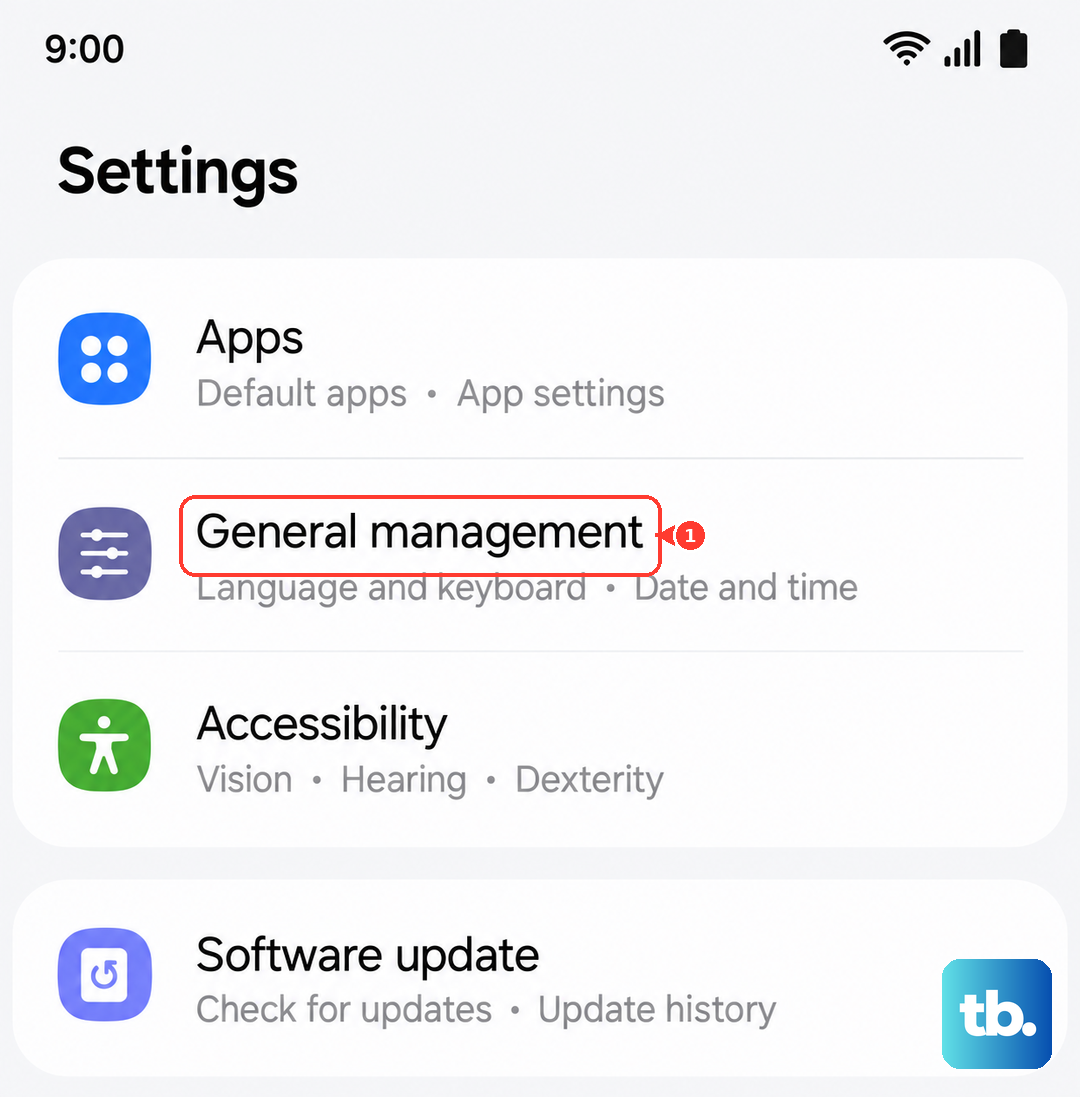
As a more thorough step, you can reset all settings. This will revert your Wi-Fi, Bluetooth, and display settings back to default but won't touch your personal files. Go to Settings > General management > Reset > Reset all settings. I'd save this for after you've tried the other steps.