
Running out of space on your Samsung Galaxy A36 can really slow things down, stopping you from taking new photos or installing app updates. The 2026 model comes with a decent amount of storage, but between high-resolution photos, app caches, and system files, it fills up faster than you'd think. I'd start by checking exactly what's eating up all that room.
Check Your Storage Breakdown
Head into Settings > Device care > Storage. This screen gives you a color-coded breakdown of what's using space. Tap on any category, like Images or Apps, to see the specific files or applications. This is your roadmap for what to clean first.
Use the Galaxy App Booster and Cleaner
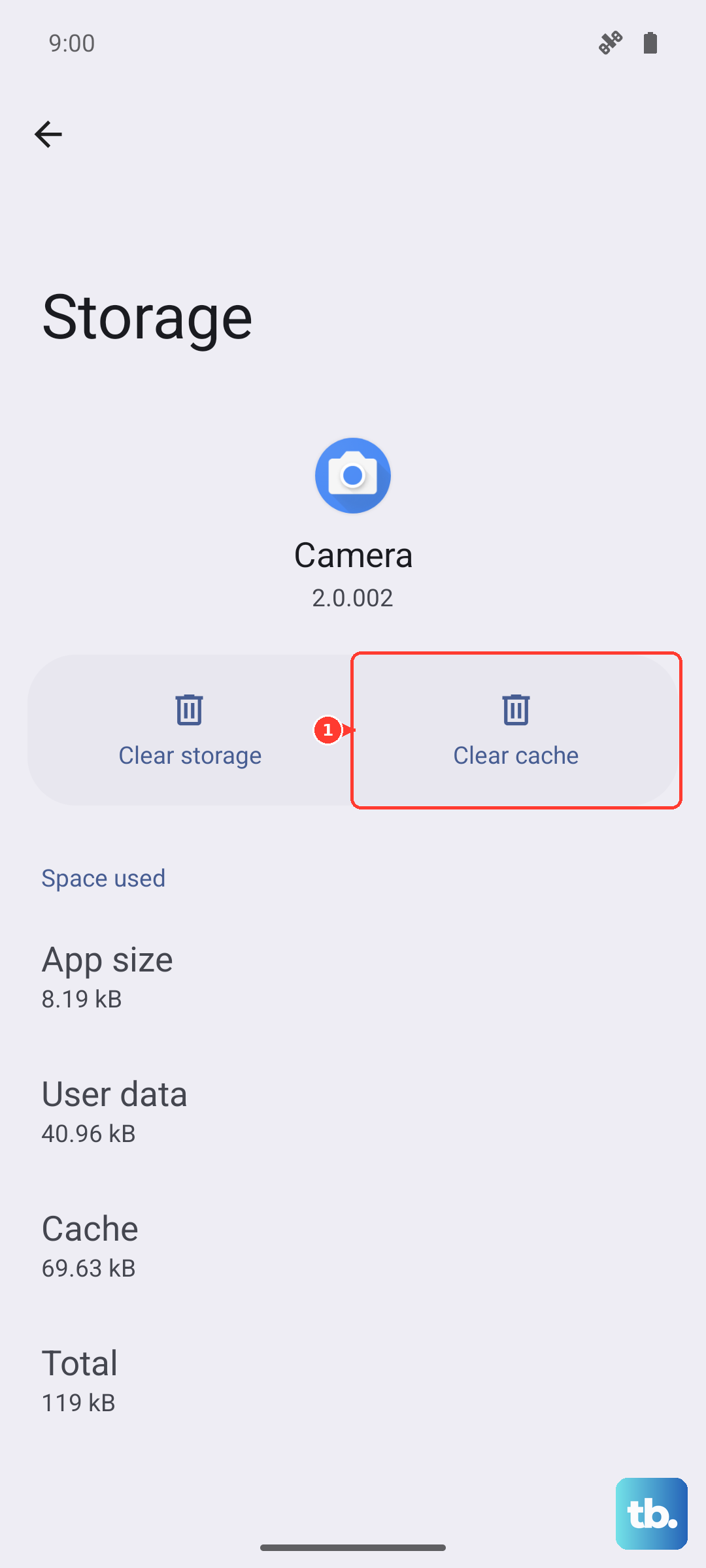
Right there in the Device Care menu, you'll find a Clean now button. Tapping this scans for temporary files, app cache, and residual data you can safely delete. It's a quick way to free up a few gigabytes without touching your personal stuff. For a deeper clean, go to Settings > Apps, select an app like Instagram or Chrome, and tap Storage > Clear cache.
Manage Your Photos and Videos
Open the Gallery app and use the search function to find categories like Screenshots or Duplicates. You can select and delete entire batches at once. Don't forget to empty the Trash folder in the Gallery afterward, as deleted items sit there for 15 days. For automatic management, enable Google Photos backup and then use the Free up space tool within that app to remove local copies of backed-up media.
Offload or Uninstall Large, Unused Apps
Back in Settings > Device care > Storage > Apps, sort the list by size. Look at the apps at the top. For apps you rarely use, you can simply uninstall them. For apps you want to keep but that have a huge cache (like games or social media), tap on the app name and choose Clear data. Be warned, this will log you out and reset the app, so only do this if you're okay with signing back in.
Clear Download and Document Folders
Open the My Files app and navigate to the Downloads folder. This is a common dumping ground for PDFs, APK files, and images you saved once and forgot about. You can also check the Documents and Audio folders. Long-press to select multiple files and delete them in bulk.
Limit Message Media Auto-Download
Apps like WhatsApp and Telegram are notorious for silently saving every image and video sent to you. Open each messaging app and dive into its Settings > Data and storage or Storage and data menu. Look for media auto-download settings and set them to Wi-Fi only or disable them entirely. You can also use the in-app storage manager to clear existing media caches.
Review Streaming App Downloads
If you use Spotify, Netflix, or YouTube Premium, your offline downloads are taking up space. Open the Spotify app, go to Settings > Storage, and tap Remove all downloads. In Netflix, tap your profile icon, go to My Downloads, and delete shows you've watched. For YouTube, go to Library > Downloads to manage them.
Check for System Update Issues
After the update to One UI 7, some A36 models experienced a bug where system data or cached update files took up excessive space. If you see a very large "System" or "Other" category in your storage breakdown, try restarting your phone. If that doesn't help, boot into recovery mode and clear the cache partition. Turn off the phone, then press and hold Volume Up + Power until the Samsung logo appears. The Wipe cache partition option has been removed from the recovery menu on this device, so clean up temporary files instead by going to Settings > Device care and tapping Optimize now, or clear a specific app's cache under Settings > Apps > [app] > Storage > Clear cache.
Use Cloud Storage and Smart Switch
For a long-term solution, consider using Samsung Cloud or Google One to back up your photos, messages, and important documents. Once they're safely backed up, you can delete the local copies. You can also use the Samsung Smart Switch app on a Windows PC or Mac to move large video files or full photo albums off your phone and onto your computer for safekeeping.