
When your headphones stop working with your Samsung Galaxy A36, it can ruin your music, calls, and videos. The audio might play through the phone's speaker, sound distorted, or the phone might not recognize the headphones at all. Let's get it fixed.
To rule out the headphones themselves, try a online headphone test in the browser. If every tone plays cleanly, focus on the device settings covered next.
Restart Your Galaxy A36
I'd start with this one. A simple restart clears out temporary software glitches that can mess with audio. Press and hold the Volume Down and Power button together for about 10 seconds until you see the Samsung logo. This is a force restart and often solves headphone detection issues right away.
Check the Physical Connection and Volume
For wired headphones, make sure the USB-C plug is fully inserted into the port. It should click in securely. Then, press the volume up button on the side of your phone to ensure the volume isn't muted or set too low. Also, check that any volume limiters in your music app are turned off.
Clean the USB-C Port
Lint and pocket debris are the most common culprits for wired headphone problems. Gently clean out the USB-C port on the bottom of your A36 using a wooden toothpick or a soft-bristled brush. Be careful not to damage the central connector pin. A clean port ensures a solid connection.
Forget and Re-Pair Your Bluetooth Headphones
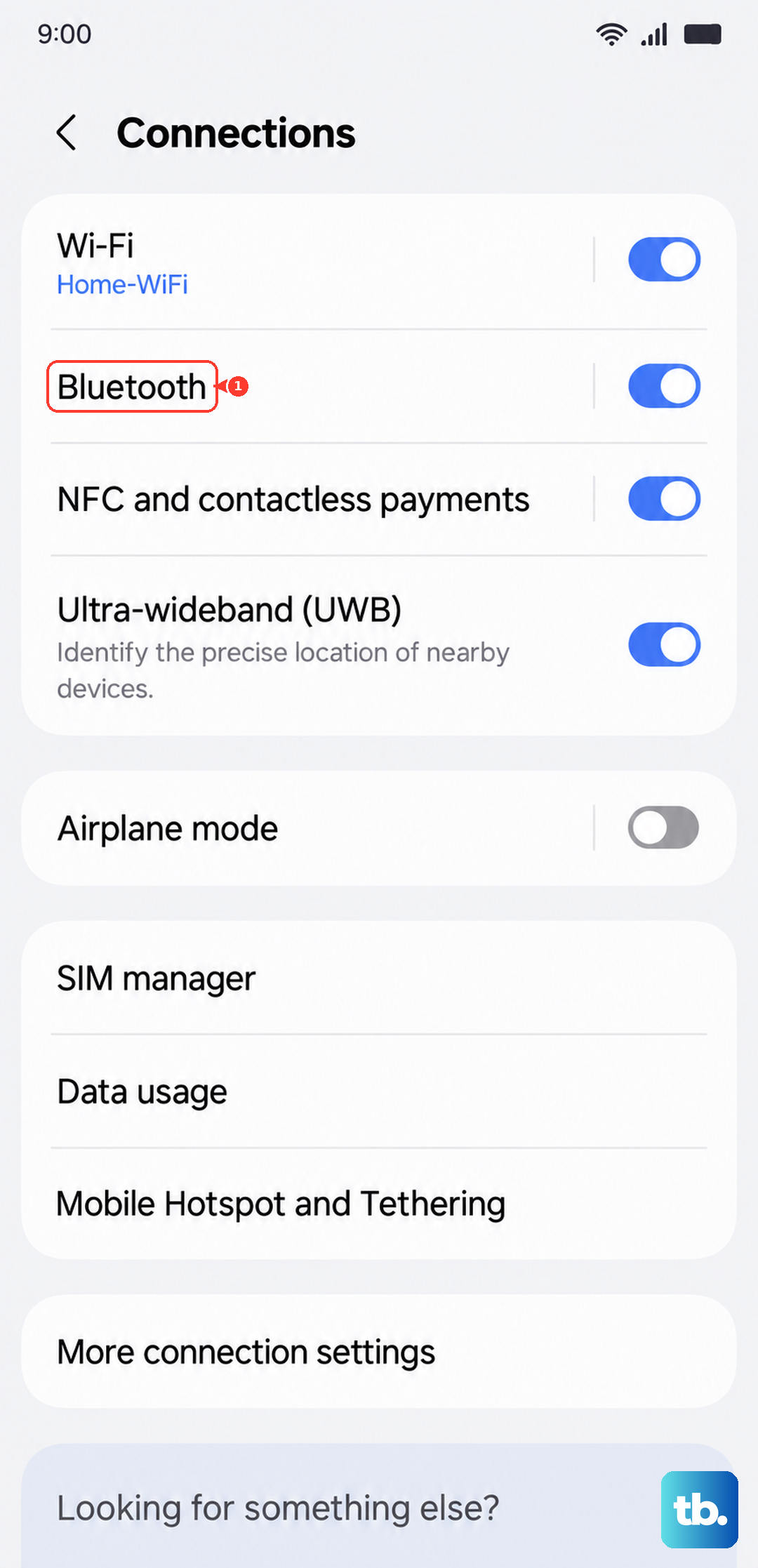
If you're using wireless headphones, a corrupted pairing profile is a likely cause. Open Settings and go to Connections > Bluetooth. Tap the gear icon next to your headphones' name and select Unpair or Forget. Then, put your headphones back into pairing mode and reconnect them fresh from the Bluetooth menu.
Check the Audio Output Selection
Your phone might be sending sound to the wrong place. While audio is playing, pull down the notification shade twice and tap the media output icon (it looks like a triangle with circles). Make sure your headphones, and not the phone speaker, are selected as the output device.
Toggle Bluetooth Off and On
Head to Settings > Connections > Bluetooth and toggle the main Bluetooth switch off. Wait for about 10 seconds, then turn it back on. This quick refresh of the Bluetooth radio can often re-establish a stable connection with your wireless headphones.
Check for Software Updates
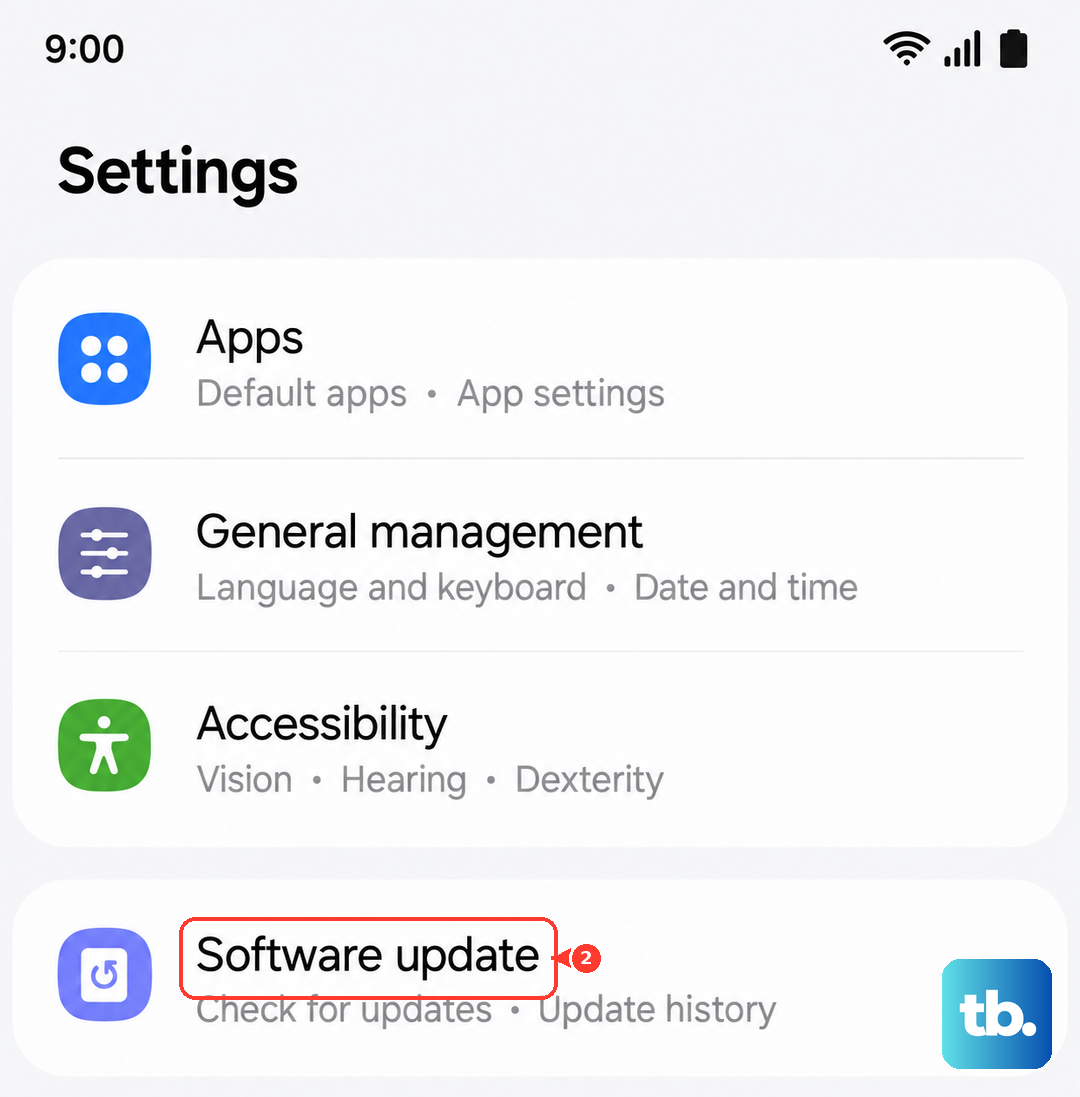
Audio bugs are common in new software releases. Since the A36 runs Android 15 with One UI 7, it's a good idea to check for patches. Go to Settings > Software update and tap Download and install. Installing the latest update can resolve headphone compatibility issues introduced after launch.
Disable Bluetooth Absolute Volume
Sometimes, the volume control between your phone and Bluetooth headphones gets out of sync. You can fix this by enabling Developer Options. Go to Settings > About phone > Software information and tap "Build number" seven times. Then, go back to Settings, enter "Developer options," and find "Disable absolute volume" to toggle it on.
Reset All Settings
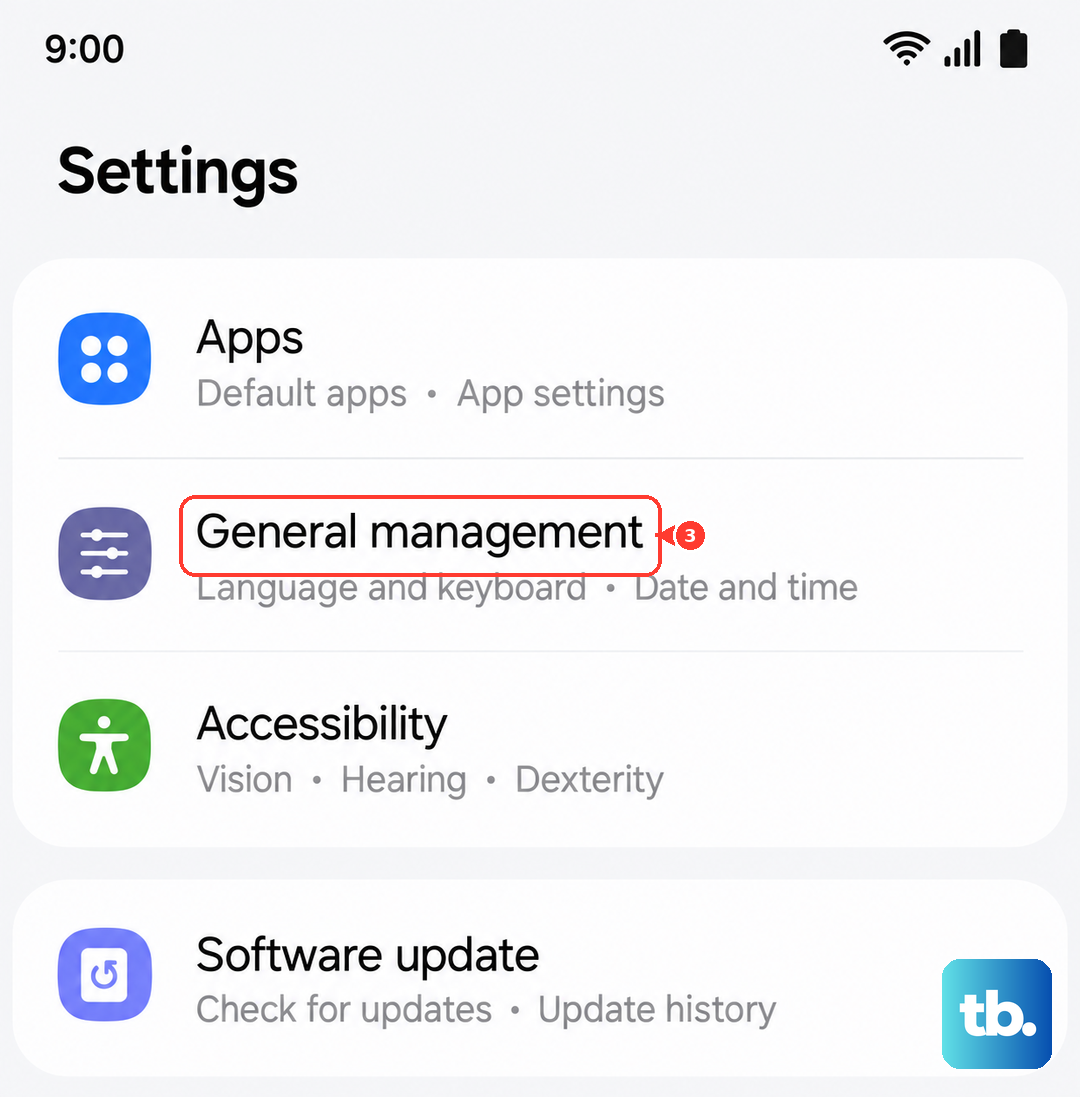
If nothing else works, this step resets all your system preferences without deleting your personal data. Navigate to Settings > General management > Reset > Reset all settings. You'll need to reconfigure things like Wi-Fi passwords and wallpapers, but it will clear any deep-seated audio configuration errors.
Test with Different Headphones
To rule out a problem with the headphones themselves, try a different pair. If a second pair of wired headphones works, the issue is with your original set. If no headphones work, the problem is likely with your Galaxy A36's USB-C port or audio software, confirming the need for the software fixes above.