
If your Samsung Galaxy A36 is taking forever to charge, you're missing out on one of its best features. With the right setup, it should support 45W fast charging, but a few common issues can bring that speed to a halt.
Verify Your Charger and Cable
This is the most common culprit. The Galaxy A36 supports up to 45W fast charging, but it requires a specific setup. You need a USB-PD (Power Delivery) compatible charger that can deliver at least 25W, with 45W for the absolute fastest speeds. The phone doesn't come with a charger in the box, so many people use old, underpowered ones.
You also need a high-quality USB-C to USB-C cable that supports the necessary power throughput. The cable that came with your phone is fine, but if you're using a different one, it might not be rated for fast charging. I'd start by checking the wattage printed on your adapter.
Check for a Fast Charging Notification
When you plug in your A36 with a compatible charger, you should see a notification that says "Fast charging" on the lock screen or in the status bar. If you only see "Charging" or "Cable charging," then the phone isn't recognizing the fast charger. This is a clear sign to check your cable and adapter first.
Enable Fast Charging in Settings
Sometimes the setting can get turned off. Open Settings and go to Battery > More battery settings. Here, you'll find the "Fast charging" toggle. Make sure it's switched on. There's also a "Super fast charging" option if you have a 45W charger.
Clean the USB-C Port
Lint and pocket debris love to get packed into the charging port. Even a small amount can prevent the cable from seating fully, which kills fast charging. Power off your phone and use a wooden toothpick or a soft plastic brush to gently scrape out any gunk. Avoid metal objects that could damage the contacts.
Don't Use the Phone While It's Plugged In
Using your A36 for anything intensive while charging, especially gaming or video calls, generates heat. To protect the battery, the phone will automatically throttle the charging speed. For the fastest possible charge, just leave it alone on a flat, cool surface until it reaches the percentage you need.
Remove the Phone Case
If your phone feels warm to the touch while charging, a thick case could be trapping that heat. Try removing the case during your charging session. This helps with heat dissipation and can prevent the thermal management system from slowing things down.
Restart Your Phone
A simple reboot can clear out temporary software glitches that might be interfering with the charging system. Press and hold the Volume Down and Power buttons together for about 10 seconds until you see the Samsung logo. This force restarts the phone and is a good quick fix to try.
Check for Software Updates
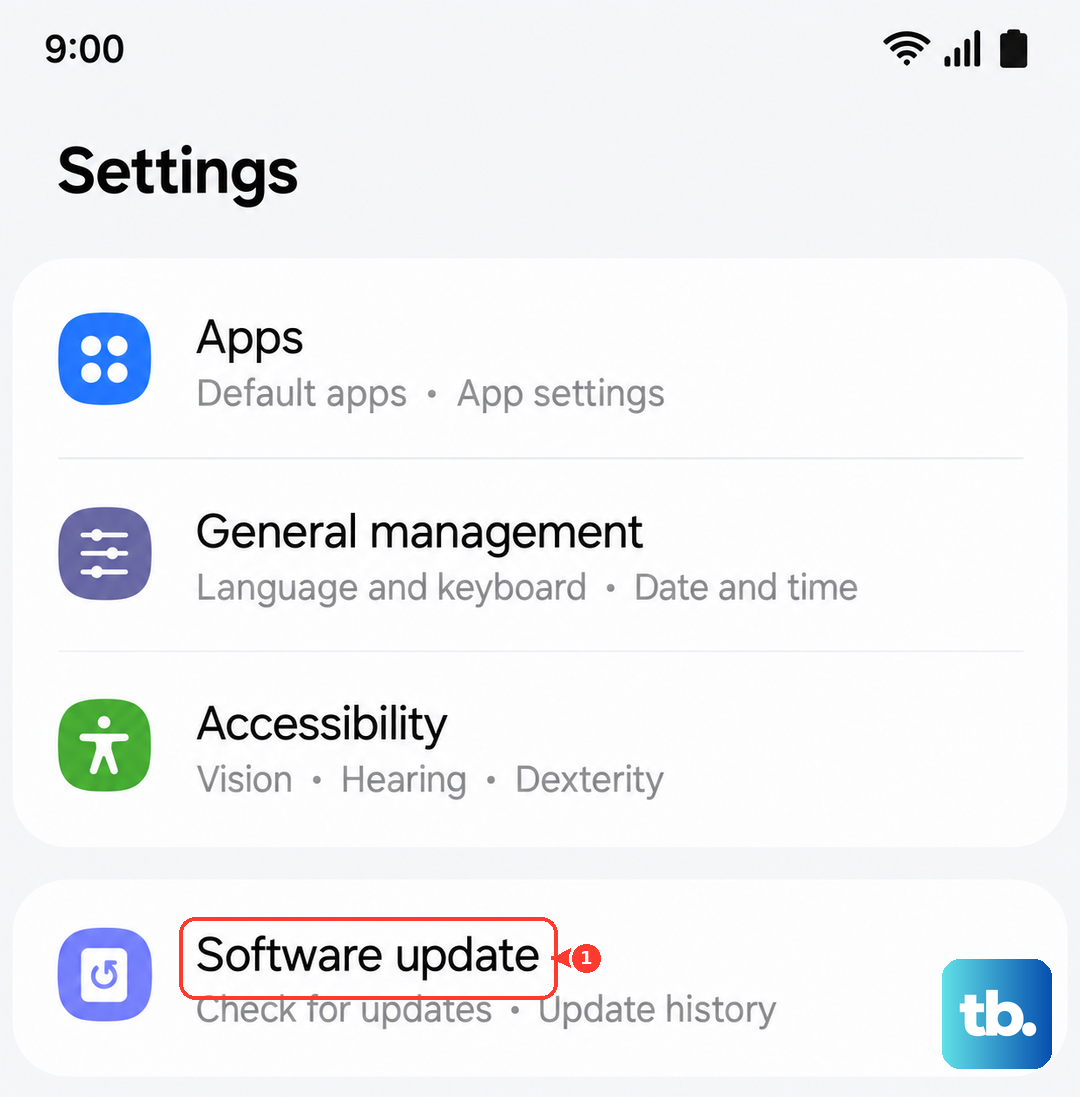
Since the A36 runs on Android 15 with One UI 7, there were some initial bugs reported after launch. Samsung often releases updates that optimize performance, including charging. Go to Settings > Software update and tap "Download and install" to see if any updates are available.
Disable Battery Protection Temporarily
This is a great feature for battery longevity, but it can be mistaken for a charging problem. If you have Battery protection enabled (found in Battery > More battery settings), it limits the maximum charge to 85%. If you need a full 100% charge right now, you can temporarily turn this off.
Try a Different Outlet and Setup
Finally, test your charger in a different wall outlet. Sometimes a faulty power strip or a loose outlet is the issue. If you can, try a friend's known-good 45W USB-PD charger and cable. If fast charging works with that setup, then you've confirmed your original charger or cable is the problem.