
Your Samsung Galaxy A26 5G screen just stopped responding. It's not a hard crash, but tapping and swiping do nothing. Before you panic, try the most reliable fix first.
A browser based online touch test paints the screen as you touch it, which makes dead zones and ghost touches easy to see and document.
Press and hold the Volume Down and Power buttons simultaneously for about 10-15 seconds until the device restarts. Don't let go early keep holding even if the screen flickers. This force restart works on nearly every Galaxy model, and it's usually enough to snap the touch controller out of a temporary glitch.
Check the Battery Situation
A critically low battery can freeze the touchscreen. Plug your A26 into a 25W USB-C charger and let it sit for 15 minutes while powered off. If the battery was completely drained, the touch layer might not initialize until there's enough charge to boot.
Use a USB PD 3.0 charger with PPS support for the best results. Generic slow chargers can take hours to get you out of this situation. If the phone feels warm during charging, unplug it and let it cool down before trying again.
Enter Safe Mode
Sometimes a third-party app conflicts with the touch driver. Power the phone off completely, then press and hold the Power button until the Samsung logo appears. As soon as the logo shows, release the Power button and immediately press and hold the Volume Down button.
Continue holding Volume Down until the phone finishes booting and you see "Safe mode" in the bottom-left corner. If your touchscreen works in Safe Mode, a recently installed app is the culprit. Uninstall any suspicious apps you downloaded just before the problem started.
Clear the System Cache
Corrupted cache files can mess with touch responsiveness. Turn off your Galaxy A26 completely. Press and hold the Volume Up and Power buttons together until the Samsung logo appears, then release both buttons.
You'll land in Android Recovery mode. Use the volume buttons to highlight "Wipe cache partition" and press the Power button to select it. Confirm when prompted.
After the cache clears, select "Reboot system now." This doesn't delete your personal data, just temporary system files that could be causing the freeze.
Update One UI and Android
Samsung has been pushing touch-sensitivity fixes through software updates for the A26. Open Settings > Software update > Download and install. If an update is available, install it and restart the phone.
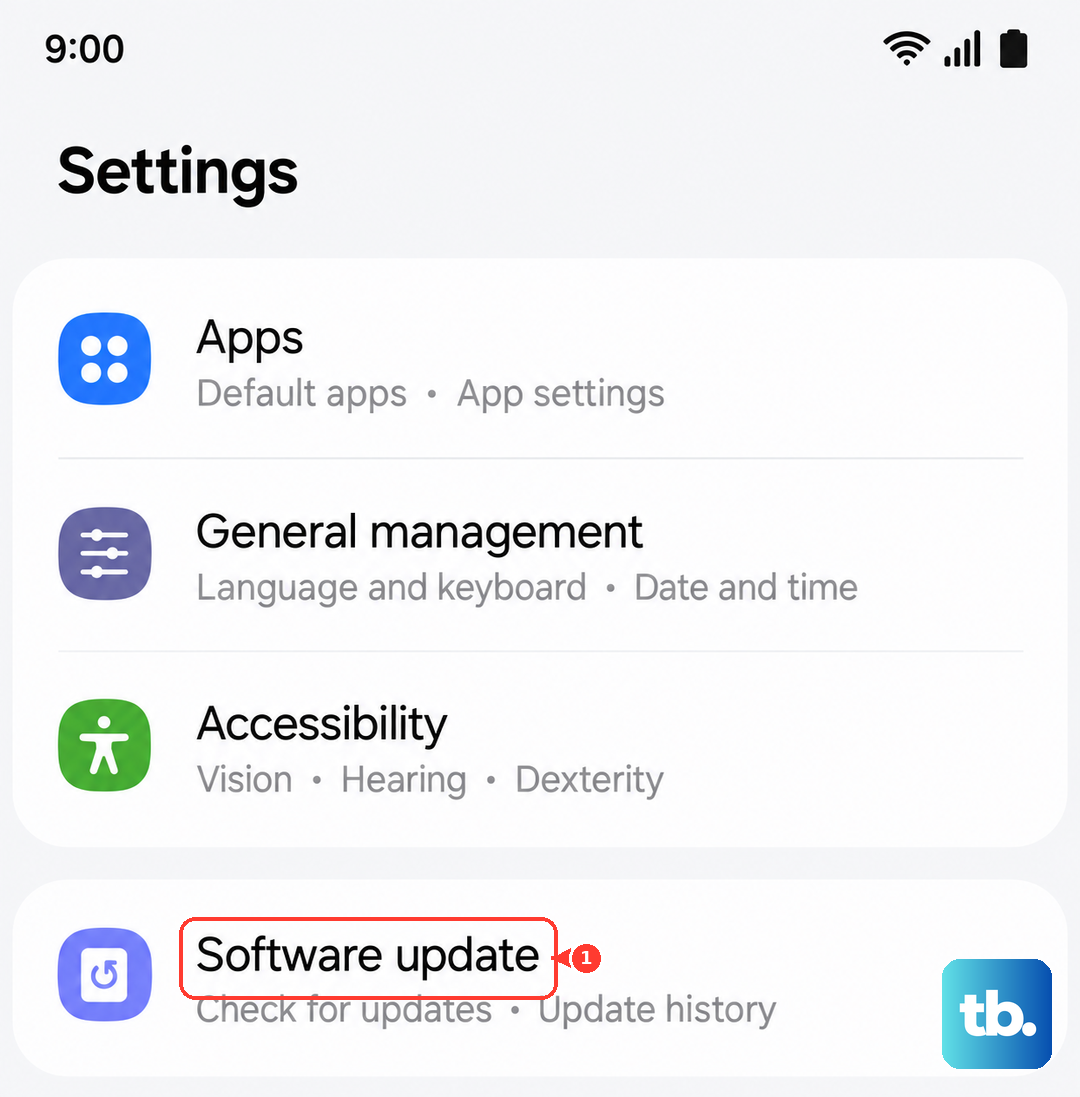
I'd check for updates even if you think you're on the latest version. Some touch-related patches come as part of security updates and aren't advertised separately.
Is the Screen Protector Interfering?
Thick tempered glass or poorly applied screen protectors can cause dead zones. Go to Settings > Display > Touch sensitivity and toggle it on. This increases the screen's sensitivity so it picks up touches through a protector.
If that doesn't help, remove the protector entirely and test the screen. A tiny air bubble or dust particle under the protector can create a spot that won't register taps.
Your A26's screen is designed for standard protectors, but not all brands work equally well. When in doubt, go without for a day and see if the freezing stops.
If the Screen Feels Overheated
Fast charging produces heat, and a hot phone can cause the touchscreen to become unresponsive temporarily. Try turning off fast charging in Settings > Battery > Charging and disabling the toggles for fast charging.
Also avoid using the phone while it's charging. The combination of active use and charging raises temperatures quickly, which can make the touch layer glitch or freeze entirely.
Perform a Factory Reset
This is your last resort because it wipes everything photos, apps, accounts and resets the phone to out-of-box condition. Back up your data first (Google Drive or Samsung Cloud).
Go to Settings > General management > Reset > Factory data reset. Confirm and let the phone do its thing. After it reboots, set up your phone as a new device and test the touchscreen thoroughly.
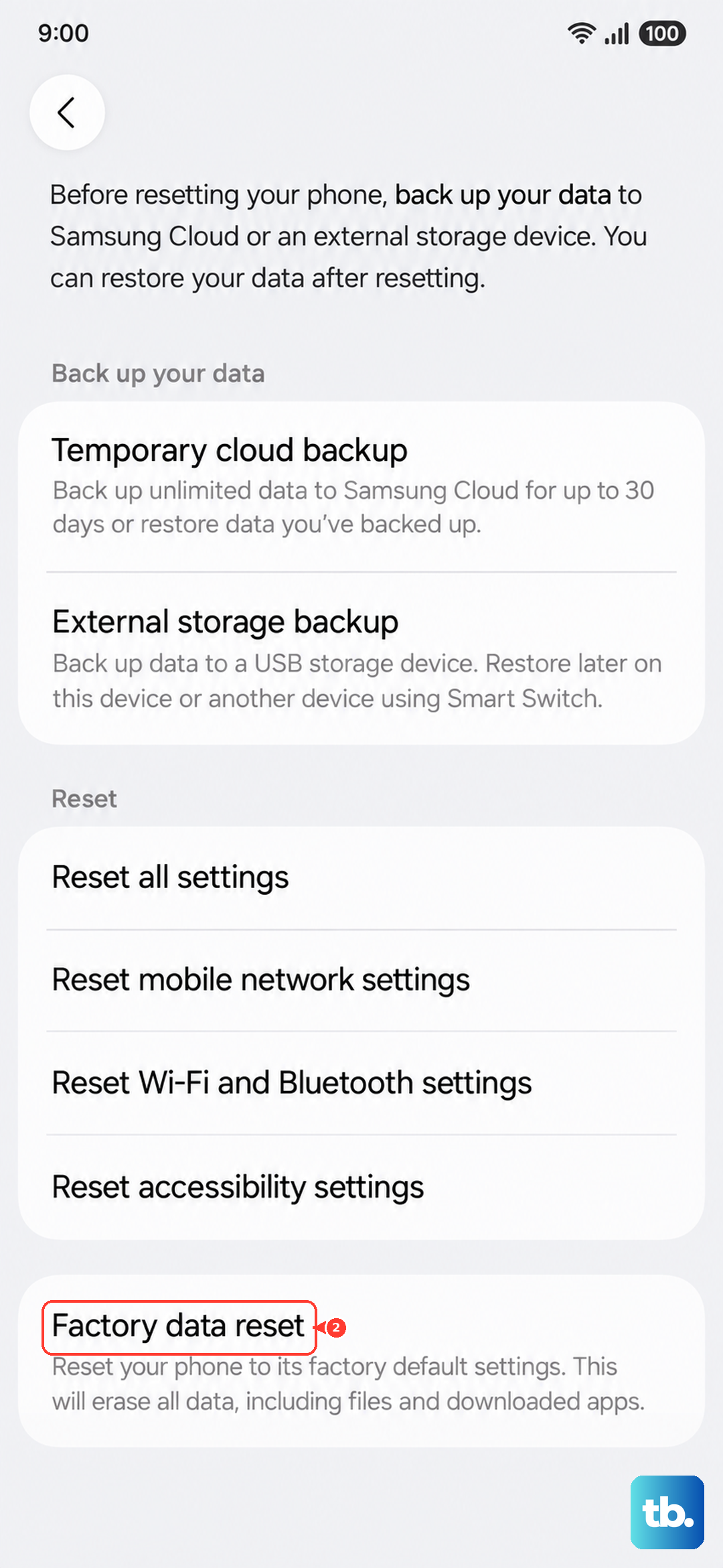
If the screen is still frozen after a factory reset, it's likely a hardware issue. The digitizer or the connection ribbon between the screen and the motherboard may need professional attention. That's beyond what software fixes can reach.