Screen flickering on your Samsung Galaxy A26 5G can make the phone feel broken. The display might flash, show horizontal lines, or pulse randomly. Most of the time this is a software or setting issue, and there are several things you can try before considering a repair.
If the fault comes and goes, an online screen test helps you reproduce it on demand with solid colors and gradient patterns.
Force Restart the Phone
Press and hold the Volume Down and Power buttons together for about 10 to 15 seconds. Don't let go when the screen goes black, keep holding until the Samsung logo appears. This is different from a normal reboot and clears temporary system glitches that can cause flickering.
Adaptive Brightness Can Cause Flickering
One UI 7's adaptive brightness uses the ambient light sensor to adjust your screen. If that sensor is having a bad moment, it can create a flickering effect. Go to Settings > Display and turn off Adaptive brightness. Then set your brightness manually using the slider. If the flickering stops, leave it off for a while or try recalibrating later.
Turn Off Eye Comfort Shield
Eye Comfort Shield reduces blue light based on time of day. When the color temperature shifts rapidly, it can look like flickering. Open Settings > Display > Eye Comfort Shield and toggle it off. See if the display smooths out.
Check Extra Dim and Overlays
Samsung includes an Extra dim feature under Settings > Accessibility > Visibility enhancements. If that's on, it can sometimes cause odd screen behavior. Turn it off. Also check if any third‑party screen filter or blue light app is running, those apps can interfere with the display driver.
Is Your Software Up to Date?
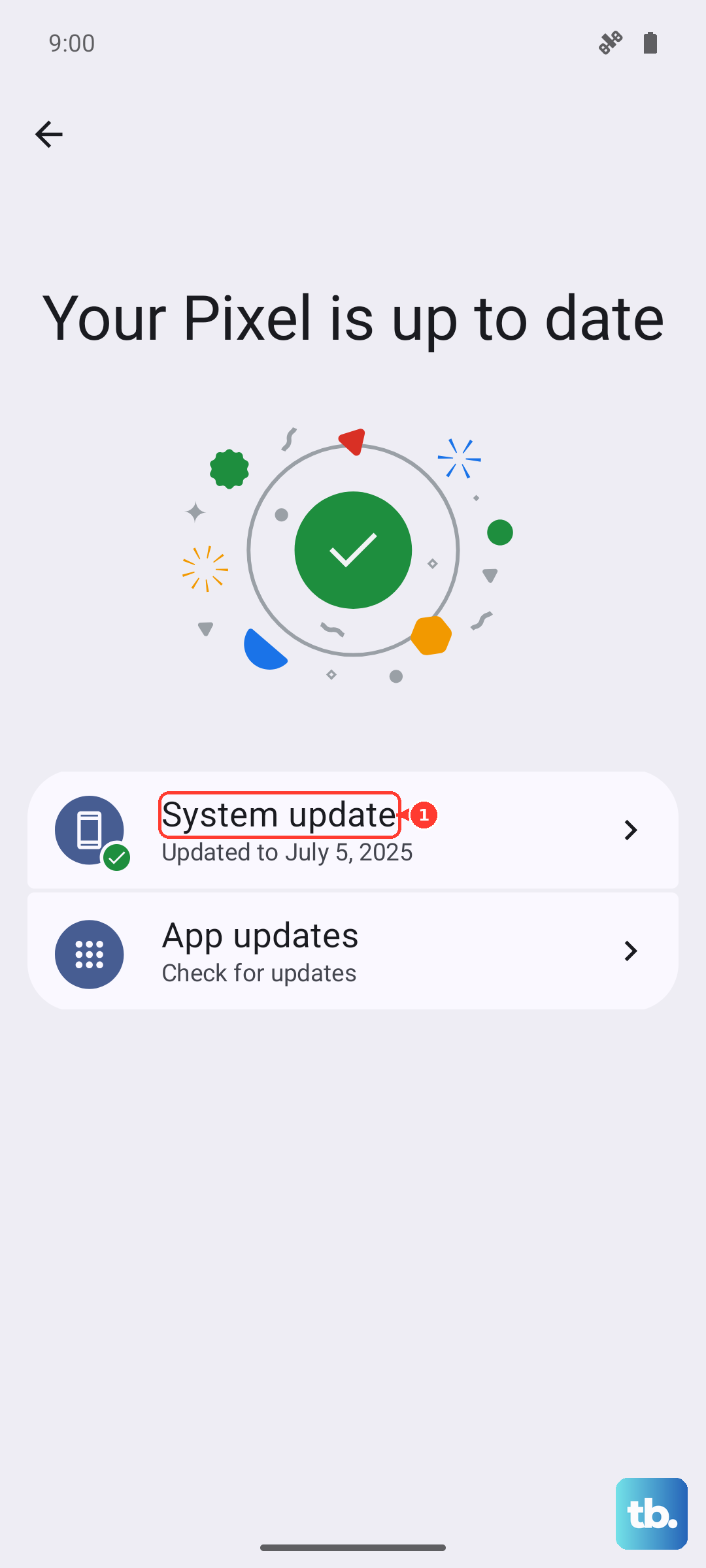
Screen flickering bugs are patched in system updates. Go to Settings > Software Update > Download and install and grab any pending update. Samsung regularly pushes fixes for the A26 5G, especially for early‑production units. If an update is available, install it and see if the flicker disappears.
Boot Into Safe Mode
A misbehaving app can cause display glitches. Safe mode temporarily blocks all third‑party apps. Press and hold the Power button until the power menu appears, then tap and hold Power off until you see the safe mode prompt. Tap Safe mode. If the flickering stops in safe mode, a downloaded app is the culprit. Reboot normally and uninstall recently installed apps one at a time.
Clear the Cache Partition
Corrupted system cache files can cause all kinds of weird behavior, including screen flicker. Turn off the phone, then press and hold Volume Up and Power together until the Samsung logo appears. Release the buttons and you'll see the recovery menu. Use the volume keys to highlight Wipe cache partition and press the power button to confirm. Reboot and check the screen.
Reset All Settings
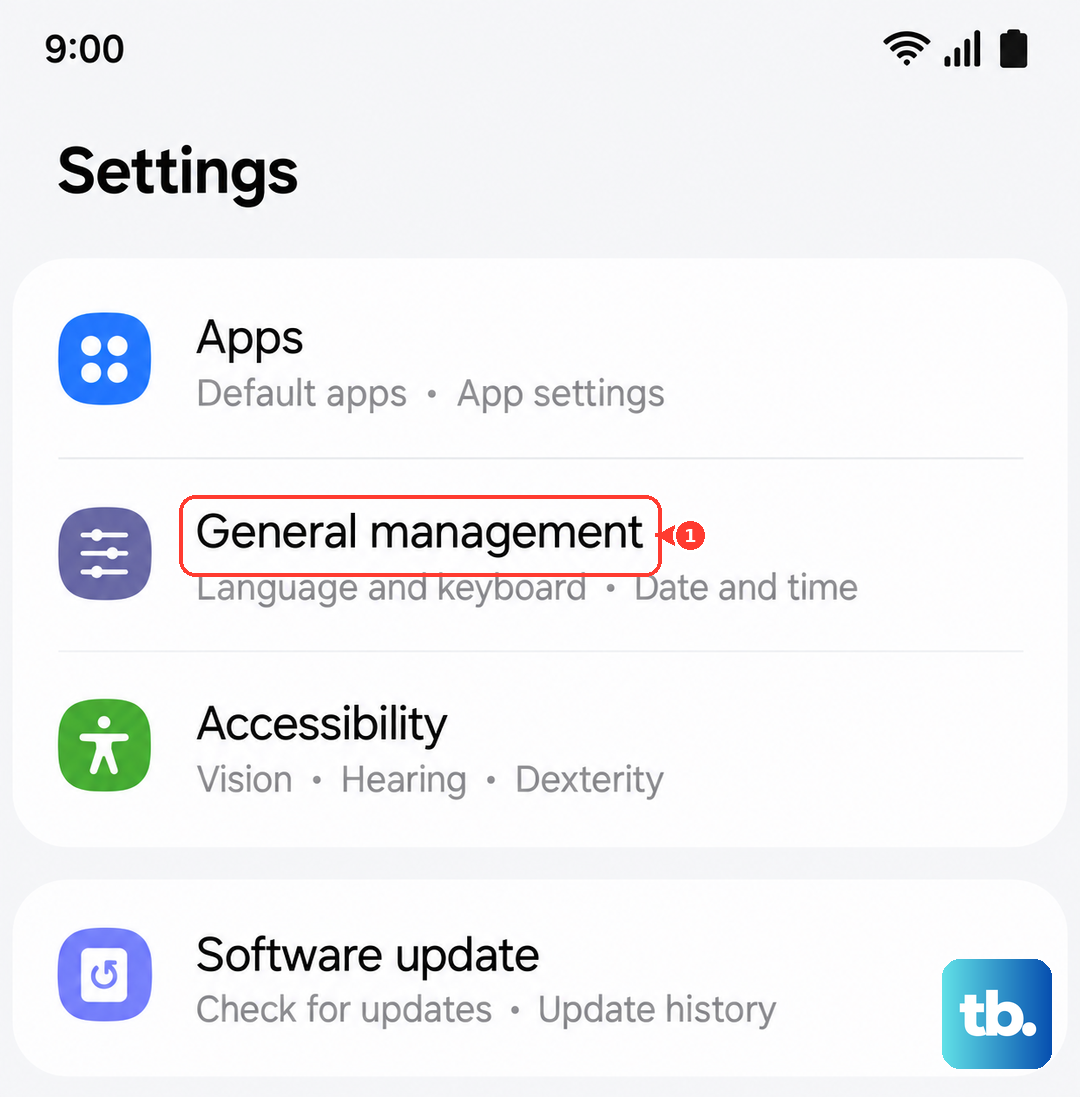
This doesn't delete your photos, messages, or accounts. It resets network settings, display preferences, and accessibility options to default. Go to Settings > General Management > Reset > Reset all settings. Enter your PIN or password and confirm. Your wallpaper and saved Wi‑Fi passwords will be cleared, but your data stays. It can undo a display setting that got stuck.
Check for Physical Damage
If the flickering started after a drop or pressure on the screen, the display or its ribbon cable may be damaged. Look closely for hairline cracks, dark spots, or discoloration. Even if the glass looks perfect, internal damage is possible. Physical damage usually won't be fixed by software tricks and may require a screen replacement.
Factory Reset as a Last Resort
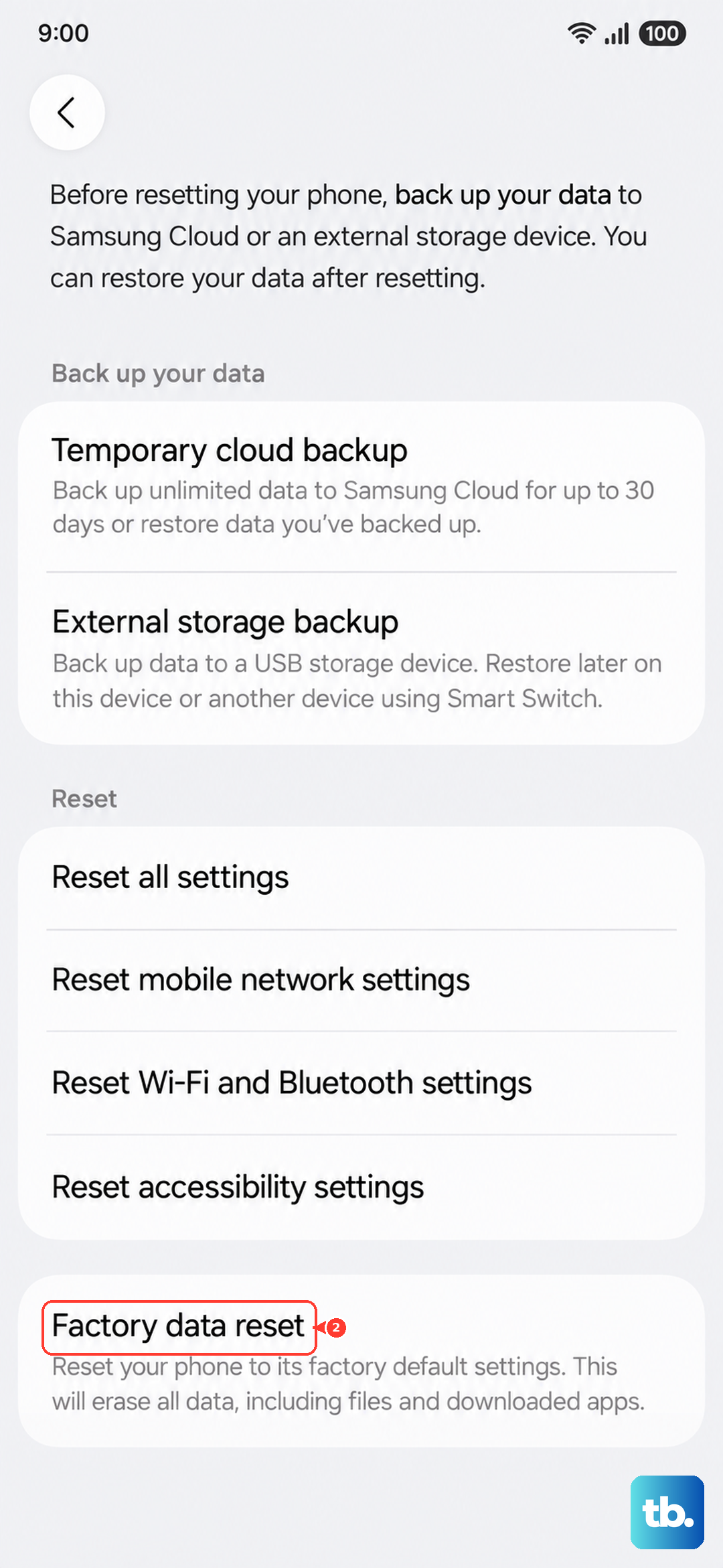
Back up everything first, photos, contacts, app data. Then go to Settings > General Management > Reset > Factory data reset. This wipes the phone completely and reinstalls One UI 7 fresh. If the flickering continues after a clean factory reset, the problem is almost certainly hardware and needs a repair. If it stops, you had a stubborn software bug.