
When your Samsung Galaxy A26 5G suddenly stops recognizing the SIM card, you lose calls, texts, and mobile data. It's a frustrating spot to be in, but most of the time the fix is straightforward and doesn't require a trip to the repair shop.
Here are 10 ways to get your SIM working again on the Galaxy A26 5G, starting with the quickest and most common solutions.
Force a Restart First
A temporary software glitch is the most common reason the SIM stops being detected. On the Galaxy A26 5G, a normal restart might not be enough if the system is hung up.
Press and hold the Volume Down and Power buttons simultaneously for about 10 15 seconds until the device restarts. This mimics a battery pull and clears out minor system hiccups that can affect the modem.
Toggle Airplane Mode
Sometimes the radio just needs a kick. Swipe down twice from the top of the screen to open the full Quick Settings panel and tap the Airplane Mode icon to turn it on. Wait about 10 seconds, then tap it again to turn it off.
This forces the phone to re‑register with the network, which often resolves a "no service" state without any deeper changes.
Check the SIM Card Manager
It's easy to accidentally disable a SIM in software. Head to Settings > Connections > SIM card manager. Make sure the toggle for your SIM is switched on.
If you see the SIM listed but toggled off, turn it back on and give the phone a minute to reconnect. This is especially worth checking after a software update or if you've been playing with eSIM profiles.
Remove and Inspect the Physical SIM
Pop the SIM tray out using the ejector tool that came with the A26 5G. Look at the gold contacts on the SIM card and inside the tray slot. Any dust, lint, or slight corrosion can block the connection.
Gently wipe the SIM contacts with a dry microfiber cloth. If you see anything stubborn, a tiny amount of isopropyl alcohol on a cotton swab works well, but let it dry completely before reinserting. Also check the tray itself for any bends or cracks.
After cleaning, reinsert the tray firmly and make sure it sits flush with the phone's edge.
Clear the Cache Partition
A corrupted system cache can interfere with the modem's ability to read the SIM. The Galaxy A26 5G lets you clear this without wiping your data.
Power off the phone. Press and hold the Volume Up and Power buttons together until the Samsung logo appears, then release. Use the volume keys to navigate to "Wipe cache partition" and select it with the Power button. Confirm, then reboot.
This doesn't delete any personal files, but it can clear out the junk that's causing the SIM detection error.
Update Your Software
One UI 7 (Android 15) gets regular patches that fix modem‑related bugs. If your A26 5G is behind on updates, a known glitch might be the culprit.
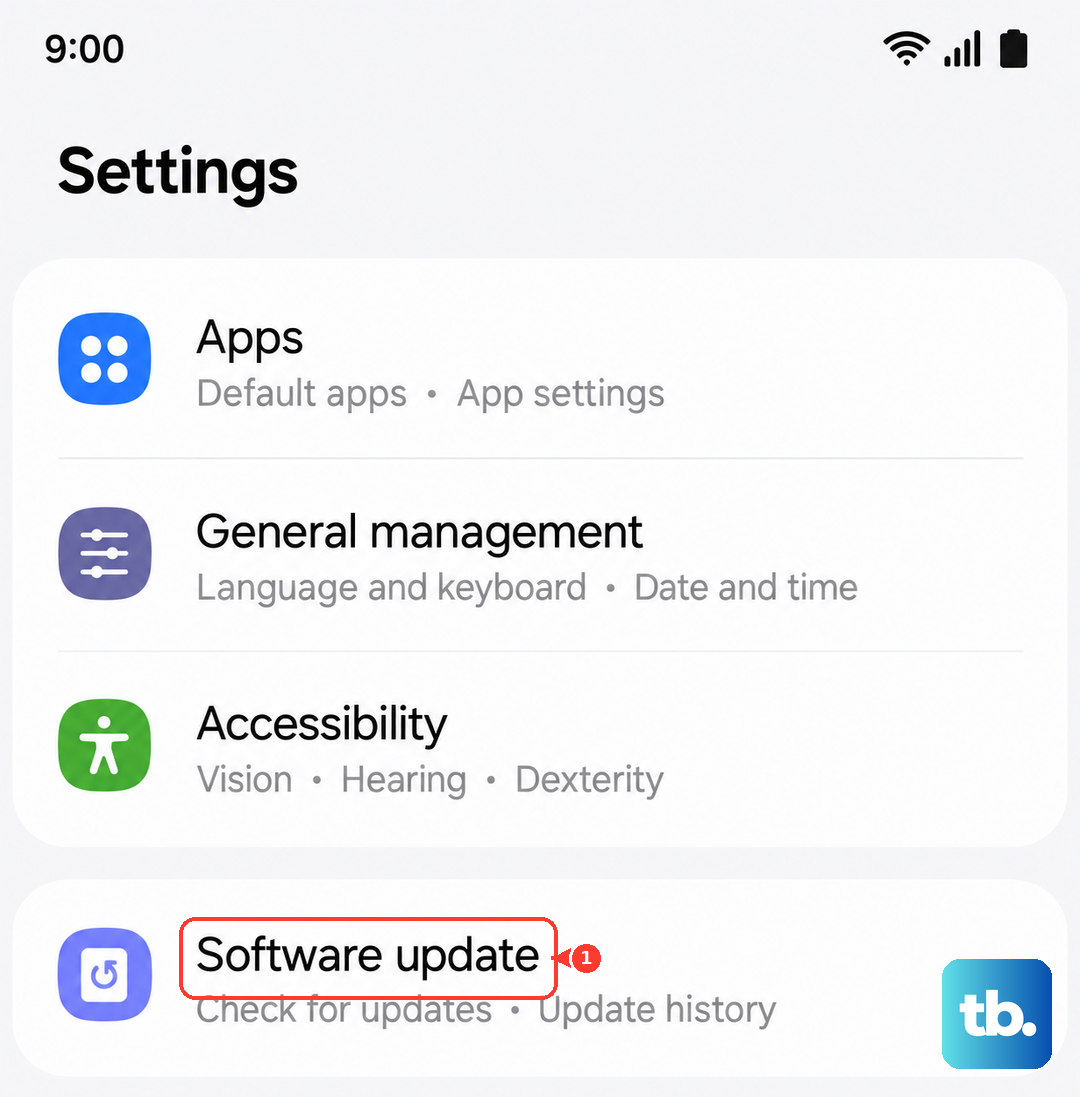
Go to Settings > Software update > Download and install. If an update is available, install it and restart the phone. Carrier‑specific updates sometimes include network profile improvements as well.
Reset Network Settings
Resetting network settings doesn't erase your photos or apps, but it clears saved Wi‑Fi networks, Bluetooth pairings, and mobile data configurations. This can fix misconfigured APN or roaming settings that prevent the SIM from registering.
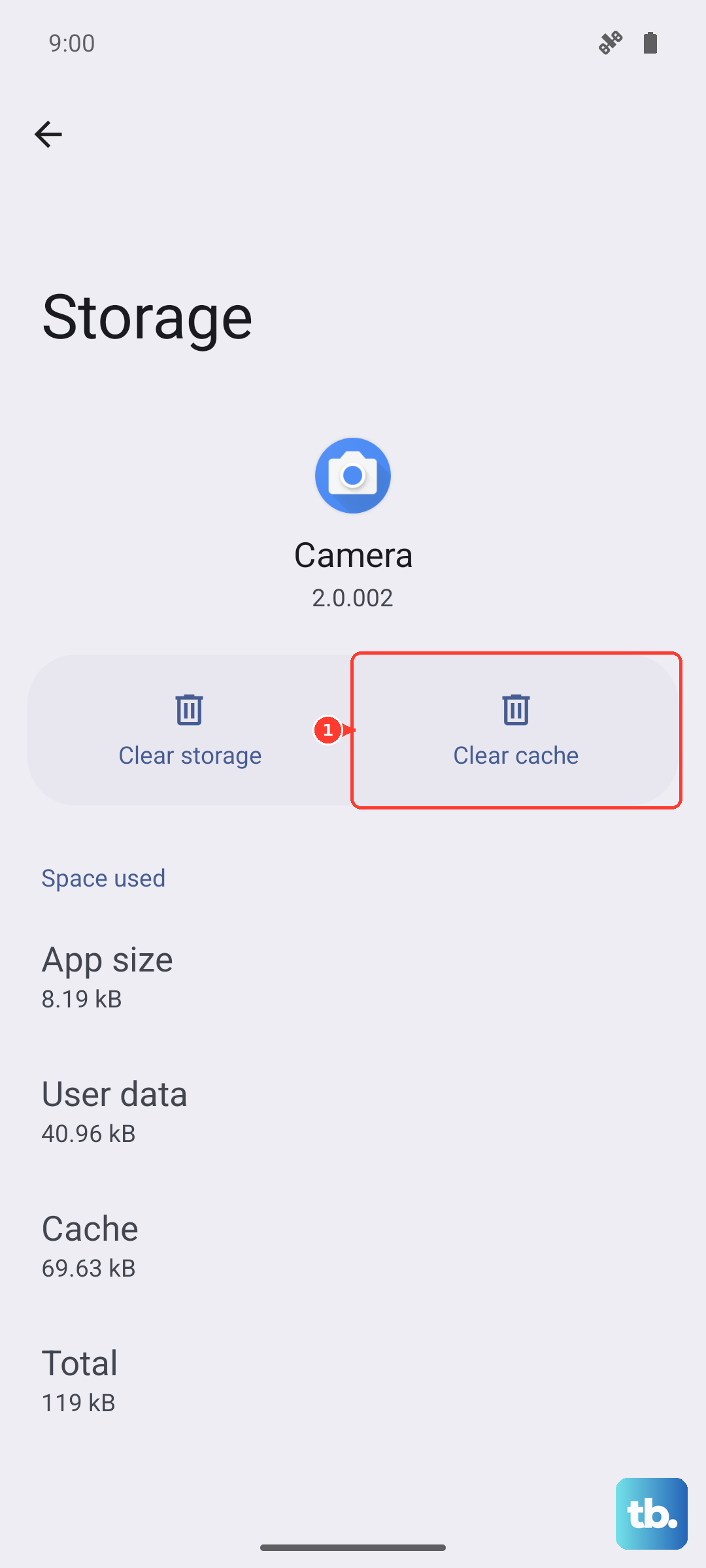
Open Settings The SIM Toolkit (or SIM Application Toolkit) is a system app that handles carrier‑specific services. If its cache is corrupted, the phone may fail to read the SIM entirely. Go to Settings > Apps. Tap the three‑dot menu and select Show system apps. Scroll down or search for SIM Toolkit (sometimes called "SIM Application Toolkit"). Tap Storage, then Clear cache. Don't tap "Clear data" unless you want to reset any carrier settings stored there. Repeat the same process for SIM Card Manager if you see it listed. Sometimes the phone gets stuck scanning for a network type that isn't available in your area. Forcing a specific mode can get it connected again. Open Settings > Connections > Mobile networks > Network mode. Choose 4G/3G/2G (auto connect). If you're in an area with poor 5G coverage, this can make the connection more stable. Wait a minute after selecting to see if the SIM registers. Incorrect Access Point Name settings can cause the phone to show "No SIM" even when the card is physically fine. This is common after switching carriers or traveling. Go to Settings > Connections > Mobile networks > Access Point Names. Tap the three‑dot menu and select Reset to default. If your carrier requires custom APN settings, you'll need to re‑enter them after the reset. If automatic network selection keeps failing, try picking your carrier manually. This forces the phone to connect rather than endlessly scanning. Go to Settings > Connections > Mobile networks > Network operators. Tap Search now, then select your carrier from the list. If it fails, try a different one and then switch back. This often works when the SIM is fine but the phone can't find the network automatically. If you've tried all the steps above and the SIM still isn't detected, a deeper software problem might be at play. A factory reset wipes the phone clean and restores it to out‑of‑box state. Before doing this, back up anything you can't lose. Go to Settings > General management > Reset > Factory data reset. After the reset, set up the phone and test the SIM immediately without restoring any backups. If the SIM works on a clean system, the issue was caused by a corrupted app or setting.
Clear the SIM Toolkit Cache
Change Network Mode
Reset APN to Default
Manually Select Your Network
When a Factory Reset Makes Sense