
Ever try using Google Maps on your Samsung Galaxy A26 5G only to see “Searching for GPS” or a blue dot that won’t lock on? You’re not stuck. Most GPS issues on the A26 5G are easy to fix yourself without a trip to the repair shop. Here’s a practical guide to get your location working again.
Force Restart the Phone First
Before messing with settings, give the A26 5G a hard restart. This clears temporary software hiccups that can interfere with the GPS radio.
Press and hold the Volume Down and Power buttons together for about 10-15 seconds until the Samsung logo appears. Let the phone restart normally. Check if Maps picks up your location now.
This is the same trick used for other weird glitches on One UI 7, and it works surprisingly well for GPS stalling.
Toggle Location Off and On
Sometimes the GPS just needs a fresh handshake with the satellites. Swipe down twice from the top of the screen to open the full Quick Settings panel.
Tap the Location icon to turn it off. Wait about 10 seconds, then tap it again to re-enable. Open Maps and see if the blue dot appears.
If that doesn’t do it, try toggling Airplane Mode on for 15 seconds and then off. That forces all radios including GPS to reconnect.
Check Location Mode Is Set to High Accuracy
Your A26 5G runs Android 15 with One UI 7, which offers different location modes. For GPS to work properly, you need High Accuracy.
Go to Settings > Location > Location services and tap Mode. Select High accuracy. This uses GPS, Wi-Fi, and mobile networks together for the best fix.
If it was already set to High Accuracy, switch it to Battery saving and back again to reset the setting.
Make Sure Maps Has Location Permission
Even if location is turned on, individual apps need permission to use it. Google Maps or your preferred navigation app might have had its permissions changed after an update.
Head to Settings > Apps > Google Maps > Permissions. Make sure Location is set to Allow all the time for full background usage. If you only need it while the app is open, Allow only while using the app works too.
Also toggle permission off and on again to refresh the connection.
Disable Power Saving Mode
Battery saving features on the A26 5G can throttle GPS performance to extend battery life. If you’re in Power Saving mode, the phone may stop polling satellites as often.
Swipe down to Quick Settings and tap the Power saving icon to turn it off (it should no longer be highlighted). Now test Maps again.
You can also go to Settings > Battery > Power saving to confirm it’s disabled completely.
Update Google Maps and System Software
Outdated software can cause compatibility problems with GPS. Make sure both your apps and the A26’s system are current.
Open the Play Store, tap your profile icon, then Manage apps & device. Update Google Maps and any other navigation apps. Then go to Settings > Software update > Download and install to check for any One UI 7 updates.
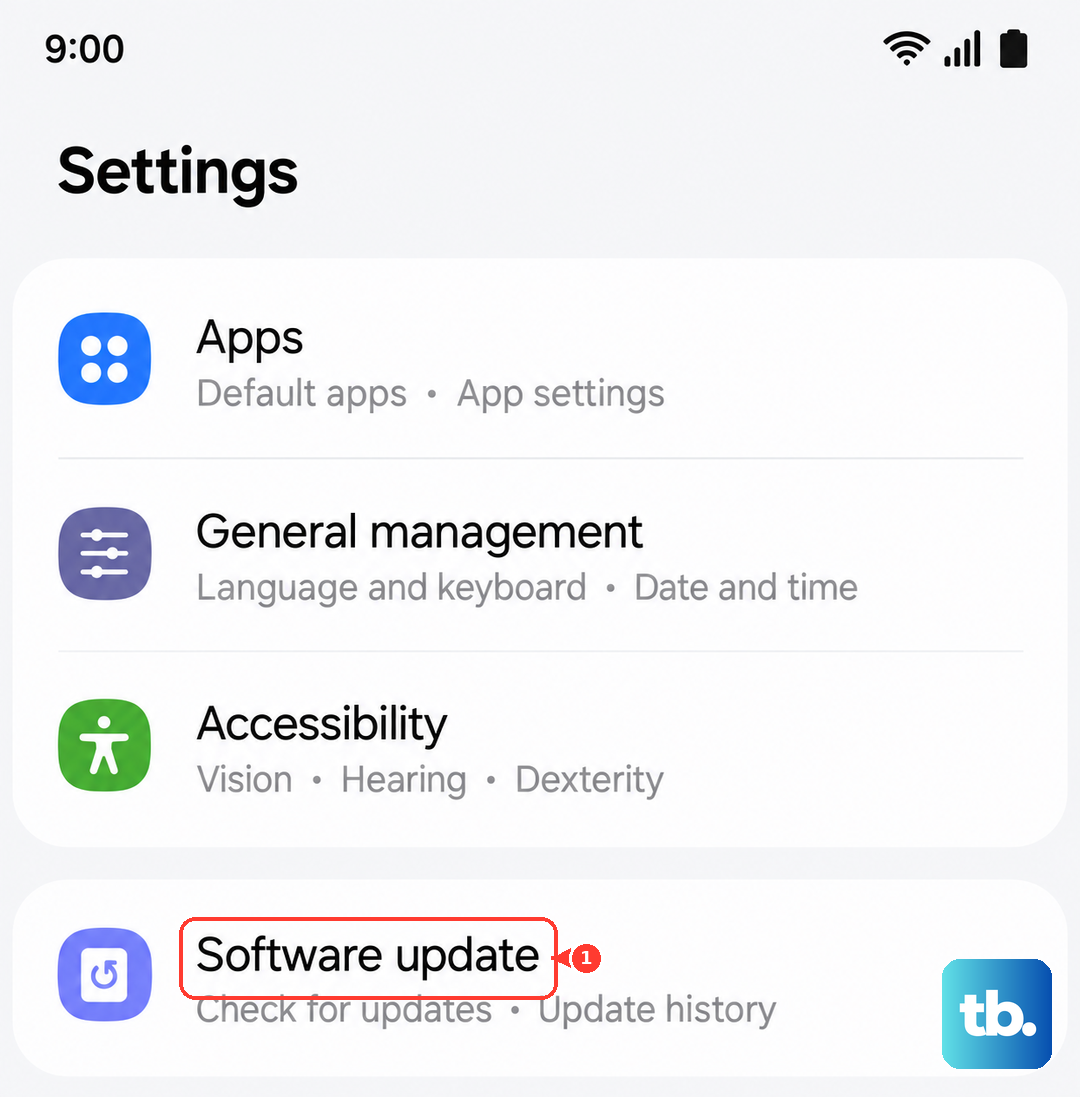
Samsung pushed several updates for the A26 5G in 2025 and 2026 that improved location stability so this step matters more than you’d think.
Clear Google Maps Cache and Data
Corrupted cache files inside Maps can cause the app to struggle when talking to the GPS chip. Clear them out.
Go to Settings > Apps > Google Maps > Storage. Tap Clear cache first. If the problem continues, tap Clear data. This resets Maps back to factory settings you’ll need to re‑sign in and set up preferences.
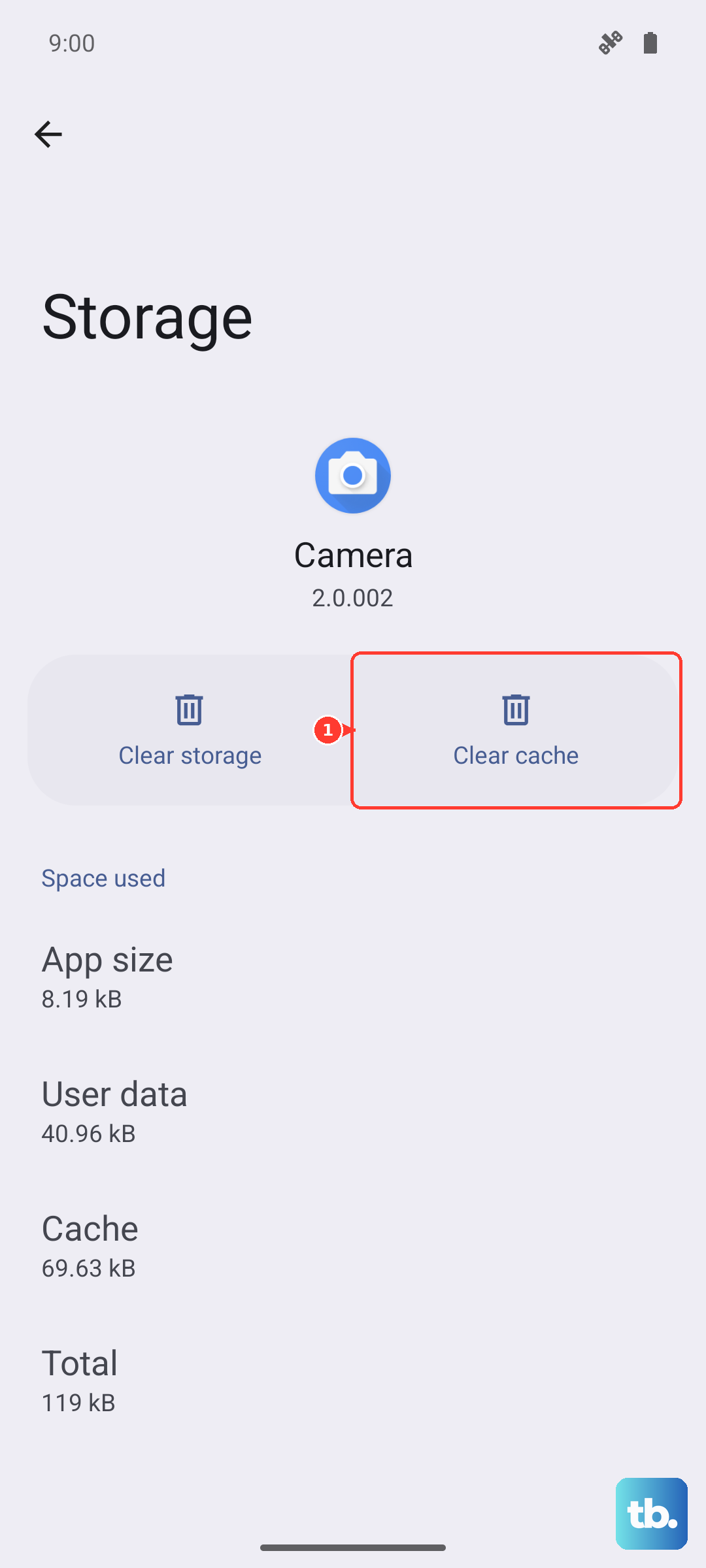
Don’t worry, it won’t delete your saved places if they’re synced with your Google account.
Wipe the Cache Partition
If Maps and location settings are fine but the whole system seems to have a location bug, clearing the cache partition can help. This is a device‑level fix that doesn’t erase your personal data.
Turn off the A26 5G completely. Then press and hold Volume Up and Power together until the Samsung logo appears and the recovery menu shows up.
Use the volume buttons to scroll to Wipe cache partition and press the Power button to select it. Confirm when prompted. After it finishes, select Reboot system now.
This step isn’t specific to GPS, but it often clears up weird sensor behavior on One UI 7 phones.
Test GPS in Safe Mode
Third‑party apps can sometimes override GPS settings or cause conflicts. Safe Mode starts your A26 with only pre‑installed apps, letting you see if a downloaded app is the culprit.
Press and hold the Power button until the power menu appears. Touch and hold Power off until Safe mode pops up, then tap it. The phone will restart with “Safe mode” in the corner.
Open Maps in safe mode. If GPS works perfectly, a third‑party app is causing the problem. You’ll need to uninstall recently added apps one by one to find the troublemaker.
To exit safe mode, just restart normally.
Hardware Check with GPS Test App
If none of the software steps help, you’ll want to figure out if the GPS chip itself is failing. Download a free GPS testing tool from the Play Store something like “GPS Status & Toolbox” works well.
Open the app and look for the satellite view. If your A26 5G can see multiple satellites but can’t lock a fix, it’s almost always a software problem. If it sees zero satellites even outside, the hardware may be defective.
The Galaxy A26 5G uses a Broadcom GPS chip that generally holds up well, but like anything electronic, it can fail. A hardware issue would mean contacting Samsung for a repair or replacement under warranty.
Most GPS problems on the A26 5G resolve with the steps above especially the cache partition wipe and the High Accuracy toggle. Start with the force restart, then work through the settings, and you’ll likely be navigating again in minutes.