
A black screen on your Samsung Galaxy A26 5G is definitely unsettling, but it doesn't always mean the phone is toast. Often the display is just unresponsive while the phone is still running, or a software crash has locked everything up. Let's walk through the fixes that actually work for this model.
Force Restart the Galaxy A26 5G
This is the first thing you should try, and it works even when the screen is completely black. Press and hold the Volume Down and Power buttons simultaneously for about 10-15 seconds. Keep holding until the device vibrates and the Samsung logo appears. Don't let go early if the screen stays black, it can take the full 15 seconds. This force restart clears a frozen system without losing any data.
Plug It In and Wait
A completely drained battery can make the screen look dead. Connect your A26 to a charger using the original cable and a USB PD 3.0 adapter with PPS support for the fastest charging. Wait at least 15-30 minutes before checking. If the battery was fully empty, the screen may stay black for several minutes before showing the charging icon. Try a different cable and power brick if nothing happens after half an hour.
Check for Physical Damage
Look at the screen closely for cracks, dark blotches, or impact marks. If your phone vibrates when you get a message, makes sounds, or rings, the phone is on but the display hardware might be damaged. In that case, you'll need a screen repair from a Samsung service center. Don't try to fix the display yourself, it's delicate and easy to break further.
Turn Up the Brightness (Blindly)
Sometimes the screen is actually black because the brightness slider got bumped all the way down. Swipe down twice from the top of the screen to open the quick settings panel. Then drag the brightness slider to the right. If you can't see the slider, ask Google Assistant to "turn up the brightness" by saying "Hey Google" or pressing and holding the Power button if that's set up. If the screen lights up, you're golden.
Boot Into Safe Mode
A rogue app can sometimes crash the system and leave a black screen. Safe mode loads only pre-installed apps and can help you test if that's the issue. Press and hold the Power button until the power menu appears (if you can see it). Then tap and hold the Power off icon until you see the option to boot into Safe mode. Tap Safe mode and wait. If the screen comes back on, a third-party app is the culprit. Uninstall recently downloaded apps one by one until the problem stops.
Wipe the Cache Partition
Corrupted system cache can cause black screen issues, especially if you've been having charging problems. To clear it, turn off the phone. Then press and hold the Volume Up and Power buttons together until the Samsung logo appears, then release. Once in recovery mode, use the volume buttons to navigate to Wipe cache partition and press the Power button to select it. Confirm with Yes. After it finishes, select Reboot system now. This won't delete your photos or settings.
Factory Reset (Last Resort)
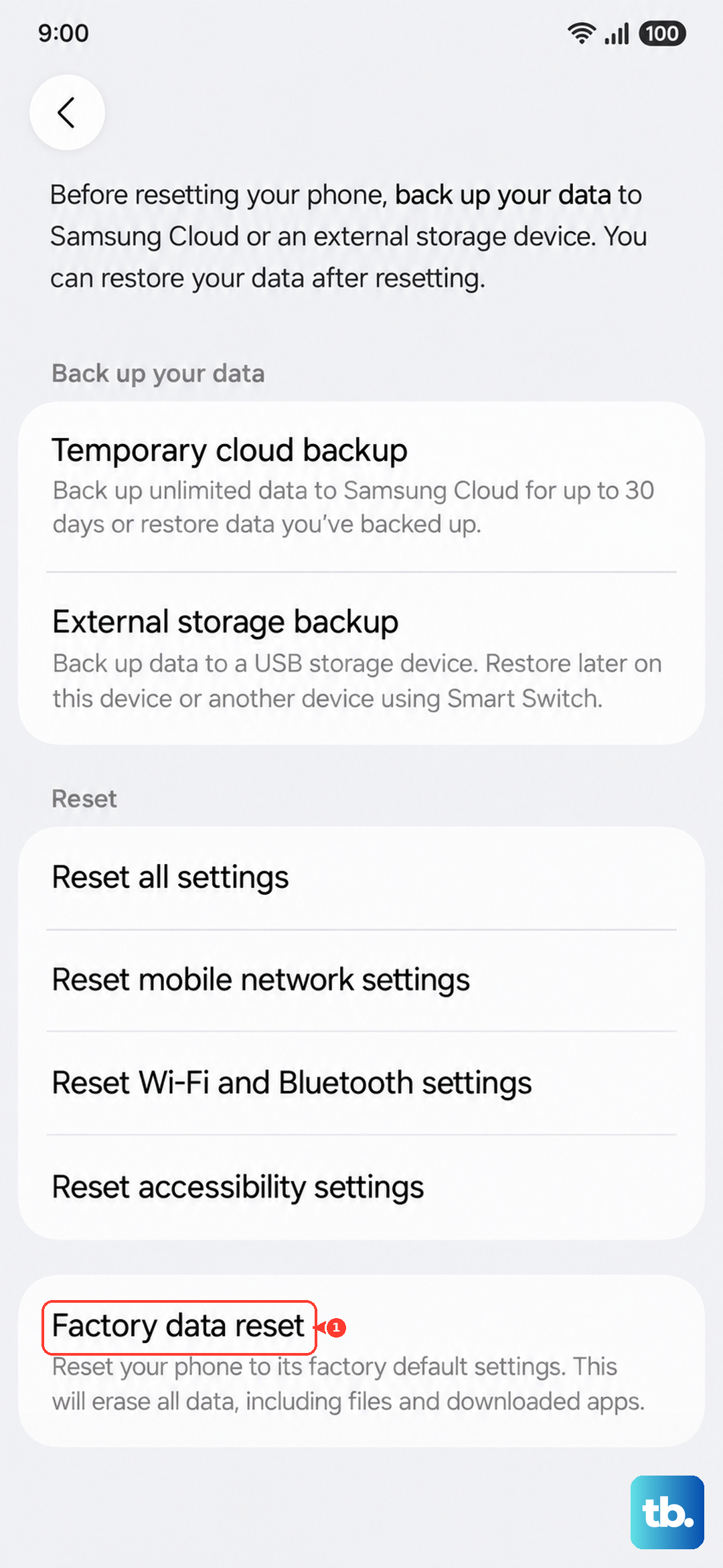
If nothing else works, a factory reset will erase everything and return the phone to its out-of-box state. Back up your data first if you can get the screen to work at all. From Settings, go to General management > Reset > Factory data reset. If the screen is still black, you can reach recovery mode (same steps as above) and use the volume buttons to select Wipe data/factory reset. This is the nuclear option but often fixes stubborn black screens caused by software corruption.
Overheating and Charging Warnings
The A26 5G has known issues with getting too hot while charging, which can trigger a black screen as a safety measure. If you were using the phone while plugged in before this happened, stop doing that. Go to Settings > Battery > Charging and turn off Fast charging to reduce heat. Also check the charging port for lint or damage. A dirty port can cause intermittent connections that make the phone act weird. Use a wooden toothpick to gently clean it out.