Your Galaxy A16 keeps insisting the software is up to date, or the download stalls at a few percent, or the install fails right before it finishes, and it is easy to assume a budget phone like this simply does not get newer Android versions. That assumption is wrong. Samsung's official spec page promises the Galaxy A16 up to 6 generations of OS upgrades and 6 years of security maintenance, with the security update period running all the way through 31 October 2030. The phone ships on Android 14 with One UI 6.1 and is built to climb several Android generations over its life, so an A16 that will not update is almost always a network, storage, battery, or temporary software hiccup rather than a phone that has run out of support.
The good news is that you can usually clear it yourself. Work through the fixes below in order, since they run from the quickest and safest to the more involved last resorts, and stop as soon as the update goes through.
Get on solid Wi-Fi and ask for the update by hand
Software updates need a steady connection to download in full, and a weak or dropping signal is the most common reason an install never starts. Connect the A16 to a reliable Wi-Fi network first, then request the update manually instead of waiting for it to appear.
- 1.Using two fingers, swipe down from the top right corner of the screen, and then tap the Settings icon.
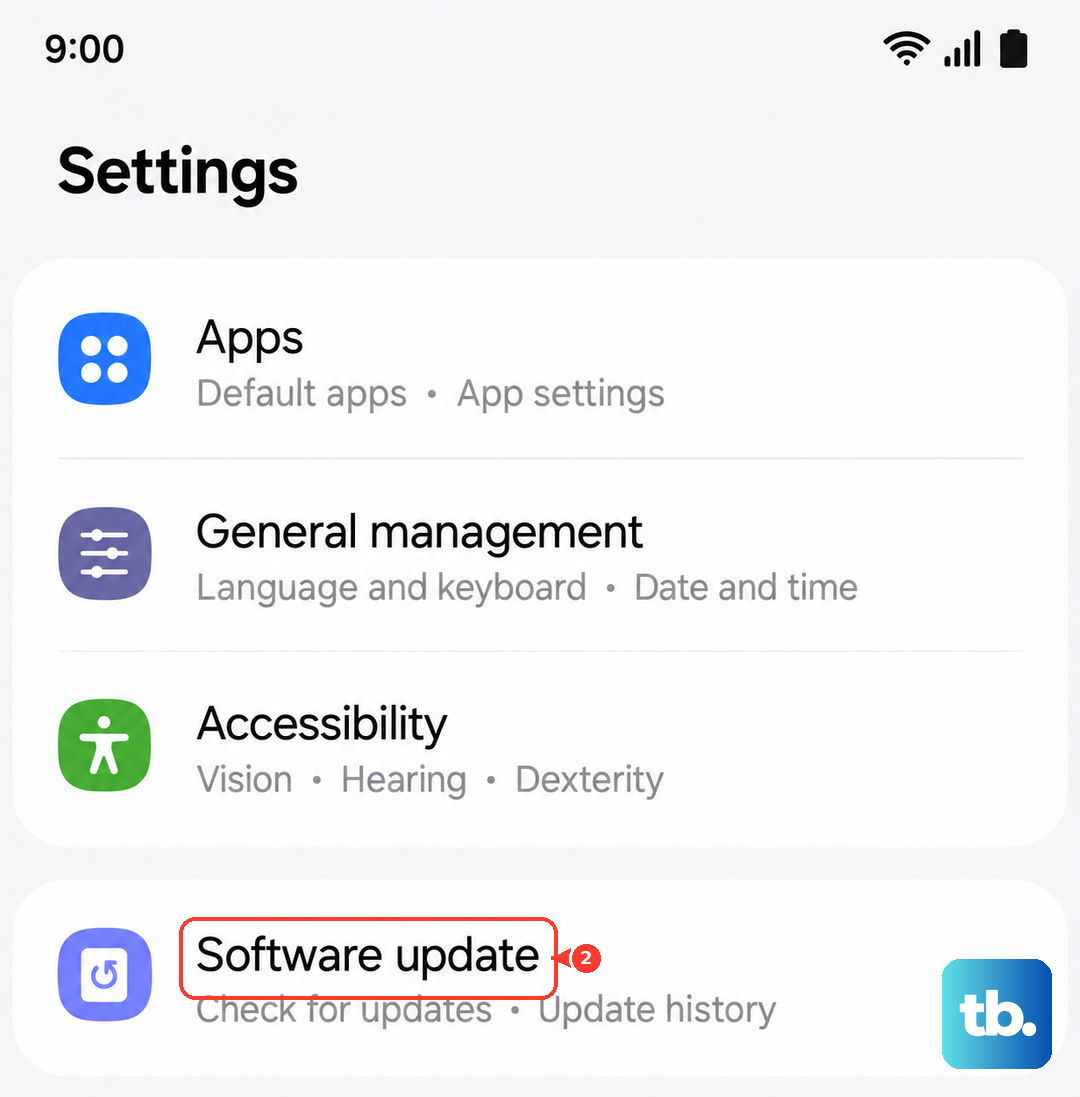
- 2.Swipe to and then tap Software update or System updates. It will vary between models.
- 3.Tap Download and install, Check for system updates, or Check for software updates, depending on your carrier.
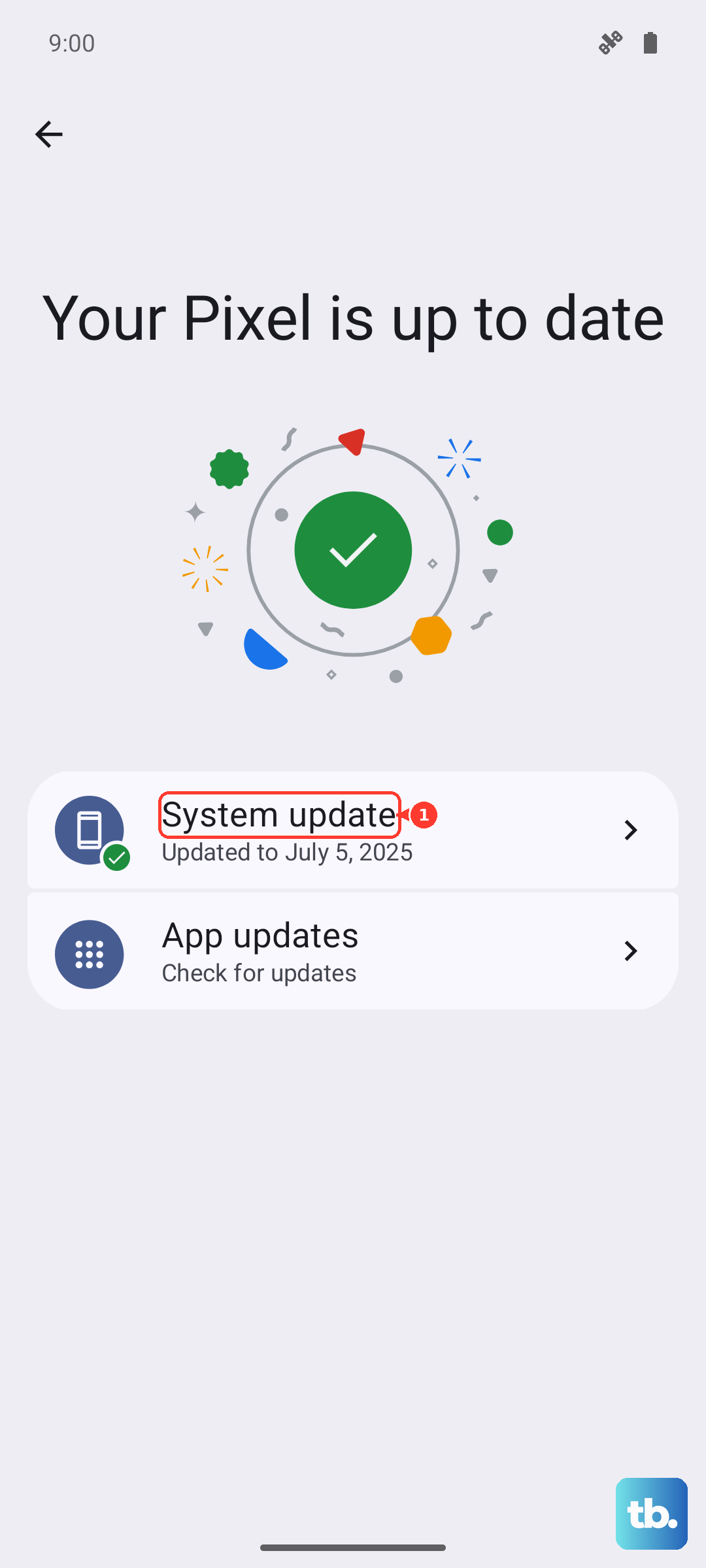
If an update is found, follow the on-screen instructions to finish it. If nothing appears, that is normal, because the newest version may not have reached your phone or carrier yet, and checking again in a day or two often does the trick. While you are in this menu, you can also tap the switch to enable or disable Auto download over Wi-Fi so future updates pull down on their own.
Top up the battery before you tap install
A phone can block a software update when the battery is too low to finish installing safely, because a shutdown partway through can corrupt the system. The A16 will quietly refuse to proceed if it does not have enough charge to see the process through.
Samsung's guidance is to charge the battery above 50% before you begin. Plug the A16 in, leave it on the charger while the update downloads and installs, then run the software update check again once it has enough power.
Clear out internal storage so the update fits
An update package needs free space to download and unpack, and the phone may not install an update if there is not enough internal storage available. If your A16 is nearly full, freeing up room is often all it takes.
Open Settings > Device care > Storage to see how much Internal storage you have left. From there, use the Trash, Unused apps, Duplicate files, or Large files options to clear out excess data, uninstall apps you no longer use, and empty the trash so the space is actually reclaimed. You can also move photos and other large files off the phone to free up more room, then try the update again.
Restart the phone, or force it if the screen is stuck
A plain restart clears the temporary glitches that quietly block an update more often than people expect. Press and hold the Volume down button and the Side button simultaneously, tap Restart, then tap Restart again.
If the A16 is frozen and will not respond to a normal restart, force it to reboot instead. Press and hold the Volume down button and the Side button (or Power button) simultaneously until the device turns off and turns back on. Samsung UK lists this as holding for more than 7 seconds. The screen goes black, the Samsung logo appears, and once the phone is back up you can check for the update again.
Wipe cached files with built-in optimization
Corrupted or bloated cache files can interrupt the update process partway through, leaving you stuck on a download that never completes. One UI has a built-in way to clean up the device in one pass.
Go to Settings > Battery and device care > Optimize now > Done to let the phone tidy itself up. If you suspect a single app is interfering, you can also clear that app's cache from its entry under Settings > Apps. With the cache cleared, attempt the software update one more time.
Boot into Safe mode and try again
Background apps can hold resources or conflict with the updater, and Safe mode loads the phone with only its built-in software so you can rule them out. It is a temporary diagnostic state, not a permanent change.
Turn the A16 off, then turn it back on and hold the Volume down button while it starts up, keeping it held until the phone finishes booting and Safe mode appears in the lower-left corner of the screen. Run the software update from here, and when you are done, restart the phone normally to leave Safe mode.
Push the update over a cable with Smart Switch
If the over-the-air update keeps failing no matter what you try, you can bypass it entirely and update by cable from a computer. Samsung's free Smart Switch tool handles this for both Windows PC and Mac.
- 1.Install Samsung Smart Switch on a Windows PC or Mac.
- 2.Connect the A16 to the computer with the USB cable and let Smart Switch detect the device.
- 3.If a new version is available, select the update option and follow the prompts.
One rule matters above all here. As Samsung puts it, "Don't disconnect the USB cable or use your device until the update is complete." Pulling the cable mid-update is exactly the kind of interruption that can leave the software in a broken state, so let it run all the way through.
Back up everything, then factory reset
When an update simply refuses to install after everything above, a factory data reset wipes the system back to a clean state that can finally accept it. Treat this as a genuine last resort, because it erases your data.
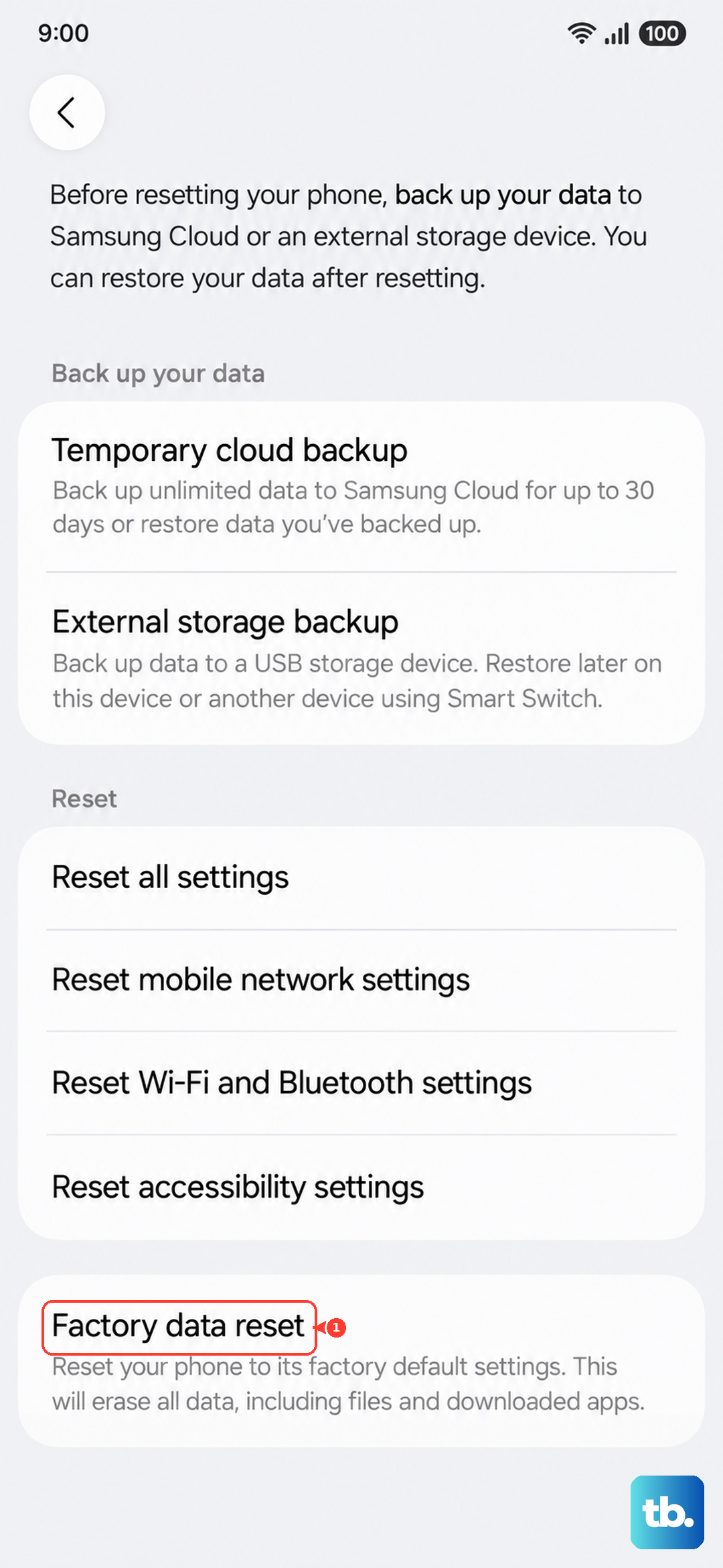
Before you start, back up anything you want to keep. Samsung warns, "Please save any information you need prior to the factory reset because your personal information may not be recovered." Make sure the phone has a network connection, since one is required to log out of your Samsung account before the reset can complete. When you are ready, go to Settings > General management > Reset > Factory data reset, review the information, tap Reset, then tap Delete all. Once the phone reboots and you sign back in, check for the update again.
Reach a Samsung expert when nothing works
If the A16 still will not update after a clean reset, the problem may need a closer look than self-service can give, and that is when it is worth going straight to the source. Samsung's official support channels can walk through it with you and check whether anything is flagged on your specific device or carrier.
You can reach Samsung's official support online, or get help right on the phone through the Samsung Members app, which is Samsung's built-in support and help app. Both routes lead back to Samsung's own support team, so you do not have to guess at unofficial help.
Frequently Asked Questions
Does the Galaxy A16 still get software updates?
Yes. Samsung's official spec page lists up to 6 generations of OS upgrades and 6 years of security maintenance for the Galaxy A16, with security updates continuing through 31 October 2030. A phone that will not update is dealing with a troubleshooting issue, not a lack of support.
Why does my A16 say it is up to date when I expect a newer version?
The newest version may simply not have reached your phone or carrier yet. Keep Auto download over Wi-Fi enabled and check Settings > Software update again after a day or two.
How much battery does the A16 need to install an update?
The phone can block an update when the battery is too low to install safely. Samsung's guidance is to charge above 50% and keep the phone plugged in while the update downloads and installs.
Will updating my Galaxy A16 erase my data?
A normal software update does not erase your personal data. The only step here that wipes the phone is the factory data reset, which is a last resort. If you reach that point, back everything up first, because your personal information may not be recovered afterward.