Your Galaxy A16 5G keeps flashing the "Storage full" warning, the camera refuses to save a new photo, and app updates have quietly stalled. With 128GB of internal storage on this model, that space fills faster than you might expect once high-resolution videos, downloads, screenshots, and app caches pile up over time. The good news is that Samsung builds a full set of storage tools right into One UI, so you can work through them in a sensible order, starting with the quick and safe taps and saving the reset for last. Here is how to claw that space back on your Galaxy A16 5G, one step at a time.
Start With a One-Tap Device Care Cleanup
The fastest and safest first move is Samsung's built-in cleanup. Go to Settings > Device care > Optimize now.
This is Samsung's recommended quick fix for a low-storage warning, and it closes background apps and clears minor junk in a single tap, so it is always worth running before you start deleting anything yourself.
If the phone has turned sluggish because it is so full, restart it as well. Press and hold the Volume down button and the Side button at the same time.
Then tap Restart from the menu. A fresh restart clears temporary system files and often makes the rest of these steps run more smoothly.
While you are in this menu, you can also free up working memory if performance feels off. Go to Settings > Device care > Memory > Clean now to stop background apps and reclaim RAM.
If there are apps you always want running, open Excluded apps > Add to keep them out of the cleanup.
Find What Is Eating Your 128GB and Delete It
Next, see exactly where your space went. Go to Settings > Device care > Storage.
Then tap a category such as Images, Videos, Audio files, or Documents. This is Samsung's primary built-in tool for spotting what is actually filling the phone, and it lets you remove the biggest items directly.
Open Settings > Device care > Storage.
Tap a category (Images, Videos, Audio files, Documents, and so on).
Touch and hold the files you want to remove, or tap All.
Tap Delete or Delete all and confirm with Move to Trash.
Large videos are usually the biggest single drain, so start there, then work through old downloads and duplicate photos.
Remember that these files move to Trash first, which matters for a later step.
Clear the Cache From Your Space-Hungry Apps
Browsers, social, and streaming apps quietly hoard temporary files that can grow to hundreds of megabytes. Clearing that cache reclaims space without touching your accounts or personal data, so it is one of the safest cleanups you can run.
Open Settings > Apps.
Select an app (browsers, social, and streaming apps are common offenders).
Tap Storage.
Tap Clear cache.
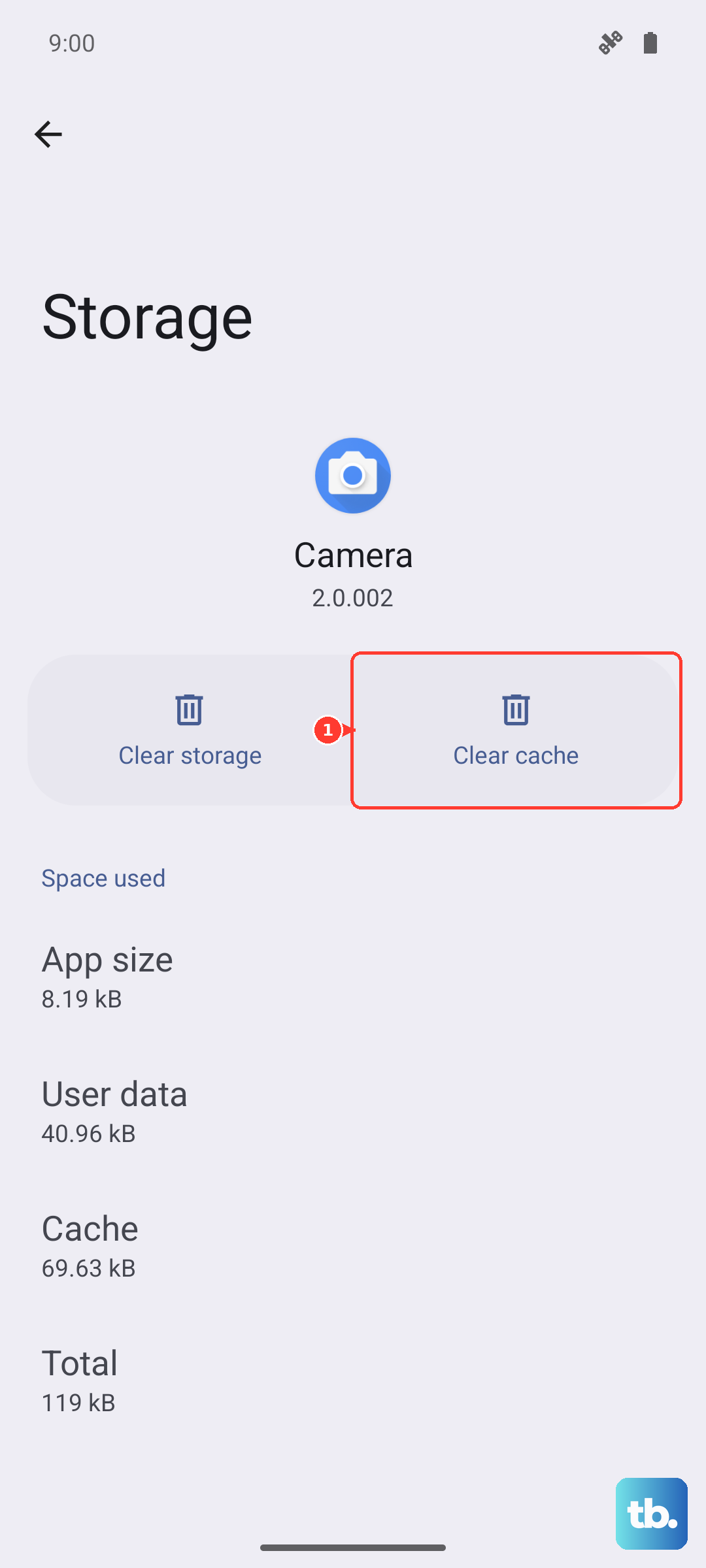
There is a stronger option on the same screen called Clear data, which resets the app to its defaults and signs you out, so you would need to log in again afterward.
Use Clear data > Delete only when clearing the cache alone is not enough.
Remove Apps You No Longer Open
Apps you have forgotten about take up both storage and memory.
To remove one, touch and hold its icon, then tap Uninstall, which deletes the app and its data together.
Be aware that some pre-installed or carrier apps cannot be removed.
Clearing out even a handful of unused games or trial apps can return a meaningful chunk of space at once, and it tidies up your home screen at the same time.
Send Photos and Files to the Cloud
Offloading media is one of the most effective ways to free internal storage, because your largest libraries of photos and video can live in the cloud instead of on the phone.
For Google Drive, go to Settings > Accounts and backup > Back up data and follow the prompts.
You can also use Samsung Cloud to back up and sync your content from the same Accounts and backup menu.
Once your files are safely stored in the cloud, you can delete the local copies from the device to reclaim the space they were using.
Expand Your Storage With a microSD Card
This is the biggest single way to add capacity. The Galaxy A16 5G has a dedicated microSD slot and, according to Samsung's official support guidance, supports cards up to 1.5TB.
Insert the card with the gold contacts facing downward, using the included ejector tool.
Once the card is in, move files to it from the My Files app.
Open My Files and find the files you want to move.
Touch and hold to select them.
Tap Move.
Navigate to SD card and select a folder.
Tap Move here.
You can also relocate some apps to the card. Go to Settings > Apps, select the app, tap Storage, then tap Change > SD card > Move.
Not every app supports this, but moving the ones that do frees more internal space for the system and your photos.
Empty the Trash So the Space Actually Comes Back
Here is the step most people miss. Deleted files do not vanish immediately.
They first move to a Trash or recycle bin, for example in My Files and Gallery, and they keep occupying storage until that bin is emptied.
Open the My Files app, go to the Trash, and empty it to fully reclaim the space.
If your available storage barely changed after deleting files earlier, this is almost always why, so make this the step that finishes the job.
Install Any Pending Software Updates
Software updates can improve how the phone handles storage and overall stability, so it is worth checking for one while you are cleaning up.
Updates also keep your A16 5G current within Samsung's long support window for this model, which covers several years of OS and security updates.
Swipe down from the top-right corner and tap Settings.
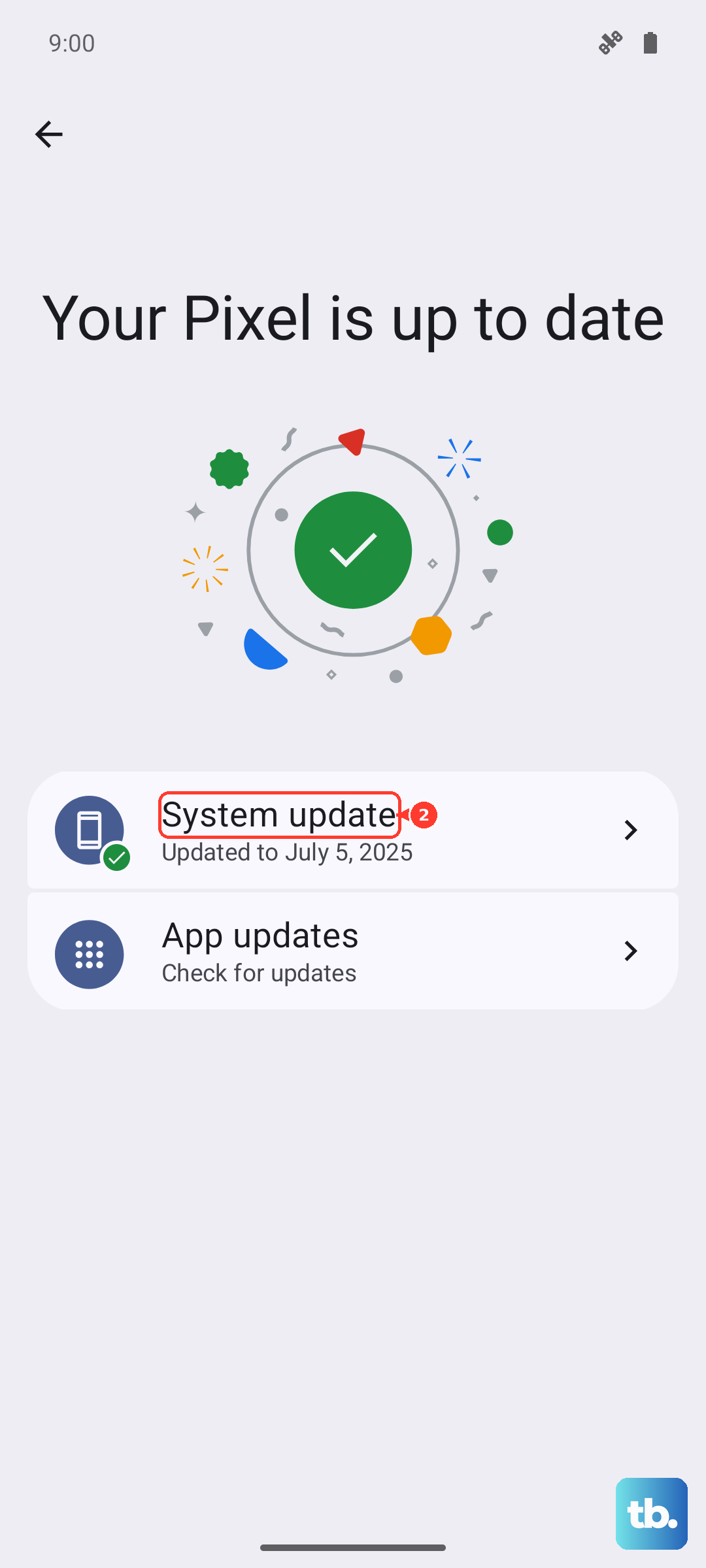
Tap Software update (or System updates).
Tap Download and install.
The update downloads automatically (tap Download now if prompted).
Follow the on-screen instructions to install it.
Back Up and Factory Reset as a Last Resort
If the storage problems persist after everything above, a factory reset is the final option, and it erases all data on the phone.
Back up first using Samsung Cloud, Google Drive, or Samsung Smart Switch so nothing important is lost.
Samsung warns: "Please save any information you need prior to the factory reset because your personal information may not be recovered."
Once your backup is complete, here is the official procedure.
- 1.Go to Settings > General management > Reset.
- 2.Tap Factory data reset.
- 3.Review the information on the screen.
- 4.Tap Reset.
- 5.Tap Delete all.
- 6.Enter your credentials if prompted.
If the issues continue even after a clean reset, the problem may not be something you can fix yourself, and it is worth contacting Samsung Support.
Frequently Asked Questions
Why is my Galaxy A16 still full after I deleted files?
Deleted files move to a Trash or recycle bin first, for example in My Files and Gallery, and they keep using storage until the bin is emptied. Open the My Files app, go to the Trash, and empty it to fully reclaim the space.
Does the Galaxy A16 5G support a microSD card?
Yes. The Galaxy A16 5G has a dedicated microSD slot and supports cards up to 1.5TB. Insert the card with the gold contacts facing downward using the included ejector tool, then move files to it from the My Files app.
My phone froze on the storage warning. How do I force restart it?
Press and hold the Volume down button and the Side button (or Power button) simultaneously until the device turns off and turns back on. The screen goes black, then the Samsung logo appears.
Will clearing an app's cache delete my photos or sign me out?
No. Clearing the cache removes temporary files only and does not delete your accounts or personal data. The stronger Clear data option is the one that resets the app to its defaults and signs you out, so use it only when needed.