Your Samsung Galaxy A16 is flickering, and watching that 6.7-inch Super AMOLED display strobe, flash, or glitch makes the phone almost impossible to use. The good news is that most flickering on the A16 comes from a display setting or a temporary software hiccup rather than broken hardware, so you can often clear it yourself in a few minutes.
Work through the fixes below in order, starting with the quickest and safest checks and saving the reset and repair options for last. Each step matches Samsung's official guidance for Galaxy phones running One UI, so you are not guessing at button combinations on your own device.
Start with a free monitor test to check the panel with fullscreen test patterns. What you see there tells you whether to blame the display, the cable, or the source.
Rule out a cracked or damaged panel before anything else
Before you touch a single setting, look hard at the glass. The manufacturer notes that flickering or glitching can be caused by physical screen damage, so check the display under good light for cracks, shattered glass, or pressure marks.
If the panel is physically damaged, no software step will fix the flicker, and you should arrange service instead of working through the rest of this list. If the screen looks intact, move on to the display settings.
Tune the display settings Samsung flags first
Several on-device display options can trigger or worsen flickering, and adjusting them is the first set of fixes Samsung recommends. Open the right panel, work through each toggle, and watch the screen after each change to see what makes a difference.
- 1.Swipe down from the top right with two fingers to open the Quick panel, then tap Settings > Display.
- 2.Turn off Dark mode or Night mode.
- 3.Turn off Adaptive brightness and raise the brightness manually.
- 4.Tap Motion smoothness and choose Standard (use Adaptive if the flicker only happens while charging).
- 5.Tap Screen resolution and try a different option.
If the flickering stops or eases after one of these changes, you have found the culprit and can leave that setting as is. If nothing changes, keep going.
Restart the A16 to clear a temporary glitch
A simple restart clears the temporary software glitches that often cause a screen to flicker. It takes under a minute and never touches your data, so it is always worth doing before deeper steps.
Press and hold the Volume down button and the Side (Power) button at the same time.
Wait for the power options to appear, then tap Restart.
Tap Restart again to confirm.
Force a restart when the flickering screen freezes
If the flickering screen has frozen or stopped responding to taps, a normal restart will not work, so you need to force one. Press and hold the Volume down button and the Side (Power) button simultaneously until the device turns off and turns back on.
Samsung's frozen-phone guidance says to hold for more than 7 seconds; when the phone resets, you will feel it vibrate. This does not erase any of your data, so you can use it safely whenever the display locks up.
Clear out storage and optimize the phone
A full or sluggish device can produce display glitches, and Samsung lists clearing storage and memory as part of resolving them. The built-in Device care tools handle this in a few taps.
Open the Quick panel, tap Settings > Device care, then tap Optimize now.
Next, open Storage and delete unnecessary files.
Then open Memory and tap Clean now.
With background clutter cleared, the system has more room to run, which can settle a display that flickers under load.
Bring the firmware and apps up to date
Outdated software and apps are a listed cause of flickering, and updates frequently include display bug fixes for exactly this kind of problem. Check for a firmware update first, then update your apps.
Go to Settings > Software update (it may read System updates on some models).
Tap Download and install, or Check for software updates, then follow the prompts.
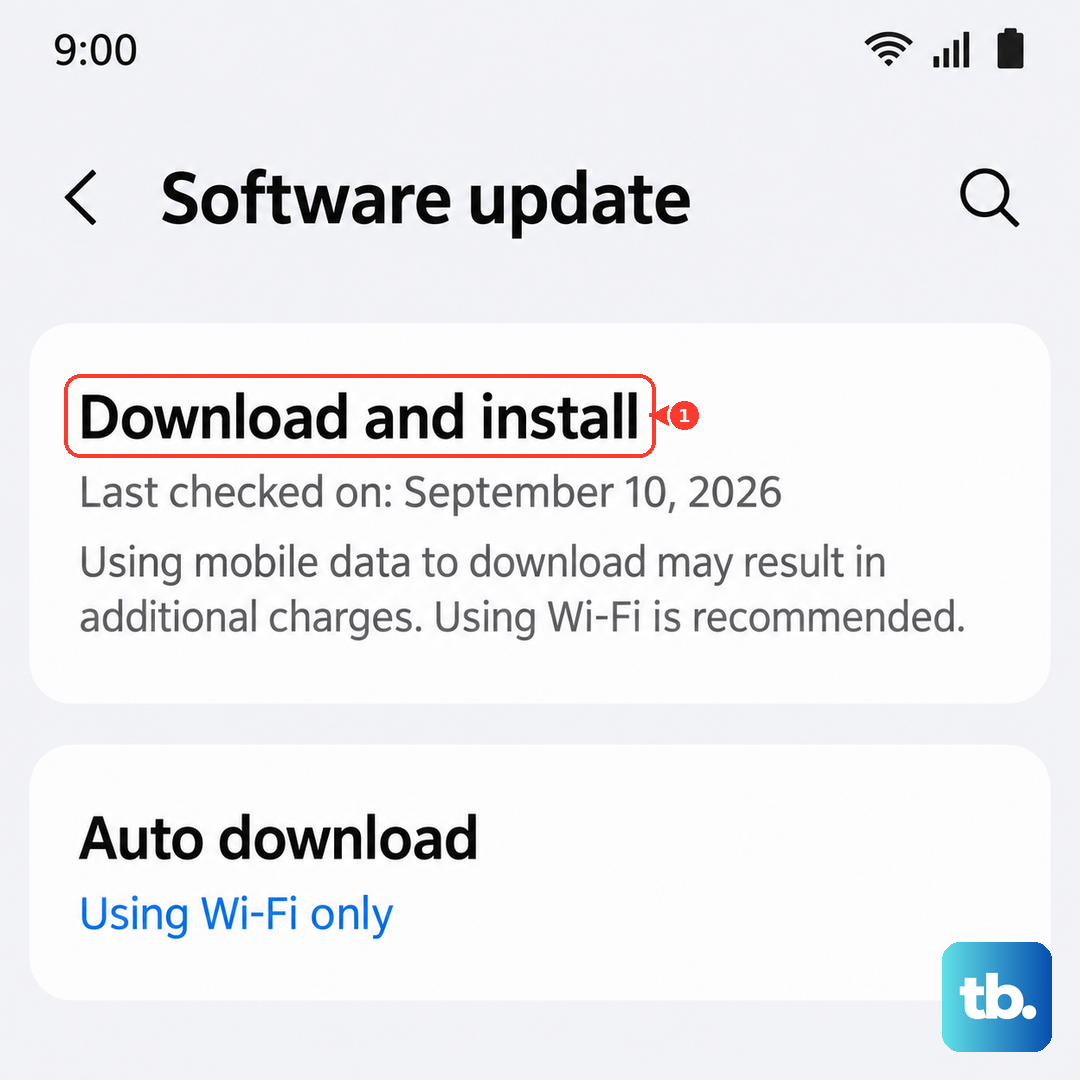
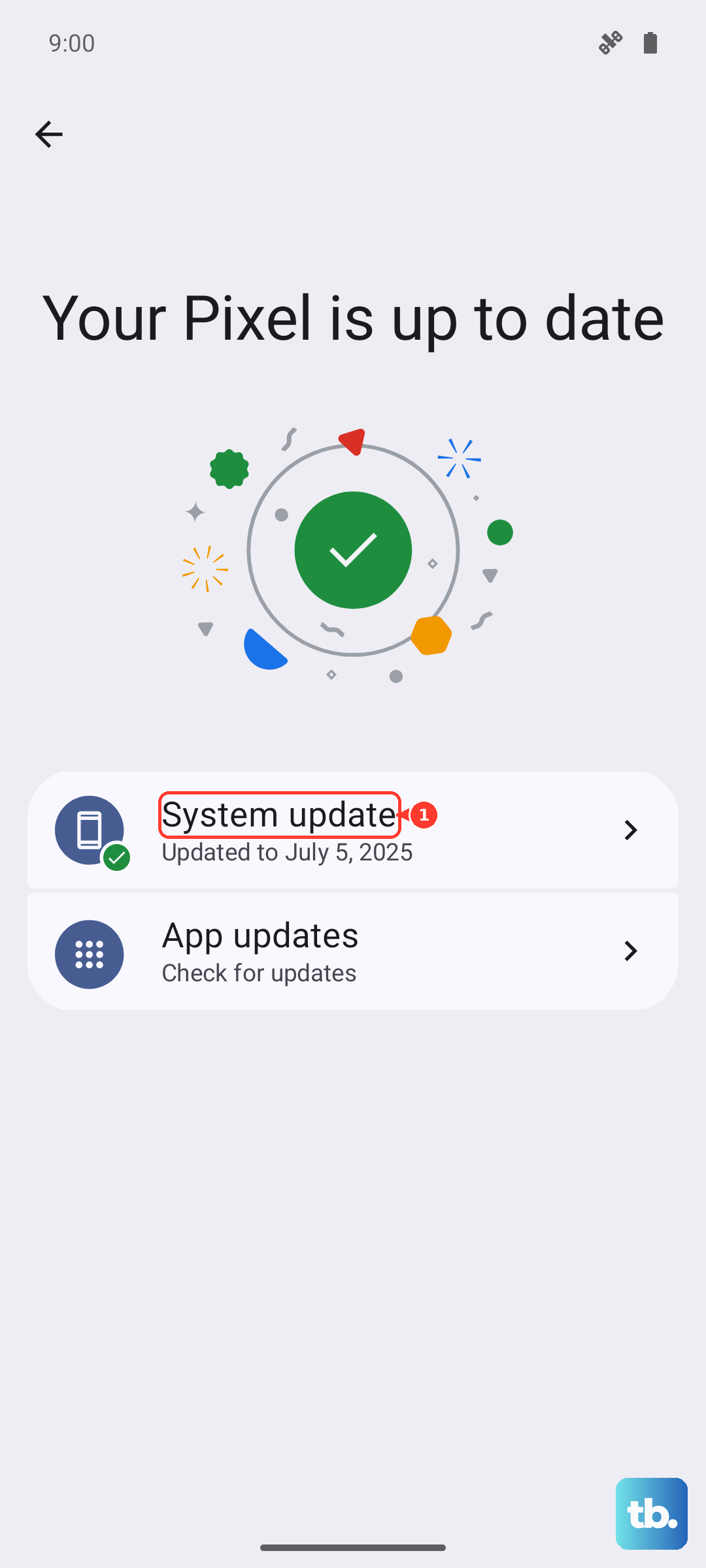
You can switch on Auto download over Wi-Fi so future updates arrive on their own, and you can confirm your current build under Settings > About phone > Software information. After the firmware is current, open Galaxy Store and the Play Store and update your installed apps as well, since an out-of-date app can be the thing making the screen flash.
Use Safe mode to expose a problem app
If the flicker only started after you installed or updated something, a downloaded app may be to blame. Safe mode loads only the built-in apps, which lets you test that theory cleanly.
Completely power off the phone.
After that, turn it on and, when the Samsung logo appears, press and hold the Volume down button until Safe mode appears in the bottom-left corner.
If the flickering stops while you are in Safe mode, a downloaded app is causing it. Restart the phone normally to exit Safe mode, then uninstall recently installed or updated apps one at a time until the flicker is gone for good.
If the flicker still appears even in Safe mode, the cause is not a third-party app, and you should move to the final steps.
Erase and start fresh with a factory reset
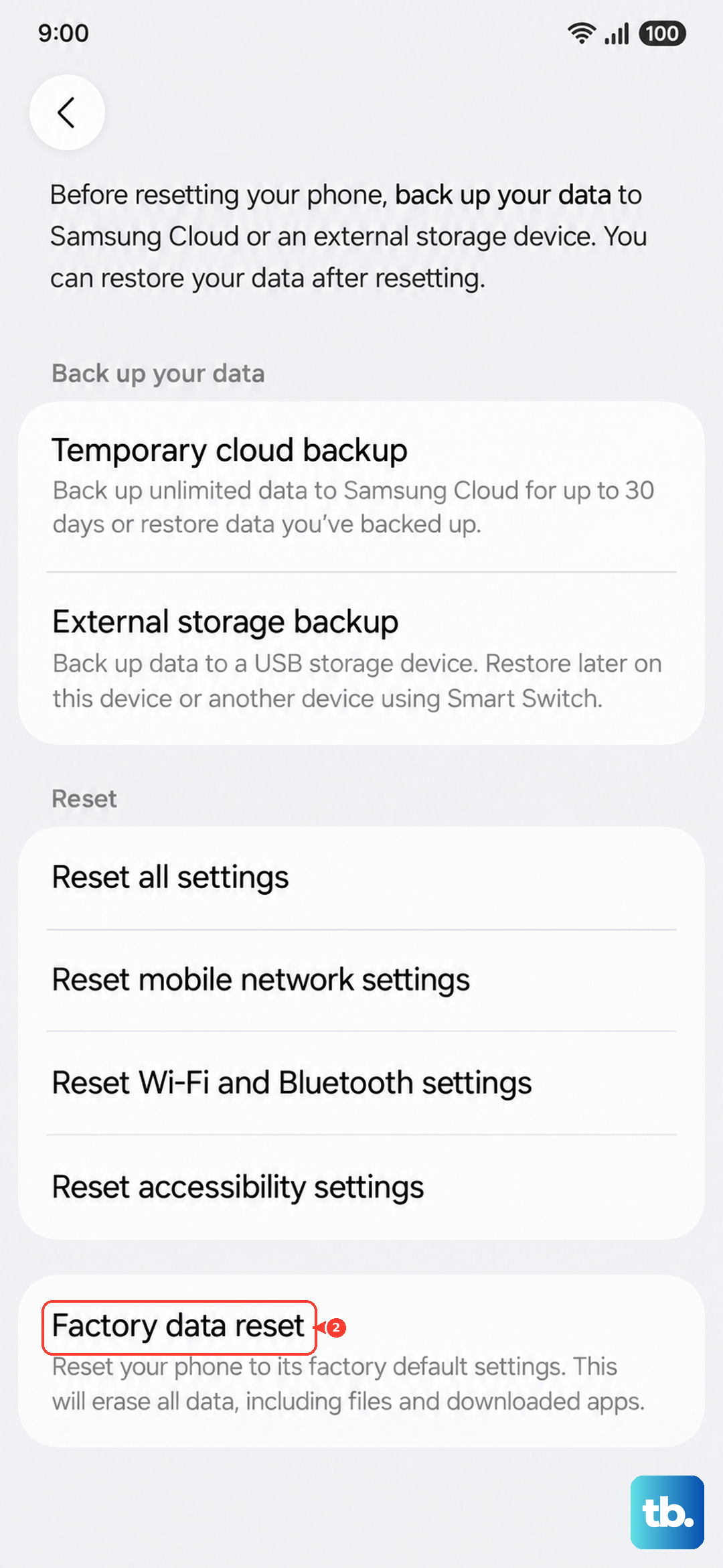
A factory reset wipes the phone and rebuilds the software from scratch, which can clear a stubborn flicker that survives every other software fix. Because it deletes everything, treat it as a last resort and back up first.
Samsung warns: "Please save any information you need prior to the factory reset because your personal information may not be recovered."
Back up your data with a Samsung account, Google Account, or Samsung Smart Switch.
Once the backup is done, go to Settings > General management > Reset > Factory data reset.
Tap Reset, then tap Delete all (enter your PIN or Samsung account password if prompted).
Smart Switch can back up your contacts, messages, photos, apps, and settings to a PC or another device, so use it before you start if you are not already syncing to an account.
When to hand the A16 to Samsung
If the flickering continues after a factory reset, or if you suspect hardware or screen damage from the start, the problem is no longer something software can fix. Samsung advises visiting a Samsung walk-in service center or scheduling a repair service online, and the Samsung Members app can book that support for you.
Persistent flicker after you have worked through every software step is a strong sign of a hardware or service issue, so let a technician take it from there.
Frequently Asked Questions
Why is my Galaxy A16 screen flickering?
Flickering on the A16 usually comes from a display setting such as Dark mode, Adaptive brightness, Motion smoothness, or Screen resolution, or from a temporary software glitch, an outdated app or firmware, a misbehaving downloaded app, or full storage. Physical screen damage can also cause it, which is why checking the glass first matters.
Will a factory reset fix Galaxy A16 screen flickering?
It can, if the cause is software that survives every other step. A factory reset erases everything on the phone, so back up first with a Samsung account, Google Account, or Smart Switch, and only use it as a last resort before contacting Samsung.
Does force restarting the Galaxy A16 delete my data?
No. Holding the Volume down button and the Side (Power) button until the phone turns off and back on simply reboots the device and does not erase any of your data. A factory data reset is the only step here that deletes your information.
How do I know if the flickering is a hardware problem?
Inspect the screen for cracks or shattered glass, and run Safe mode and a factory reset. If the flicker remains after a reset, or you can see physical damage, it points to a hardware or screen issue that needs a Samsung service center or an online repair booking.