You start typing a message on your Samsung Galaxy A16 and the strip of suggested words that normally sits above the keyboard has gone silent. No autocomplete, no next-word guesses, no quick taps to finish a sentence. On a phone built around the Samsung Keyboard, that missing prediction row makes everyday typing slower and more error-prone, especially across the larger 6.7-inch display where you lean on suggestions to keep your thumbs moving.
The good news is that predictive text is a genuine, built-in feature on this model. The Galaxy A16 and Galaxy A16 5G run One UI 6.1 on Android 14 and ship with the Samsung Keyboard, which includes Predictive text under its Smart typing options ("The keyboard will suggest words for you as you are typing"). That means the suggestions can almost always be brought back through settings rather than replaced. The fixes below move from the simplest, safest checks to a full reset, so work through them in order and stop as soon as the suggestions return.
Switch Predictive text back on in the keyboard settings
The most common reason the suggestion row disappears is that the Predictive text feature is simply turned off, whether by accident, after a software change, or because a different language profile has it disabled. This is the first thing to rule out, and it takes only a few taps.
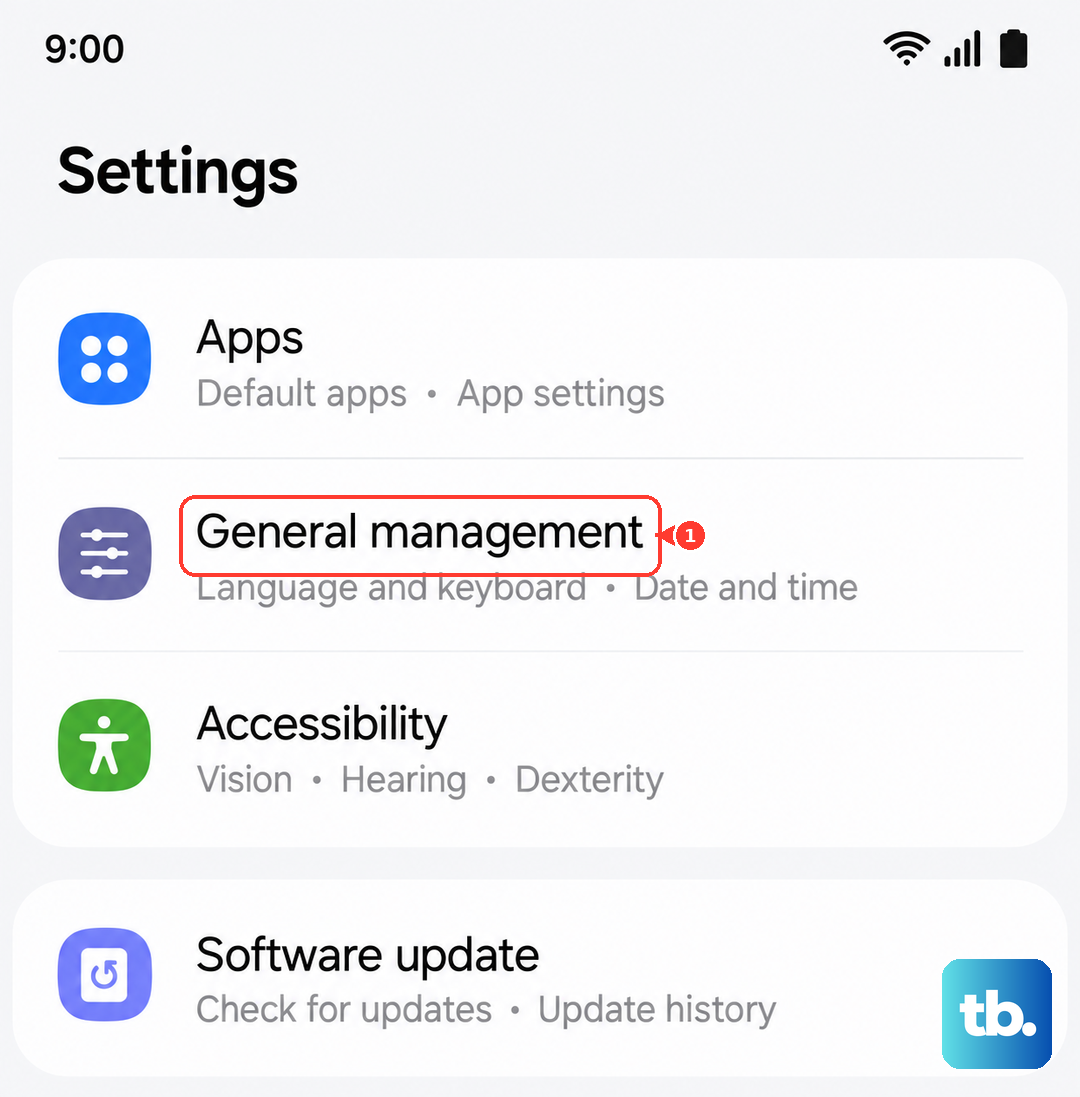
- 1.Open Settings.
- 2.Tap General management.
- 3.Tap Samsung Keyboard settings.
- 4.Turn the Predictive text toggle ON.
Predictions can be enabled per selected typing language, so if you type in more than one language, confirm the toggle is on for the language you are actually using. With Predictive text on, the keyboard will suggest words as you type. Open any messaging or notes field afterward and start a word to confirm the suggestion strip reappears.
Confirm the Smart typing options are doing their job
Predictive text lives inside the Samsung Keyboard's Smart typing section, alongside a couple of related helpers. If the main toggle is on but suggestions still feel incomplete, it is worth opening this section directly to check each option.
In Samsung Keyboard settings, open the Smart typing section and confirm that Predictive text is enabled; the description reads "The keyboard will suggest words for you as you are typing." In the same place you can also toggle Suggest emojis and Suggest stickers while typing if you want those extras to appear as well.
If you are not sure how to reach these settings, open Settings and search for Samsung Keyboard, which takes you straight to Samsung Keyboard settings.
Clear corrupted learned words by resetting the keyboard
If the toggles are all correct but suggestions are missing, repetitive, or plainly wrong, the keyboard's learned-word data may have become corrupted. The Samsung Keyboard quietly builds a personal dictionary from how you type, and when that data goes bad it can disrupt predictions. Erasing it forces a clean slate.
- 1.In Samsung Keyboard settings, tap Reset to default settings.
- 2.Tap Erase personalized predictions.
- 3.Tap Erase.
That clears the corrupted learned-word data that can break suggestions. If predictive text still misbehaves after that, take the broader step and choose Reset keyboard settings, which returns all keyboard settings to default. Because a full reset turns options back to their defaults, go back into Smart typing afterward and re-enable Predictive text so the suggestion row is active again.
Restart the phone to clear a temporary glitch
Sometimes the keyboard settings are perfectly fine and a temporary system glitch is what is holding the suggestions back. A reboot clears those short-lived problems without touching any of your data, which makes it a safe step to try before anything heavier.
For a normal restart, press and hold the Volume down button and the Side button (or Power button) at the same time. After a few seconds, different power options will appear. Tap Restart, and then tap Restart again.
If the keyboard has frozen or the phone is unresponsive, use a force restart instead. Press and hold the Volume down button and the Side button (or Power button) simultaneously until the device turns off and turns back on. A restart does not erase your data, so you can do this whenever the phone feels stuck.
Install the latest software update
Keyboard and prediction bugs are sometimes fixed at the system level, so an outdated build can be the real culprit. Installing the latest update brings the Samsung Keyboard and One UI components up to date and can resolve issues that no amount of toggling will.
- 1.Open Settings.
- 2.Tap Software update (this may be labeled System updates on some versions).
- 3.Tap Download and install (it may read Check for system updates or Check for software updates).
- 4.Tap Install now.
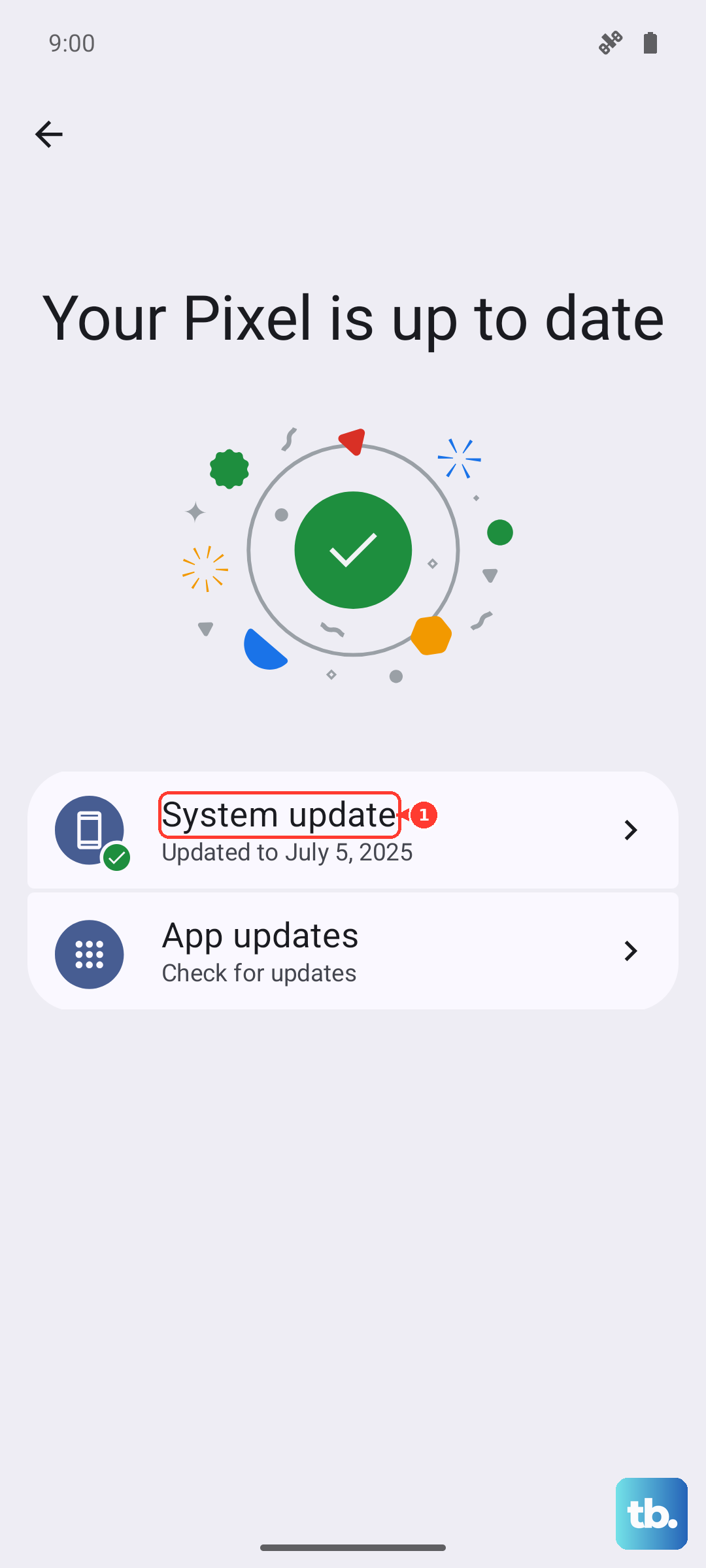
The wording varies slightly by model and carrier, so use whichever matching options appear. The phone restarts during the update, so keep it charged and avoid using it until the process finishes. Once the phone is back up, test the keyboard again to see whether the suggestions have returned.
Use a factory data reset only as a last resort
If predictive text still fails after every step above, a factory data reset is the final option. This wipes the phone, so treat it as a genuine last resort and back up everything first, for example to your Samsung account or a computer, before going any further.
- 1.Back up your data first.
- 2.Open Settings.
- 3.Tap General management.
- 4.Tap Reset.
- 5.Tap Factory data reset.
- 6.Review the on-screen information, then tap Reset.
Samsung's own warning is clear: "Please save any information you need prior to the factory reset because your personal information may not be recovered." Do not skip the backup. If predictive text is still not working even after a reset, contact Samsung Support for further help with the issue.
Frequently Asked Questions
Does the Samsung Galaxy A16 actually have predictive text
Yes. The Galaxy A16 and Galaxy A16 5G run One UI 6.1 on Android 14 with the built-in Samsung Keyboard, which includes the Predictive text feature under Smart typing. It is described as "The keyboard will suggest words for you as you are typing," so the suggestions are a supported feature you can turn back on.
Where is the Predictive text setting on the Galaxy A16
Go to Settings, then General management, then Samsung Keyboard settings, and turn the Predictive text toggle on. You can also open the Smart typing section within Samsung Keyboard settings to confirm Predictive text is enabled, along with Suggest emojis and Suggest stickers while typing.
Will resetting the keyboard delete my saved words and contacts
Erasing personalized predictions only clears the keyboard's learned-word data, and Reset keyboard settings returns the keyboard options to default. Neither affects your contacts, photos, or other personal files. Only a factory data reset wipes the phone, which is why you should back up before doing that.
Will a restart erase my data while I troubleshoot
No. Both a normal restart (Volume down plus the Side or Power button, then Restart and Restart again) and a force restart (holding Volume down plus the Side or Power button until the device turns off and back on) leave your data intact. They simply clear temporary glitches.
What should I do if predictive text still fails after a factory reset
If the suggestions do not return even after a reset, reach out to Samsung Support for further help with the issue.