Your Samsung Galaxy A16 sits quiet through a busy morning, then you unlock it to find a backlog of texts, app alerts, and a missed call that never made a sound. Silent, delayed, or completely missing notifications are frustrating, but on a Galaxy A16 they almost always trace back to a setting rather than a hardware fault. The phone runs Samsung One UI over Android, which gives you granular control over what notifies you and when, so the fix is usually a toggle you can flip in a minute or two.
Work through the solutions below in order. The first checks are the quickest and safest, and the harder steps (an update, a force restart, and finally a factory reset) only come into play if the easy ones do not solve it. By the end you should have your alerts coming through reliably again.
Switch off Do not disturb before anything else
Do not disturb silences your notifications on purpose, and it is the single most common reason a Galaxy A16 goes quiet. It is easy to enable by accident from the Quick settings panel, so this is always the first thing to rule out. Samsung's official troubleshooter for apps that are not notifying also lists turning off Do not disturb.
Open the Quick settings panel by swiping down from the top of the screen using two fingers.
Swipe to and tap the Do not disturb icon to turn it on or off.
You can also do this from the menu. Navigate to Settings, search for and select Do not disturb, then tap the switch next to Do not disturb to turn it on or off. If the switch was already off, move on to the next fix.
Stop Power saving mode from holding alerts back
Power saving mode limits background activity to stretch your battery, and that can keep apps from delivering notifications on time (or at all). If you notice alerts only arriving when you actually open an app, this is a likely culprit. Turning it off restores normal background behavior.
Open the Quick settings panel by swiping down from the top right of the screen, then turn off Power saving if its tile is illuminated.
While you are there, confirm Do not disturb is also off if that tile is illuminated.
Give the A16 a quick restart
A simple restart clears temporary glitches in memory that can block notifications from coming through. It takes under a minute and is completely safe, so it is worth doing before you start changing per-app settings.
Press and hold the Volume down button and the Side button (or Power button) at the same time.
After a few seconds, different power options will appear.
Tap Restart, and then tap Restart again.
Once the phone is back on, send yourself a test message or trigger an app alert to see whether notifications are flowing.
Confirm the specific app is allowed to notify you
If only one or two apps are silent, the problem is usually that those apps are not permitted to send notifications. One UI lets you grant or revoke that permission per app, so check the offending app directly. Go to Settings > Notifications > App notifications, select the app, and turn on the switch next to Allow notifications.
The same toggle is reachable through a second path if you prefer. Open Settings > Apps > [select the app] > Notifications, then turn on Allow notifications, and optionally Allow sound and vibration. Either route changes the same setting.
Dig into the app's notification categories and importance
Even when an app is allowed to notify you overall, an individual category inside it can still be muted, which is why some alerts come through while others do not. Most apps split their notifications into categories such as messages, promotions, or reminders, and each can be controlled separately.
Go to Settings > Notifications > App notifications, then select the app.
Tap Notification categories and choose a category.
Make sure Allow notifications is enabled and that Alert is selected for the notification type.
Choosing Alert is what makes that category come through with a sound or banner instead of arriving quietly. Repeat the check for any other category whose alerts you have been missing.
Fix alerts that only go missing on the lock screen
If your notifications appear fine once you unlock the phone but never show on the lock screen, the issue is a separate lock screen setting rather than the app itself. This is a common and easily missed cause of "missing" alerts.
Open Settings > Notifications > Lock screen notifications and make sure lock screen notifications are turned on.
From here you can choose a notification style (Dot, Icons, or Cards) and decide whether to show or hide the content of each notification on the lock screen.
Pick a style that lets you see incoming alerts at a glance.
Wake the app from the Sleeping and Deep sleeping lists
The A16's battery management can place apps you rarely open into a Sleeping or Deep sleeping state, which stops them from running in the background and delivering notifications. If an app you actually rely on has ended up on one of these lists, its alerts will simply never arrive until you open it.
Go to Settings > Device care > Battery > Background usage limits.

Open Sleeping apps (or Deep sleeping apps).
Touch and hold the app, then tap Remove.
With the app removed from these lists, it can run in the background again and notify you in real time.
Install any pending software update
Outdated firmware can introduce notification bugs that a later release fixes, so keeping the phone current is worth doing. The Galaxy A16 launched on Android 14 with One UI 6.1 and has received newer versions over time, and each update can include stability improvements.
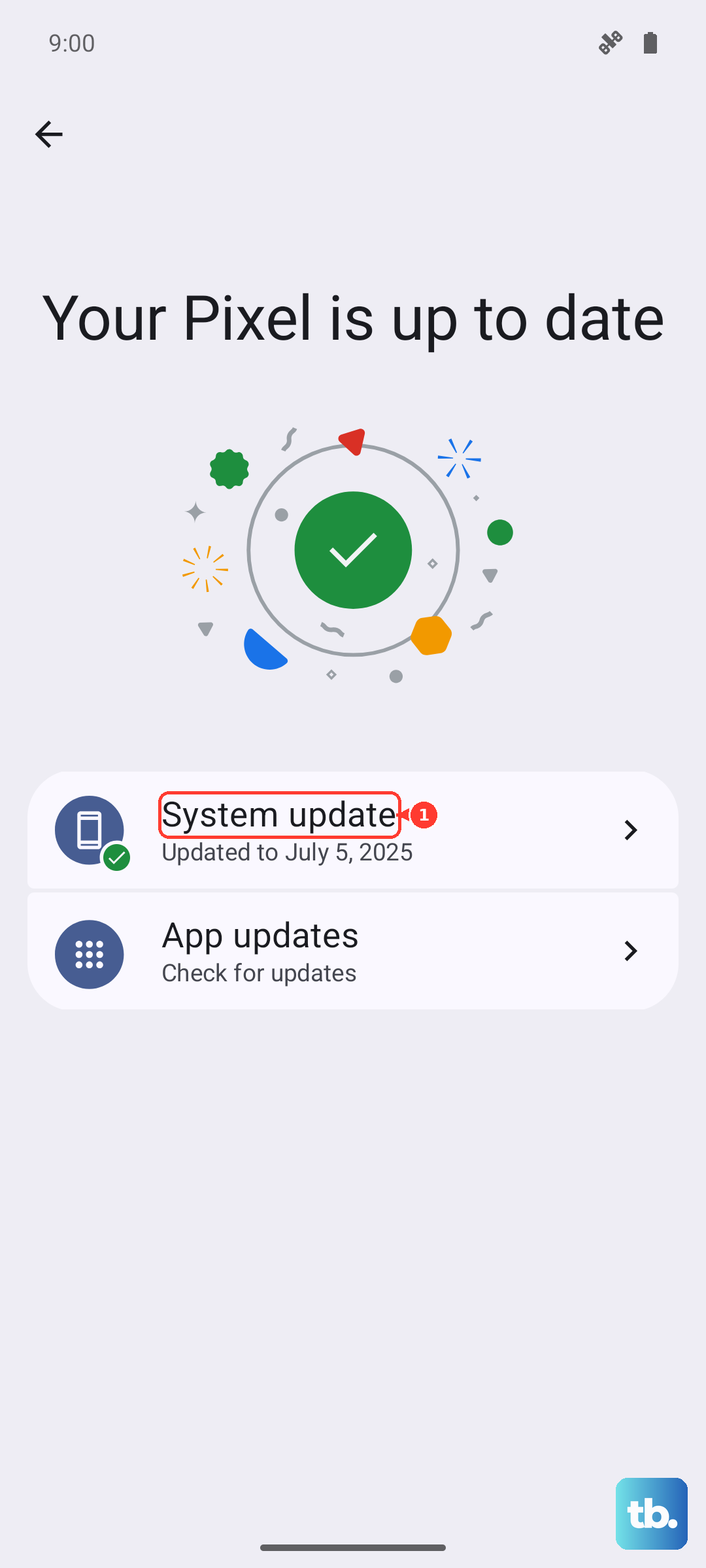
Go to Settings > Software update and tap Download and install (the label may read System updates or Check for software updates depending on your carrier), then follow the on-screen instructions to install any available update.
Connect to Wi-Fi and keep the battery charged before you start, and note that you will not be able to use the phone during installation.
Force restart an A16 that is frozen or unresponsive
If the screen is frozen and a normal restart is not possible, a forced restart can bring the phone back without losing your data. This is the right move when the device is hung and notifications (along with everything else) have stopped responding.
Press and hold the Volume down button and the Side button (or Power button) simultaneously until the device turns off and turns back on.
The screen will go black, and then the Samsung logo will appear, which tells you the restart is underway.
Once it boots, check whether your alerts are coming through.
Factory reset as a last resort
If none of the steps above restore your notifications, a factory reset returns the phone to a clean state and clears any deeper software issue. This erases your data, so back everything up first; Samsung Smart Switch on a PC or Mac is the official tool for creating a backup before you reset. Samsung warns: "Please save any information you need prior to the factory reset because your personal information may not be recovered."
- 1.Go to Settings > General management > Reset.
- 2.Tap Factory data reset and review the information shown.
- 3.Tap Reset, then tap Delete all.
After the reset and initial setup, test notifications before restoring everything, so you can confirm the problem is gone.
When to reach Samsung Support
If notifications still fail after working through these fixes, the issue may need hands-on diagnostics. Use the Samsung Members app, the official on-device support and diagnostics channel, or Samsung's official support site, to reach Samsung Care. They can run further checks or arrange service if the phone needs it.
Frequently Asked Questions
Why does my Galaxy A16 get notifications late instead of in real time?
Delayed alerts are usually caused by Power saving mode or by the app being placed in the Sleeping or Deep sleeping lists, both of which limit background activity. Turn off Power saving from the Quick settings panel, and remove the app from Settings > Device care > Battery > Background usage limits so it can run and notify you in real time.
I allowed notifications for an app but still hear nothing, what now?
Allowing notifications overall does not guarantee every category is active. Open Settings > Notifications > App notifications > [app] > Notification categories, tap the relevant category, and make sure Allow notifications is on and Alert is selected. Choosing Alert is what delivers that category with a sound or a banner instead of silently.
How do I get notifications to show on the lock screen?
Go to Settings > Notifications > Lock screen notifications and make sure the feature is turned on. You can then choose a notification style (Dot, Icons, or Cards) and decide whether to show or hide the content on the lock screen.
Will a factory reset definitely fix my notification problem?
A factory reset clears deeper software issues and is the strongest step you can take on your own, but it erases your data, so it should be a last resort after the other fixes. Back up with Samsung Smart Switch first, since your personal information may not be recoverable afterward. If a clean reset still does not help, contact Samsung Care for diagnostics or service.











