
When your Samsung Galaxy A16 won't send texts, it's incredibly frustrating. You might see a "Message not sent" error, a spinning circle that never goes away, or the message just sits in your outbox. Let's get it working again.
The quickest fix is often a simple restart. Press and hold the Volume down and Side buttons together for more than 7 seconds until the phone restarts. This force restarts the phone and can help clear temporary issues affecting messaging.
Check Your Mobile Data and Signal
First, look at the top of your screen. If you don't see any signal bars or see an "X," you may have weak or no cellular service. Move to a different location or near a window. You can also swipe down twice from the top to open the Quick Settings panel and tap the Airplane Mode icon to turn it on, wait 10 seconds, then tap it again to turn it off. This forces your phone to reconnect to the cellular network.
For picture messages (MMS), you need mobile data turned on, even if you have Wi-Fi. Go to Settings > Connections > Data usage and make sure "Mobile data" is switched on. If you're on Wi-Fi, try turning it off temporarily to see if your texts send over the cellular network instead.
Clear the Messages App Cache
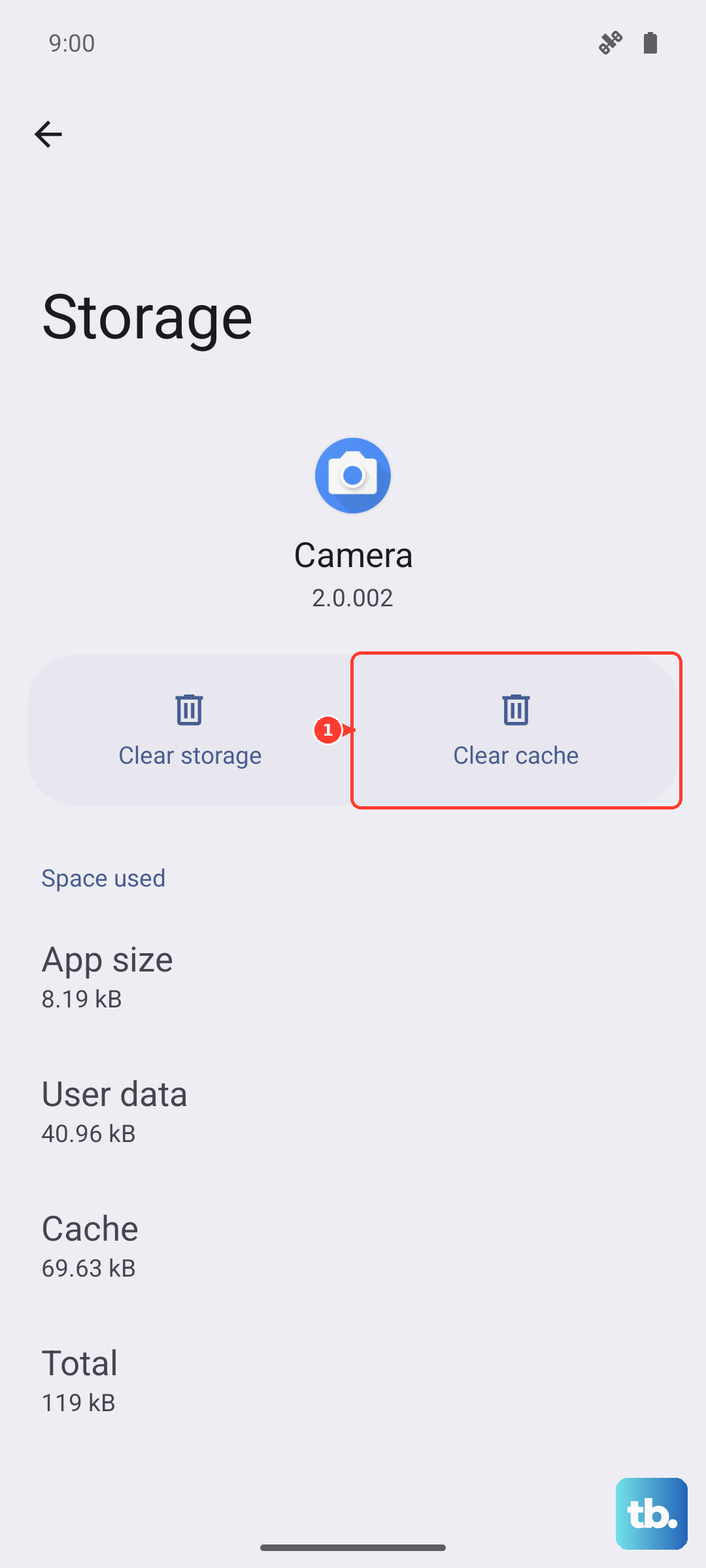
Over time, the cached data for the Messages app can become corrupted and cause sending failures. Clearing it is safe and won't delete your texts. Go to Settings > Apps, find and tap Messages. Select Storage and then tap Clear cache. I'd start with this step if you're experiencing general lag on your A16, as it's a good maintenance habit.
Verify Your Message Center Number
This setting tells your phone where to send SMS messages. If it's wrong, SMS messages may fail to send. Contact your carrier to check the message center number, also called "Message centre" or "SMSC," and find out how to change it on your phone.
If the number is blank or looks incorrect, your carrier's support can give you the correct SMSC number for your region and network. They can usually text it to you or tell you what to enter.
Check for Blocked Numbers
If texts are failing to send to one specific person, you might have accidentally blocked them. In the Phone app, tap the three-dot menu and go to Settings > Block numbers. Review the list and remove any number that shouldn't be there.
Reset Your Network Settings
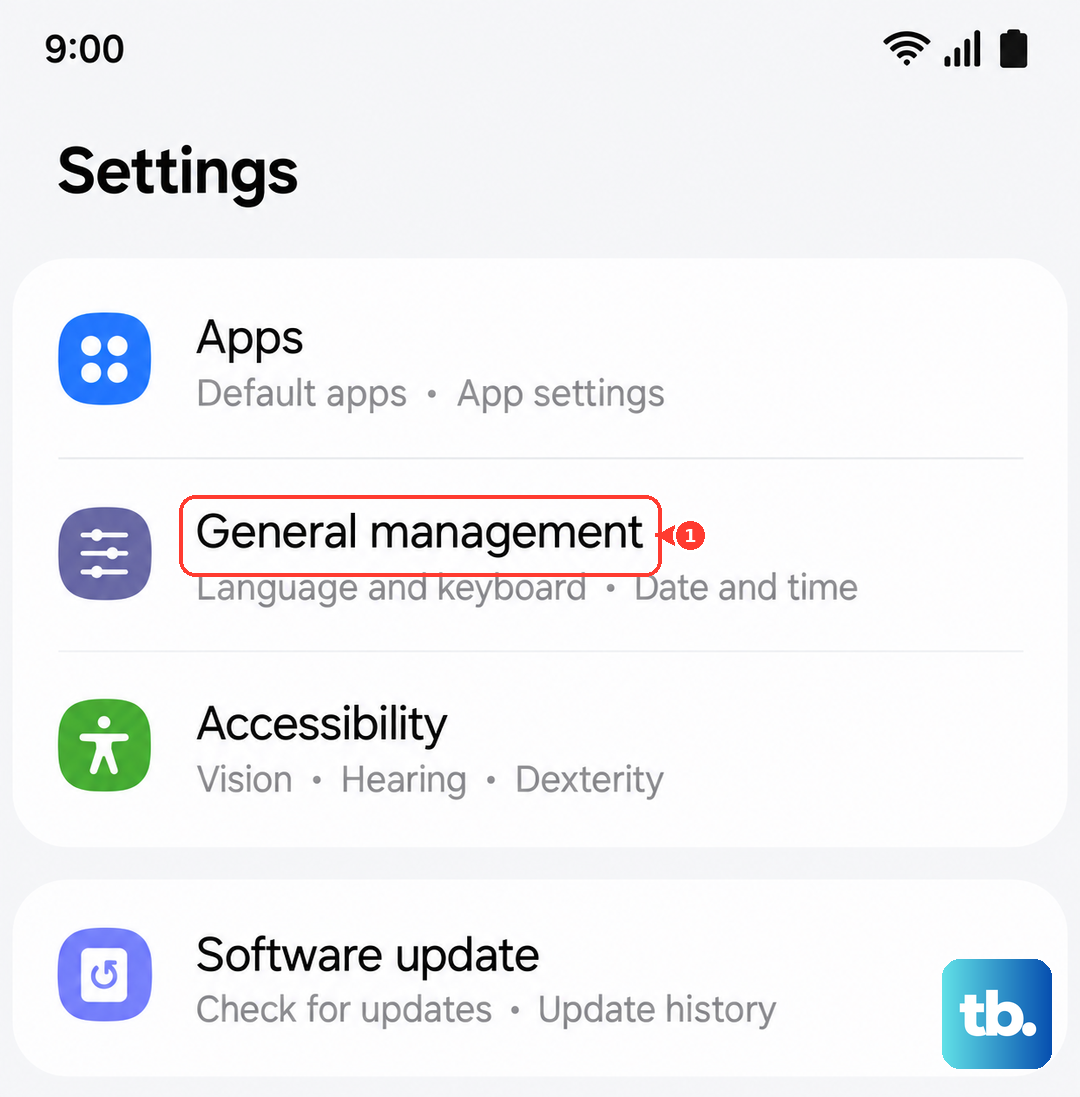
This is a more thorough step that can help with mobile network issues. In Settings, tap General management > Reset > Reset mobile network settings. Tap Reset settings, then Reset to confirm. This won't erase your apps or data. The separate Reset Wi-Fi and Bluetooth settings option requires you to reconnect to Wi-Fi and re-pair Bluetooth devices afterward.
Update Your Software and Carrier Settings
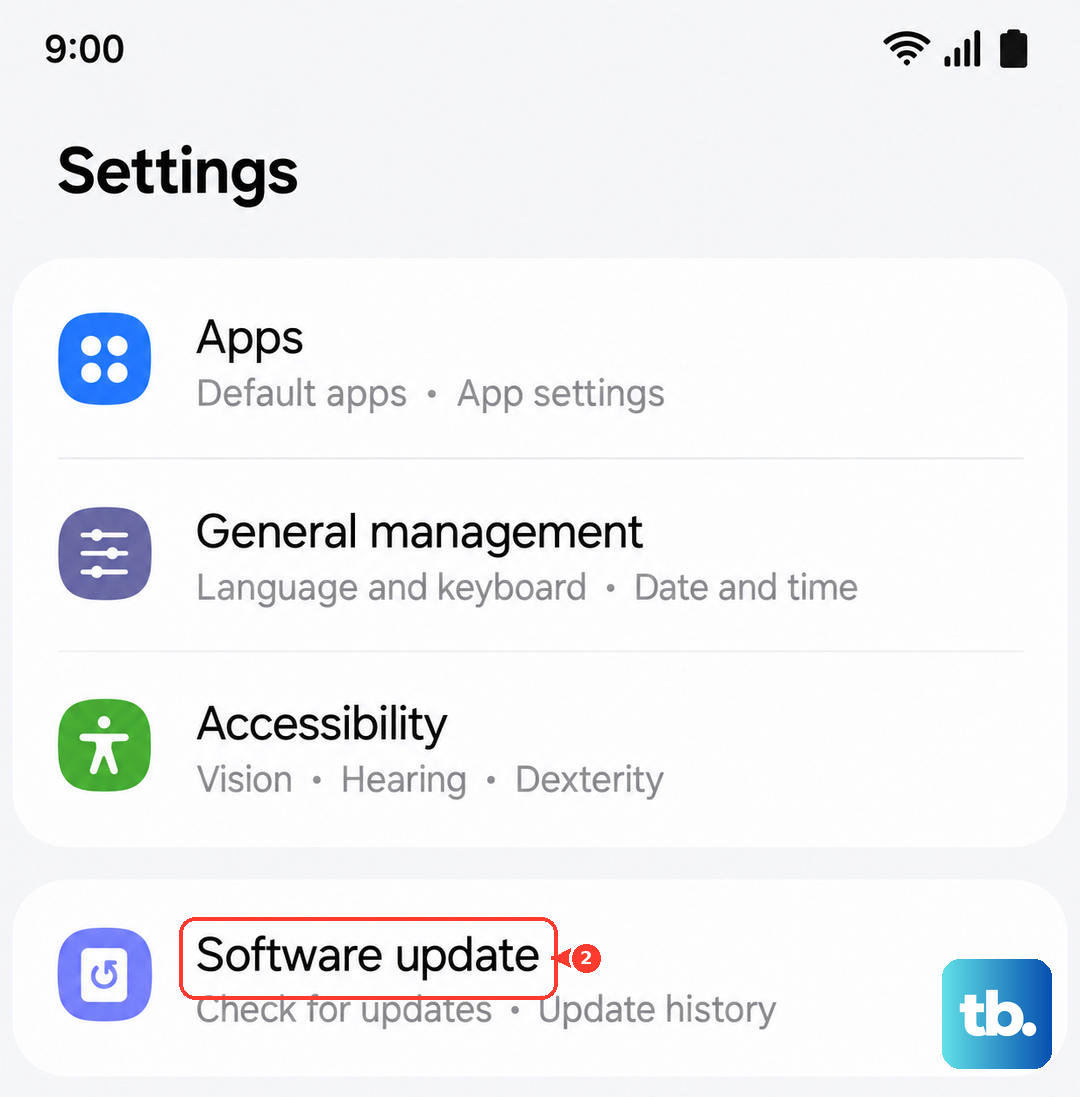
Outdated software can have bugs that affect messaging. Go to Settings > Software update and tap Download and install. Follow the on-screen instructions to complete any available update. If your carrier suggests additional steps for your service, follow their instructions.
Try a Different Messaging App
If you're still using Samsung Messages, switch to Google Messages, as Samsung Messages has been discontinued on phones running Android 12 or newer. Install Google Messages from the Play Store if needed. Go to Settings > Apps > Choose default apps > SMS app and select Google Messages. Grant any requested permissions, replace your old Home screen messaging shortcut with the new app's shortcut, and try sending a text again.
Inspect Your SIM Card
Power off your Galaxy A16. Locate the SIM tray at the top left and insert the ejector tool into the tray's hole to pop it out. Carefully remove the SIM card, inspect the gold contacts for any dirt or damage, and gently wipe them with a soft, dry cloth. Reinsert the SIM, making sure it's seated correctly in the tray, and push the tray back in. Power the phone back on.
If you've recently switched from another phone, ensure the SIM is properly activated for your A16 with your carrier. In some cases, they may need to reprovision the SIM for the new device on their network.