Your Galaxy A16 5G has locked up, the 6.7-inch screen ignores every tap and swipe, and a quick press of the Side key does nothing at all. A frozen phone is unsettling, but on a standard One UI device like the A16 it is almost always a temporary software hiccup rather than a broken handset. Work through the fixes below in order, starting with the safest steps that touch none of your data and saving the full reset for the very end. Most owners get a responsive phone back long before they reach that point.
Start With Whatever Is Touching the Glass
Before you assume the hardware has failed, look at what is physically sitting on top of the display. A poorly fitted case or cover, or a thick screen protector, can press on the panel or block your taps so the touchscreen seems frozen even though the phone underneath is fine. Moisture or dirt on the glass causes the same false freeze.
Take off any case or cover and remove any screen protector, then wipe the screen so it is clean and dry.
Try the phone again before going further, because this one-minute check clears up a surprising number of unresponsive-screen complaints.
Force a Restart When the A16 Will Not Respond
When the screen is frozen and you cannot power the phone off the normal way, a forced restart is the answer. It cuts power to the system and reboots it without touching your photos, apps, or settings, so there is no risk of losing anything.
Press and hold the Volume down button and the Side (Power) button at the same time.
Keep holding both for 7-10 seconds until the screen goes black.
Release the buttons when the Samsung logo appears as the phone restarts.
This is the single most useful trick for a locked-up Galaxy, and because it erases no data you can use it as often as you need.
Make the Touchscreen More Responsive
If the A16 is not completely frozen but responds slowly or erratically, especially with a screen protector fitted, the touch sensitivity setting can help. Turning it on makes the 90Hz display register lighter, faster taps even through a layer of film.
Go to Settings > Display and toggle Touch sensitivity.
This setting is especially worth checking right after you apply a new screen protector, since the extra layer can dull how the panel reads your fingers. Test a few taps and swipes afterward to confirm the screen is keeping up with you.
Free Up Memory With a One-Tap Optimize
A phone tends to freeze or lag when too many apps are running at once and memory runs short. One UI includes a built-in cleanup that closes background apps and clears unused memory in a single tap.
Open Settings > Battery and device care.
Tap Optimize now.
Tap Done.
Some devices label this section Device care. Optimize now is harmless to run at any time, so make it a habit whenever the phone starts feeling sluggish. To keep memory from piling up over time, you can also enable Auto restart under Device care > Auto optimization, which reboots the phone on a schedule.
See Whether Storage Is Choking Performance
Low free space is another frequent cause of freezing, because the system needs room to work. The same Battery and device care menu shows exactly how much storage and memory you have left.
Go to Settings > Battery and device care and tap Storage or Memory to view the available space.
If either is nearly full, delete unused apps, old photos, or large files to give the phone room to breathe. As a rule of thumb, leaving several gigabytes free helps One UI manage memory smoothly and reduces the stutter that leads to a freeze.
Install the Latest One UI Update
Samsung regularly releases One UI updates that fix the bugs behind freezing and crashing, so a phone stuck on an old build may be running into a problem that has already been patched. The Galaxy A16 5G is eligible for the latest One UI release, and staying current is one of the most effective long-term fixes.
Open Settings > Software update.
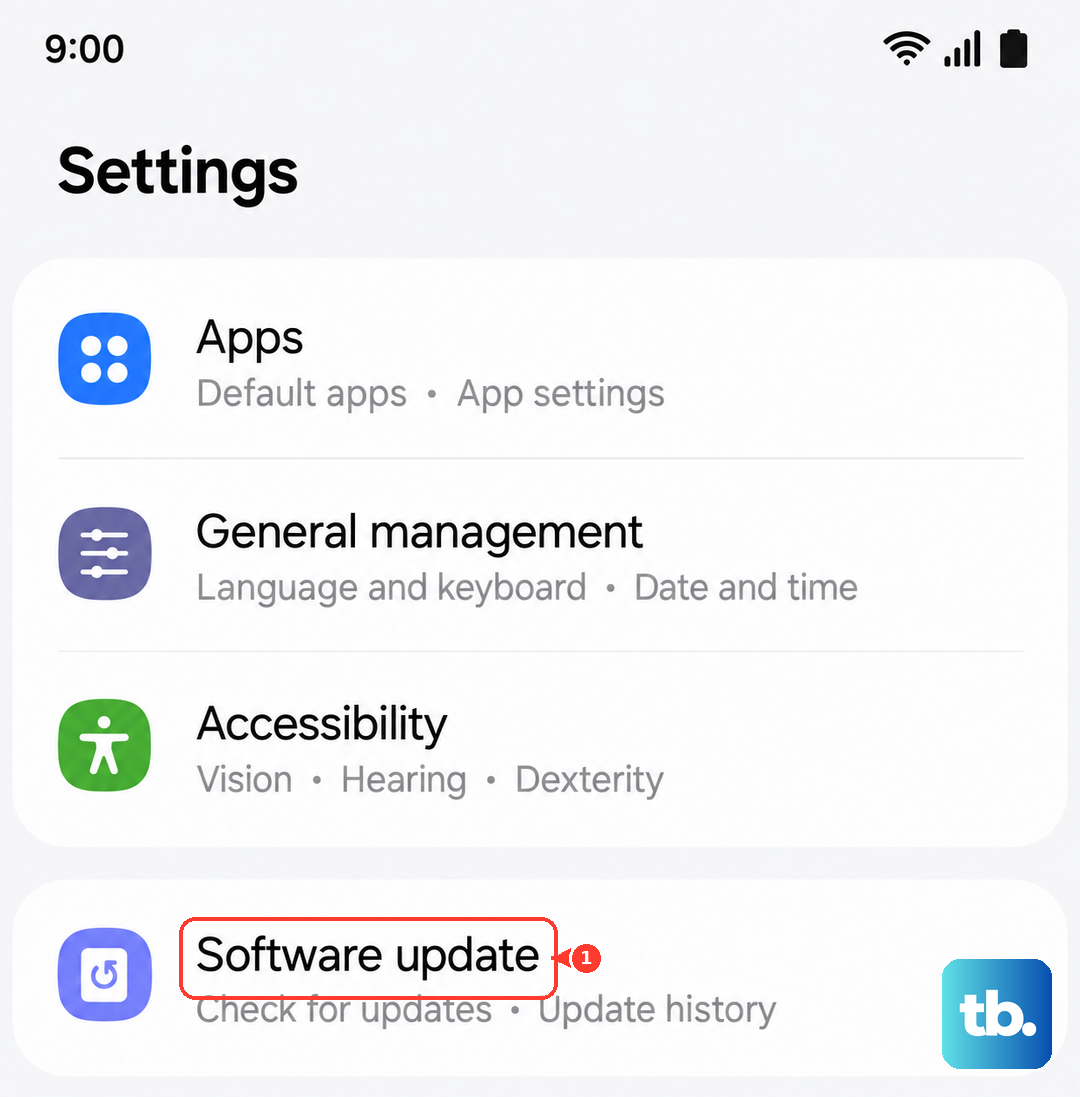
Tap Download and install (or Check for updates).
Follow the on-screen instructions to install any available update.
If an update is found, keep the phone connected to power and on a stable connection while it downloads and installs, then let it restart on its own.
Boot Into Safe Mode to Expose a Misbehaving App
Third-party apps are one of the most common reasons a Galaxy phone freezes, and Safe mode is how you prove it. Booting into Safe mode temporarily disables every app you have downloaded, leaving only the software the phone shipped with.
Press and hold the Power button to show the Power menu.
Touch and hold Power off until the Safe mode icon is displayed.
Select Safe mode.
If the A16 runs smoothly in Safe mode, a downloaded app is the culprit.
Restart the phone normally, then uninstall recently downloaded or updated apps one at a time until the freezing stops.
When you are finished testing, restart the phone once more to leave Safe mode and bring your downloaded apps back.
The Factory Reset You Save for Last
When the phone still freezes after everything above, a factory data reset wipes it back to its original software state and clears whatever corrupted file or setting is behind the problem. This step is destructive, so treat it as a genuine last resort and back up your data first.
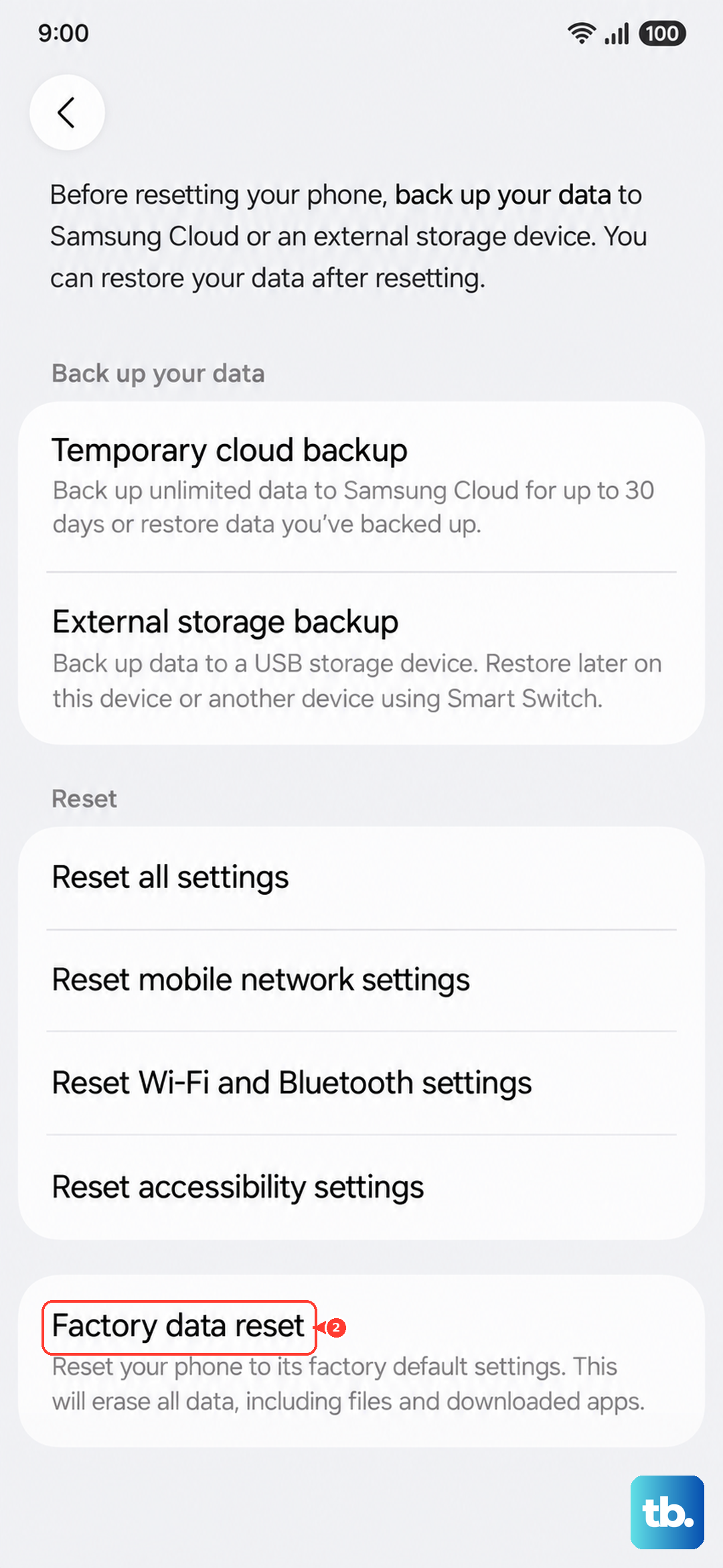
Samsung warns: "Please save any information you need prior to the factory reset because your personal data may not be recovered." Once you have a backup, you can proceed.
- 1.Open Settings > General management > Reset > Factory data reset.
- 2.Review the information on screen.
- 3.Tap Reset.
- 4.Tap Delete all.
- 5.Enter your lock-screen credentials and Samsung account password if prompted.
Data on a microSD card is not erased by this reset, but everything in the phone's own storage will be gone, so confirm your backup before you begin. The phone will restart and walk you through setup as if it were new, after which you can restore your backed-up content and add apps back gradually.
When to Hand the A16 to Samsung
If the freezing survives a force reboot, an optimization, a software update, the Safe mode test, and even a factory reset, the cause is likely hardware rather than software. At that point there is nothing left to fix from the settings menu.
Contact the Samsung Support Center to request professional service.
Keeping a note of when the freezes happen, such as while gaming, charging, or on a specific app, can speed up the diagnosis, so describe the steps you have already tried and the technician can move straight to a hardware check.
Frequently Asked Questions
Will force restarting my Galaxy A16 delete my photos or apps?
No. Holding the Volume down button and the Side (Power) button for 7-10 seconds only cuts power and reboots the phone. It does not erase any data, which is exactly why it is safe to try first.
Which buttons force a restart on the Galaxy A16 5G?
Press and hold the Volume down button and the Side (Power) button at the same time for 7-10 seconds, until the screen goes black and the Samsung logo appears. Release them once the phone begins to restart.
Does a factory reset erase my microSD card?
No. A factory data reset clears the phone's internal storage but leaves the data on a microSD card intact. Even so, Samsung warns that your personal data may not be recovered, so back up everything on the phone first.
Why does my Galaxy A16 keep freezing?
Repeated freezing usually points to low storage, too many background apps, or a misbehaving downloaded app. Run Optimize now, check your free storage, install any pending One UI update, and test in Safe mode to track down the cause.
How do I exit Safe mode on the Galaxy A16?
To leave Safe mode, restart the phone. You can press and hold the Volume down button and the Side key, then select Restart, and the A16 boots back into normal mode with your downloaded apps available again.