You raise your Galaxy A16, frame the shot, and tap the shutter, only to get a soft, hazy photo that never quite snaps into focus. Blurry results on this phone almost always trace back to something small and fixable, like a smudged lens, a stray case edge, or a focus setting that has quietly taken over the scene. The good news is that very few cases turn out to be a genuine hardware fault, so most blur clears up in a couple of minutes once you find the cause. The fixes below run from the easiest and safest steps to the official reset and support options, so work through them in order and stop as soon as your shots look sharp again.
Start with the glass and anything sitting over it
Dirt, grease, and fingerprints on the lens are the single most common cause of blur, and they interfere directly with focus. The official guidance is blunt here: "Dirt or foreign objects on the phone camera lens can interfere with autofocus."
Wipe the rear and front camera glass gently with a soft, dry, lint-free cloth before you try anything else. Avoid paper towels or the edge of your shirt, which can leave fresh smears or fine scratches.
Next, look at what is physically sitting around the lens. A thick case, a cover, or a leftover factory protective film or sticker can rest over the edges of the camera and block it from focusing.
Make sure your covers and accessories "don't cover the edges of the camera lens," and peel off any film that shipped on the phone. That film is very easy to overlook and is often the reason a brand new phone takes hazy shots.
Take a test photo after each change so you know the moment the problem clears.
Steady the phone, add light, and back up a little
Even a spotless lens produces blur if the phone moves while the shutter fires, the scene is too dark, or your subject is too close.
Hold the Galaxy A16 as still as you can, and brace your elbows against your body or a surface for steadier close-ups.
Make sure the subject is well lit, and avoid pointing a bright light straight into the lens. Strong backlight can fool the camera into focusing on the wrong part of the frame.
Distance matters just as much. The standard lens "will work best when your subject is at least 12 inches away," so a subject pressed right up against the phone simply cannot be brought into focus.
Step back to about a foot, give the camera a moment to settle, and tap the shutter only once the preview looks crisp.
Tell the camera exactly where to focus
The Galaxy A16's main camera has autofocus, and you can point it at whatever matters in the frame. The official wording is that "your camera should focus on a subject when you touch it on the screen."
In the Camera app, tap directly on your subject in the viewfinder and the camera should lock focus there. This is the quickest fix when the background is sharp but the thing you actually wanted is soft.
If focus keeps sticking to one spot and ignoring the rest of the scene, Tracking auto-focus may be switched on. When it is enabled, "your camera will be locked to the person or item you've touched for 3 seconds," which can leave the rest of your frame soft.
Turn it off like this:
- 1.Open the Camera app.
- 2.Tap the Settings icon (top left corner).
- 3.Turn off Tracking auto-focus.
Restart to clear a temporary camera glitch
A short-lived software hiccup can leave the camera unable to focus until the phone is restarted, and a normal restart clears these glitches without touching any of your data.
Press and hold the Volume down button and the Side button at the same time.
When the power options appear, tap Restart.
Tap Restart again to confirm.
If the phone or the Camera app is frozen and will not respond, force restart it instead. The official instruction is to "press and hold the Volume down button and the Side button simultaneously until the device turns off and back on."
Keep holding until the screen goes dark and the phone powers back on, then let go.
Reset the Camera app to its defaults
If focus is still off, returning the Camera app to its original settings clears any option that may be working against you, including a mode or toggle you changed without realizing it. This affects only the camera settings; it does not erase your photos or any other data on the phone.
Open the Camera app.
Tap the Settings icon.
Swipe to and tap Reset settings.
Tap Reset.
Install any pending software update
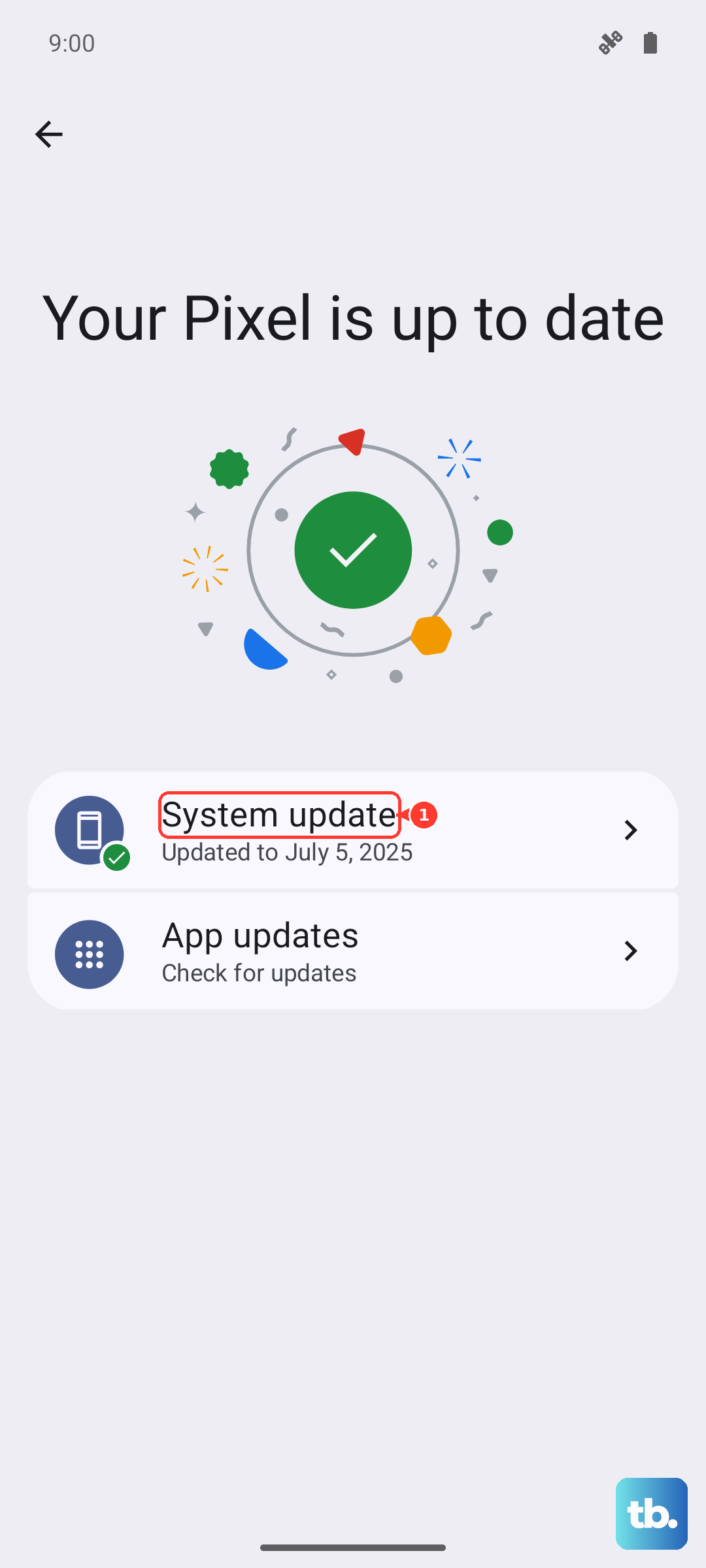
Software updates carry bug fixes, and some of those fixes address camera and focus behavior. Keeping One UI current is a low-effort way to rule out a known issue before you try anything more drastic, so it is worth checking even if the phone has not prompted you.
Go to Settings > Software update > Download and install, then follow the prompts and tap Install now if an update is available.
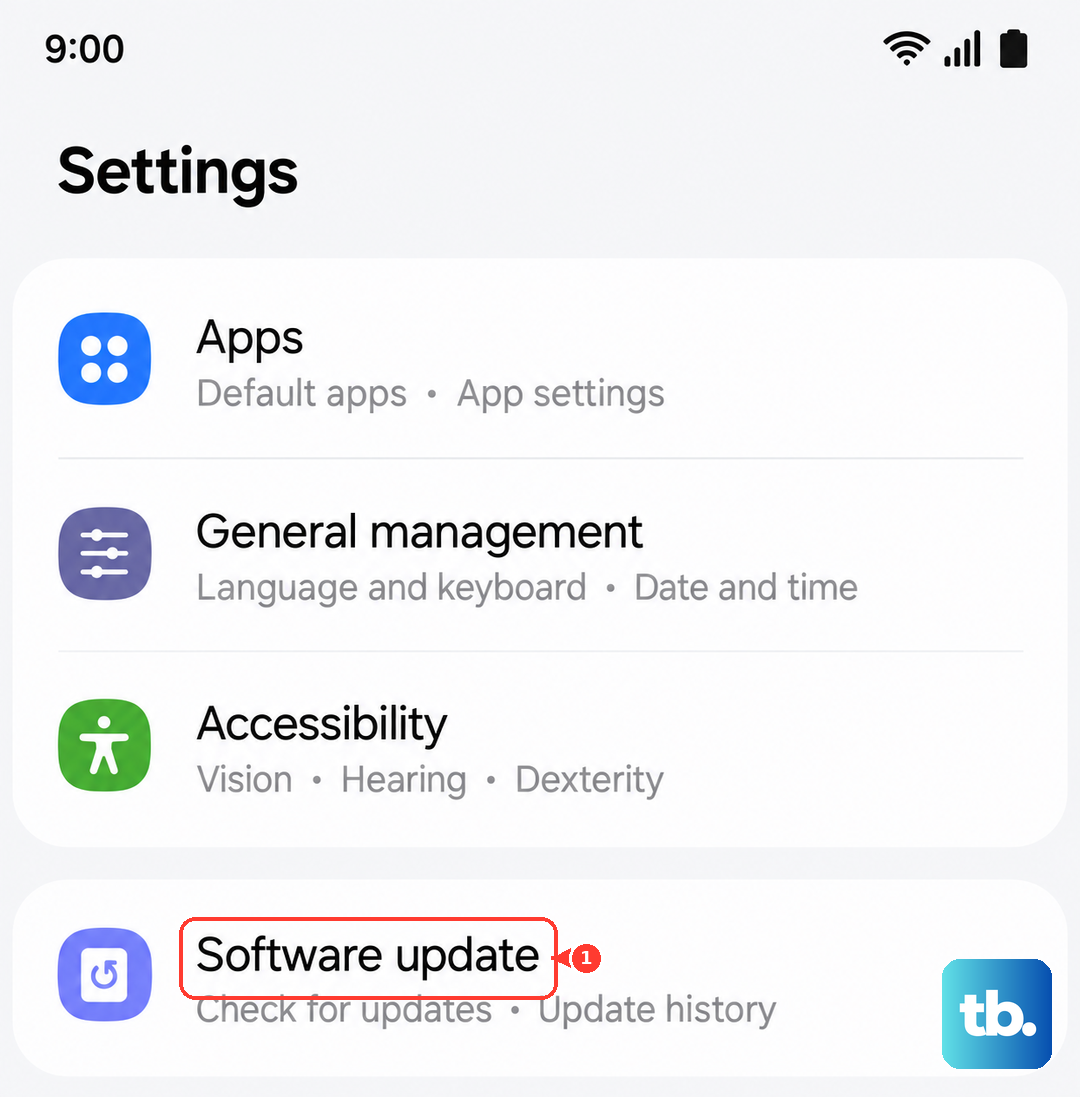
The label may read "Check for system updates" or "Check for software updates" depending on your carrier.
Keep the phone charged and do not interrupt it while it installs, and consider turning on "Auto download over Wi-Fi" so future updates arrive on their own.
Rule out a downloaded app with Safe mode
A third-party app can interfere with the camera without any obvious sign, especially apps that request camera access of their own. Safe mode is the built-in diagnostic that temporarily disables downloaded apps so you can test the camera on its own.
Swipe down to open the Quick panel.
Tap the Power icon.
Touch and hold the Power off icon.
Tap Safe mode.
Open the Camera in Safe mode and check the focus.
If it focuses normally, a downloaded app is the cause, so restart the phone to exit Safe mode and then uninstall recently added apps one at a time until the blur is gone.
Back up, factory reset, and when to call Samsung
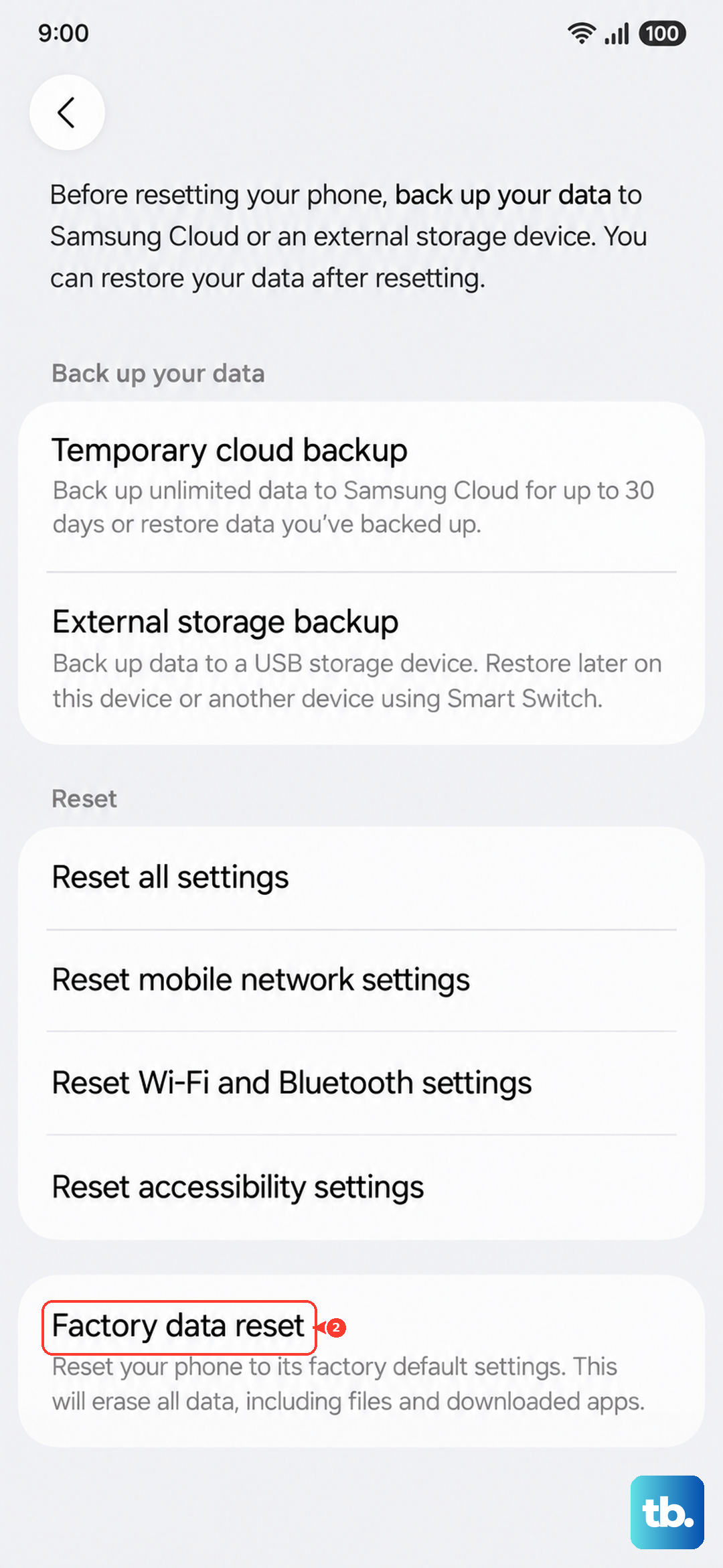
If nothing above helps, a factory reset returns the phone to its original state and clears any deep software problem behind the blur. This erases everything on the device, so back up your data first.
Smart Switch is the official backup tool to use before resetting. The official caution is direct: "Please save any information you need prior to the factory reset because your personal information may not be recovered."
Once you have a backup, go to Settings > General management > Reset > Factory data reset > Reset > Delete all, then let the phone finish the process.
If the photos are still blurry after a reset, the trouble points to a hardware fault rather than software.
At that point, reach out to Samsung Support or book a visit to a service center.
The Samsung Members app also offers diagnostics and support options if you would rather start there.
Frequently Asked Questions
Why do only my selfies or front-camera shots look blurry?
The same basics apply to the 13 MP front camera as to the rear one. Wipe the front camera glass with a soft, dry, lint-free cloth, make sure nothing is covering it, hold the phone steady in good light, and tap your face in the viewfinder so the camera focuses there.
Will resetting the camera settings delete my photos?
No. Resetting the Camera app (open Camera, tap the Settings icon, swipe to and tap Reset settings, then tap Reset) only returns the camera options to their defaults. Your saved photos and the rest of your phone data are not affected.
How close can I get for macro shots without blur?
The standard lens needs the subject at least 12 inches away to focus, so for true close-ups switch to Macro mode. In the Camera, tap Add (the plus sign) to drag modes into the shooting modes tray, then choose Macro, which uses the A16's dedicated 2 MP macro camera.
The camera is frozen and will not focus at all. What should I do?
Force restart the phone by pressing and holding the Volume down button and the Side button simultaneously until the device turns off and back on. This clears a frozen Camera app without erasing any data.
What if photos are still blurry after a factory reset?
Persistent blur after a full reset usually means a hardware fault. Contact Samsung Support or book a service center visit, and you can also run diagnostics in the Samsung Members app.