
Is your Samsung Galaxy A16 stuck in portrait mode and refusing to flip when you turn it sideways? It's a common hiccup where the auto-rotate feature just stops responding. The good news is it's usually a quick software setting, not a broken phone.
Let's start with the most likely fix. Pull down your notification panel from the top of the screen. Look for the icon that says "Portrait" or has a circular arrow. Tap it once. When it's blue and says "Auto rotate," the feature is on. If it was gray, that was your problem solved.
Enable Rotation for Your Home Screen
By default, your Galaxy A16's home screen won't rotate to landscape, even with auto-rotate on. This is a Samsung design choice, not a bug. If you want your app icons to flip when you turn the phone, you need to enable it separately.
Pull down the notification panel again and tap the text that says "Portrait" or "Auto rotate," not just the icon. A small menu will pop up. Toggle the switch for "Home screen and Voice call screen" to the On position. Now your home screen should rotate.
Give Your Phone a Fresh Start
If the toggle was already on, a simple restart can clear out any temporary glitch that's confusing the sensors. Just hold down the side power button until the power menu appears, then tap "Restart." Wait for the phone to fully boot back up and try rotating it again.
Sometimes a normal restart isn't enough. For a more thorough refresh, you can perform a soft reset. This doesn't delete any of your data. Press and hold the Volume Down button and the Power button together for about 10 seconds. Release when you feel a vibration or see the screen go black, then the phone will restart on its own.
Check for App-Specific Problems
Not every app supports landscape mode. If auto-rotate works perfectly in your camera app or YouTube but fails in, say, your messaging app, that app might simply be locked to portrait. This is the app developer's choice.
However, a poorly coded third-party app can sometimes interfere with the system-wide rotation sensor. Think about if the problem started right after you installed a new game or utility. You could try uninstalling recent apps one by one to see if the behavior returns to normal.
Update Your Software
Your Galaxy A16 runs on Android 14 with Samsung's One UI 6.1 on top. Occasionally, a bug in the software can cause sensor functions like auto-rotate to act up. Samsung releases updates to fix these kinds of issues.
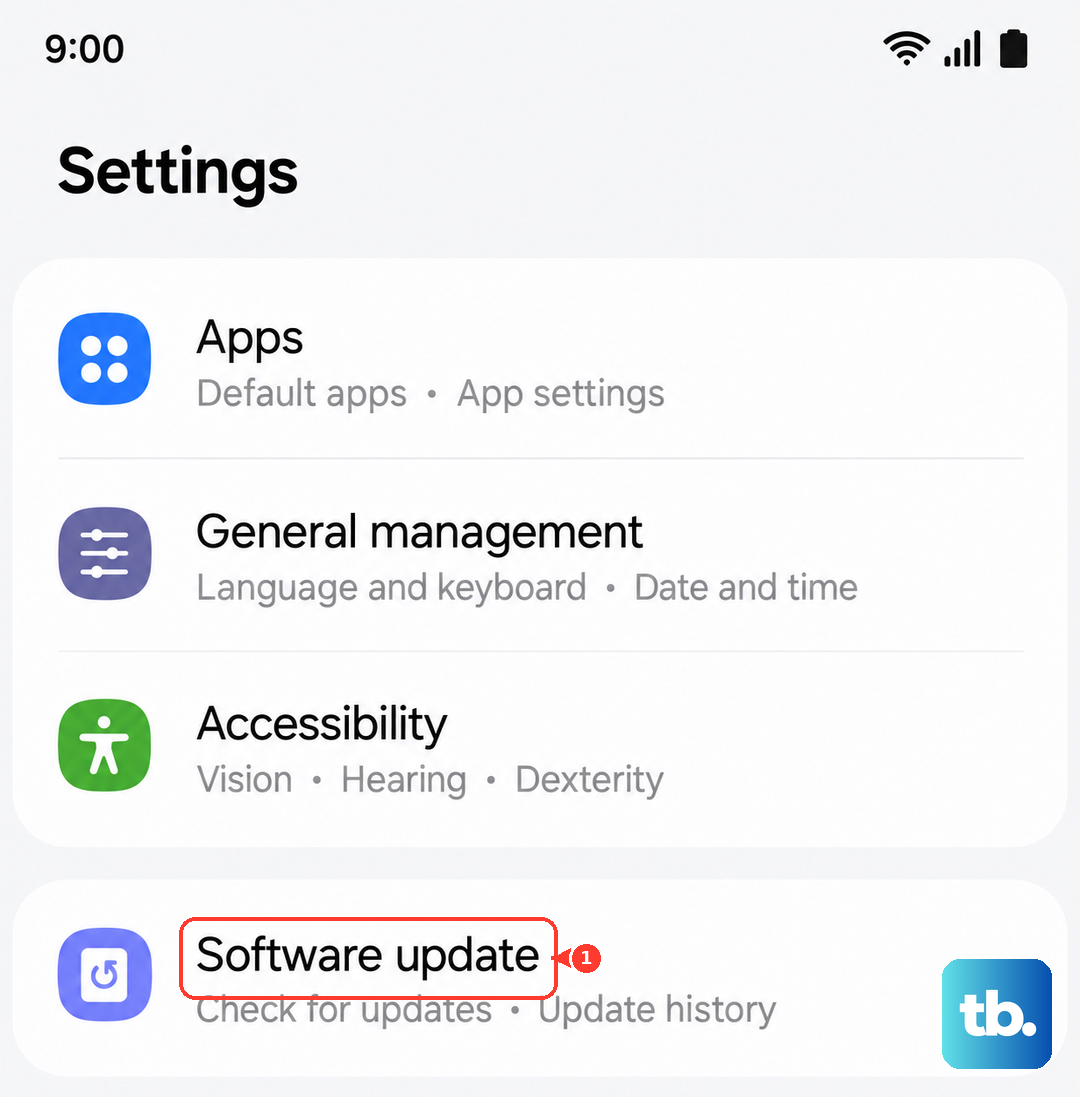
Go to Settings > Software update > Download and install. If an update is available, let it install. This process can also help with general performance, which is good to do regularly on the A16 to help prevent the occasional lag some users report.
Test the Phone's Sensors Directly
Auto-rotate depends on internal hardware called an accelerometer and gyroscope. Samsung includes a hidden diagnostic menu to test them. Open your Phone app and dial *#0*#. This will launch the secret test menu.
Tap on "Sensor." You'll see a screen with various readings. Place your phone on a flat table and tap "IMAGE TEST." Now, slowly rotate your phone in your hand. The on-screen image should rotate smoothly to match your movements. If it doesn't budge at all, there might be a deeper sensor issue.
Be Mindful of How You Hold It
This sounds simple, but it catches people out. The touchscreen is very sensitive. If your palm or finger is resting on the edge of the screen while you're trying to rotate the phone, the system might interpret that as an intentional touch meant to keep the screen stable.
Try rotating the phone while only holding it by the sides or frame, keeping your skin clear of the glass. I've seen this be the culprit more times than you'd think, especially with larger phones or certain cases.
Clear the System Cache
If you're still having trouble, corrupted temporary system files could be causing a conflict. You can wipe this cache without touching your personal data by booting into Recovery Mode. First, turn off your Galaxy A16 completely.
Now, press and hold the Volume Up button and the Power button together. When you see the Samsung logo, let go of the Power button but keep holding Volume Up until the Android Recovery screen appears. Use the volume buttons to navigate to "Wipe cache partition" and select it with the power button. Confirm, then select "Reboot system now."