
When your Redmi Note 14 Pro keeps popping up with a "Settings keeps stopping" error, it can lock you out of managing your phone. This usually means the Settings app has crashed or its data is corrupted. Let's get it working again.
Force Restart Your Phone
This is the quickest thing to try. A force restart clears out any temporary software glitches that might be causing the crash. Just press and hold the power button for about 15 seconds until you see the Redmi logo appear and the phone reboots.
If the Settings app still crashes after the restart, you'll need to dig a little deeper. The next steps involve managing the app's data directly.
Clear the Settings App Cache
Cached data helps apps load faster, but it can get corrupted. Clearing it for the Settings app often fixes this specific error without affecting your personal data.
Since you can't open the main Settings app, you'll need to access this through a different path. Swipe down from the top of your screen to open the notification shade, then tap the gear icon in the top right. If that also crashes, go to your app drawer and find the "Settings" app icon. Press and hold on it, then tap the "i" or "App info" button that appears.
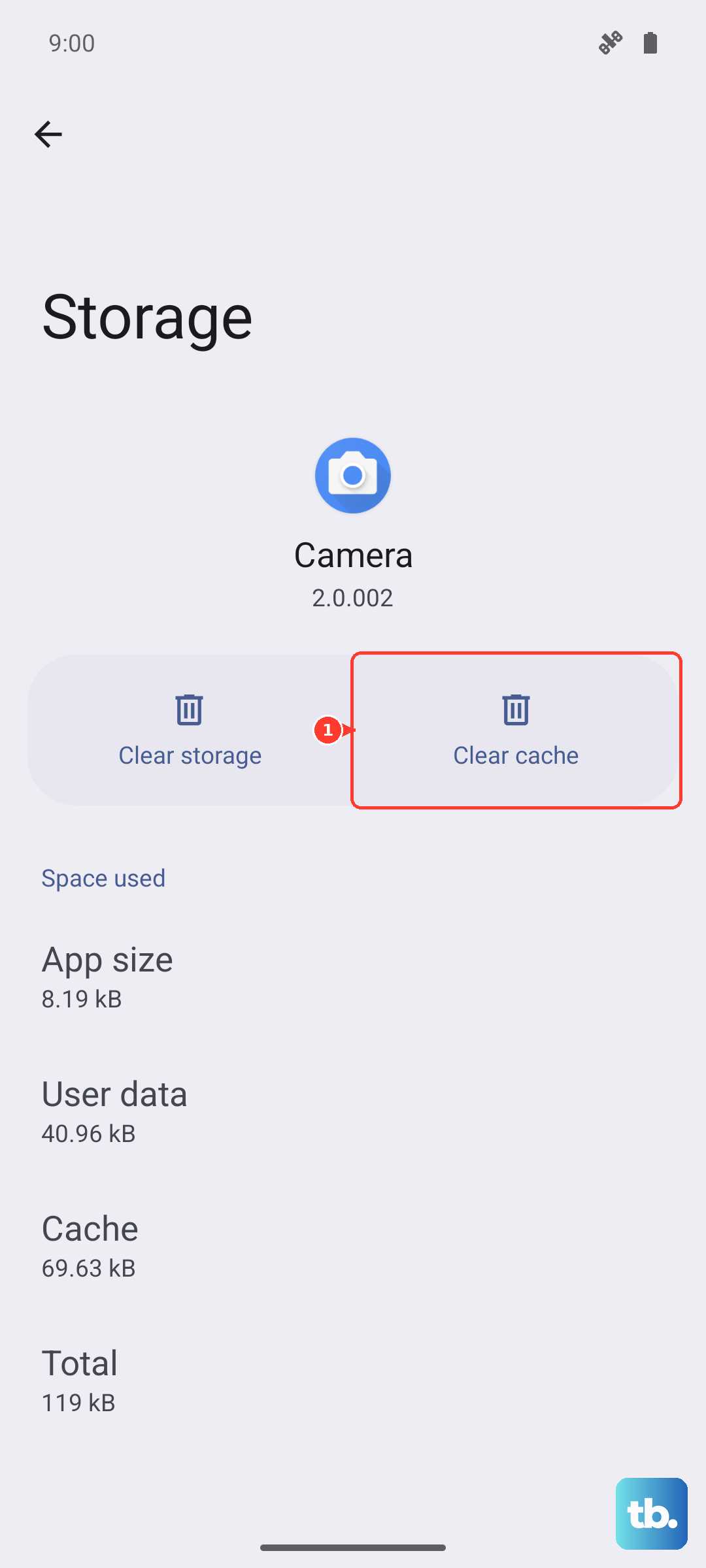
Once you're in the App info page for Settings, tap on "Storage usage" and then select "Clear cache." Give your phone a moment, then try opening Settings normally again.
Force Stop and Clear Data for Settings
If clearing the cache didn't help, the next step is to force stop the app and clear its stored data. This is a bit more impactful, as it will reset the Settings app to its default state. You'll lose any customizations within the Settings menus, but your photos, messages, and apps will be safe.
Navigate back to the App info page for "Settings" using the method above. First, tap "Force stop" and confirm. Then, go back into "Storage usage." This time, tap "Clear data" or "Manage storage" and then "Clear all data." Confirm your choice.
After doing this, use the power button to lock your screen, then unlock it and try launching Settings. It will take a moment to rebuild its data.
Check for a System Update
Sometimes, a bug in the current version of HyperOS can cause system apps to misbehave. Xiaomi regularly releases updates with fixes. You can check for one even if the main Settings app is broken.
Open your notification shade and tap the gear icon, or use the search bar in your app drawer to search for "Updater." Open the "Updater" app. Tap "Check for updates" and install any available update. Make sure your phone is charged above 50% and connected to Wi-Fi first.
After the update installs and your phone restarts, see if the problem is resolved. I've seen minor HyperOS updates squash bugs like this on the Note 14 Pro.
Manage Google Play Services
Google Play Services is a core background app that many system functions rely on. If it's acting up, it can cause other apps, including Settings, to crash. Let's check its data.
You'll need to access the full app list. Pinch inward on your home screen to enter the home screen settings, then find "App management" or "Apps." Alternatively, use the search bar in your app drawer to find "Google Play Services." Tap on it to open its App info page.
Here, tap "Storage usage," then hit "Clear cache." Don't clear the data for Google Play Services from here, as it can cause other issues. Just clearing the cache is safe. Afterward, force stop the Google Play Services app and restart your phone.
Boot into Safe Mode
This step helps you figure out if a recently downloaded third-party app is causing a conflict with the system. Booting into Safe Mode temporarily disables all apps you installed yourself.
First, press and hold the power button until the power menu appears. Then, press and hold the "Power off" option on your screen. A prompt to "Reboot to safe mode" should pop up. Tap "OK." Your phone will restart, and you'll see "Safe mode" in the bottom corner.
In Safe Mode, try opening Settings. If it works perfectly, then a third-party app is the culprit. You'll need to restart normally and uninstall apps you recently added one by one to find the problematic one. The Dimensity 7300 Ultra in the Note 14 Pro is generally stable, but aggressive apps can still cause conflicts.
Perform a Factory Reset
If nothing else has worked, a factory reset is the final step. This will erase everything on your phone, apps, accounts, photos, messages, and return it to how it was out of the box. You must back up any important data first using Xiaomi Cloud or by manually copying files to a computer.
Since Settings may be inaccessible, you'll need to use the hardware key method. Power off your phone completely. Once it's off, press and hold the Volume Up button and the Power button simultaneously until the Mi Recovery screen appears.
Use the volume buttons to navigate to "Wipe data" and select it with the power button. Then, choose "Wipe all data." Confirm the process. Once it's complete, select "Reboot" to restart your phone with a fresh system. This will eliminate any deep-seated software corruption causing the crash.