
When your headphones stop working with your Redmi Note 13 Pro, it's a real buzzkill for music, calls, and videos. The phone might not detect your wired earbuds, your Bluetooth headphones might keep disconnecting, or you might get crackling sound. Let's get it sorted.
To rule out the headphones themselves, try a headphone test in the browser. If every tone plays cleanly, focus on the device settings covered next.
First, try the quick fix. If you're using Bluetooth headphones, go to Settings > Bluetooth, tap the gear icon next to your device, and hit Forget. Then, put your headphones back into pairing mode and reconnect them fresh. For wired headphones, unplug them, gently clean out the USB-C port with a wooden toothpick or a blast of compressed air, and plug them back in firmly.
Restart Your Redmi Note 13 Pro
A simple restart clears out temporary software glitches that mess with audio. Press and hold the power button for about 15 seconds, until you see the Redmi or Xiaomi logo appear and the phone reboots. This is the force restart method and works even if the screen is frozen.
Check the Volume and Sound Settings
While your headphones are connected, press the volume up button on the side of the phone. Also, pull down the notification shade and tap the gear icon to go into Settings > Sound & vibration. Make sure the media volume is up and that no weird sound effects like Mi Sound Enhancer are causing distortion for your specific headphones.
Thoroughly Clean the USB-C Port
This is a super common fix for wired headphone issues on the Note 13 Pro. Lint and pocket debris get packed into the port, preventing the plug from seating all the way. Power off the phone, grab a wooden toothpick or a soft-bristled brush, and gently scrape around the center tongue of the port. I've seen this fix more headphone problems than anything else.
Reset Your Bluetooth Connections
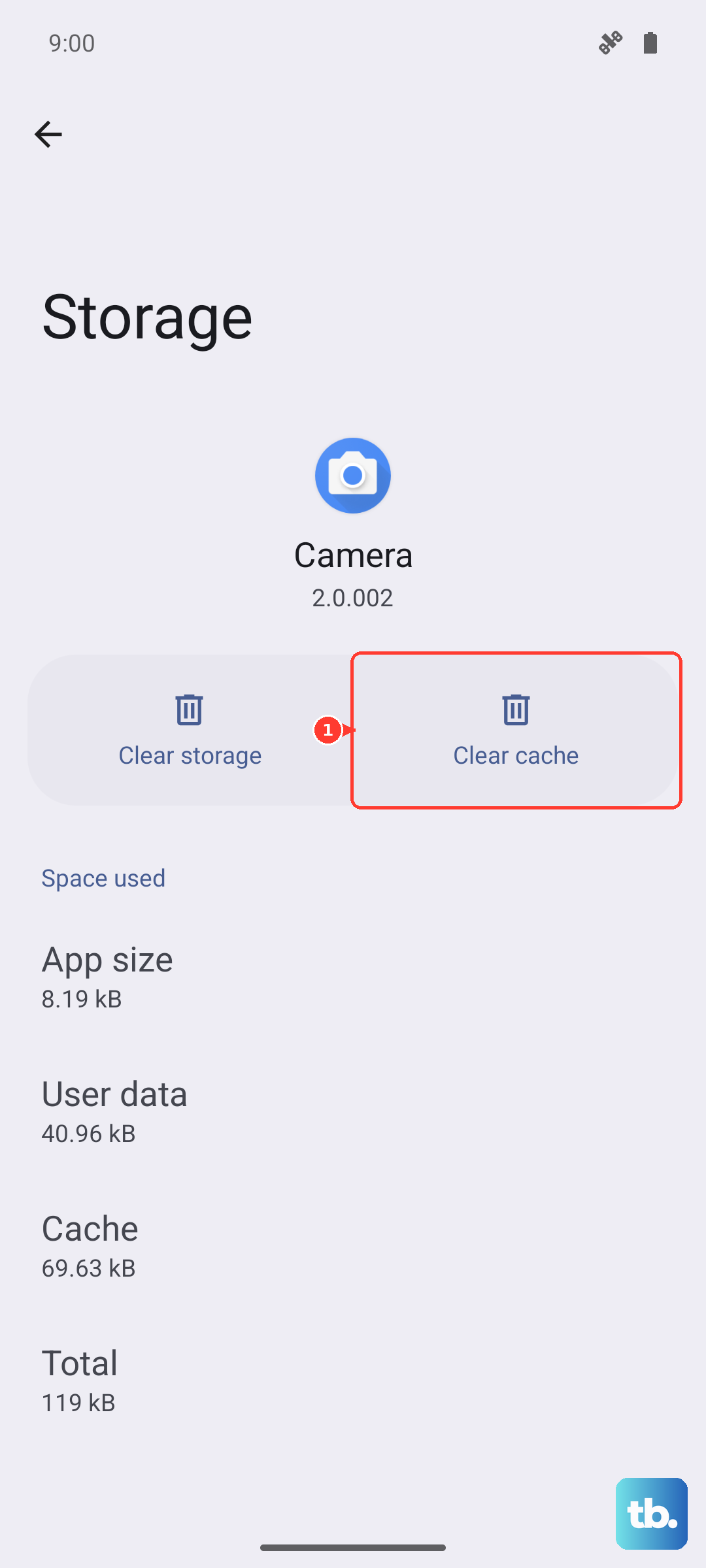
If forgetting one device didn't work, try a broader reset. Go to Settings > Bluetooth. Tap the three dots in the top right and select Reset Bluetooth or Clear cache. This wipes all pairing data and refreshes the Bluetooth stack. You'll need to re-pair all your wireless devices, but it often solves stubborn connection drops.
Check the Audio Output Selection
MIUI can sometimes send audio to the wrong place. When you're playing music or a video, pull down the notification shade twice to open the full Quick Settings panel. Look for a media playback tile, it might show the song name. Tap the small arrow or icon on that tile to see a list of output devices and make sure your headphones are selected, not the phone speaker.
Disable Absolute Volume in Developer Options
If your Bluetooth headphone volume is locked to your phone's volume or sounds distorted, this setting can help. First, enable Developer Options by going to Settings > About phone and tapping MIUI version seven times. Then, go back to Settings > Additional settings > Developer options. Scroll down to "Networking" and disable Disable absolute volume. This gives your headphones independent volume control.
Update Your Phone's Software
Xiaomi releases updates that fix audio and Bluetooth bugs. Go to Settings > About phone > MIUI version and tap "Check for updates." Install any available update. Also, check your headphone manufacturer's app, if they have one, for any firmware updates for the headphones themselves.
Check for App-Specific Audio Issues
If the problem only happens in one app, like YouTube or Spotify, the issue is likely there. Go to Settings > Apps > Manage apps, find the problematic app, and tap Force stop. Then clear its cache by going into the app's storage settings. If that doesn't work, check the app's own settings for any audio output or quality options.
Reset All Settings as a Last Resort
This will reset your Wi-Fi, Bluetooth, and sound preferences to factory defaults without deleting your personal data. Go to Settings > Additional settings > Backup & reset > Reset phone. Choose Reset all settings. You'll need to re-pair your Bluetooth headphones and reconfigure your ringtones and volumes, but it can clear deep-seated configuration errors causing the headphone detection to fail.