You go to sign in to your Outlook.com or Hotmail inbox, and something stops you. Maybe the password is rejected, maybe a message says your account is locked, or maybe the code you need is going to a phone you no longer own.
The good news: Microsoft has a clear set of self-service recovery paths, and most lockouts are fixable in minutes. The right path depends on exactly why you are locked out, so this guide walks through them in order, quickest and most common first.
One thing to know up front, because it shapes everything below: Microsoft support agents cannot send you a reset link or access and change your account details. Every route here is self-service, and the recovery flows run through a web browser, so do this work in a browser rather than the Outlook mobile or desktop apps.
Start With the Sign-in Helper
Before guessing at causes, run Microsoft's own triage tool. It asks for the email address or mobile number you sign in with, checks the details, and either explains the problem or routes you to the right self-help path.
- 1.Open the Sign-in Helper.
- 2.Enter your email address or mobile phone number when prompted.
- 3.Follow the path it gives you. If you simply know your password and want to change it, sign in and use Change password instead.
If you see "We couldn't find an account with that username" or "account doesn't exist," double-check the domain (.com versus .co.uk) and the spelling before assuming the account is gone.
Reset a Forgotten Password
This is the single most common reason people get locked out, and it is the fastest to fix if you still have access to a registered phone or email.
On the sign-in page, select Forgotten your password?
Next, enter your Outlook.com or Hotmail address and select Next.
Choose how to receive a verification code, then select Next.
After that, confirm by re-entering the first part of your email address or the last four digits of your phone number, then select Get code.
Retrieve the code, type or paste it, and select Next.
Enter your new password and select Next to finish.
If none of the contact methods shown are ones you recognize or can still reach, use the Sign-in Helper instead, then move to the recovery form further down.
Unblock an Account Locked for Unusual Activity
If Microsoft notices suspicious or unusual sign-in activity, it temporarily locks the account to protect it. You can usually clear this lock by verifying with a security code or by changing your password.
Go to account.microsoft.com and select Sign in, then follow the prompts to request and enter a security code.
If the code arrives by text message, enter the numbers in the body of the message, not the numbers in the header. Keep in mind that Microsoft is phasing out SMS codes for personal accounts, so you may be steered to a verified email or passkey instead.
You can also start from the Sign-in Helper, which walks you through entering a code or changing your password.
Recover When Your Username or Password Stopped Working
Sometimes the credentials that worked yesterday suddenly fail. Often this is a typo in the domain, a misspelled name, or the wrong alias rather than a true lockout.
Select Recover your account and enter your email, phone number, or Skype name.
Then choose a code delivery method and select Next.
Type the requested confirming information and select Send code.
Enter the security code in the Verify your identity field and select Next.
Create and confirm a new password.
If the identifier is not recognized, verify the domain (.com, .co.uk, and so on), check the spelling of your name (for example, "rachel" versus "rachael"), and try an alternate alias or phone number. If you still see "We couldn't find an account with that username," contact Microsoft support and explain that your username has stopped working.
Sign In With a 25-Digit Recovery Code
A recovery code is a 25-digit code that lets you back in if you forget your password or your account is compromised. It only helps if you generated and saved one before being locked out.
Go to account.microsoft.com/account and enter your username.
From there, select Other ways to sign in.
Select Use my password, then Forgot password?
Next, select Use a different verification option, then I don't have any of these.
At "Do you have an account recovery code?", enter your code. It is not case-sensitive and needs no spaces or dashes.
Create a new password once verified. If your account has two-step verification turned on, changes can still take 30 days to take effect even after you sign in with a recovery code.
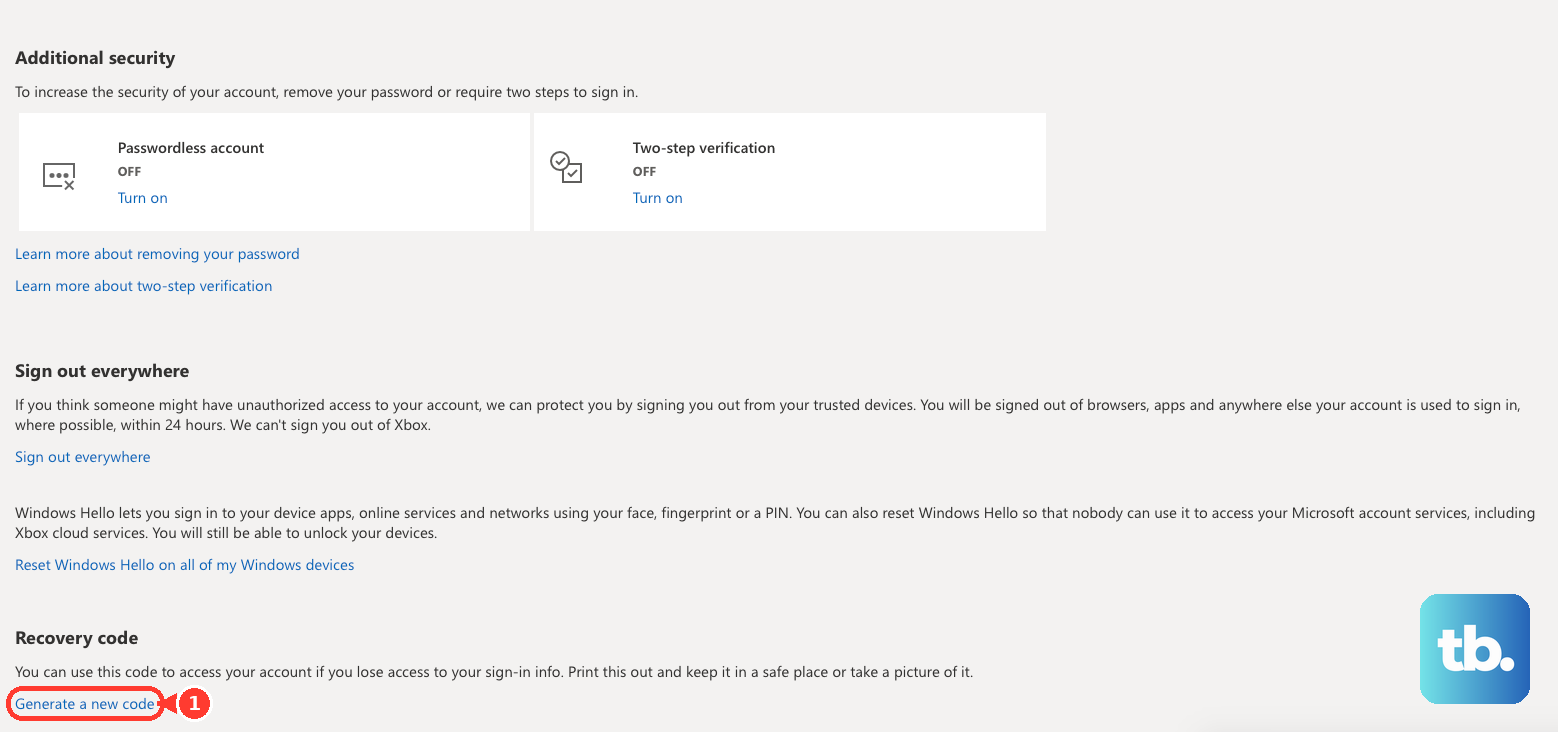
For the future, while you can still sign in, go to account.live.com/proofs/manage/additional, find the Recovery code section, and select Generate a new code. Print it and keep it somewhere safe, not on a device you use to sign in. Generating a new code invalidates the previous one, and you can never retrieve an existing code.
Use the Account Recovery Form When You Have No Verification Method
If you cannot sign in and cannot receive a code through any of your options, the recovery form is your path. Microsoft reviews the details you provide to confirm you own the account. If you turned on two-step verification and cannot reach any of your alternate methods, the form cannot help.
Have a working contact email ready that you can access. It can be a friend's or relative's, or a new free Outlook.com account. Do not use the address you are trying to recover.
Open the account recovery form and enter the email, phone number, or username you are recovering, plus that contact email.
Fill in as much accurate detail as possible: previous passwords; for Outlook or Hotmail, the names of email contacts and exact subject lines of recent emails; for Skype, your SkypeID and contacts; for Xbox, the console ID; any saved browser credentials. Guessing is fine, since wrong answers don't count against you.
If you can, complete the form on a device you previously used to sign in, and at a location where you normally used the account, so Microsoft recognizes it.
Submit. Microsoft says it reviews your answers and responds within 24 hours, by email to the contact address you gave. Check Junk and Spam.
A few field tips: use the same name style registered on the account ("Alex" or "Alexander"); enter your birthdate in MM/DD/YYYY format; think about what you entered when you first signed up if the account is old; and list any aliases or phone numbers you use to sign in. You can try up to two times per day.
Handle a Lock for a Terms of Use Violation
If your account was locked for suspicious activity or for violating Microsoft's Terms of Use (for example, spam, phishing, malware, or bot-created accounts), the sign-in screen behaves differently. The signal: the usual Let's prove you're human option does not appear.
When signing in, if you do not see that option, select the link in the window that begins with "aka.ms/" to start a reinstatement request.
Follow the instructions and submit your information.
Then wait for a Microsoft Online Safety support agent to review it and contact you by email. Do not submit additional requests, because that slows the response.
Fix Code Delivery and Add a New Verification Method
If codes are not arriving, the problem is often the delivery method, not the account.
Try a different method connected to the account, such as switching from text to an alternate email. If you use email, check Junk and mark @accountprotection.microsoft.com as a trusted sender.
VOIP numbers cannot receive verification codes. Also check that your phone is not blocking texts from unknown numbers and that its message inbox is not full.
On mobile, switch between Wi-Fi and cellular data, or try another Wi-Fi network.
Heavy compromised traffic from your region can delay codes and usually clears on its own. Avoid many repeated attempts, which can reset a time lock. If nothing changes, wait 24 hours, then up to about a week.
Microsoft is phasing out SMS as a sign-in and recovery method for personal accounts. If a phone is your only verification method, add a verified email and a passkey or Microsoft Authenticator now, and don't remove the old number until the new method works.
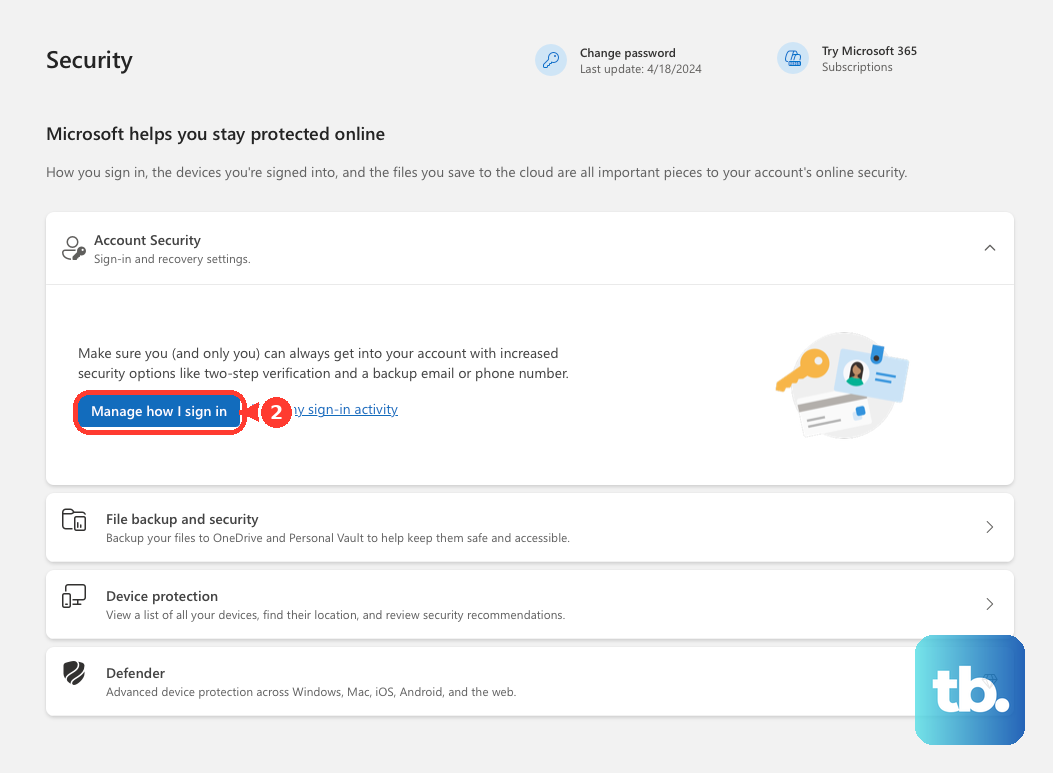
If you know your password but lost access to some security info, sign in at account.microsoft.com/security, select Manage how I sign in, then Add a new way to sign in or verify, and choose an email, authenticator app, or passkey. Add the new method before removing old ones, so your account is not restricted for 30 days.
When Recovery Is Unsuccessful
If the form does not get you in, you can resubmit up to two times per day. Before retrying, review Microsoft's form-filling guidance and add more accurate information rather than submitting the same answers again.
If the form rejects you because you don't recognize your security information, switch back to the Sign-in Helper. And remember the hard limit: support agents are not allowed to send password reset links or access and change account details, so there is no manual override beyond these self-service tools.
Frequently Asked Questions
Why don't I see the "Let's prove you're human" option when I try to sign in?
That is a deliberate signal, not a glitch. It means the account is locked for suspicious activity or a Terms of Use violation, so you must use the "aka.ms/" link in the sign-in window to request reinstatement rather than a standard password reset.
The phone with my code is gone. Can I still get back in?
Yes, if you have another method on file, such as a verified email, Microsoft Authenticator, a passkey, or a saved recovery code. If you have no working verification method at all, use the account recovery form and provide as much identifying detail as you can.
I removed and replaced all my security info and now I am restricted. What happened?
Replacing all of your security info puts the account into a 30-day restricted state. You can still use email, Xbox, and OneDrive, but you cannot change your password, update a credit card, change aliases, access parental controls, or open the OneDrive vault. Microsoft cannot speed this up, but if you made the change yourself you can cancel it with the cancel this request link on the Security page.
How long does the recovery form take?
Responses generally arrive within 24 hours, sent to the contact email you provided. Check your Junk and Spam folders, and do not resubmit unless you have new information to add.
Can I send and receive mail again if I can sign in but mail is blocked?
A full Outlook.com mailbox or full cloud storage (OneDrive and attachments) stops you from sending or receiving email even when sign-in works, which is easy to mistake for a lockout. Mail sent to you while storage is full bounces back to the sender. Free up storage to restore email. If you buy more storage instead, the new quota can take up to 24 hours to show.
My account has been inactive for years. Can it still be recovered?
Possibly not. If you haven't signed in for more than two years, the account may have been deleted, and a deleted account cannot be reopened.











