You press the power button, the manufacturer logo flashes for a second, and instead of Windows you get a black screen with one cold line of text: "Reboot and Select Proper Boot Device." Hit a key, restart, and it shows up again. The frustrating part is that this message appears before Windows even has a chance to load, which means the usual sign-in tricks are off the table until you get the machine pointed at the right drive.
That single sentence is actually a clue. It comes from your PC's firmware (UEFI/BIOS), and it means the firmware looked through its boot order and could not find a drive with Windows on it as the first bootable device. Sometimes that's a stray USB stick stealing first place; sometimes Windows itself needs a repair. The six fixes below move from the safest, easiest checks to the deeper system repairs, so start at the top and stop as soon as your PC boots.
Note: these steps apply to Windows 11 and Windows 10, though Microsoft ended support for Windows 10 on October 14, 2025. Because the boot message is a firmware message, it can appear on any version before Windows starts.
Check the firmware boot order and pull out any extra media
Because this is a firmware message, the very first thing to rule out is the wrong device sitting at the top of the boot list. A leftover USB drive, SD card, or disc can grab first priority, and when the firmware tries to boot from it and finds nothing usable, you get the error.
Remove any USB drive, SD card, or disc, then restart the PC. This alone clears the problem in a surprising number of cases, so it is always worth trying before anything more involved.
If the message persists, open the firmware menu. Power the PC on and press your maker's key as it starts; the common ones are Esc, Delete, F1, F2, F10, F11, or F12, and a brief startup screen often tells you which key to use.
Inside the firmware, find the boot device menu and select the entry that names both the firmware mode and the device, for example "UEFI: USB Drive." Make sure the internal Windows drive is set first in the boot order. One important caution: after Windows is installed, the PC boots automatically using the same mode (UEFI or BIOS) it was installed with, so do not switch the firmware mode while troubleshooting. If you need to check Secure Boot, it lives under Security > Secure Boot.
You can also reach these firmware settings from inside Windows if you can get there: select Power, hold Shift while choosing Restart, then go to Troubleshoot > Advanced options > UEFI Firmware settings.
Get into the Windows Recovery Environment
If the firmware does detect your Windows drive but Windows still refuses to start, your repair toolkit lives in the Windows Recovery Environment (WinRE). There are three ways in, depending on how far your PC gets.
If you can sign in, the cleanest route is Settings > System > Recovery > Advanced startup > Restart now. On Windows 10 the path is Settings > Update & Security > Recovery > Advanced startup instead.
From the sign-in screen or the Start menu, you can take the shortcut: hold Shift while selecting Power > Restart. That drops you straight into the recovery options.
If the PC will not reach Windows at all, you can force WinRE by interrupting startup. Turn the PC on and hold the power button to force a shutdown before Windows finishes loading; do this twice, and on the next start Windows enters the Recovery Environment automatically. Once inside, every repair tool below lives under Troubleshoot > Advanced options.
One thing to have ready first: if the device is BitLocker-encrypted, you will need your recovery key to proceed.
Let Startup Repair fix the boot files for you
Startup Repair is the safest first software fix because it does the work automatically. It diagnoses and repairs common problems that prevent Windows from starting, including boot-related issues, without you having to type a single command.
From WinRE, go to Troubleshoot > Advanced options > Startup Repair, then choose Restart if you are prompted to. After the device reboots, Startup Repair scans the computer and tries to fix what it finds.
Give it time, because the scan can run for a while. If it cannot resolve the issue on its own, it provides a report describing what it found, which is useful information if you need to move on to the deeper fixes below.
Roll back a recent Windows update
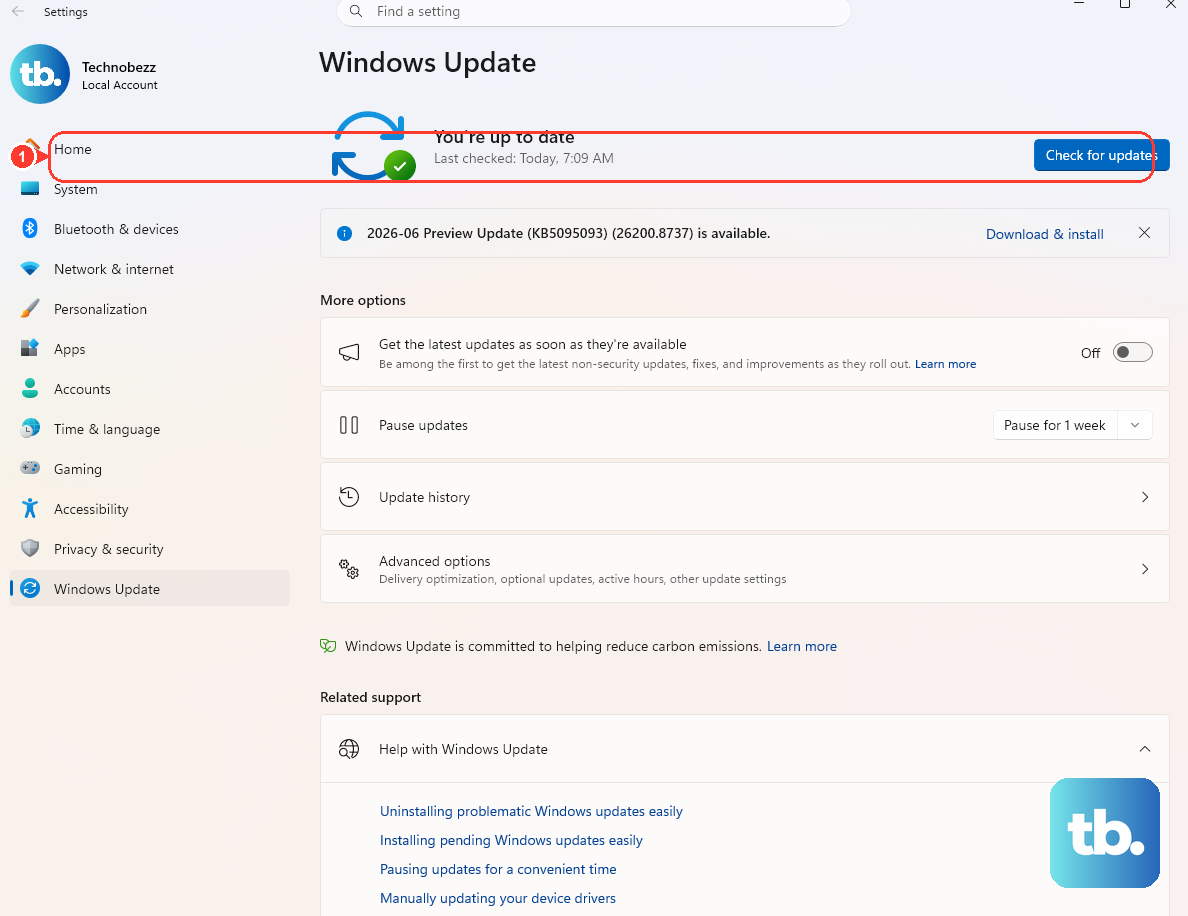
Timing matters here. If the boot failure started right after a Windows update installed, that update is the prime suspect, and recovery lets you remove it without booting fully into Windows.
In WinRE, go to Troubleshoot > Advanced options > Uninstall Updates. You will see two choices: "Uninstall latest quality update" or "Uninstall latest feature update." Pick the one that matches the kind of update that landed just before the trouble began.
A word of caution before you do this. Some updates cannot be uninstalled, and you should understand the risk before removing a security update, since doing so can leave the system exposed. Use this fix when the update timing is a clear match for when the boot problem appeared.
Boot into Safe Mode to isolate a driver or program
Safe Mode starts Windows with only the essential services and drivers loaded. That makes it a clean way to find out whether a misbehaving driver or piece of software is what's keeping your PC from booting normally.
- 1.In WinRE, select Troubleshoot > Advanced options > Startup Settings.
- 2.Choose Restart.
- 3.On the Startup Settings screen, press the number or function key for option 4 (Enable Safe Mode), or option 5 (Safe Mode with Networking) if you need internet access while you troubleshoot.
If Windows loads correctly in Safe Mode, that strongly suggests a driver or installed program is the culprit rather than the core system or hardware, since the difference is which drivers and services are running. From there you can work on removing or updating the recently added software that lines up with when the problem started.
Repair system files and check the disk from Command Prompt
When Windows still misbehaves after the steps above, it is time to repair the system image, the protected system files, and the disk itself. Open WinRE > Troubleshoot > Advanced options > Command Prompt. If Windows does manage to start, you can instead open an elevated prompt: type cmd in the Search box, right-click Command Prompt, and select Run as administrator.
Run DISM first, then SFC, in that order. Microsoft's guidance is to repair the component store before scanning system files, so type the following and press Enter:
- 1.Run
DISM.exe /Online /Cleanup-image /Restorehealthto repair the Windows component store and system image. - 2.Then run
sfc /scannow. System File Checker scans protected system files and replaces any corrupted ones with a cached copy.
Next, check the disk itself for errors. Microsoft's own example is chkdsk d: /f, which checks drive D and fixes errors; the /f parameter fixes errors on the disk, and the disk must be locked for it to run. To go further and also locate bad sectors and recover readable information, add /r, which includes everything /f does plus an additional analysis of physical disk errors.
If the drive you are scanning is in use, chkdsk cannot lock it immediately and will offer to run at the next restart; accept that and reboot so the check can complete on a locked volume.
Frequently Asked Questions
Why does "Reboot and Select Proper Boot Device" appear before Windows loads?
The message comes from your PC's firmware (UEFI/BIOS), not from Windows. It means the firmware searched its boot order and could not find a drive with Windows set as the first bootable device, so it appears before Windows has a chance to start. That is why removing extra media and checking the boot order is the first thing to try.
Should I switch my PC between UEFI and BIOS mode to fix this?
No. After Windows is installed, the device boots automatically using the same mode (UEFI or BIOS) it was installed with. Switching the firmware mode while troubleshooting can prevent Windows from booting, so leave that setting alone and focus on the boot order and the recovery tools instead.
How do I open recovery tools if my PC won't reach Windows at all?
You can force the Windows Recovery Environment by interrupting startup. Turn the PC on and hold the power button to force a shutdown before Windows finishes loading, do this twice, and on the next start Windows enters the Recovery Environment automatically. From there you reach every repair tool under Troubleshoot > Advanced options.
Do I need to run DISM and SFC in a specific order?
Yes. Run DISM.exe /Online /Cleanup-image /Restorehealth first to repair the component store and system image, then run sfc /scannow to scan protected system files and replace corrupted ones with a cached copy. Running them in that order gives SFC a healthy source to pull replacement files from.
What if chkdsk says it can't run because the disk is in use?
The /f parameter requires the disk to be locked, and a drive that is currently in use cannot be locked while Windows is running on it. When that happens, chkdsk offers to run at the next restart; accept the prompt and reboot so the check can finish on a locked volume.