
If your Realme GT 7 Pro videos are stuttering, buffering, or playing back with a frustrating choppiness, you're dealing with a common but fixable problem. The good news is that with a phone this powerful, the issue is almost always software-related or a simple setting that needs adjustment.
Restart Your Phone First
It sounds too simple, but a quick restart clears out temporary system glitches and refreshes all your apps. Just press and hold the power button for about 10 seconds until you feel the phone vibrate and the Realme logo appears on screen.
This is the fastest way to see if a background process was hogging resources. I'd start with this one every time.
Check Your Available Storage
Your GT 7 Pro needs breathing room to process video files smoothly. When internal storage is critically low, the system struggles to read and write data efficiently, which can cause video apps to lag and stutter.
Head to Settings > About device > Storage to see how much space you have left. Aim to keep at least 10-15GB free. If you're low, clear out old downloads, app caches, and consider moving photos and videos to cloud storage or a computer.
Update Your Software and Apps
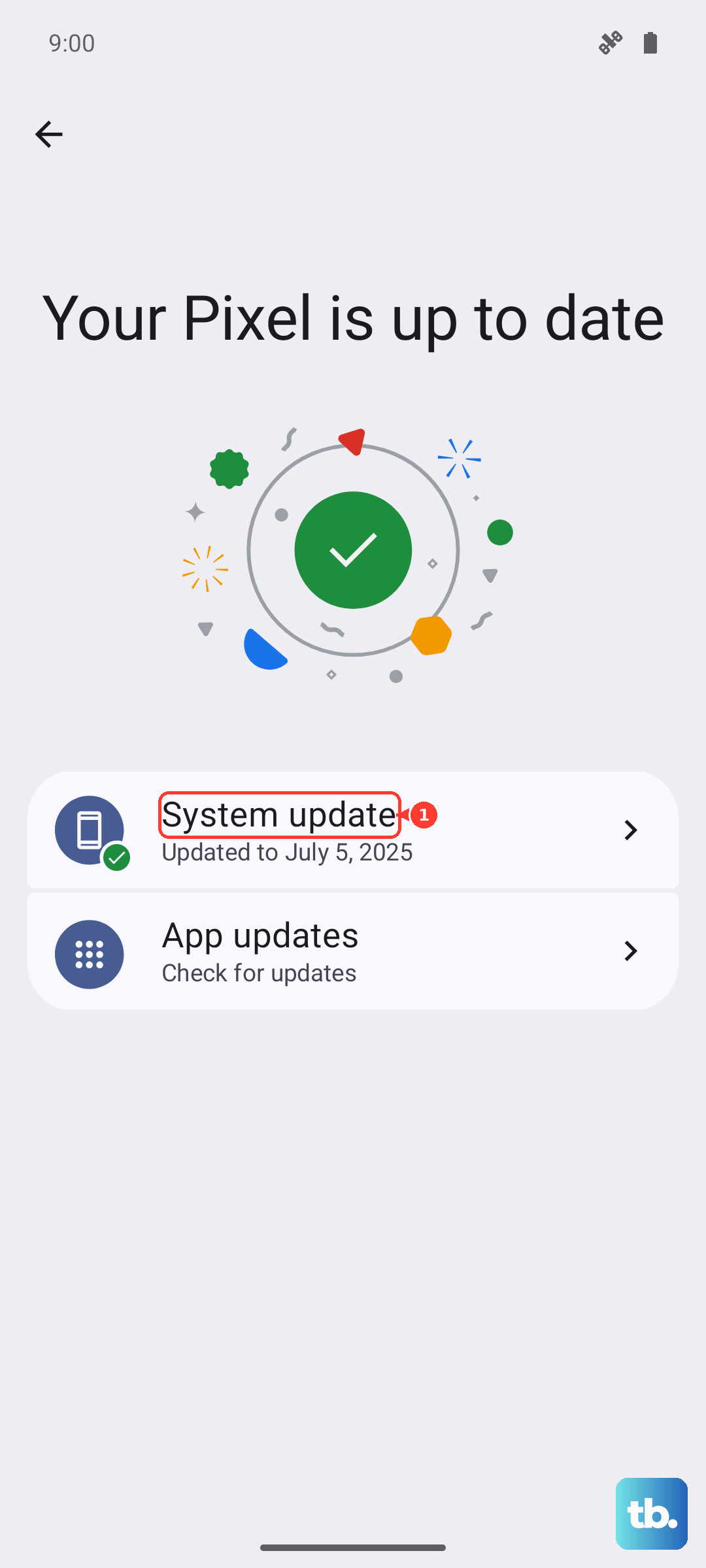
Running an outdated version of Realme UI or your video player app can lead to compatibility issues. Realme frequently releases updates that include performance optimizations and bug fixes specifically for media playback.
Go to Settings > About device > Realme UI version to check for a system update. Then, open the Google Play Store, tap your profile icon, and select "Manage apps & device" to update all your apps, especially the one you use for videos.
Manage Your Phone's Temperature
The Snapdragon 8 Elite chip is a powerhouse, but it can throttle performance if the phone gets too hot. This is a known issue during extended gaming, but it can also happen if you've been recording long 4K videos or fast charging with the 120W adapter, which generates significant heat.
If the phone feels warm to the touch and videos start lagging, give it a break. Close demanding apps, move it to a cooler spot, and consider taking it out of its case temporarily to help it cool down faster.
Examine Your Network Connection
For streaming videos, a weak or unstable internet connection is the most common culprit for buffering and lag. This isn't a phone hardware issue, but a network one.
Try switching between Wi-Fi and your mobile data to see if the problem follows you. If you're on Wi-Fi, try moving closer to your router. You can also run a quick speed test using an app like Speedtest by Ookla to check your connection quality.
Clear the App's Cache and Data
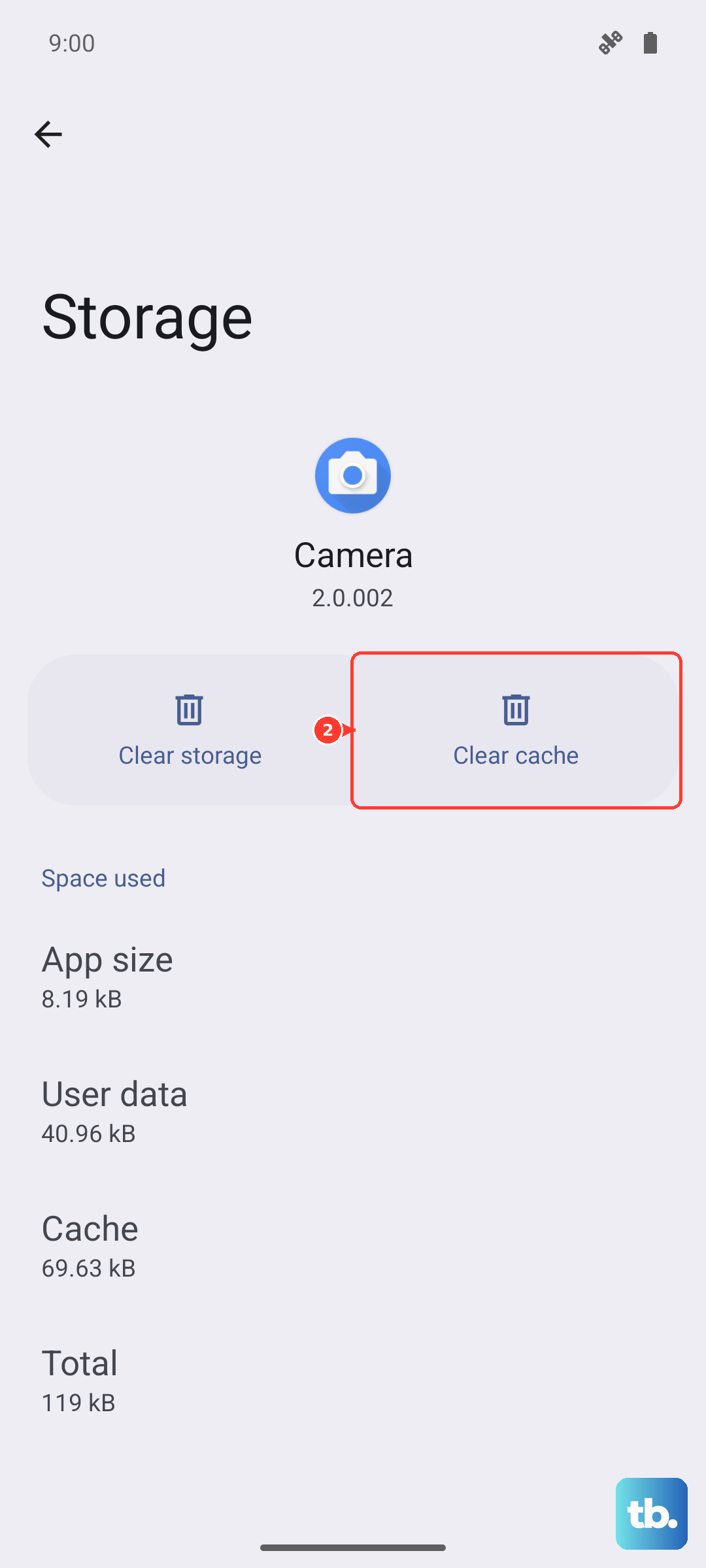
If the lag is happening in one specific app, like YouTube, Netflix, or your gallery, its stored cache data might be corrupted. Clearing it forces the app to start fresh.
Go to Settings > Apps > Manage apps, find the problematic app, and tap on it. Select "Storage usage" and then tap "Clear cache." If that doesn't help, you can try "Clear data," but be aware this will reset the app to its default state and you may lose saved settings or offline downloads.
Disable Battery Saver and Performance Modes
Battery Saver mode is designed to extend your battery life by limiting background activity and reducing performance. This can directly impact video playback smoothness. Make sure it's turned off when you're watching videos.
Also, check your performance settings. Go to Settings > Additional settings > Performance mode. For the best video experience, select "High Performance" mode, which gives apps full access to the phone's resources.
Check for Conflicting Background Apps
Too many apps running in the background can consume RAM and CPU cycles, leaving less power for your video player. The 12GB or 16GB of RAM in the GT 7 Pro should handle multitasking well, but it's still worth checking.
Swipe up from the bottom and hold to enter the recent apps menu, then swipe away any apps you don't need. For a more thorough cleanup, you can use the built-in phone manager or restart your phone as mentioned earlier.
Try a Different Video Player
Sometimes the issue is isolated to the app itself. If videos are lagging in your gallery or a specific streaming app, try playing the same video file or stream in a different player.
Download a well-regarded third-party player like VLC or MX Player from the Play Store and see if the problem persists. If the video plays smoothly in another app, you know the original app needs an update or has a bug.
Reset App Preferences or Network Settings
This is a more involved step that won't delete your personal data. Resetting app preferences reverts all your app permissions, default apps, and background restrictions back to factory defaults, which can resolve conflicts.
Go to Settings > Additional settings > Back up and reset > Reset phone > Reset app preferences. If you suspect a network issue, you can also try Reset Wi-Fi, mobile & Bluetooth from the same menu, but you'll need to reconnect to all your networks afterward.
Consider a Factory Reset
If you've tried everything and the lag affects every video app, a software deep clean might be necessary. A factory reset will erase all data and return the phone to its out-of-the-box state.
This is a last resort. Before you proceed, ensure you have a complete backup of your photos, messages, and important files. You can initiate the reset by going to Settings > Additional settings > Back up and reset > Erase all data (factory reset).