
You're looking at your Realme GT 7 Pro, waiting for an alert that never comes. Missed messages, silent app updates, and a quiet lock screen can make you feel out of the loop. On a phone running Realme UI 6.0, this is usually a software hiccup, not a hardware problem. Let's get your notifications flowing again.
Check Your Focus and Battery Settings First
Realme UI has several features designed to minimize distractions and save battery, but they can sometimes be a bit too aggressive. The first place I'd look is Settings > Notifications & Status Bar. Here, you can see if any global notification toggles have been accidentally switched off.
Next, head to Settings > Battery. If you have any power-saving modes enabled, like "Power Saving Mode" or "Super Power Saving Mode," try turning them off temporarily. These modes often restrict background data and app activity, which can silence notifications. Your GT 7 Pro's massive 6500mAh battery means you can usually afford to run without these modes for a while to test.
Review App-Specific Notification Permissions
Android 15 and Realme UI give you fine-grained control over each app. An app might have permission to send notifications, but the specific *type* of notification could be blocked. Go to Settings > Apps > [App Name] > Notifications.
Make sure notifications are turned on for that app. Then, tap on "Notification Categories" to see more details. You might find that "Silent Notifications" are allowed, but the important "Alerting" notifications are turned off. Toggle everything on for the app you're troubleshooting.
Force Stop and Clear the App's Cache
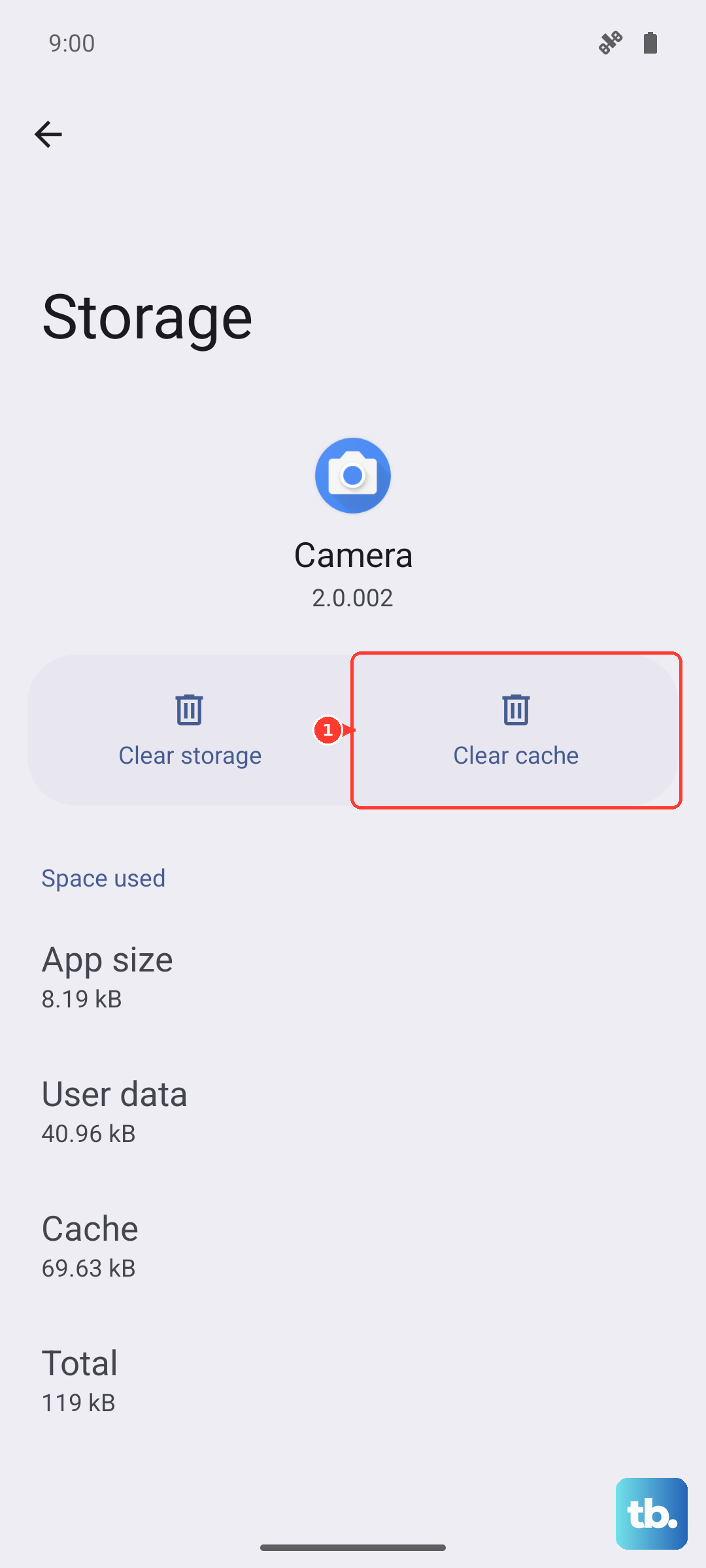
A glitch in the app's temporary files can stop it from communicating properly with the notification system. This is a safe first step that won't delete your login info or data. Go to Settings > Apps, find the problematic app, and tap on it.
Tap Force Stop to completely close it. Then, go to Storage Usage > Clear Cache. Don't select "Clear Data" unless you're prepared to sign back in. Once done, reopen the app and see if notifications start working.
Disable Adaptive Notifications and Battery Optimization
Realme UI includes smart features that learn your behavior. Settings > Notifications & Status Bar > More Notification Settings might have options like "Adaptive Notifications." This can hide alerts it thinks are unimportant. Turn it off to see if it's the culprit.
Battery optimization is another common blocker. Navigate to Settings > Apps > [App Name] > Battery. Look for an option called "Allow background activity" or "Auto-launch" and make sure it's enabled. You can also check Settings > Battery > More Battery Settings > App Battery Management to ensure the app isn't being put to sleep.
Restart Your Realme GT 7 Pro
It sounds simple, but a full restart clears out system memory and resets all background services, including the one that handles notifications. Just press and hold the power button, then tap "Restart." If the phone is unresponsive, you can force a restart by holding the power button down for about 10 seconds until you feel a vibration and see the Realme logo.
Check Do Not Disturb and Scheduled Silence
Do Not Disturb (DND) can be enabled manually or on a schedule. Pull down your notification shade twice to see the quick settings tiles and make sure the DND icon isn't active. You can also go to Settings > Sound & Vibration > Do Not Disturb to check the schedule and rules.
See if a rule is set to block all notifications, or if only "Priority" alerts are allowed. You can turn off DND entirely here to rule it out. Also, check that your volume is up by pressing the physical volume button and ensuring the notification volume slider isn't all the way down.
Update the App and Your System Software
An outdated app might have a bug that breaks notifications. Open the Google Play Store, tap your profile icon, and go to "Manage apps & device." See if there's an update available for the app in question. Install it and test again.
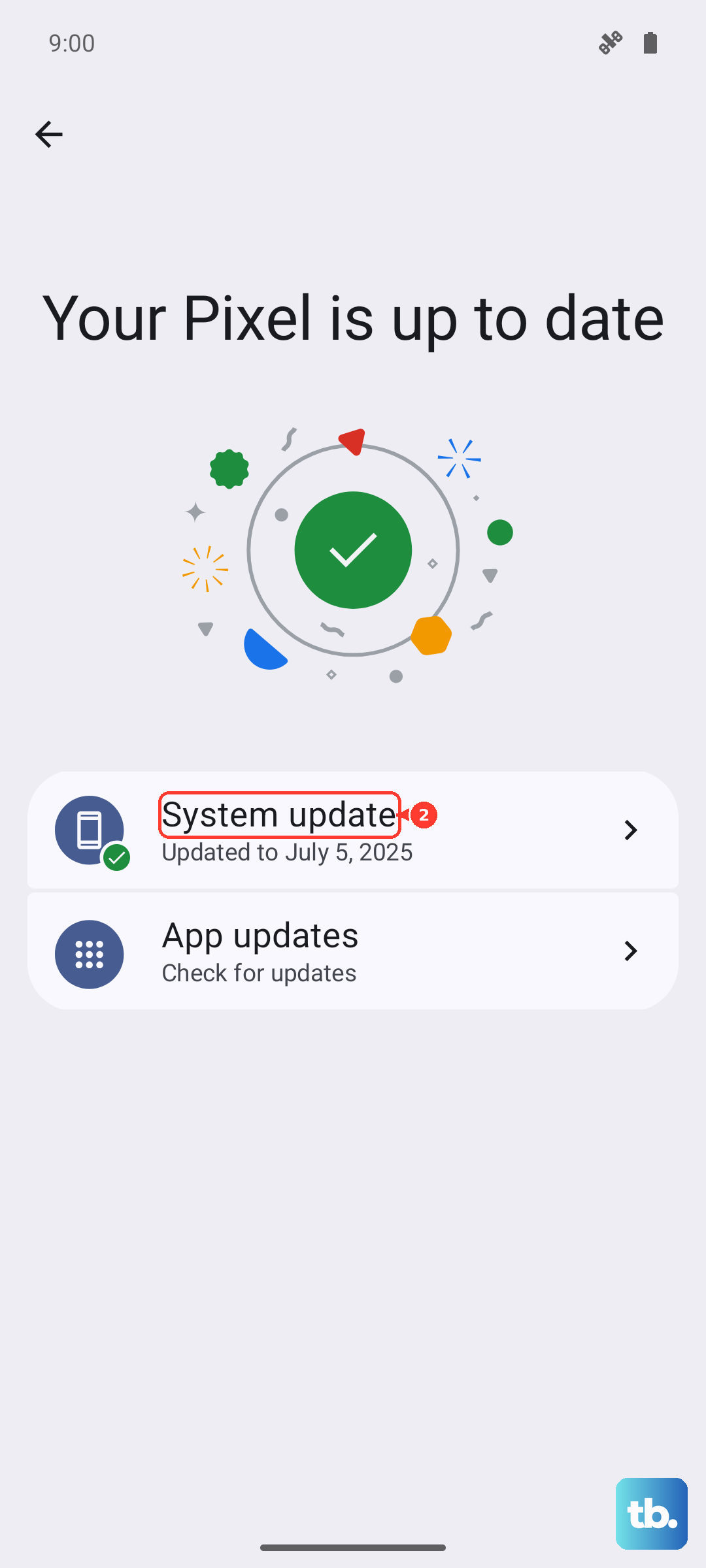
Similarly, a system update from Realme often includes fixes for these kinds of issues. Go to Settings > About Device > Realme UI Version and tap on "Check for Updates." If you're on Android 15 with Realme UI 6.0, make sure you have the latest security patch installed.
Reset App Preferences (A Safe Reset)
This is a useful middle-ground step. It resets all your app permissions, notification settings, and default app assignments back to their factory state, but it doesn't delete any of your personal app data. You'll just need to re-grant permissions when you use apps again.
To do this, go to Settings > Apps > Menu (three dots) > Reset App Preferences. Tap "Reset" on the confirmation pop-up. After your phone resets, open the key apps and allow the permission prompts they show you.
Examine Notification Logs with a Shortcut
Android has a hidden notification log that can show you if the system is even receiving the alerts. To access it, add a widget to your home screen. Long-press on an empty area, select "Widgets," and find the "Settings" widget. Drag the "Settings" shortcut to your home screen.
A list will appear. Scroll down and select "Notification Log." Tap it, and a new shortcut will be created. Open it to see a history of all recent notifications, which can help confirm if alerts are arriving but just not displaying.