
When your headphones stop working with your Realme GT 7 Pro, it can be incredibly frustrating. Whether you're using wired earbuds or a Bluetooth pair, the audio might cut out, sound distorted, or not play at all. The good news is, most of these problems have a simple fix you can do yourself.
If you suspect one side has failed, an online online headphone test settles it quickly. Play each channel on its own and you will know whether it is the headphones or the source.
Restart Your Realme GT 7 Pro
This is the first thing I'd try. A quick restart clears out temporary software glitches that can mess with audio. Just press and hold the Power button for about 10 seconds until you feel a vibration and see the phone restart. It takes less than a minute and often solves the problem right away.
Check the Physical Connection
If you're using wired headphones, make sure the USB-C plug is pushed all the way into the port. A loose connection is a common culprit. Also, try the same headphones with another device to rule them out as the problem. For Bluetooth headphones, ensure they're charged and in pairing mode.
Clean the USB-C Port
Lint and pocket debris can easily get packed into the charging and audio port on your phone. This can prevent wired headphones from making a proper connection. Gently use a wooden toothpick or a soft-bristled brush to clean out the port. Avoid using anything metal, as it could damage the delicate pins inside.
Adjust the Volume and Audio Output
It sounds obvious, but check your volume. Press the volume up button on the side of your GT 7 Pro while your headphones are connected. Also, pull down the Quick Settings panel and make sure the audio isn't being routed to the phone's speaker by mistake. Tap the media output icon to select your headphones directly.
Forget and Re-Pair Your Bluetooth Headphones
Go to Settings > Bluetooth. Find your headphones in the list of paired devices and tap the gear icon next to them. Select Forget or Unpair. Then, put your headphones back into pairing mode and reconnect them fresh from the Bluetooth menu. This clears any corrupted connection data.
Toggle Bluetooth Off and On
Head to Settings > Bluetooth and simply switch the Bluetooth toggle off. Wait about 10 seconds, then turn it back on. This quick refresh of the Bluetooth radio can often re-establish a stable connection with your headphones if they're dropping in and out.
Check for Software Updates
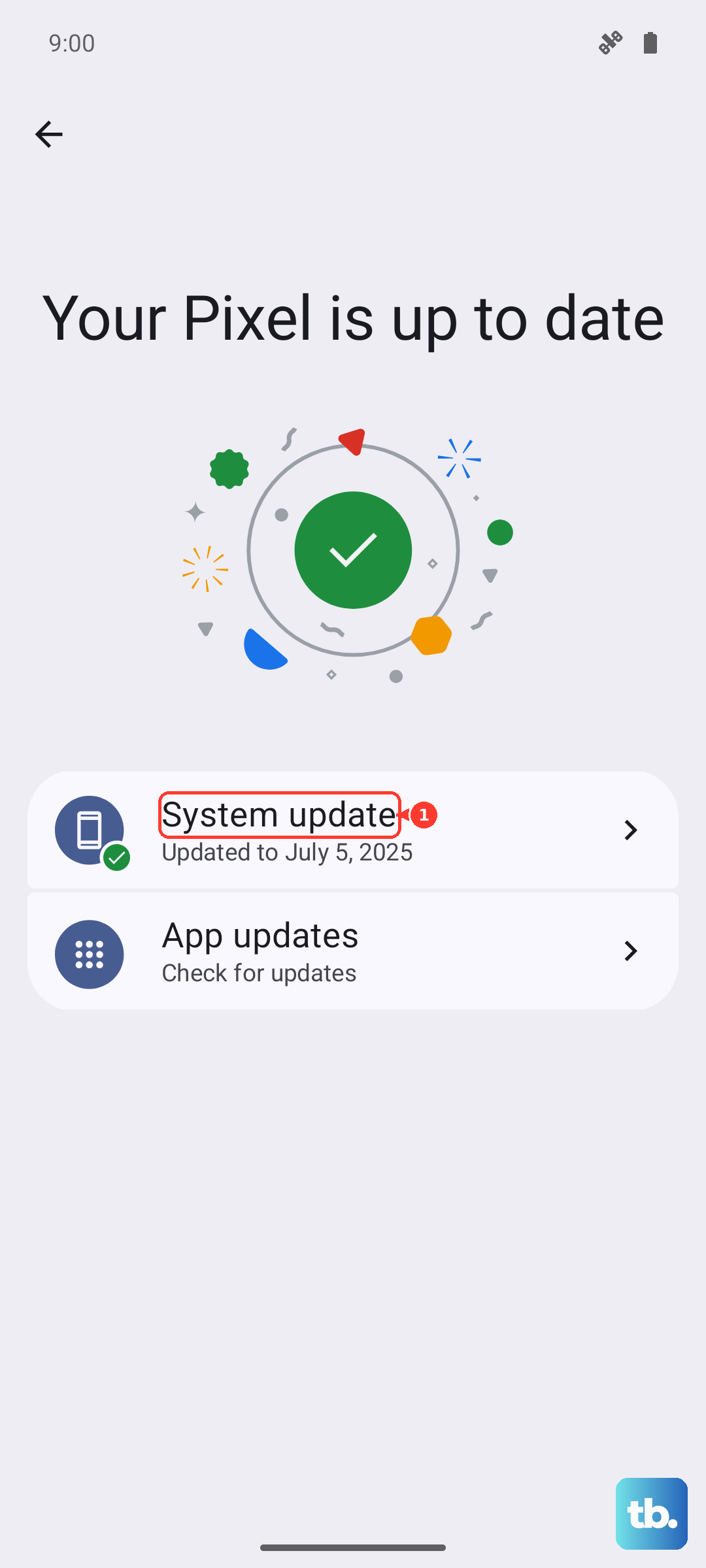
Audio and Bluetooth issues are frequently addressed in system updates. On your GT 7 Pro, go to Settings > About device > Software update to check for any available updates for Realme UI or Android. Installing the latest software can patch bugs that might be affecting your headphones.
Disable Absolute Volume in Developer Options
Some Bluetooth headphones have volume sync issues with Android. You can fix this by enabling Developer Options. Go to Settings > About device and tap on "Build number" seven times. Then, go back to Settings, find Developer options, and look for "Disable absolute volume." Toggle it on, then restart your phone and reconnect your headphones.
Reset Your Phone's Network Settings
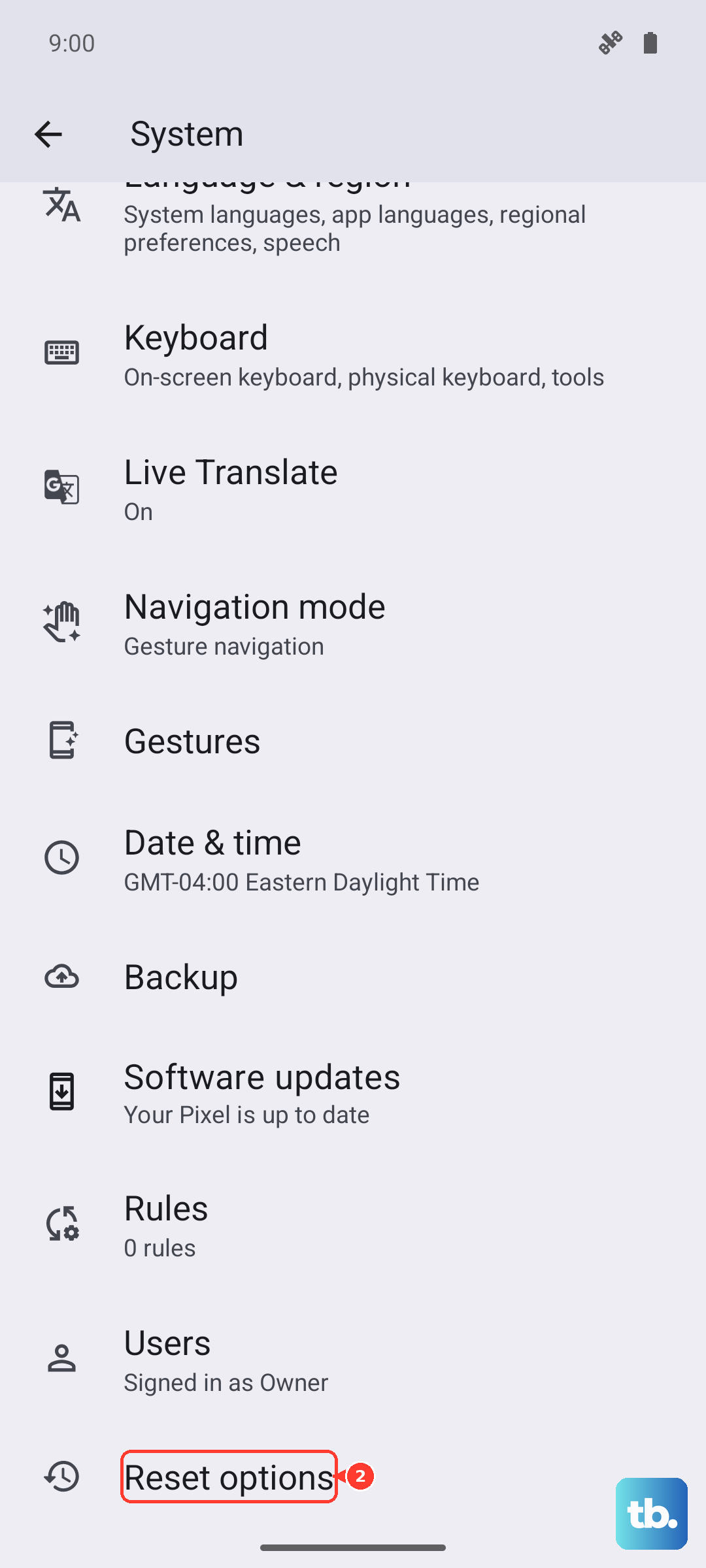
This step resets all your Bluetooth, Wi-Fi, and mobile data connections. Go to Settings > System > Reset options. Tap on Reset Wi-Fi, mobile & Bluetooth. You'll need to re-pair all your Bluetooth devices afterward, but it can resolve deep-seated connectivity problems that other fixes don't touch.
Test in Safe Mode
If the issue only happens with certain apps or after installing something new, a third-party app might be interfering. Restart your phone and hold the volume down button as it boots up to enter Safe Mode. If your headphones work fine here, you know a downloaded app is the cause. You can then uninstall recent apps one by one to find the offender.