You reach for your Realme GT 7 Pro in a dark stairwell, tap the torch toggle, and the LED stays stubbornly dark; or worse, the light is stuck on and refuses to switch off. It is a frustrating problem on a phone this capable, but the good news is that a dead flashlight on the GT 7 Pro is almost always a software state or a built-in safety limit rather than a broken component. Your model uses a single rear LED that serves as both the camera flash and the flashlight, which explains a surprising number of these glitches.
Because that one LED is shared, Realme deliberately blocks the torch in certain situations, and a few quick checks usually bring it back. The fixes below are ordered from the fastest and safest to the most involved, so work through them in order and stop as soon as the light returns. Everything here follows Realme's own support guidance for the GT 7 Pro on Realme UI 6.0 (based on Android 15).
Close the Camera app so the shared LED is free
The flashlight and the camera flash on the GT 7 Pro are the same physical LED, so the torch simply cannot fire while the Camera app is actively using the flash. If the light will not turn on, or it is stuck on and will not turn off, the Camera app is the first thing to rule out. This single fact explains the most common version of the problem.
Fully close the Camera app from the recent apps view.
Then swipe down to open Control Center.
Tap the flashlight toggle off, then on again.
The official flash guidance puts it plainly for a light that is stuck on. "Swipe from the bottom of the screen to open Control Center, then turn off the flashlight." Once the Camera app is no longer holding the LED, the toggle should respond normally.
Toggle the flashlight from Control Center
If you have been launching the torch from a widget or a shortcut that is not responding, go back to the standard control. Control Center is the supported on-device way to switch the flashlight on and off on Realme UI, and it is the most reliable place to test whether the hardware reacts at all.
Swipe down from the top of the screen to open Control Center.
Next, tap the flashlight (torch) toggle to turn it on.
Tap it again to turn it off.
If the toggle lights up the LED here but a shortcut elsewhere does not, the fault is with that shortcut rather than the flashlight itself. If even Control Center does nothing, move on to the safety limits below before assuming hardware trouble.
Check the battery before you blame the hardware
Realme intentionally disables the torch when the battery runs low, so a dead flashlight on a near-empty phone is working exactly as designed. According to the official guidance, "When the phone battery is lower than 20%, the flashlight cannot be used to ensure standby time." The camera flash has its own, separate cut-off and "cannot be turned on when the battery is lower than 15%."
If your charge is sitting below these thresholds, that alone can be the whole problem. Plug in the phone, let it climb comfortably above 20%, and then try the flashlight again from Control Center.
Give an overheating phone time to cool
Heat is the other built-in limit on the GT 7 Pro. The official wording is direct. "If the phone is in a high-temperature state, the flashlight cannot be turned on." After heavy use or time in direct sun, the phone protects itself and the LED stays off until it cools.
This is the same self-protection mechanism that affects the camera when the phone overheats, where the advice is to wait "for the temperature to cool down before using the camera again." Set the phone down somewhere cool, give it several minutes, and retry once it no longer feels warm to the touch.
Sort out HDR, flash settings, and a dirty lens
When the issue is really the camera flash failing during photos rather than the standalone torch, a few settings inside the Camera app are usually responsible. The most common culprit is HDR, which silently switches the flash off. The official guidance is clear. "Your phone will disable flash when HDR is enabled. Make sure HDR is turned off."
Open the Camera app, tap Image, then tap On to turn on flash.
After that, turn HDR off so it cannot override the flash.
Wipe the rear glass clean and make sure nothing is covering it.
A case lip, a film, or grime over the LED can mask a flash that is actually working. Realme's reminder applies here. "Be careful not to block the camera or flash of your phone. Keep the camera and flash clean."
Restart, then force restart a frozen phone
A simple restart clears the temporary glitches that can leave the flashlight unresponsive even when nothing is wrong with the LED. Power the phone off, turn it back on, and test the torch from Control Center before going any further. This costs nothing and resolves a large share of one-off software hiccups.
If the phone is frozen and will not respond to a normal restart, use Realme's official force restart sequence. "Press and hold both the Power and Volume Up buttons for at least eight seconds, until the phone is turned on." Should that still fail, the guidance is to "plug in your phone with the original charger and let it charge for up to 30 minutes, and then try again."
Clear the Camera app's data and run a hardware self-test
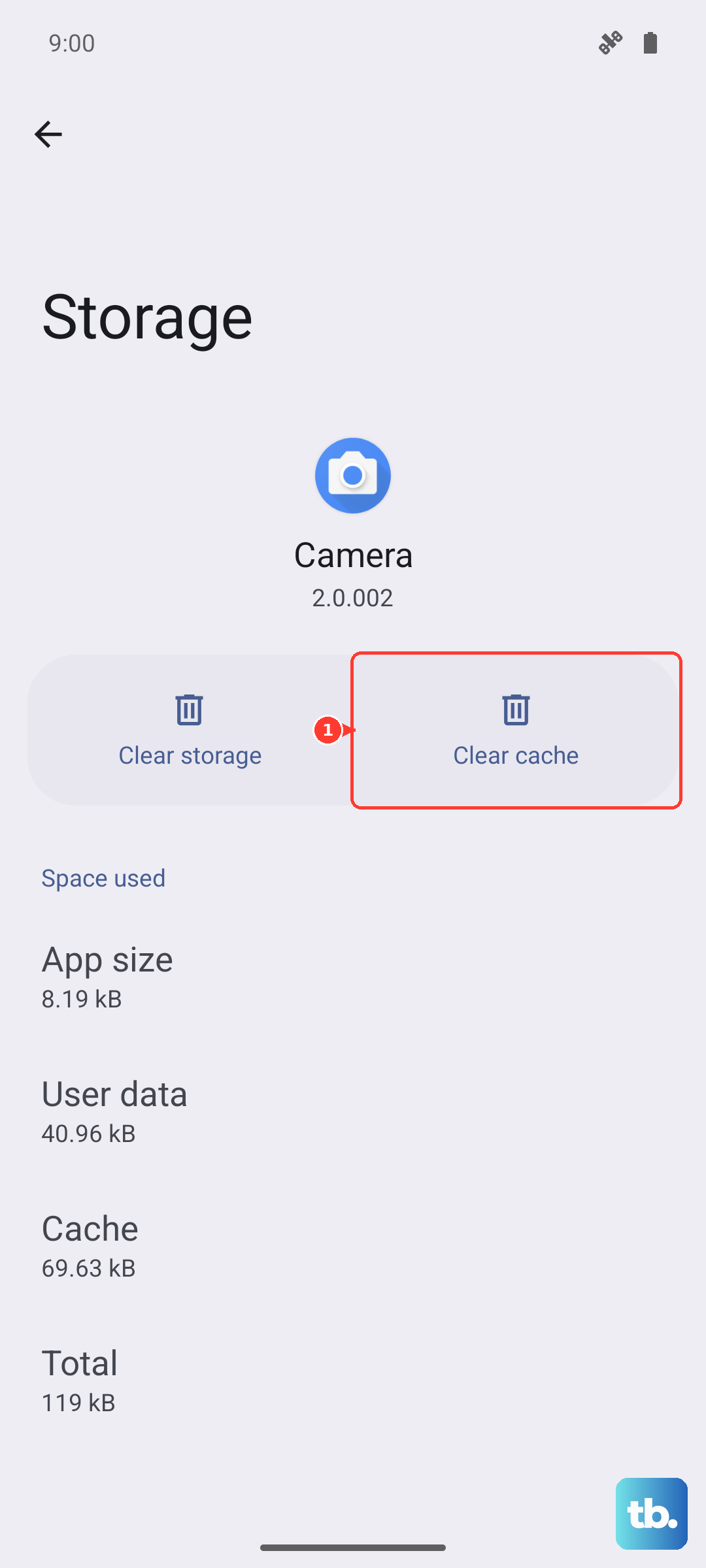
If the flashlight still misbehaves, a corrupted Camera app state can be the cause, since the camera and the torch lean on the same hardware path. Clearing the app's cache and data resets that state, and then the built-in Diagnostics tool can confirm whether the LED itself responds.
- 1.Long-press the Camera icon, then tap App info.
- 2.Go to Storage usage, then tap Clear cache, and if needed Clear data.
- 3.Open Phone Manager, tap the menu, then tap Diagnostics.
- 4.Select Camera/Additional features (deselect the rest), then tap Run Diagnostics and follow the instructions.
The Diagnostics result is the clearest signal you can get short of a service visit. If the self-test passes but the torch is still dead in everyday use, the problem is likely software; if the self-test flags the flash, you are looking at a hardware fault.
Install the latest Realme UI update
Firmware bugs can break the flashlight, and Realme ships fixes through system updates. On Realme UI 3.0 and above, which includes the UI 6.0 on your GT 7 Pro, the update check lives in the device settings.
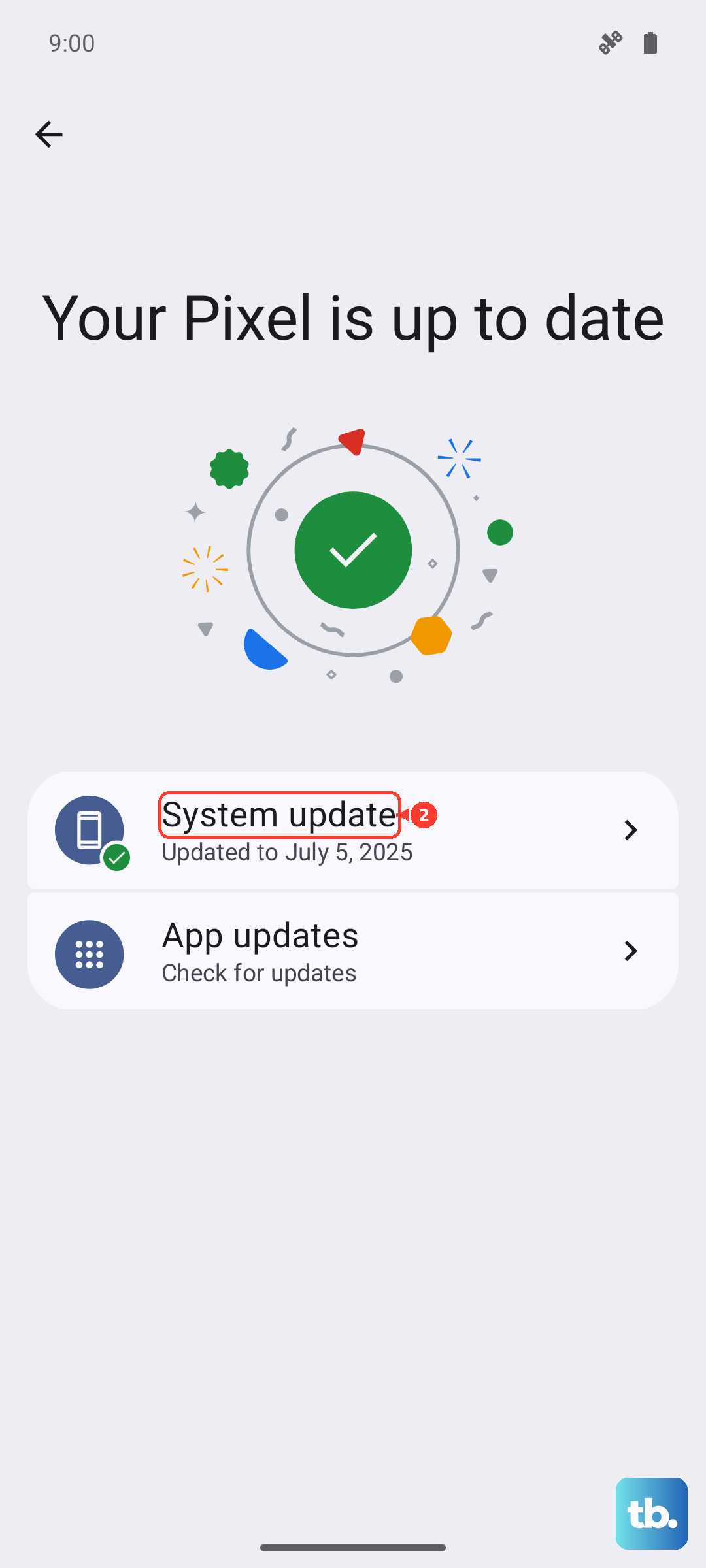
Open Settings, then tap About device.
From there, tap the "Up to date / realme UI" item at the top to check for updates.
Download and install any available update.
One important caution from the official guidance. "Shutdown and forced restarting are prohibited during the upgrade process." Keep the phone charged and leave it alone until the update finishes, then test the flashlight again.
When to factory reset and visit a service center
If nothing above has worked, a factory reset is the last software step worth trying, but it is destructive, so treat it carefully. Back up everything first, because the official warning is unambiguous. "all data in your phone will be permanently erased" and "any reset option cannot be revoked once it is operated."
Back up your photos, contacts, and anything else you cannot lose.
Once the backup is done, open Settings, then tap Additional settings.
Tap Back up and reset, then Erase all data (factory reset).
If the flashlight still fails after a clean reset, the evidence points to a hardware fault with the LED or its circuitry. At that point, take the phone and your proof of purchase to an authorized realme Service Center so a technician can inspect and repair it.
Frequently Asked Questions
Why does my Realme GT 7 Pro flashlight turn off by itself?
The two most common reasons are built-in safety limits. The torch is blocked once the battery drops below 20% to protect standby time, and it is also disabled while the phone is in a high-temperature state. Charging above 20% and letting the phone cool down usually restores it.
Can I use the flashlight while taking photos or recording video?
No. The flashlight and the camera flash are the same LED, so the torch is unavailable whenever the Camera app is using the flash. Fully close the Camera app, then toggle the flashlight from Control Center.
The camera flash will not fire during photos, but the torch works. What is wrong?
HDR is the usual cause, because the phone disables the flash when HDR is enabled. Open the Camera app, tap Image and set flash to On, turn HDR off, and make sure nothing is covering or smudging the rear glass.
Will a factory reset fix a flashlight that will not turn on?
It can fix software causes, but it permanently erases all data and cannot be undone, so back up first. If the flashlight still does not work after a reset, the problem is almost certainly hardware, and you should contact an authorized realme Service Center.