
A blurry camera on your Realme GT 7 Pro can ruin a great shot, turning what should be a sharp photo into a smudgy mess. The blur might be constant, only happen in low light, or affect just one of the lenses. Before you worry about a hardware defect, there are several software and simple fixes to try first.
Clean the Camera Lenses
Start with the most obvious fix. Use a soft, lint-free microfiber cloth to gently wipe all the camera lenses on the back of your phone. Fingerprints, dust, and smudges are the number one cause of hazy, blurry photos. I'd avoid using your shirt or a paper towel, as they can leave micro-scratches on the lens coating over time.
Remove Your Phone Case
Take your case off and take a test photo. Some cases, even well-designed ones, can have a camera cutout that sits too close to the lenses. This can cause a slight shadow or catch light in a way that softens the image. Also, make sure you haven't accidentally left a plastic film or a separate camera lens protector on that's interfering with the glass.
Tap to Focus and Adjust Exposure
Open the Camera app and tap directly on your subject on the screen. You'll see a focus box appear. If the camera is focusing on the background, your subject will be blurry. You can also press and hold on the screen to lock both focus and exposure (AE/AF Lock), which is great for keeping a moving subject sharp.
Switch Between Camera Lenses
Your GT 7 Pro has multiple lenses. Try switching between them in the Camera app to see if the blur is isolated to one. If the main 1x lens is blurry but the ultrawide or telephoto is clear, the issue is likely with that specific lens module, either from dirt or a hardware fault.
Force Close and Reopen the Camera App
Swipe up from the bottom of the screen and hold to enter the recent apps view. Find the Camera app and swipe it away to close it completely. Then reopen it. This clears any temporary glitch in the app that might be causing the autofocus or image processing to malfunction.
Restart Your Phone
If the app restart didn't help, give the whole system a refresh. Press and hold the Power button for about 10 seconds until you feel a vibration and see the Realme logo. This force restart clears out any system-level processes that could be affecting the camera's performance.
Check for Software Updates
Camera performance and bug fixes are often included in system updates. Go to Settings > About device > Realme UI version and tap on the banner to check for updates. If there's one available, install it. A known camera blur issue in Android 15 or Realme UI 6.0 might already have a patch.
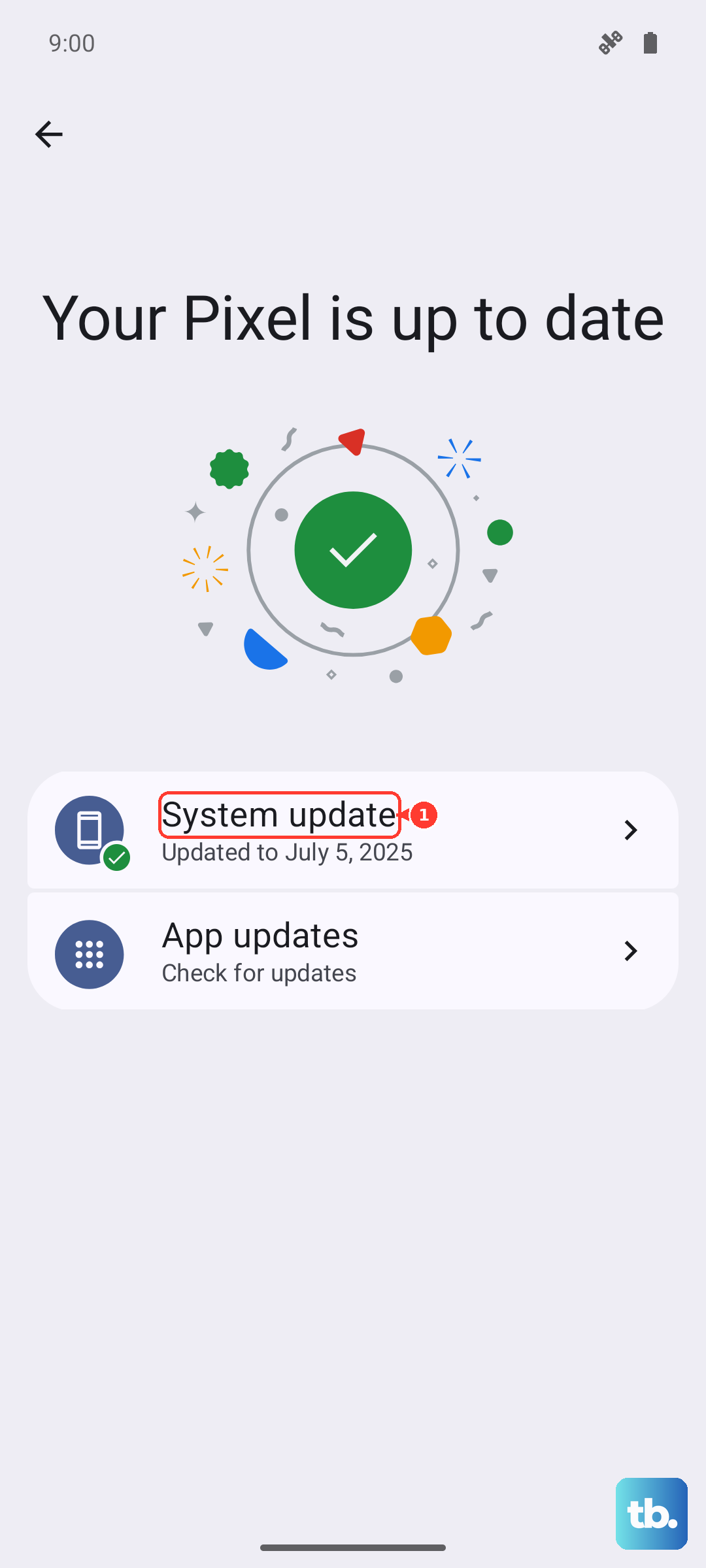
Reset the Camera App Settings
If you've changed a lot of settings, one of them could be causing the problem. Open the Camera app, tap the hamburger menu (three lines) or the settings gear icon, and look for an option to reset settings or restore defaults. This will wipe any custom modes or preferences and start you fresh.
Check for Moisture or Condensation
While the GT 7 Pro has an IP69 rating for water resistance, moving from a cold environment to a warm one can cause condensation to form on the inside of the camera lens cover. This creates a permanent foggy blur in photos. Let the phone sit at room temperature for 20-30 minutes to see if it clears. Don't try to dry it with a hairdryer, as the heat could damage components.
Disable AI Scene Enhancement Temporarily
Realme's camera software often includes AI scene recognition that adjusts colors and sharpness. Sometimes, this processing can over-sharpen or incorrectly handle certain scenes, making them look artificially blurry. In the Camera app, look for an "AI" icon or a setting called "AI Scene Enhancement" and turn it off to see if you get a cleaner, more natural image.
If you're shooting in Pro or Expert mode, also double-check your manual focus setting. It's easy to accidentally leave the focus ring set to the wrong distance, which would keep everything out of focus. Switch back to auto-focus or adjust the ring until your subject is sharp.