Your Realme GT 7 Pro reaches for your earbuds, car stereo, or smartwatch, and nothing locks in. The accessory never appears in the list, the connection drops a few seconds after it pairs, or audio simply refuses to route through the device you just selected. Because this phone ships with Bluetooth 5.4 built in (no extra app is needed to use it on the phone itself), a failed connection almost always comes down to a setting, a software hiccup, or the accessory rather than missing hardware.
The fixes below move from the quickest, safest checks to the official reset and repair paths. Work through them in order and stop the moment your device reconnects.
Start with distance, battery, and pairing mode
Before changing any settings, rule out the basics that block most pairings. Keep the Realme GT 7 Pro and the Bluetooth accessory within 10 meters of each other, and make sure both are fully charged or powered on.
Realme also notes that smart power management can switch Bluetooth off when the battery is too low, so top up the phone if it has been running near empty. Finally, confirm the accessory is actually in pairing mode and ready to connect, since a device that is asleep or already linked elsewhere will not show up to be paired.
Restart the phone, then toggle Bluetooth off and on
A normal restart clears temporary glitches that stop Bluetooth from scanning or holding a connection. Restart your Realme GT 7 Pro, re-enable Bluetooth, and try the accessory again.
If the phone is frozen and will not respond to a normal restart, force restart it:
- 1.Press and hold the volume + button and the power button for 15 seconds to force restart the phone.
- 2.If your model does not respond, hold volume +, volume -, and power together instead.
- 3.Wait for the phone to power back on, then turn Bluetooth on and reconnect.
A forced restart will not erase the phone's contents, so it is safe to use when the screen is stuck.
Forget the stubborn device and pair it fresh
When a previously paired accessory connects unreliably or not at all, a stale pairing record is often the cause. Removing it and starting over gives the phone a clean handshake.
Open the phone's Bluetooth settings.
Then cancel (forget) the already-paired device in the Bluetooth settings interface.
Next, rescan for the connection and pair the accessory again from scratch.
This is also the right step after you have changed accessories or swapped between two sets of earbuds that share the same name.
Pull an earphone away from a device that grabbed it first
If your earphones keep jumping to a laptop, tablet, or second phone instead of the GT 7 Pro, another device is claiming them before yours can. You need to free the earphones, then steer them back.
Temporarily turn off Bluetooth on the other device, or cancel its pairing with the earphone.
After that, put the earphone and the phone together, within 10 meters of each other.
Re-pair the earphone to the Realme GT 7 Pro.
If it still will not cooperate, restore the earphone to factory settings by pressing and holding its multi-function button for more than 10 seconds, then pair again.
Confirm the accessory works on a different phone
It is worth proving whether the fault sits with the phone or the accessory before you start resetting anything. Try the headset or device on another phone and check whether it pairs and works properly there.
If the accessory fails on the other phone too, the accessory is the problem and no amount of changes on the GT 7 Pro will fix it. If it works elsewhere, you have confirmed the issue is on your phone, and the remaining software steps are the right place to focus.
Install the latest realme UI software update
Bluetooth bugs are frequently patched in system updates, so make sure you are on the latest version. The realme GT 7 Pro runs realme UI 6.0 based on Android 15, and the update check lives in Settings.
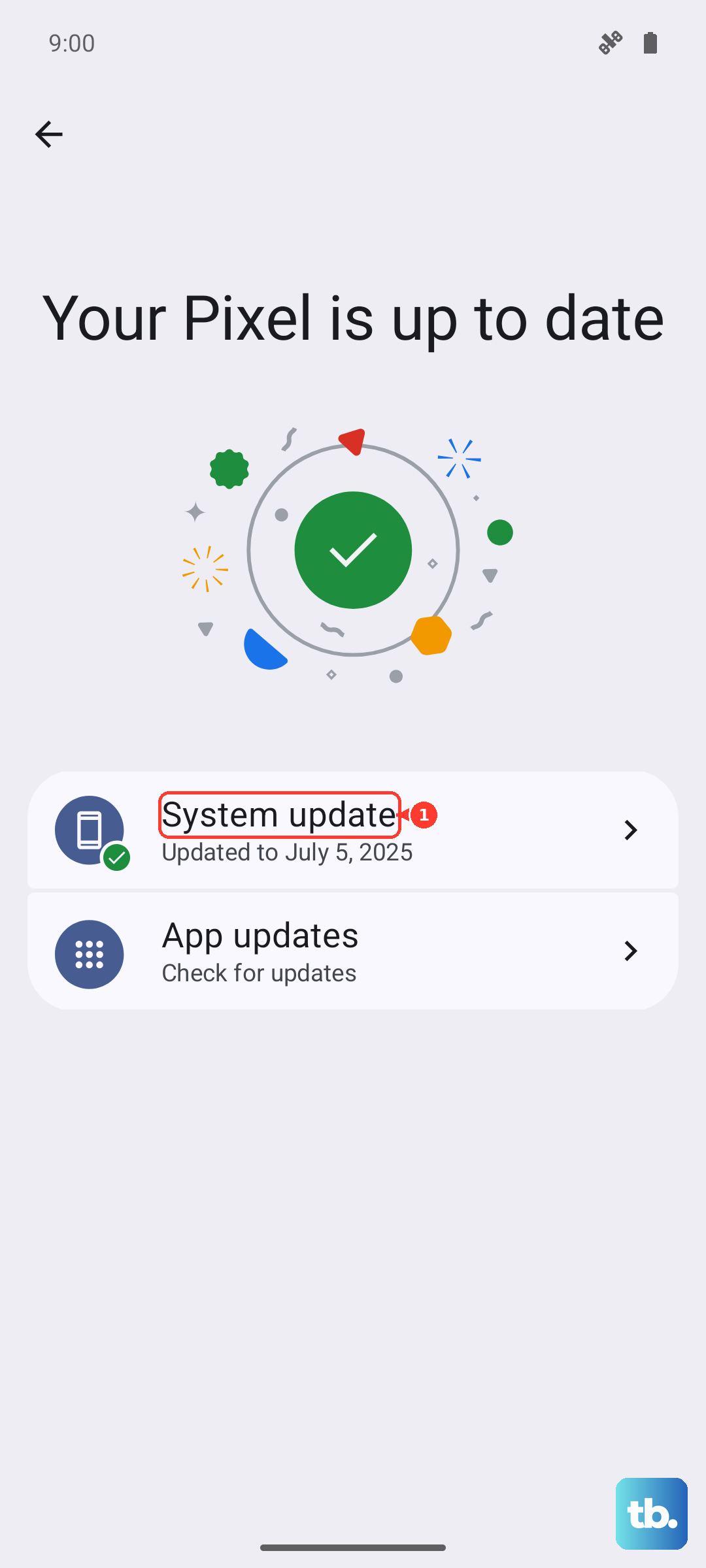
Go to Settings > About device.
Tap the "Up to date/realme UI" entry at the top to check for updates.
If one is available, download and install the latest version.
The update will not delete or change your data, but Realme recommends backing up first and keeping enough free storage. Do not shut down or force restart the phone during the upgrade.
Clear the cache of the app that keeps dropping Bluetooth
If Bluetooth fails only inside one app (for example, a music, navigation, or fitness app) while other devices pair fine, that app's cached data may be corrupted. Clearing it forces the app to rebuild a clean connection.
Go to Settings > Apps > App management.
Select the app that uses Bluetooth.
Open Storage usage.
Tap Clear Storage data or Caches.
Clearing storage data deletes the app's saved data, so back up anything important in that app first. Clearing only the cache is the gentler option to try before storage data.
Reset network settings without losing your data
When several connections misbehave, resetting Wi-Fi, mobile, and Bluetooth settings back to default clears the problem without touching your files. This is the strongest fix that still keeps your data intact.
Go to Settings > System & updates > Back up and reset.
Tap Reset Phone.
Choose Reset network settings.
Realme states that performing this operation will not wipe any of your data. Afterward you will need to re-pair your Bluetooth devices and re-enter your Wi-Fi passwords, so have those handy before you start.
Erase all data as a last-resort factory reset
If Bluetooth still fails after everything above, a full factory reset returns the software to a clean state. This is destructive, so treat it as a last resort and back up first using Clone Phone or the cloud.
Back up your data (Clone Phone or cloud).
Go to Settings > System & updates > Back up and reset.
Tap Reset Phone.
Choose Erase all data.
Realme warns that restoring the factory settings will delete all your data, so back up to the cloud in time or use "Clone Phone" to save it. Any reset option cannot be revoked once it is performed.
Let a realme Service Center test the hardware
If a clean factory reset does not restore Bluetooth, the fault may be in the hardware rather than the software. At that point the phone needs professional testing.
Back up your data, then take the phone, along with your proof of purchase, to a nearby authorized realme Service Center for testing or repair. Bringing the misbehaving accessory along can help the technician confirm where the failure lies.
Frequently Asked Questions
Does the Realme GT 7 Pro actually have Bluetooth?
Yes. Realme's official specifications list Bluetooth 5.4 on the GT 7 Pro, alongside NFC / 360 NFC, IR Control, and Wi-Fi 802.11 a/b/g/n/ac/ax/be. No separate app is required to use Bluetooth on the phone itself.
Do I need the realme Link app to use Bluetooth?
No. The realme Link app is only for pairing realme wearables and IoT accessories, such as a realme Watch. The phone's own Bluetooth works without it.
Will resetting network settings delete my files?
No. Realme states that performing this operation will not wipe any of your data. You will, however, need to re-pair your Bluetooth devices and re-enter your Wi-Fi passwords afterward.
Does a force restart erase the phone?
No. A forced restart does not erase the phone's contents. To do it, press and hold the volume + button and the power button for 15 seconds (some realme models need volume +, volume -, and power together).
What is the safest order to try these fixes?
Start with the checks that change nothing, including distance, battery, pairing mode, a restart, and forgetting and re-pairing the device. Move on to software updates and clearing an app's cache, then reset network settings (no data loss) before considering a factory reset, which erases everything and cannot be undone.