You hit print expecting a crisp page, and instead the paper comes out pale, washed-out, or crossed with thin streaky lines. It is one of the most common and frustrating printer problems, and the good news is that you can usually trace the cause and fix it yourself. The trick is to work through the likely culprits in the right order, starting with quick checks before touching anything technical on your Windows PC.
This guide walks through the fixes from easiest and safest to more involved, covering both Windows 10 and Windows 11. Work down the list in order and stop as soon as your prints look clean again.
Start With the Paper, Ink, and a Quick Power Cycle
Before blaming Windows, rule out the simple stuff. Faded or streaky output is very often a supplies or hardware hiccup, and Microsoft lists checking the printer and paper as the very first step for blurry, faded, or streaked prints.
Load clean, dry paper of the correct type and size into the tray. Make sure your ink or toner is not low or empty. Clear any jammed or partially fed paper from the printer.
Turn the printer off. Unplug it from power. Wait about 30 seconds, then plug it back in. Turn it on.
A power cycle clears temporary glitches in the printer's own memory and often restores normal output on its own. If the streaks persist after this, move on to isolate where the problem actually lives.
Print a Self-Test Page Straight From the Printer
This single step tells you whether you are chasing a Windows problem or a hardware problem. Print a test or self-test page directly from the printer's own control panel, not from your PC.
If that page also comes out faded or streaked, the issue is the hardware itself, meaning the ink, toner, or printhead, rather than anything on the Windows side. In that case, focus your energy on the supplies and printhead-cleaning steps further down.
If the self-test page looks perfectly clean, the printer hardware is fine and the trouble is coming from how Windows is sending the job. Continue with the Windows-side checks below.
Dial In Your Print Quality Settings in Windows
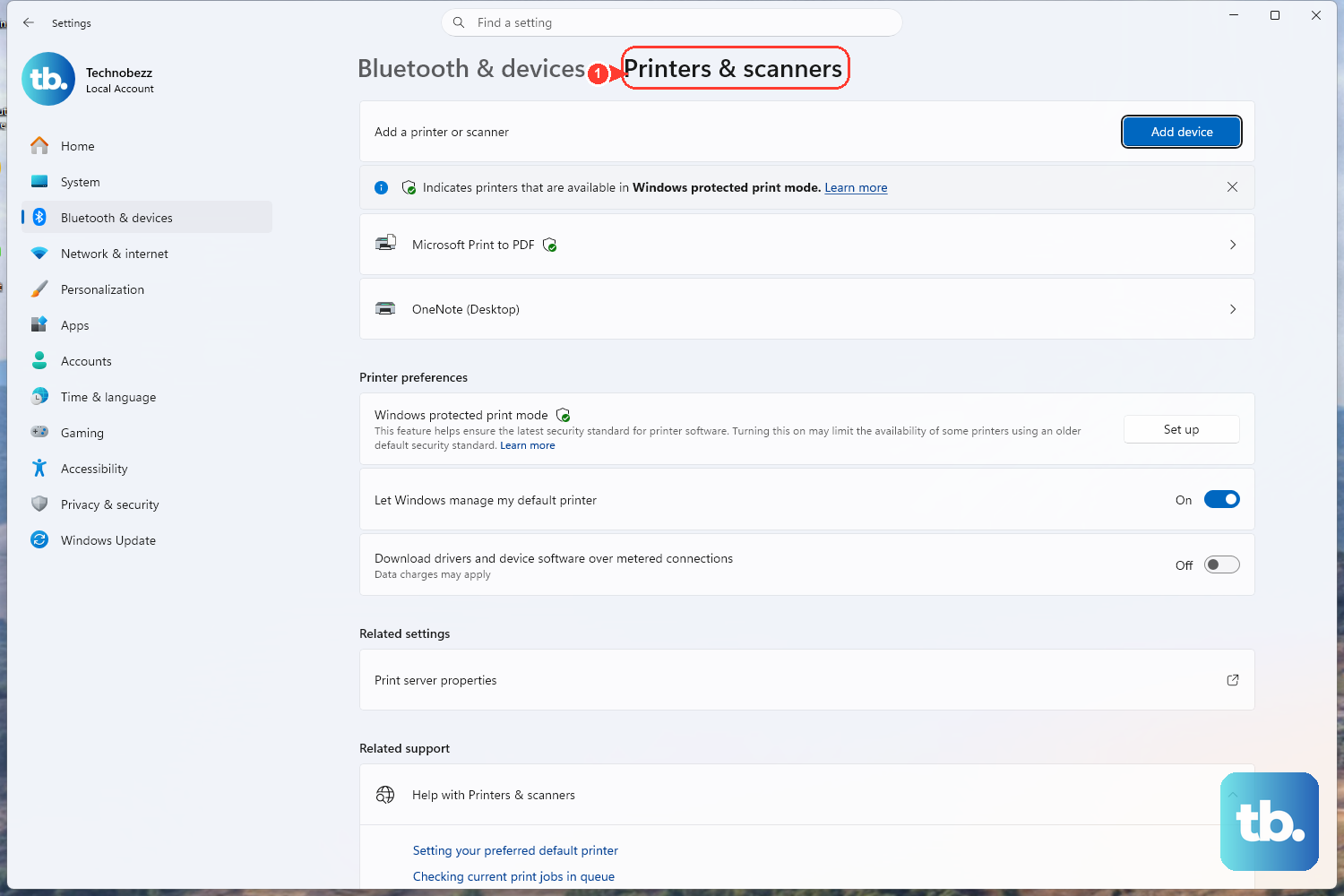
A common cause of pale output is a quality or economy setting working against you. Windows lets you control resolution, draft mode, and paper type per printer, and getting these right often fixes faint prints instantly.
On Windows 11, go to Settings > Bluetooth & devices > Printers & scanners. Select your printer and open Printing preferences.
On Windows 10, go to Settings > Devices > Printers & scanners. Select your printer, then choose Manage followed by Printing preferences.
Inside Printing preferences, set the print quality or resolution to Normal or Best. Turn off any economy or draft mode if it is enabled. Finally, confirm that the selected paper type matches the paper you actually loaded; a mismatch here can leave prints looking thin or streaky.
Let the Get Help Troubleshooter Diagnose It Automatically
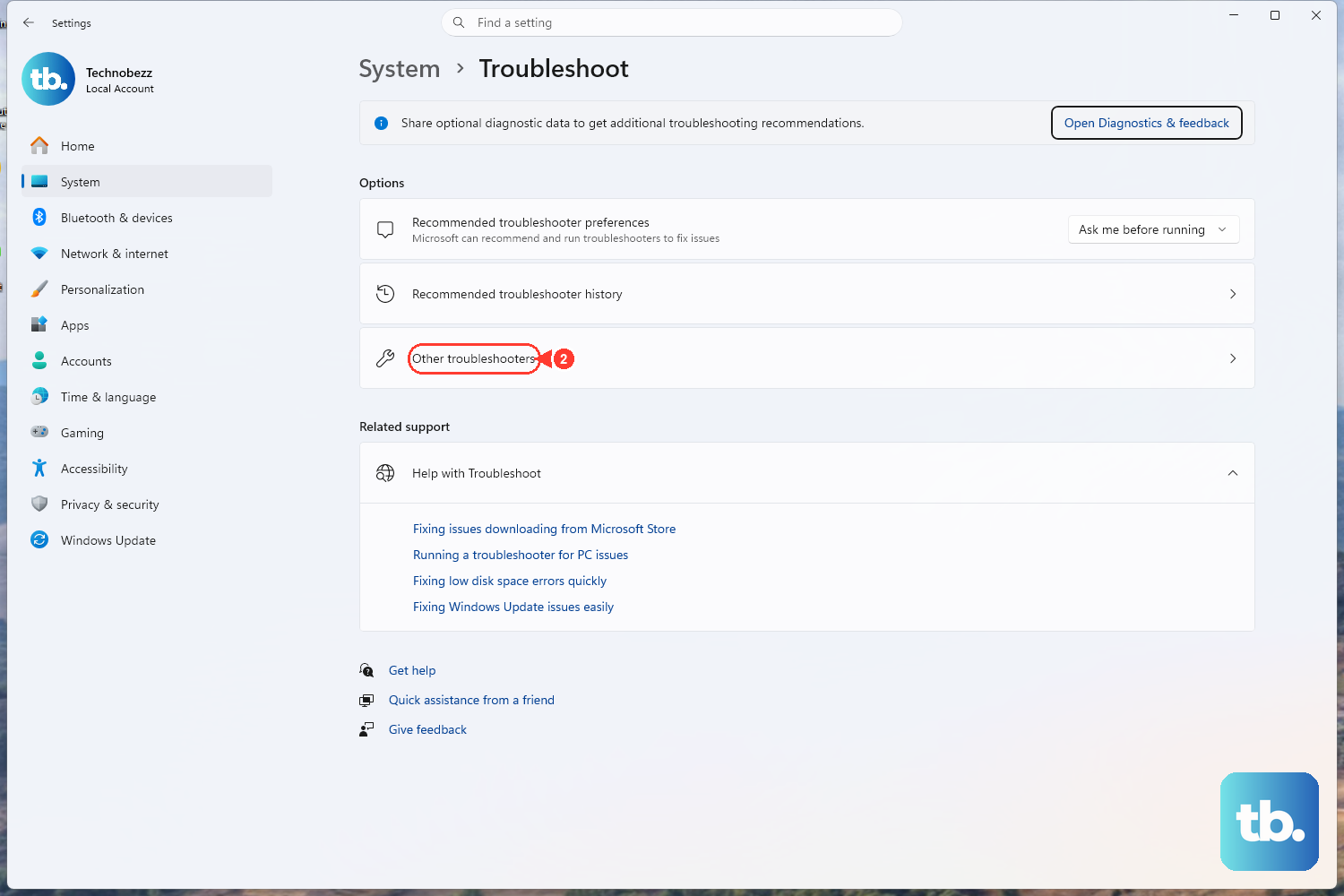
If adjusting settings did not help, hand the problem to Microsoft's automated tool. The Windows printer troubleshooter now lives in the Get Help app and runs diagnostics for you, attempting to fix most printer problems on both Windows 10 and Windows 11.
Open the Get Help app. Run the Windows printer troubleshooter, or use the link at aka.ms/PrinterConnection to reach it. It checks for common issues and applies fixes automatically without you needing to know the underlying cause.
Note that the older Settings-based troubleshooters have been replaced by the troubleshooters integrated into Get Help, so Get Help is the current path Microsoft points you to for printer repairs.
Run a Printhead Cleaning Cycle on Inkjet Printers
If you have an inkjet printer and the test page confirmed a hardware issue, a clogged or dirty printhead is the most likely cause of faded or streaky lines. Microsoft directs you to run Clean printhead, Align printhead, or the printer's Maintenance tools through the printer's software or control panel.
The exact tool depends on your brand:
HP: Open the HP Smart app. Select your printer. Choose Print Quality Tools. Choose Clean Printhead.
A second or third deeper cleaning may be needed. You should wait at least 30 minutes between cleanings.
Canon: In the printer driver's Maintenance tab, choose Cleaning. Choose Deep Cleaning if regular cleaning does not help.
Epson: Use the Head Cleaning utility in the printer software. Use Power Cleaning from the control panel for stubborn clogs.
Brother: Run print-head cleaning at the Normal, Strong, or Strongest level. Use the Print Quality Check Sheet to see if the result improved.
Give the cleaning cycle time to finish and the ink time to settle before judging the results. If one cycle does not fully clear the streaks, a deeper cleaning level often does the job.
Cancel Stuck Jobs Sitting in the Print Queue
A corrupted or stalled print job can produce garbled, faint, or incomplete output for everything that follows it. Clearing the queue gives the printer a clean slate.
On Windows 11, go to Settings > Bluetooth & devices > Printers & scanners. Choose your printer and select Open print queue. Right-click each job in the queue and select Cancel.
On Windows 10, go to Settings > Devices > Printers & scanners. Choose your printer and select Open queue. Then right-click each job and select Cancel.
Restart the Print Spooler Service
If a job refuses to cancel or the queue seems frozen, the Print Spooler service that manages all printing may need a restart. This applies to both Windows 10 and Windows 11.
Press Windows key + R to open the Run dialog. Type services.msc and press Enter to open the Services console. Locate Print Spooler in the list. Right-click it and select Restart.
If a job is badly stuck, you can clear the spooler's leftover files instead.
Make sure no important jobs are mid-print before deleting these files, as anything queued will be permanently removed.
- 1.In the Services console, right-click Print Spooler and choose Stop.
- 2.Open File Explorer and go to C:\Windows\System32\spool\PRINTERS.
- 3.Delete all files in that folder to clear the stuck jobs.
- 4.Return to the Services console, right-click Print Spooler, and choose Start.

Confirm the Printer Is Set as Default and Not Offline
Printing to the wrong device, or to one that Windows thinks is offline, can leave you staring at bad or missing output. Setting the correct default and clearing any offline state keeps your jobs going where they should.
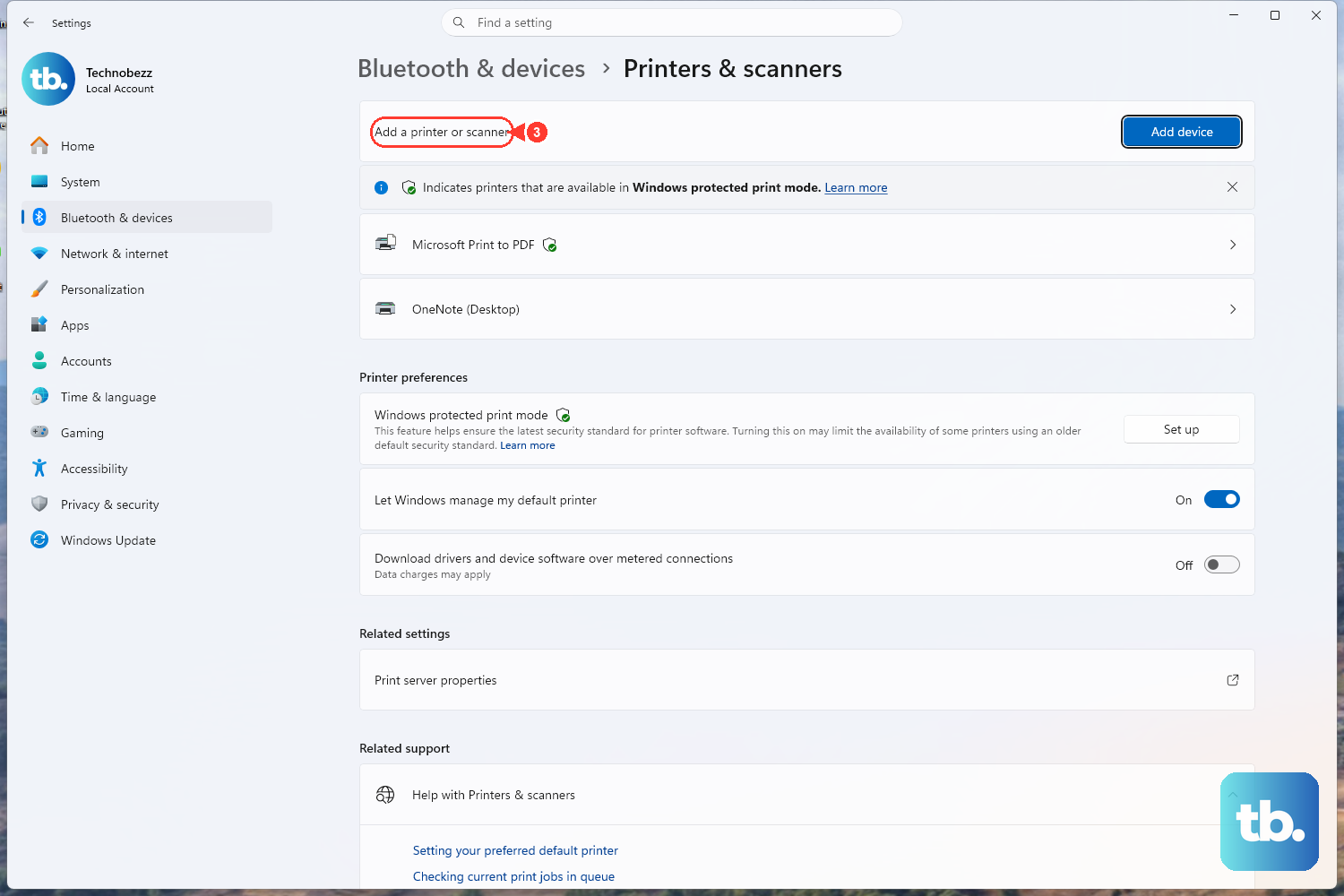
On Windows 11, go to Settings > Bluetooth & devices > Printers & scanners. Turn off Let Windows manage my default printer. Select your printer. Choose Set as default.
On Windows 10, go to Settings > Devices > Printers & scanners. Make sure Let Windows manage my default printer is turned off. Select your printer. Choose Manage, then Set as default.
On Windows 10 you can also open the print queue. On the Printer menu, clear Pause Printing and Use Printer Offline if either is currently selected.
Update or Reinstall the Printer Driver
A faulty or outdated driver is Microsoft's listed fix for poor print quality, and it is worth trying when everything else checks out. Refreshing the driver gives Windows a clean connection to the printer.
Open Device Manager. Expand the Printers section. Right-click your printer. Choose Update driver.
If print quality is still poor afterward, right-click the printer again. Choose Uninstall device. Reinstall the driver.
Uninstalling the device removes the printer from Windows, so be ready to reinstall the driver afterward to get printing again.
Once the fresh driver is in place, run a quick test print to confirm the lines are crisp.
Frequently Asked Questions
Why is my printer suddenly printing faded lines when the ink is full?
Even with plenty of ink, an inkjet printhead can clog and produce faded or streaky output. Running the printer's Clean printhead or Maintenance cleaning cycle usually clears this, and a deeper cleaning may be needed if one pass does not fully restore the print.
How do I know if the problem is my printer or my Windows PC?
Print a self-test page directly from the printer's own control panel rather than from your computer. If that page is also faded or streaked, the issue is the hardware; if it looks clean, the problem is on the Windows side, such as quality settings, the print queue, or the driver.
Where is the Windows printer troubleshooter now?
Microsoft moved the printer troubleshooter into the Get Help app. Open Get Help and run the Windows printer troubleshooter, or use the link at aka.ms/PrinterConnection, and it will run diagnostics and attempt repairs automatically on both Windows 10 and Windows 11.
Is it safe to delete files in the spool PRINTERS folder?
Yes, as long as you Stop the Print Spooler service first and understand that any queued jobs will be removed. After deleting the files in C:\Windows\System32\spool\PRINTERS, set Print Spooler back to Start, and your printer will accept new jobs normally.
How long should I wait between printhead cleaning cycles?
It depends on the brand. For HP printers, wait at least 30 minutes between cleanings. Other brands recommend their own intervals before repeating a deep clean, so follow the guidance shown in your printer's maintenance utility rather than running cycles back to back.